
Help center examples: 10 articles and their screenshots, annotated
Ten help center articles, from Apple and Slack to Things and Raycast, captured the same day and annotated on one thing: how their pictures show the product.
Chris Raroque
·

Many lists of help center examples judge the home page: the search bar, the category tiles, the contact button. People who come from search often land on an article rather than the home page, so this list opens one article in each of ten help centers and looks only at its pictures: what they show, what they leave out, how they are cropped and what they point at. Each example has a close-up of the one thing worth copying, a line on how to copy it, and, where there is one, what to skip.
Every page was captured on September 18, 2026, in a 1440-pixel-wide browser window (one close-up came from a phone-width window, and its caption says so). The captures, and the red arrows and boxes on them, were made with Moonjar, the screenshot app we make (it is in early access). The help centers, and every picture inside them, belong to the companies that published them.
Help center and article | The detail to copy |
|---|---|
Slack: Set your Slack status | Draw the interface, leave out the words |
Apple: Take a screenshot on iPhone | Draw what a screenshot can’t show |
Figma: Make someone an organization admin | No screenshot; the icon in the step |
Things: Today, Upcoming, Anytime and Someday | One sample account in every picture |
1Password: Get to know 1Password for Mac | A twin article for each platform |
Mailchimp: Getting Started with Tags | Crop to the component |
Linear: Triage | Crop to what the section explains |
Notion: Intro to databases | Numbers on the picture match the steps |
Raycast: Clipboard History | The menu shown open |
Todoist: Get started with Todoist | Who it’s for, before the first picture |
What these ten do with pictures
They show only what the step needs. Linear crops a section’s picture to a strip only as tall as the popover it is about, Mailchimp to one card or one menu, and Slack goes further and draws its interface with gray bars where the words would be.
They use one made-up account everywhere. Things fills five screenshots with the same areas and projects, 1Password shows the same demo account on Mac and Windows, and the tags in Mailchimp’s contact table could belong to one small plant business.
The words and the picture point at each other. Notion numbers its picture the way it numbers its steps, Apple and Figma put a button’s own icon inside the sentence, and Raycast’s screenshot shows the menu open with the options the text lists.
They draw what a screenshot can’t show. Apple draws the buttons on the outside of the phone.
They say who the article is for before the first picture. Figma opens with the plans and roles that can use the feature, Todoist with plan and platform tags, and Raycast marks Pro options in the list itself.
They keep down the number of pictures that must change with the product. Slack’s status article reuses one image file for every set of steps that starts at the profile picture, and Figma’s admin article uses none.
The same habits, written as rules with sizes and a style sheet you can hand to whoever makes your next image, are in the documentation screenshot style guide.
Pictures that aren’t screenshots
Slack: draw the interface and leave out the words
Slack’s article on setting your status has a Desktop and a Mobile tab, and on the Desktop tab the first step, “Click your profile picture in the sidebar.”, comes with a picture that isn’t a screenshot. It’s a drawing of Slack: the purple sidebar, a hand cursor on the profile picture and the menu that opens, with every name and menu row drawn as a gray bar.

Slack’s steps for setting a status, on the Desktop tab. Screenshot of slack.com, captured September 18, 2026.
Leaving out the words does two things. The eye goes to what isn’t a bar: the cursor on the profile picture. And the picture doesn’t go stale when a label, a name or a menu row changes. Slack uses the same image file after every step on this page that says to click your profile picture (six times in the page’s HTML on September 18, 2026), so one file serves every set of steps that begins there.

Close-up of Slack’s drawing: names and menu rows are gray bars, arrow added. Screenshot of slack.com, captured September 18, 2026.
What to skip: the next step says “Click the Update your status field.”, and in the picture every row of that menu is a gray bar, so the words have to find the field on their own. Bars work for the parts around a step; the thing the reader has to find deserves its real label.
Copy this: for a starting point many articles share, like a profile menu or a settings gear, make one image and reuse it everywhere. Draw the surroundings plainly, and keep the real label on the one thing the reader has to find.
Apple: draw what a screenshot can’t show
Apple’s iPhone User Guide page on taking a screenshot starts with buttons, and a screenshot can’t show buttons. So step 1 has a line drawing: two iPhones, one with Face ID and one with a Home button, with green arrows at the buttons to press on each. One drawing covers both kinds of iPhone, and the note in step 1 tells Home button owners which buttons to press.

Step 1 of Apple’s screenshot guide and its drawing of the buttons. Screenshot of support.apple.com, captured September 18, 2026.
The alt text is as careful as the drawing. It begins “Two iPhones, one with Face ID and the other Touch ID” and goes on to say where each arrow points, so a screen reader gives the same instruction. In step 2, the editor’s buttons appear as their own small icons in the middle of the sentences (tap the crop icon, then drag the handles), which is quicker to match than a name.

Close-up of Apple’s drawing, box added around the Home button model. Screenshot of support.apple.com, captured September 18, 2026.
Copy this: when a step happens off the screen (a hardware button, a gesture, a cable), draw it instead of forcing a screenshot, and write alt text that gives the same instruction the drawing does.
Figma: skip the screenshot, put the icon in the step
Figma’s article on making someone an organization admin has no screenshots at all. It opens with a “Who can use this feature” box (“Available on the Organization and Enterprise plans” and “Organization admins only”), so a reader on another plan learns in two lines that the rest doesn’t apply. Then come four steps that name each control, and three of them show the control’s icon in a small box: a gear before Admin, a person before People, three dots for the menu at the end of a row.

Figma’s article opens with who can use the feature and has no screenshots. Screenshot of help.figma.com, captured September 18, 2026.
For a four-click admin task that’s enough, and a redesign of the admin screen leaves no screenshot to retake, only icons to check. The page also asks about its pictures: the form behind its “No” answer to “Was this article helpful?” lists “Issues with images, GIFs, or videos” as a reason.
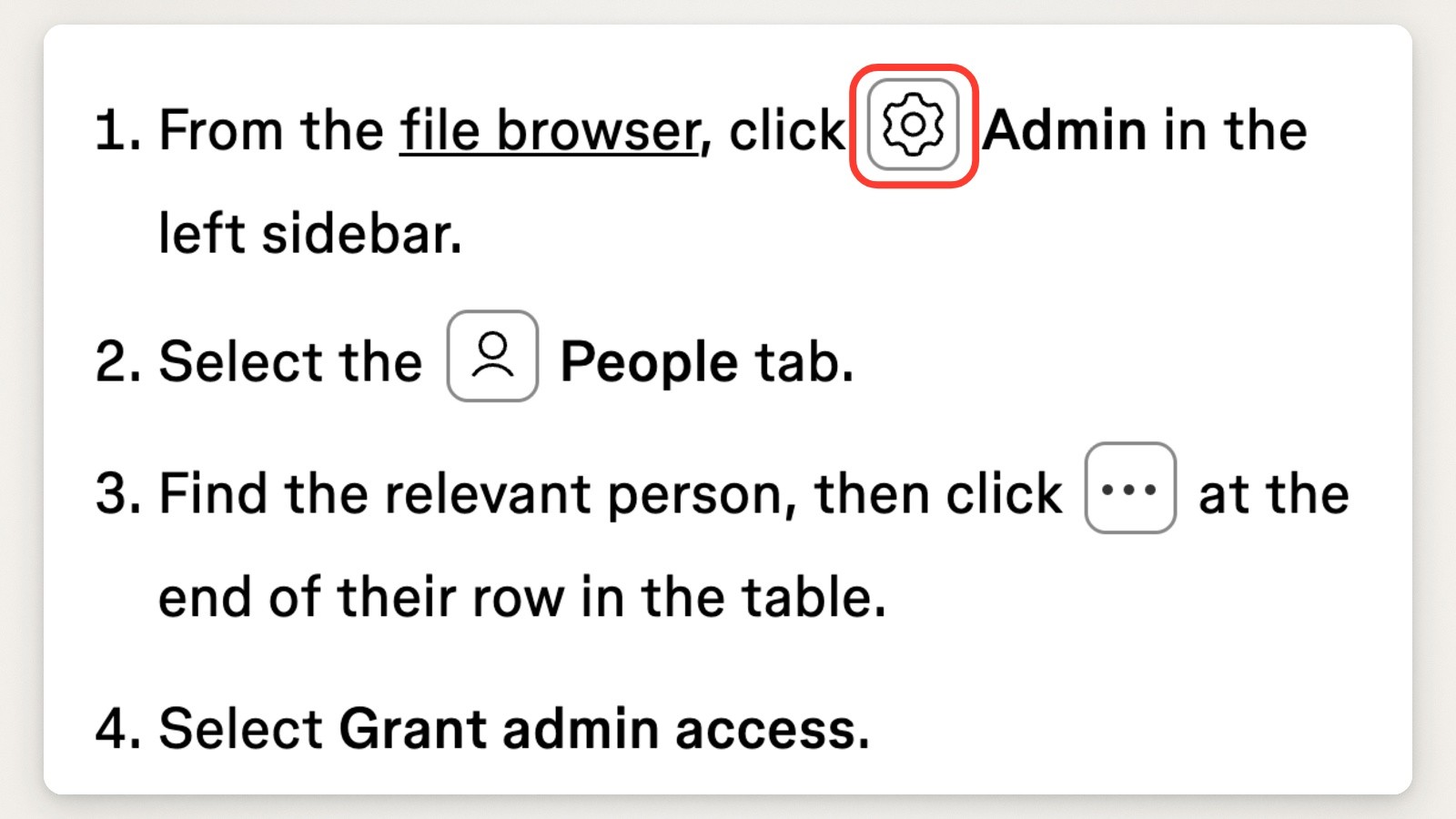
Close-up of Figma’s steps from a phone-width window, box added around the gear icon. Screenshot of help.figma.com, captured September 18, 2026.
What to skip: this works only when the steps are few and the icons are distinct. A reader who can’t find the gear has no picture of the screen to compare against.
Copy this: for a short task with distinct icons, open with who the feature is for and put each button’s icon in the sentence instead of adding a screenshot. Add a “pictures were a problem” reason to your feedback form so readers can tell you when that isn’t enough.
Screenshots staged for the article
Things: one sample account in every picture
Things’ article on Today, Upcoming, Anytime and Someday has one screenshot for each of Today, Upcoming, Anytime, Someday and the Inbox. Each is the Mac window on its own, with no desktop behind it, and all five come from the same sample account: the same areas (Family, Work, Hobbies) and projects (Vacation in Rome, Throw Party for Eve, Learn Basic Italian) in the sidebar.

Things’ Today section and its screenshot of the Today list. Screenshot of culturedcode.com, captured September 18, 2026.
The sample data hangs together. To-dos name their project, so “Borrow Emma’s travel guide” sits under Vacation in Rome in the Today list, and the same project turns up again in Anytime with “Visit the Colosseum”. A reader moving between lists sees the same things move, which is the point of the article. A steady sample account also lets one picture be replaced without redoing the set, and the image addresses suggest that happened here: the Upcoming picture sits in a folder dated 2026/08, the other four in 2025/10. It has the same areas and projects, though its sidebar lists them in a different order (Hobbies above Work), the kind of small drift a set picks up when one picture is redone on its own.
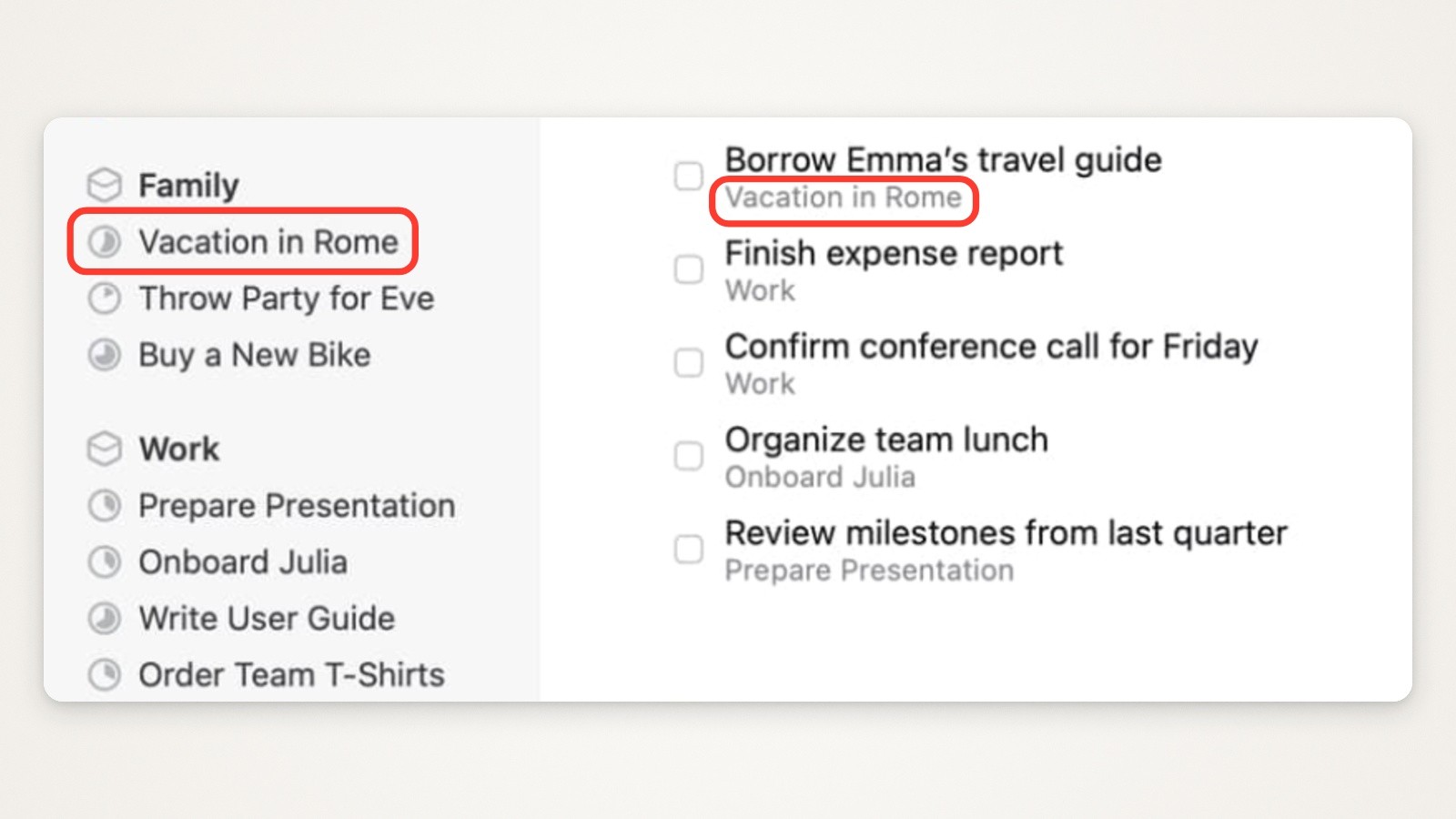
Close-up of the Today screenshot: the same project in the sidebar and under a to-do, boxes added. Screenshot of culturedcode.com, captured September 18, 2026.
What to skip: each screenshot is a whole window shown about 600 pixels wide in a 1440-pixel browser window, so the text inside it is small, and smaller on a phone. A crop to the part of the list the paragraph describes would read better.
Copy this: build one sample account whose data hangs together and use it in every picture of an article. When you redo one picture later, restore the same sample state first, down to the sidebar order. Keeping a whole set current is covered in how to keep help center screenshots up to date.
1Password: a twin article for each platform
1Password’s getting started guide for Mac has a twin for Windows: nearly the same headings (14 of the Windows page’s 15 appear on the Mac page, in the same order), the same demo account (Wendy Appleseed, with the same logins for Zoom, Instagram, Netflix and Evernote), and a screenshot of each platform’s own app. Shortcuts are drawn as keys, and they change with the platform: Command N on the Mac page, Ctrl N on the Windows page.

1Password’s Mac guide: the Mac app with a demo account, and Command N drawn as keys. Screenshot of support.1password.com, captured September 18, 2026.
Nobody has to translate. The Windows reader sees a Windows window with its title bar and window buttons, and presses the keys printed in front of them.
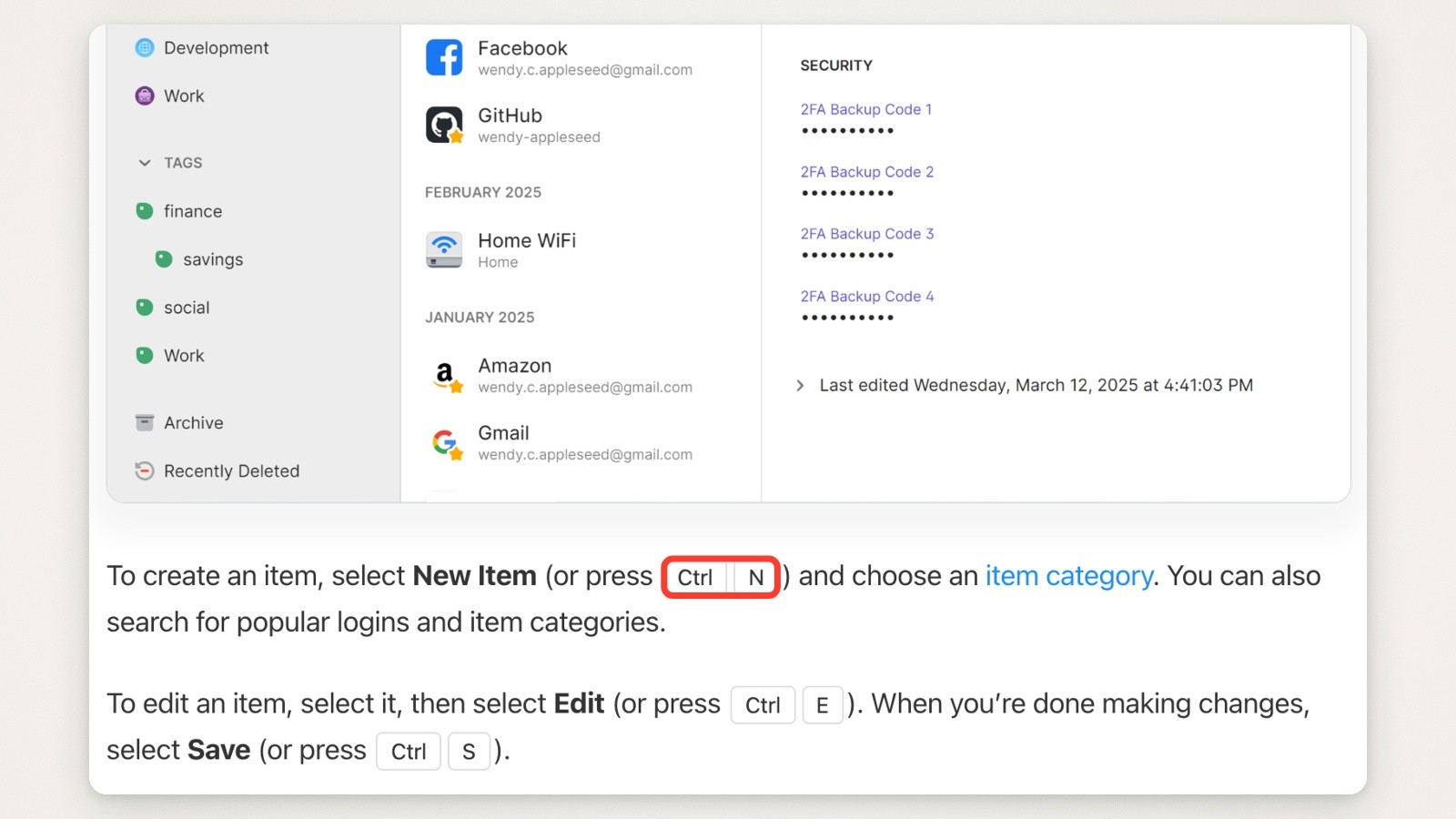
Close-up of the Windows guide at the same spot: Ctrl N where the Mac guide says Command N, box added. Screenshot of support.1password.com, captured September 18, 2026.
What to skip: twins drift apart. The Mac page’s Dark Mode picture shows the Mac app, but its alt text says “1Password 8 for Windows in Dark Mode”, the same words the Windows page uses, and its item list is headed April 2022 while the first screenshot’s is headed March 2025.
Copy this: when a feature works on two platforms, write twin articles with the same headings, the same demo account, and each platform’s own window and shortcuts. Put both on the same row of your screenshot inventory so they’re checked, retaken and re-captioned together.
Mailchimp: crop to the component
Mailchimp’s Getting Started with Tags never shows a whole screen: each of its four pictures is one piece of the interface. The sentence “Tags you’ve added to contacts display on the overall contact table” comes with a picture of three columns of that table (Last Name, Tags and Email Marketing). The sentence about a contact’s profile comes with only the Tags card from that profile, and the filtering steps with only the Filter by tags menu.

Mailchimp’s View or filter by tags section: part of the contact table, then one card from a contact’s profile. Screenshot of mailchimp.com, captured September 18, 2026.
Each picture answers the sentence above it and nothing more, and the data is made up to fit: the tags (Succulents, Farmer’s Market, Cacti, Pop-Up Customers) read like one small plant business, which makes the idea of tagging obvious before you read about it.

Close-up of Mailchimp’s contact table picture, box added. Screenshot of mailchimp.com, captured September 18, 2026.
What to skip: the table picture’s address asks for a file 400 pixels wide, and the page shows it about 440 pixels wide, so it looks soft, most of all on a high-density screen. Export pictures at twice the width they’ll be shown.
Copy this: picture only the component the sentence names, a card, a column, a menu, and fill it with made-up data that tells a small, believable story.
Linear: crop to what each section explains
Linear’s Triage docs open with a picture that is part screenshot and part diagram: a slice of the Triage list in a window, fading out at the bottom, with a one-line label beside it, “Unplanned work centralized in a Triage inbox”. A Linear Learn video follows.

The top of Linear’s Triage docs, with a labeled slice of the app. Screenshot of linear.app, captured September 18, 2026.
Further down, each section’s picture is cropped to what the section explains. Triage responsibility, which decides who hears about new issues, gets a strip of the app only as tall as the popover that lists who will be notified and when: the top of the window with the sidebar and the Triage header, the start of two issues and the popover, on a blue backdrop. (Linear’s docs say Triage Intelligence, Triage Rules and Triage Responsibility are available on its Business and Enterprise plans.)

Close-up of the Triage responsibility picture, box added. Screenshot of linear.app, captured September 18, 2026.
What to skip: the label in the opening picture is part of the image, not text on the page, and the image’s alt text is just “Triage”, so a screen reader, a translation tool or the page’s search never sees it. Put the words in the page, or repeat them in the alt text.
Copy this: crop each section’s picture to the height of the one thing that section explains, even if that leaves a thin strip, and keep any label in the page’s text.
Pictures matched to the steps
Notion: number the picture the way you number the steps
Notion’s Intro to databases opens with a Notion Academy video, but the part to copy is under “Create a database”. The picture there is a new, empty table with four red numbered markers, each beside a control: 1 at New page, 2 at Add property, 3 at the view tabs and 4 at an icon beside the New button. The four numbered steps under the picture use the same numbers, and the text sets control names such as New page as small labels that look like buttons.
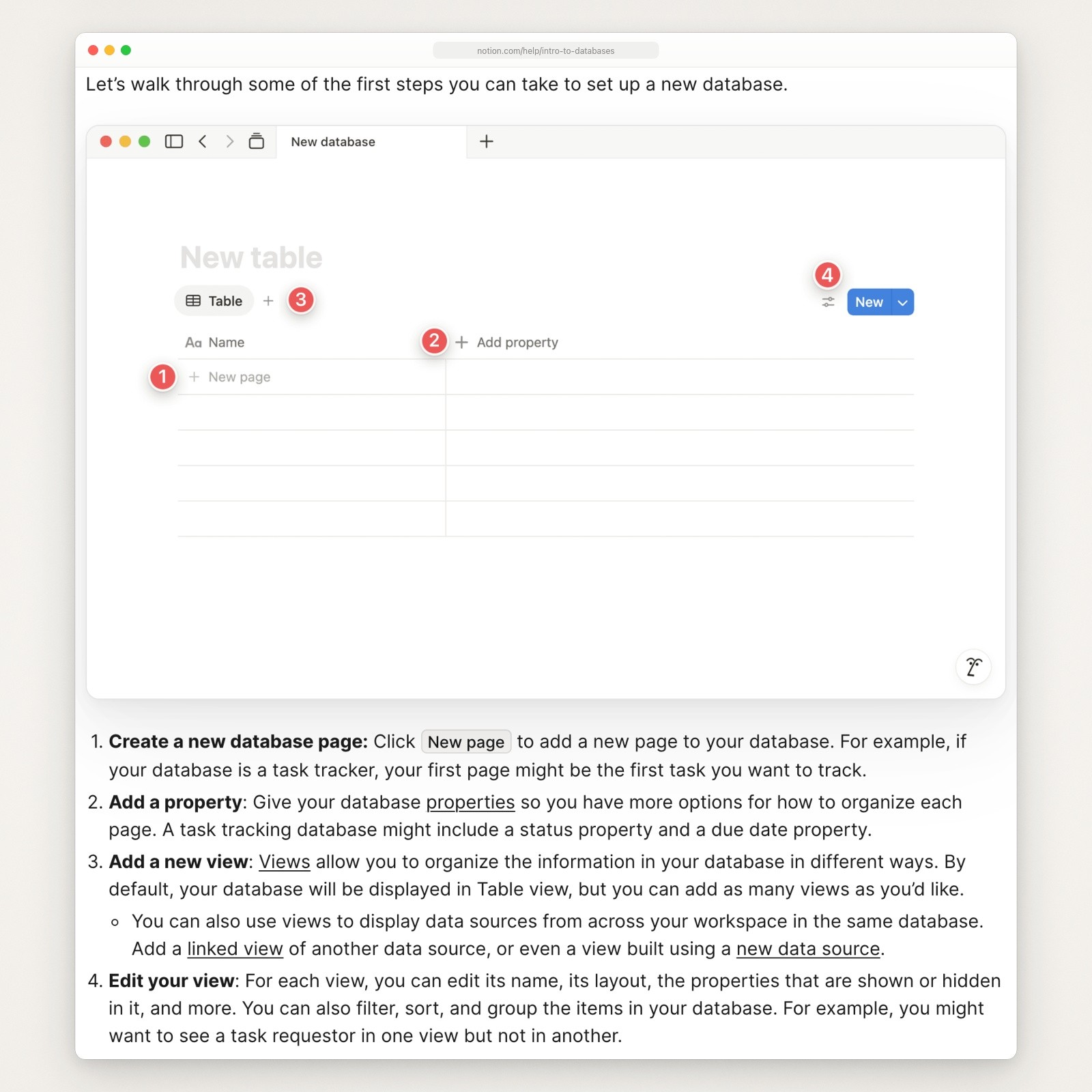
Notion’s Create a database section: numbered markers on the picture, numbered steps under it. Screenshot of notion.com, captured September 18, 2026.
A number is quicker to match than an arrow, and one picture carries four steps without four arrows crossing it. The empty table helps too: nothing in the picture competes with the markers.

Close-up of markers 1 to 3 (the red circles are Notion’s), box added around marker 1. Screenshot of notion.com, captured September 18, 2026.
Copy this: when several steps happen on one screen, put numbered markers beside the controls on one picture and use the same numbers for the steps under it. Capture the screen empty, so nothing competes with the markers.
Raycast: show the menu open
Raycast’s manual page on Clipboard History writes shortcuts as keys and lists the Keep history for options in the text, from 1 Day to Unlimited, with “(Pro)” after the three longest. The screenshot under the list shows the Clipboard History settings with that menu open, so the reader sees where the options live and which ones are Pro in the same place. A tip then tells Pro users what to do: “On Raycast Pro? Longer retention isn’t enabled automatically.”
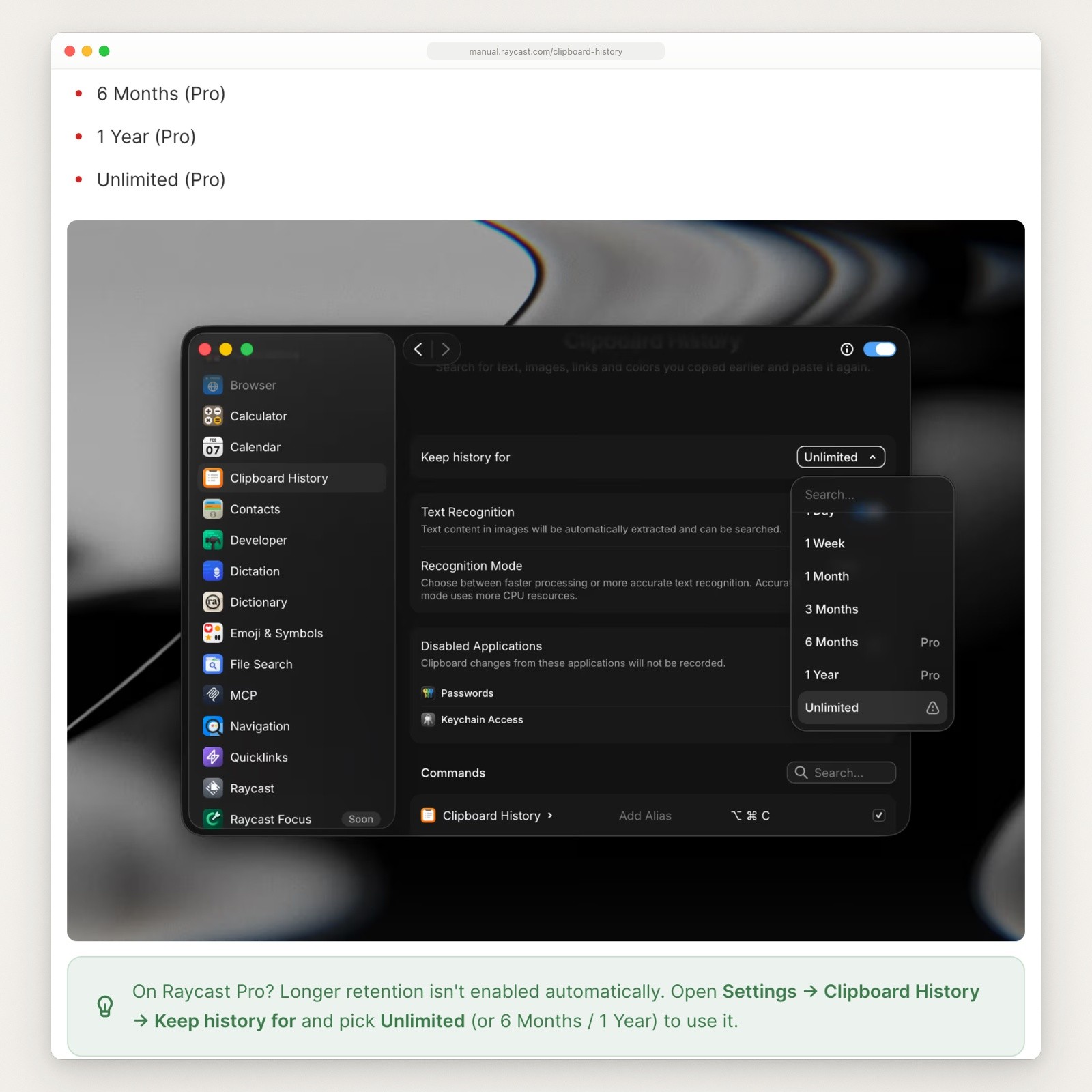
Raycast’s Keep history for options, the same menu open in the screenshot, and the Pro tip. Screenshot of manual.raycast.com, captured September 18, 2026.
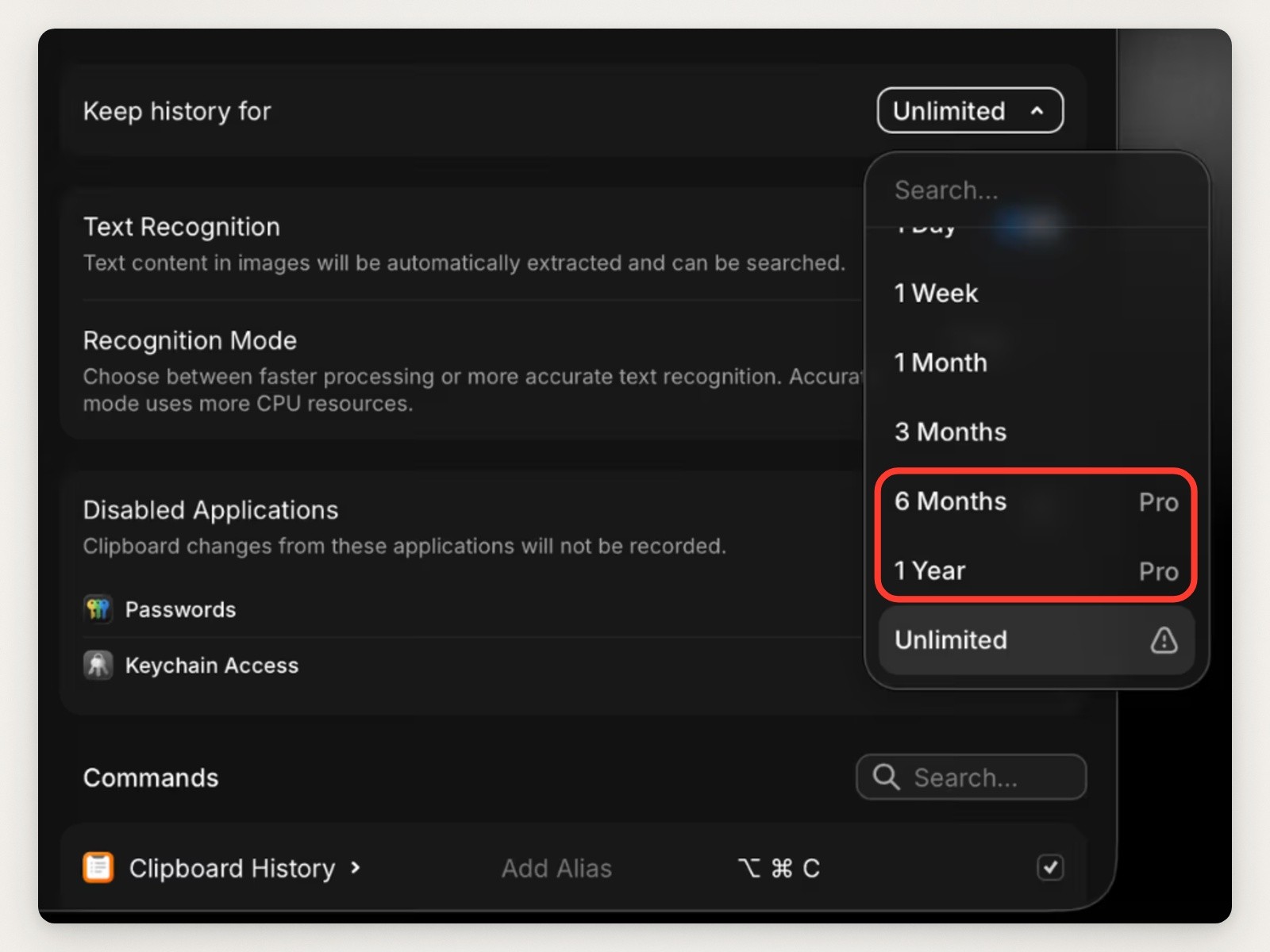
Close-up of the open menu, box added around the Pro options. Screenshot of manual.raycast.com, captured September 18, 2026.
What to skip: the text and the picture disagree on one line. The list marks Unlimited as Pro, and the menu in the screenshot shows a warning sign beside Unlimited instead, which the page never explains.
Copy this: when the text lists a menu’s options, capture the menu open so the reader sees them in place, then read the text and the picture side by side before you publish, option by option.
Todoist: say who the article is for, then show each step
Todoist’s Get started with Todoist has a side column that starts with “Available for” (Beginner, Pro, Business, the names of Todoist’s three plans) and “Platforms” (All platforms), then a table of contents, related articles and “Last updated by” with a name and a date (Evert, September 1, 2026). A reader knows at a glance whether the article fits their plan and device, and how recently it was updated.
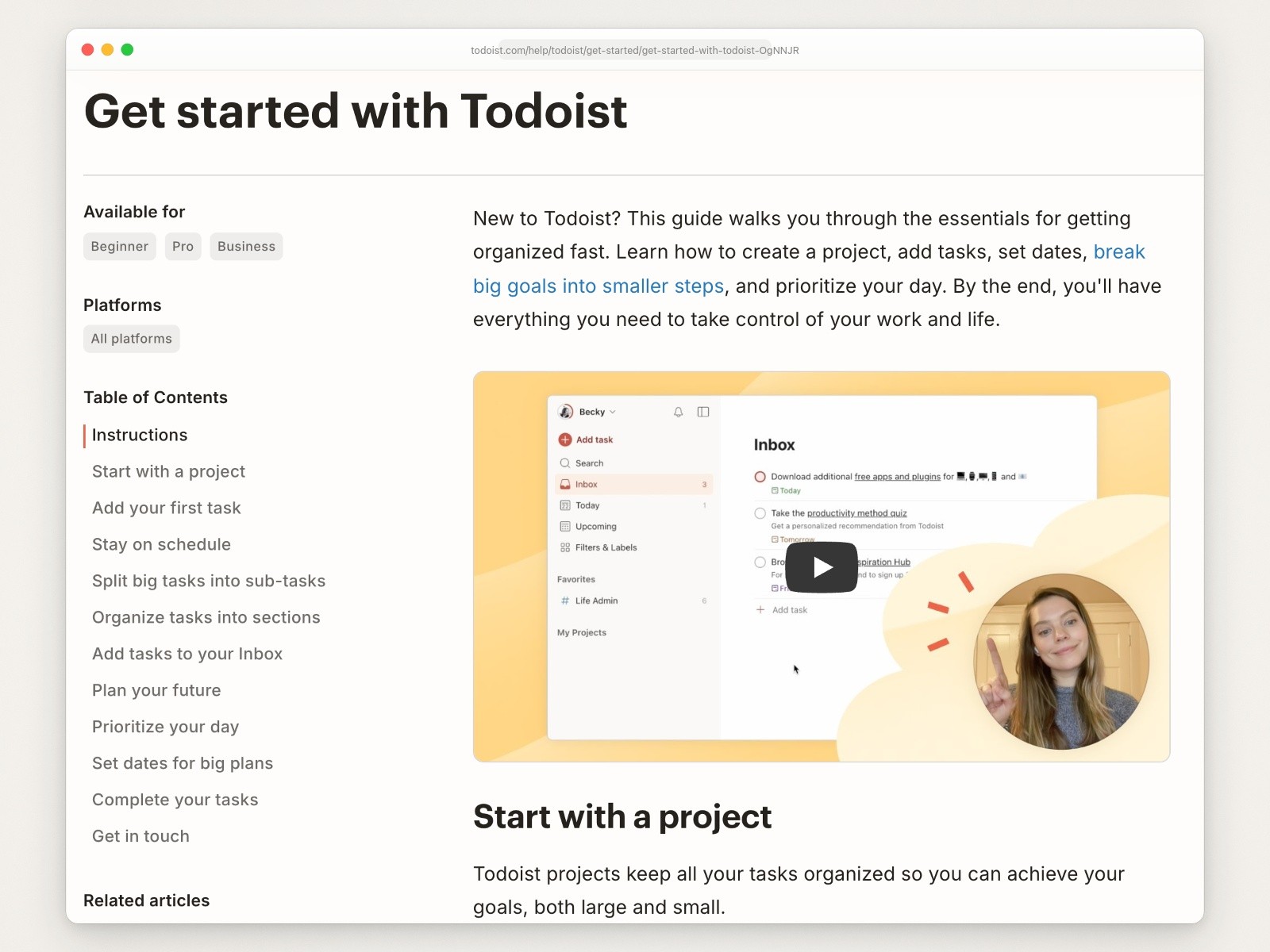
The top of Todoist’s Get started guide, with its side column and the first video. Screenshot of todoist.com, captured September 18, 2026.
Most of its sections then open with a video. Before you press play, each shows a still of the app at that step, so the picture teaches something even to a reader who never presses play.
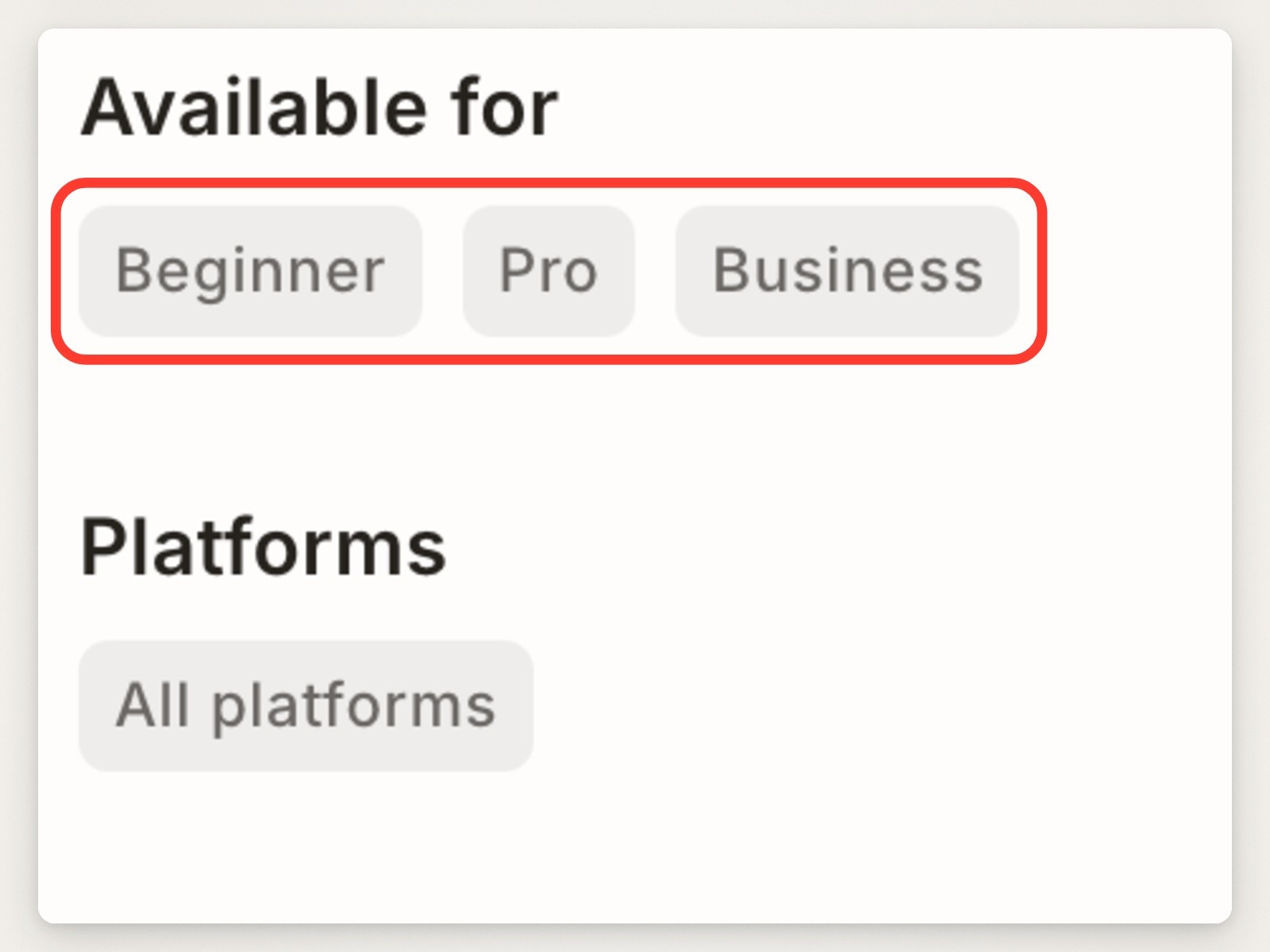
Close-up of the side column, box added around the plan tags. Screenshot of todoist.com, captured September 18, 2026.
What to skip: the first video’s still puts a presenter in a circle, on a cream cloud, over the right side of the app. The cloud runs into the task list, and with the play button on top as well, most of the third task is hidden in the still.
Copy this: say which plans and platforms an article covers before the first picture, show who last updated it and when, and pick a video’s still frame so it shows the step without anything covering it.
Does the help center platform matter?
Not for any of the details above. They are choices about the pictures, and none of them depends on a particular help center tool. For the record, Figma’s help center runs on Zendesk (its pages load Zendesk’s scripts, and its settings name figma.zendesk.com), and Slack’s article images are served from slack.zendesk.com although the pages themselves sit on slack.com.
Making pictures like these
Moonjar is our product, and making this kind of picture is its job. It is a Mac app your agent (Claude Code, Codex or another MCP client) drives to capture your app from the iOS Simulator, a Mac window or a web page, crop and frame the shot, and lift or mark the part a step is about. Each styled shot keeps its look and its change history, and each product can have written guidelines, with a style file agents read before they plan, capture or style a shot, so an agent can find a shot and redo it in the same look when you ask. It doesn’t notice UI changes on its own. It doesn’t host a help center, so its images go into whatever does. It is in early access, Mac only, with no published price. See what it makes or ask for early access.
How this page was made. Every article above was captured on September 18, 2026, from the public page, with Moonjar’s web capture (headless Chrome in a 1440-pixel-wide window at 2x); Things’ pictures came from a taller capture, Notion’s from a capture that opened at its Create a database section, and Figma’s close-up from a phone-width capture. Each overview is cropped to the part of the article that matters and set in the same plain browser frame; each close-up is a tighter crop with one red arrow or box added (two boxes on Things’). Nothing was logged into and no banner was clicked. Quotes, labels and counts come from the pages and their HTML as they read that day; three pages were spot-checked again on September 19. The text was drafted with AI assistance.