
Screenshots in documentation: best practices for help centers, with examples
Nine rules for screenshots in help articles and docs, from when to add one to how to hide an email, with before and after examples from a real app.
Chris Raroque
·

These rules hold for screenshots in documentation of any kind; the numbers come from help centers, where the columns are narrow and most readers arrive on a phone. Column widths were measured on Zendesk’s, Intercom’s and Help Scout’s own help centers. The examples come from Ellie, the planner I build, using its demo data, and every image was made with Moonjar, our screenshot app (in early access).
The rules at a glance
Add a screenshot where the reader would otherwise have to hunt for something on screen, and nowhere else.
Export at twice the width your help center shows the image, then read the article on a phone, where the column is about 320 to 360 pixels wide.
Crop to the part of the screen the step is about.
Give a step at most one screenshot, placed right after it, with the control the step names lifted or boxed.
Number callouts only when the text refers to the numbers.
Keep the explanation in the article, not in the image.
Capture demo data. If something private is still on screen, cover it with a solid box, because blur and pixelation can be reversed.
Write alt text for what the image adds. If the step already says everything the image shows, leave the alt text empty on purpose.
Keep one look across the help center: the same platform, appearance, frame and marks.
Use a screenshot where words alone would slow the reader down
A screenshot is worth adding when the reader has to find something: a control in a crowded screen, a setting three levels deep, or what the screen should look like when a step worked. It isn’t needed when the text already says it plainly (“Tap Save”).
Google’s developer documentation style guide puts it as “For screenshots, be discreet,” and adds: “Only capture UIs that are important to the discussion.” The same guide says to avoid images of code, text or terminal output. Put an error message or a command in the article as text, so readers can search for it and copy it.
Each screenshot is also one more thing to redo when the interface changes, so fewer, better images are easier to keep current. To see how ten published help centers use theirs, one annotated image each, read our help center examples.
Size images for the column, then check the phone
Your help center decides how wide an image is shown. The file only decides how sharp it is. Here is how wide three help desk vendors’ own help centers show article text and screenshots, measured in a browser on September 18, 2026:
Help center | Laptop (1440 px window) | Phone (390 px) |
|---|---|---|
Zendesk’s help | 1,072 px column; big screenshots set to 600 px | 358 px; 318 px inside numbered steps |
Intercom Help | 640 px | 350 px |
Help Scout Support | 853 px column; screenshots sized by hand, 300 to 528 px | 341 px |
Each vendor’s editor help documents its own limits (rechecked September 19, 2026):
Intercom says an image can be at most 650 pixels wide, “as this is the width of the article text column”, and accepts PNG, JPEG, SVG and GIF up to 104 MB (Intercom’s article formatting help). Its own help center still serves wider files, up to 2,275 pixels, and shows them at 640, so a file at twice the column width isn’t wasted.
Zendesk resizes large images automatically to fit the article, lets you set a width in pixels or percent, and takes PNG, JPEG, GIF, animated PNG and SVG up to 20 MB. Its help lists article images on every Suite plan (Team, Growth, Professional, Enterprise and Enterprise Plus) (Zendesk’s help on inserting images).
Help Scout takes PNG, GIF or JPG up to 10 MB and resizes by dragging (Help Scout’s Docs editor help).
So export at about twice the widest size the image will be shown: about 1,300 pixels for Intercom’s column, 1,200 for a 600-pixel image in Zendesk. A much wider file mostly adds page weight. None of the three lists WebP, so use PNG for flat UI and a high-quality JPEG when the image has a photo background. The 2,000-pixel JPEGs on this page are about 160 to 310 KB each, far under any of those limits.
Then look at the phone column in the table. On a 390-pixel phone, Zendesk’s own 2,388-pixel screenshots, which sit inside numbered steps, are shown 318 pixels wide. Whatever you capture has to survive that, which is what the next rule is for.
One Zendesk detail: when an article is shown in the messaging Web Widget or the Web Widget (Classic), its images lose every HTML attribute except src and alt, and custom CSS is ignored. An image shrunk with a width attribute goes back to its original size there, scaled down only as far as the widget needs. Zendesk’s help recommends adding images to the article at the desired size. This matters most for an image meant to show small, like an icon in a sentence: resize the file itself.
Crop to the part the step is about
Crop to the part of the screen the step talks about, and keep just enough around it for the reader to find it in the app: here, the card’s own heading. Google’s style guide says the same, and adds that cropping helps “future-proof the screenshot”: when other parts of the UI change, a tight crop often stays correct.
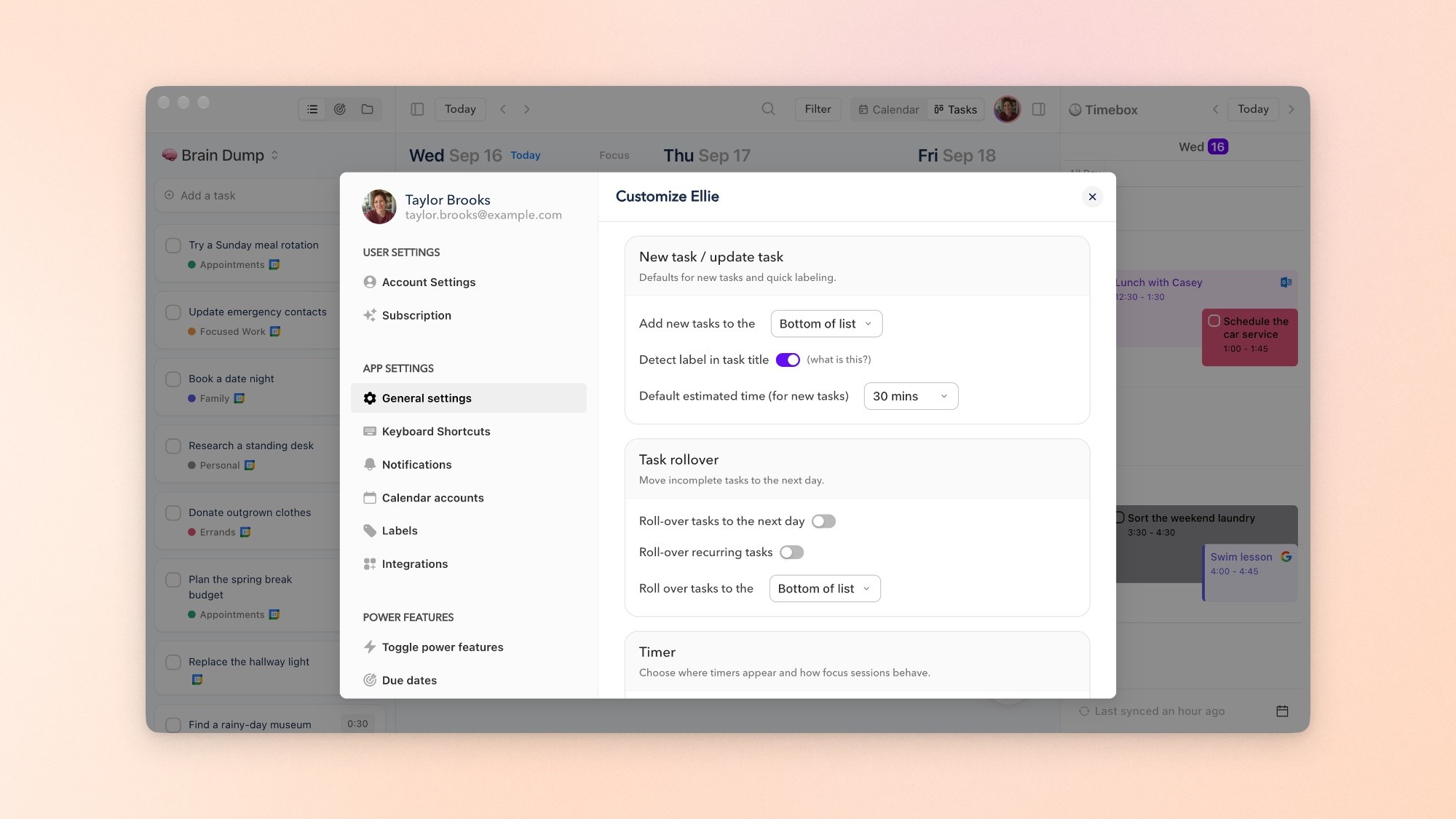
Before: the whole window, for a step about one setting. Ellie for Mac demo data, captured September 16, 2026.

After: the same capture cropped to the Task rollover card. Every control is about 2.3 times larger.
Both images are the same width. In the first, the window is 1,350 points wide; in the second, the crop is 580 points, so every control is about 2.3 times larger. On a phone, in the 318 to 358 pixel columns measured above, the whole window is drawn at about a fifth of its size on the Mac. The crop is drawn at a little under half. The same arithmetic, worked for any layout, is in how to make a good product screenshot.
The whole window also carries things the step doesn’t need: the account’s name, email and photo in the corner of the settings, and a calendar event with someone else’s name in it on the right. Here it’s demo data. In a real account, a crop is the first privacy tool you have.
At most one screenshot per step, with the named control lifted
When a step needs a screenshot, give it one, and put it right after the step it shows, before the next step. Google’s style guide notes you don’t need an introductory sentence for a screenshot that directly follows the step describing it.
Here is a two-step procedure from Ellie, written the way a help article would have it:
1. Open the task and tap its current priority, Medium here, next to the flag.

Step 1: the task’s current priority, Medium, lifted. Ellie demo data, captured September 16, 2026.
2. In Task Priority, tap the priority you want. The current one, Medium, has a check mark.
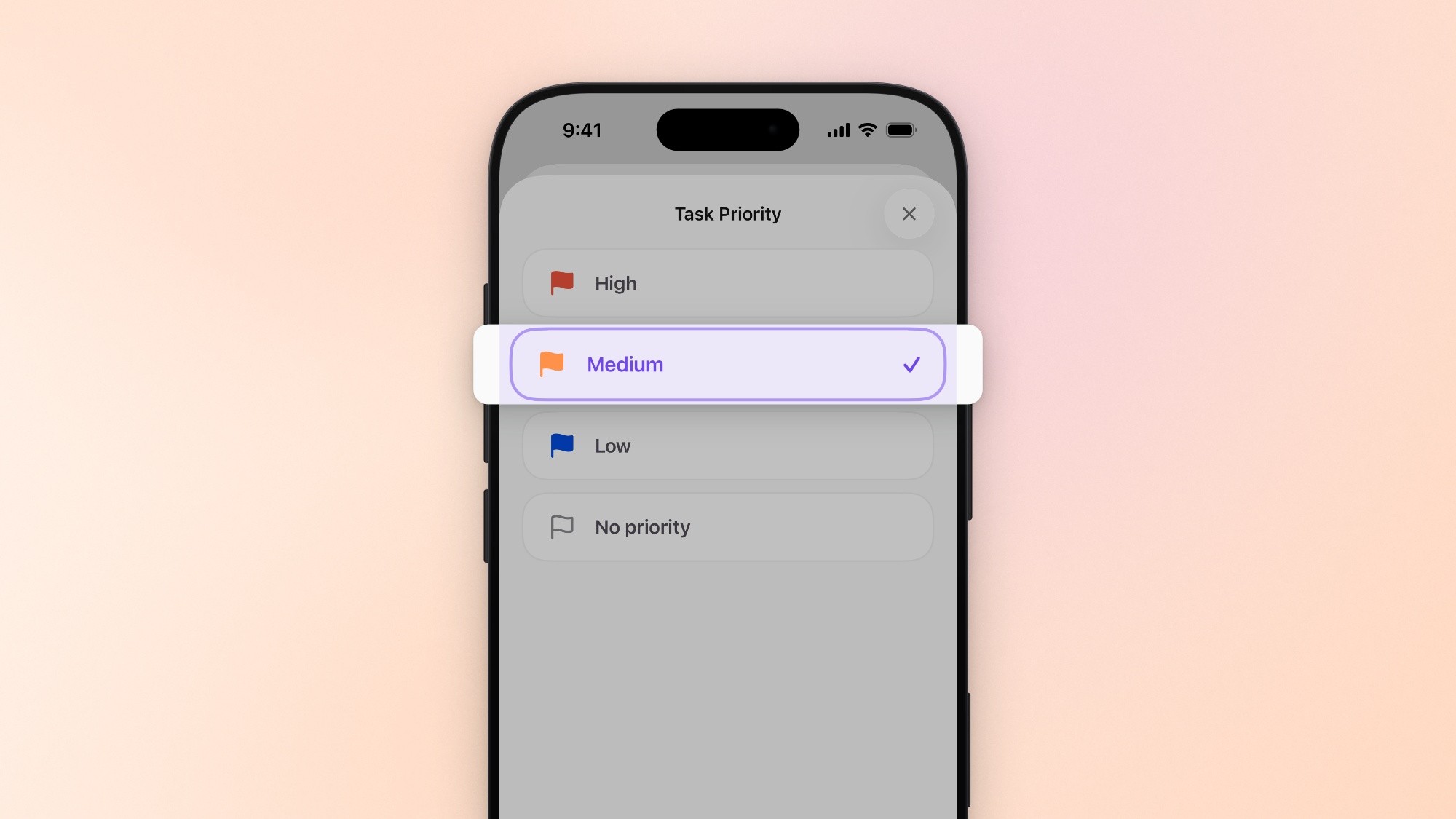
Step 2: the Task Priority sheet with the current priority, Medium, lifted, in the same look as step 1.
Three things make the pair work:
The step and the image use the same words. The bold label in the step is the exact text on screen, so the reader can match them without thinking.
One thing is marked per image. Lifting dims the rest of the screen and pulls the control forward. A heavy box around it does the same job. Either way, one per image; if a step needs two, it’s two steps.
The images match. Same background, same device, same position on the canvas, so the second reads as the next moment of the first.
Number callouts only when the text uses the numbers
Numbered circles are a key. They only work when the text next to the image uses the same numbers. Google’s style guide recommends “numbered callouts in figures to help you write a figure description”, and not detailed annotations inside the image.

Before: numbers 2 and 3 sit on two tasks that look alike, and the only explanation is baked into the image. Ellie demo data, captured September 16, 2026.
The marks in this first version are heavy enough to read, but the numbers don’t lead anywhere. Two of them point at two tasks that look alike, and the one sentence of explanation is inside the image.

After: three numbers on three different parts, each explained in the list below it.
The second version points at three different parts of the screen, and the article carries the key:
Add a task: tap it to add a new task to the brain dump.
The task’s label, with its color.
The task’s estimated time.
Place each number beside the thing it points at, not on top of it, so it doesn’t hide the UI it’s explaining. Use one mark color that stands apart from the app’s own accent: Ellie’s is purple, so the marks are red. Draw them heavy: on a phone the whole image is 318 to 358 pixels wide, and hairlines disappear. Three or four marks is a sensible ceiling. More than that usually means the image is doing the work of two.
Keep the explanation in the article, not the image
“Dump it here first” in the first Brain Dump image is a sentence that belongs in the article. Google’s style guide gives the reasons: text inside a graphic “hurts accessibility and searchability,” and it raises the cost of translating the help center, since every language needs its own copy of the image. Text in the article can be read aloud, searched, translated and fixed without opening an image editor.
Keep the image to the screen and a few marks. If an image needs a sentence, write it right above or below.
Hide personal data with a solid box, or don’t capture it
The simplest redaction is the one you never need. Capture a demo account with believable data, and give it an example.com email address: that domain is reserved for documentation and can’t be registered, so the address on screen is nobody’s inbox. Then look for what comes along uninvited: the account header in settings, calendar events with other people’s names, notification banners, a teammate’s avatar in a shared list.
When something private has to be hidden, cover it. Google’s style guide says to hide personal information “with a solid-color overlay with 100% opacity” and not to rely on blurs or mosaic effects, which “can be reversed to reveal the original information.” Pixelation looks the safest of these effects, and it has been undone in public: in 2022 the security firm Bishop Fox released Unredacter, a proof of concept that rebuilds pixelated text when it knows the font and the font size. The font and size of your own app are no secret. Bishop Fox’s advice matches Google’s: black bars over the whole text.

Top to bottom: blurred, pixelated, and covered with a solid box. Only the box leaves nothing behind. Ellie’s demo account.
The blurred version still shows the shape of the name. The pixelated one looks safe at a glance, but the block size decides that: with a finer mosaic, the first one tried for this image, the demo name and email stayed readable. The box leaves nothing to recover.
Two more habits:
Flatten before you upload. Google’s style guide says to flatten an image when exporting to a format that keeps layers, such as PDF or TIFF. A box on its own layer can be lifted off.
Upload only the redacted copy. Keep the unredacted original out of the help center’s media library.
Write alt text for what the image adds
Alt text is what a screen reader says in place of the image, and what shows when the image fails to load. All three help desks have an alt text field on every image: Zendesk’s image tools, Intercom’s image menu and Help Scout’s image toolbar. One catch in Zendesk: its help says alt text is added to the image’s location in the article, not to every instance of the image, so write it again each time you reuse one.
What to write depends on what the screenshot tells the reader that the text around it doesn’t. The W3C’s alt decision tree walks through it; for help articles it comes down to three cases:
The screenshot | Alt text | Example |
|---|---|---|
Only shows what the step already says | Empty ( | After “Tap Save”, a picture of the Save button |
Adds something the text doesn’t | One short sentence of what it adds | “Task Priority sheet with Medium already checked” |
Holds detail the reader needs, like a settings page full of values | A short summary, with the details written in the article | “Task rollover settings: both switches off, tasks roll to the bottom of the list” |
The first case surprises people. Google’s style guide and the W3C both say an image that only repeats nearby text should have empty alt text, so a screen reader skips it instead of reading the same instruction twice. Empty is not the same as missing: with no alt attribute at all, some screen readers read out the file name instead. If your editor has no way to set an empty value, check the published page’s HTML (right-click the image and choose Inspect) to see which one you got.
For the rest, Google’s style guide suggests keeping alt text to 155 characters or fewer. Treat that as a writing habit for staying brief, not an accessibility rule: when an image carries more than a sentence can hold, give a short summary in the alt text and put the full description in the article, where everyone can read it. Also from Google’s guide: don’t start with “Image of” or “Photo of”, and don’t let a caption stand in for alt text.
Weak: “Screenshot of task priority”
Better, when the image adds the state: “Ellie’s Task Priority sheet with Medium lifted and the other priorities dimmed”
Keep one look across the help center
Readers land on one article from search, then move between them. Images that change style from page to page make a help center feel patched. Google’s style guide asks for the same operating system across a doc set and a consistent look, down to whether windows have drop shadows. For a help center, that means one appearance (light or dark) per article, the same device frame or none, the same background, the same mark color and weight, and the same export width.
Deciding once is easier than deciding on every image, so write the decisions down. Keeping them true after each release is its own job: how to keep help center screenshots up to date covers the image inventory, when to re-shoot and how to swap files without breaking articles.
A style sheet you can copy
These are the values used for the images on this page. Change them to fit your help center and keep them in the same place as your article template.
Column: measure your article column on a laptop and on a 390-pixel phone, and export at least twice the laptop width. This page’s column is 720 pixels, and its images are 2,000.
Format: PNG for flat UI on a plain background; JPEG at high quality (about 95) when a photo or a grainy gradient sits behind it, as on this page.
Crop: the part the step is about, plus its heading. Whole windows only for “where is this” overview images.
Frame: the platform’s own frame (an iPhone for iOS, a Mac window for Mac) on one background for the whole set.
Pointing: one lifted control or one heavy box per image.
Marks: red on a purple app, heavy, three or four at most, numbers only when the text uses them.
Text: none in the image. The step and the caption carry it.
Data: a demo account with example.com emails. Solid boxes for anything else, flattened on export.
Alt text: what the image adds, briefly; empty when the step already says it all; details in the article when there are many.
File names: platform, screen and state, like
ellie-mac-task-rollover-cropped.jpg.
Making these with an agent
Moonjar is our product, and it’s in early access. It’s a Mac app with an MCP server that Claude Code, Codex or another coding agent drives. Here is what it does for the rules above:
The agent can capture the iOS Simulator (setting the 9:41 status bar first, by default), a Mac window, or a public web page by URL, down to the bottom of a long page.
When the app in the Simulator exposes accessibility labels, the capture keeps them as a UI tree, and the agent can lift a control by naming it. The Medium button in step 1 was lifted that way. A name can match the wrong element, and Mac window and web captures keep no tree, so the fallback is a rectangle measured from the capture.
Counters number themselves, and marks are heavy by default: lines about 1.15% of the capture’s width, counters about 6.5%.
Pixelate and blur are drawn into the screen itself, so the exported file holds the blocks or the blur, not the original pixels, and a filled rectangle covers completely. The default pixelation block is the box’s short side divided by 22. On the account card above that came to about 4 pixels of the original capture, and the name and email stayed readable, so the pixelated example uses a 9-pixel block. A box is still the safer choice.
It exports PNG, JPEG or WebP files. It doesn’t upload them to your help desk.
It runs on a Mac only. You can see what it makes on the features page or request early access.
How this was made: the images are Moonjar renders of Ellie’s demo data, captured September 16, 2026 and styled and annotated on September 16 and 18, on a gradient background drawn by Moonjar, so no photo credit applies. The redaction image is three renders of the same account card, stacked. Column widths were measured on the vendors’ own help centers on September 18, 2026; their editor documentation and the Google and W3C guidance were rechecked on September 19. This page was drafted with AI assistance.