
How to keep help center screenshots up to date
Keep a list of every image, re-shoot when a release touches its screen, and write down one look so new images match the old ones.
Chris Raroque
·

Keeping help center screenshots up to date is mostly bookkeeping, not photography: a list of every image, a rule for when each one gets looked at again, and a written look so a redo matches its neighbors. The examples come from the help center of Ellie, the planner I build, which was audited image by image on September 18, 2026. Moonjar, our screenshot app (in early access), made the images on this page and is one of the methods compared.
Why help center screenshots go stale
A help article is written once, and the app it describes keeps shipping. Each screenshot records one day of the product, and nobody owns the job of noticing when that day is gone.
Ellie’s help center shows how it adds up. Its sitemap lists 45 pages, 41 of them with images, and those pages use 115 distinct image files. Grouped by the date each file was last modified on the help center’s file host, as of September 18, 2026:
Year the image file was uploaded | Images |
|---|---|
2023 | 60 |
2024 | 15 |
2025 | 12 |
2026 (all August 23 to 31) | 28 |
Total | 115 |
More than half of the images are from 2023, and 14 pages carry nothing newer. The 28 files from August 2026 appear on 19 of the 41 pages. So some articles have new images, some have only three-year-old ones, and four have both.
An old file date is a reason to look, not proof the picture is wrong. A 2023 image of a screen that hasn’t changed since is still correct, and a two-week-old image can already be out of date after a redesign. The dates tell you where to start checking; comparing each image with the app tells you what to redo.
Stale images also reach people who never open the help center. Intercom’s help says its AI agent, Fin, can put up to three images or GIFs from your existing support content into a reply, that this is on by default, and that Fin never generates new images (Intercom’s help on images in Fin replies). It picks them by what the image shows and the text around it, not by alt text. An outdated screenshot in an article becomes an outdated screenshot in a chat answer.
Step 1: Make an inventory of every image
You can’t keep up to date what you can’t list. The inventory is one row per image, and it is the part every other step reads from.
Pull every image from your sitemap
If your help center publishes a sitemap (Ellie’s, which runs on GitBook, does), this script reads it, opens every page, and lists each image with the Last-Modified date its host reports. It uses only Python’s standard library. On Ellie’s help center it took about 25 seconds on September 18, 2026.
A page that cannot be fetched gets a row with a blank image and an error, so one removed page does not discard the rest of the inventory. Recheck those page errors separately. Delete the rows for your logo and icons, and you have the raw list. Not every host sends Last-Modified, and a file that was re-uploaded gets a new date without a new picture; where the date is missing or doubtful, the file name is the next best clue. On Ellie’s help center, 75 of the 115 files have names like CleanShot 2023-07-14 at 16.50.43@2x.png, with the capture date in the name.
Date the images, not the pages
A page’s date in the sitemap is not the date of its images. On Ellie’s help center, 38 pages have both images and a sitemap date, and 16 of them have at least one image newer than that date. The Task priority page is listed as last modified November 24, 2023, and its only image was uploaded August 30, 2026. The reverse happens too: a page edited for a typo gets a fresh date while its screenshots stay old. Audit the files.
One row per image: a sheet to copy
A spreadsheet is enough. Paste this header row into a new sheet:
article_url,image_file,screen,feature,platform,file_date,last_checked,next_check,owner,status
Here is what goes in each column, filled in for a real row from the Ellie audit, the label picker image in the Labels article:
Column | What goes in it | Example |
|---|---|---|
article_url | The page the image is on | guide.ellieplanner.com/features/tasks/labels |
image_file | The file name, from the script | CleanShot 2023-07-14 at 16.50.43@2x.png |
screen | What the image shows, in words | Label picker open on a task card |
feature | The feature, named the way your release notes name it | Labels |
platform | Where the screen comes from | Desktop |
file_date | From the script, or the file name | 2023-07-14 |
last_checked | When someone last compared it with the app | 2026-09-18 |
next_check | When to look again | 2026-12-18 |
owner | Who redoes it | The article’s owner |
status | current, check, redo or redone | redo |
The column that does the most work is feature, because release notes are written by feature: when Labels ships a change, you filter the sheet by Labels and get the list of images to look at. The platform column matters when a feature looks different on each platform: Ellie runs on the web, Mac, iPhone, iPad and Windows. Drop owner if one person edits the help center.
Step 2: Decide when to look again, and what to do
An inventory tells you what exists. You also need a rule for when a row gets looked at again, and a decision for each image you look at.
When a release touches a screen on the list
This trigger costs one line in your release checklist: “filter the screenshot sheet by the features in this release.” Whoever writes the release notes already knows which features changed.
A scheduled audit for everything else
Small changes slip past release notes: a renamed button, a new icon in a toolbar. LaunchBrightly’s guide to checking knowledge base screenshots suggests starting with three kinds of articles: the highest-impact ones (page views work as a proxy), those about parts of the app that changed recently, and those your support agents have tagged as having outdated images. Then open the app to the same screen as each image and compare. Repeat the audit quarterly, or twice a year at least, and record the date in last_checked so the next audit starts where this one stopped. File dates make a good tiebreaker: among articles that matter equally, check the oldest images first.
Keep, crop or re-shoot
Once you’ve put an image next to the live app, it falls into one of three cases:
What you see | What to do | Update the sheet |
|---|---|---|
The screen matches the app | Keep it, however old the file is |
|
The part the step is about matches, but things around it changed | Crop the image to the part that’s still true, if the result still shows the reader where they are; otherwise re-shoot |
|
The control moved, was renamed, or the flow changed | Re-shoot, and rewrite the steps around it before you save | New |
The middle case is the cheap one to miss. A tight crop dates more slowly than a whole window, because the next change around it doesn’t show.
Automatic comparison, where a tool does it
Some tools compare fresh captures with the images you have and flag the differences. LaunchBrightly and Ferndesk do this for help centers (details below). Heroshot leaves it to git: each run regenerates every image, and the diff shows which ones changed. If your team writes Playwright tests, Playwright’s visual comparisons compare each run with a stored reference screenshot, and a failing comparison on a documented screen is a good sign the help image needs a look too. A comparison tells you something changed; a person still decides whether the article needs a new image.
Step 3: Re-capture in the same look
There are six ways to make the new image. They differ mostly in which platforms they can capture and how much setup they take.
By hand, with a written style sheet
Open the app, get to the screen, capture, crop, style, export. It works for any platform and needs no setup. Judging by their file names, most of Ellie’s help images started this way, as CleanShot X captures. The risk is drift: two people re-shooting in the same month will crop, frame and highlight differently unless the look is written down. The documentation screenshot style guide has a style sheet you can copy for this.
A browser script with Playwright
For a web app, a script can log in, open the page and save the image, and it can run in CI on every deploy. Playwright’s screenshots guide shows the call for one element:
await page.locator('.header').screenshot({ path: 'screenshot.png' });
It is free and open source (Apache 2.0). What it doesn’t do is anything after the capture. LaunchBrightly, which sells the alternative, lists what tends to pile up next in its post on DIY screenshot scripts: dark mode, mobile and localized variants, annotations, blurred personal data, approvals and syncing to the help center. That list matches what the other steps in this guide need.
A docs-as-code CLI: Heroshot
Heroshot is a free, MIT-licensed command line tool for documentation screenshots, with no accounts or paid tiers. Per its site, you pick elements with a visual picker once, then npx heroshot regenerates every screenshot. A visual editor handles padding, borders, backgrounds and hiding elements, and it can add arrows, rectangles and callouts. It captures light and dark variants and several viewport sizes, keeps an encrypted login session for protected pages, has a GitHub Actions workflow that opens a pull request with the new images, and includes an MCP server for AI coding assistants. The images are ordinary files in your project, so changes show up in git diffs. It needs Chrome or Firefox, so it captures web pages; it fits best when your docs live in a repository (it names VitePress, Docusaurus, MkDocs, Sphinx and GitBook).
UI tests for iOS apps: fastlane snapshot
For an iOS app, fastlane snapshot runs Xcode UI tests and saves a screenshot wherever the test calls snapshot("01LoginScreen"), across devices and languages, for iOS, tvOS and watchOS. It can override the status bar to 9:41 with full battery and signal. It is free (MIT) and built for automating App Store screenshots, so for a help center you still crop, frame and highlight each capture afterward, and someone has to write and maintain the UI tests.
A managed service: LaunchBrightly or Ferndesk
LaunchBrightly’s product page describes recording “recipes” for each screenshot in your web app, capturing from behind your login, applying your styling and annotations, running visual audits against the images in your articles, and syncing approved updates into the help center. Its integrations page lists help center sync for Intercom, Zendesk, HubSpot, Help Scout, Freshdesk, Salesforce, Kustomer, KnowledgeOwl and Helpjuice, and pull requests for docs in GitHub and Mintlify. LaunchBrightly’s pricing page counts “screenshots generated” per browser mode (the same page on desktop and mobile counts as two). As of September 19, 2026: Free for 100 screenshots, Pro at $229 a month for 500, Business at $499 a month for 2,000, with 20% off for yearly billing, and a no-cost 10-day proof of concept where its team builds the first recipes from your existing articles.
Ferndesk is a help center platform with an agent, Fern, that navigates your product, captures and annotates screenshots, and checks articles against the product. You import your help center into it. Ferndesk’s pricing page has one Pro plan at $149 a month or $1,490 a year, including scheduled audits and “Screenshots re-taken when the UI changes”, with a first-year rate of $75 a month for companies under $1M in annual recurring revenue. An Enterprise tier starts at $399 a month.
None of the LaunchBrightly or Ferndesk pages mention native iOS or Mac apps.
An AI agent with Moonjar (our product)
Moonjar is our product and is in early access. It is a Mac app that Claude Code, Codex or another coding agent drives through its MCP server. The agent can operate an app in the iOS Simulator and capture it, with a clean 9:41 status bar by default, capture a Mac window, and capture a public web page by URL, whole or one element. It then styles the capture: device frame, background, one lifted row, annotations, redactions.
Two parts of it matter for keeping images current. Each product can have written guidelines in its Knowledge section, including a style file that agents are told to read before they design, so a redone image comes out in the same look as the rest. And every item keeps a change history that the agent can read and revert.
Its limits for this job: it does not watch your app or your help center for changes, so you (or your release checklist) name the images to redo. It exports PNG, JPG or WebP files and does not upload them to your help desk. Its web capture opens each page in a fresh browser profile, so pages behind a login are out of reach that way. To get a Mac app to the right screen, either you do it, or the agent does it with the computer use built into Claude Code or Codex; Moonjar itself doesn’t click or type. It runs on a Mac only.
Swapping the new file into your help center
How much work the swap is depends on the platform. Zendesk’s media library has a Replace media action: you upload the new image, it lists every article and content block the image appears in, and the image URL stays the same so nothing breaks. A shared image is replaced everywhere it is used. Zendesk’s help says the media library is on all plans and content blocks need an Enterprise plan. Intercom’s and Help Scout’s editor help pages describe no replace-everywhere action, so plan on editing each article that uses the image. Either way, reread the steps around the image before you save: a screen that changed enough to need a new picture has often changed the instructions too.
Which method fits your team
Prices and features are from each vendor’s own pages, checked September 19, 2026. None of the third-party tools here were installed or run for this article.
Method and cost | Captures | Finds stale images? Updates help center? |
|---|---|---|
By hand: your time | Anything you can see | No / No |
Playwright script: free (Apache 2.0) | Web pages | Compares with a stored reference / No |
Heroshot: free (MIT) | Web pages and docs sites | Git diff shows it / Pull request to your docs repo |
fastlane snapshot: free (MIT) | iOS, tvOS and watchOS apps | No / No |
LaunchBrightly: Pro $229/month; Business $499/month; a Free plan for 100 screenshots | Web apps, including behind a login | Yes / Yes: Intercom, Zendesk and others |
Ferndesk: Pro $149/month ($75 in year one under $1M ARR); Enterprise from $399/month | Your product, through its agent | Yes / It is the help center |
Moonjar (our product, in early access): no published price | iOS Simulator apps, Mac windows, public web pages | No / No, it exports files |
Worked example: redoing a 2023 image from Ellie’s Labels article
This is one real redo, done for this article on September 18, 2026 with Claude Code and Moonjar. To be clear about what it shows: the agent restyled an existing capture of the current Mac app, taken two days earlier with demo data. It did not open Ellie and capture the screen fresh. That’s a common shape for a redo, because a recent capture often exists already; a fresh capture is one more step at the front.
What was stale
Ellie’s Labels article has eight images, all uploaded in 2023, and all eight were still there on September 19, 2026. The one under “How do I use them?” shows the label picker open on a task card, captured on Friday, July 14, 2023.

Before: the label picker image in Ellie’s Labels help article. The file was uploaded July 14, 2023. Screenshot of guide.ellieplanner.com, captured September 18, 2026.
Compared with that September 16 capture of the current app, it is the middle case in the table above. The picker itself works the same way (search at the top, labels with colored dots, Create Label at the bottom), but the screen around it has moved on: current task cards show a start time and a calendar icon, and the hamster assistant button sits in the corner. The redo replaced the whole image, so the cards around the picker match today’s app too.
The request and what the agent did
The request an agent needs is one sentence, for example: “Redo the label picker image in Ellie’s Labels help article from the current Mac app, in Ellie’s help center look.” For this article, Claude Code read Ellie’s style guidelines, searched the library for a capture of the picker, styled it, looked at the result, fixed it, and exported it. These are the calls behind the final image (the history below also shows the reverts and one later try):
A fresh capture would add one call at the top (capture_screenshot on the Ellie window), once the app is on that screen.
Before and after

After: the same picker in the current Ellie for Mac, captured September 16, 2026 with demo data and styled with Moonjar, our product, from Ellie’s written look. Photo by Bernd Dittrich on Unsplash.
The new image lifts the picker alone, while the 2023 one lifts the task card with it; here the card it opened from, Check the family calendar, sits just above the picker, dimmed with the rest (the history below says why). It uses the meadow background of Ellie’s newer help images instead of the 2023 gray and pink. The choices behind the lift and the crop are explained in how to make a good product screenshot.
History, and rolling back
The first pass was wrong. The lift ran as a band from the window’s edge and pulled part of the Wednesday column onto the card with the picker, so the agent narrowed it (revisions 2 and 5 below).

Revision 1, the first pass: the lift also pulled part of the Wednesday column onto the card. It stays in the item’s history. Photo by Bernd Dittrich on Unsplash.
Nothing was lost along the way. This is the item’s history as the history tool lists it, every change made by Claude Code on September 18 between 1:23 and 1:48 a.m. Central:
# | Action | What changed |
|---|---|---|
8 | reverted | Back to #5, the image shown above |
7 | restyled | Saved with no visible change |
6 | restyled | Lift widened to take in the task card: [1150, 826, 582, 610] px, overhang 0, padding 0 |
5 | restyled | Lift fitted to the picker: [1152, 962, 362, 472] px, overhang 0, padding 0 |
4 | reverted | Back to #2 |
3 | reverted | Back to #1, the first pass |
2 | restyled | Lift narrowed: [1166, 978, 340, 448] px, overhang 0, padding 0 |
1 | created | Mac window frame, meadow photo, 2560 × 1440 |
Revisions 3 and 4 are a revert to the first pass and back, done to export the first pass for this page. Revisions 6 to 8 are a later try at lifting the Check the family calendar card together with the picker, as the 2023 image does with its Emails card. The wider card ran to the window’s edge and pulled in the Wednesday column again, so the item went back to revision 5. A revert adds a revision instead of deleting the ones after it, so any state can come back, and the next agent to touch the item can read what was already corrected before it redoes anything.
Whatever tool you use, keep the same two things: the previous image, so a bad redo can be undone after it’s published, and a note of what changed and why.
Keep new screenshots consistent with old ones
A redo that doesn’t match its neighbors makes an article look patched. Ellie’s Timebox article is the example: its five images alternate between three from July 2023 and two from August 2026.
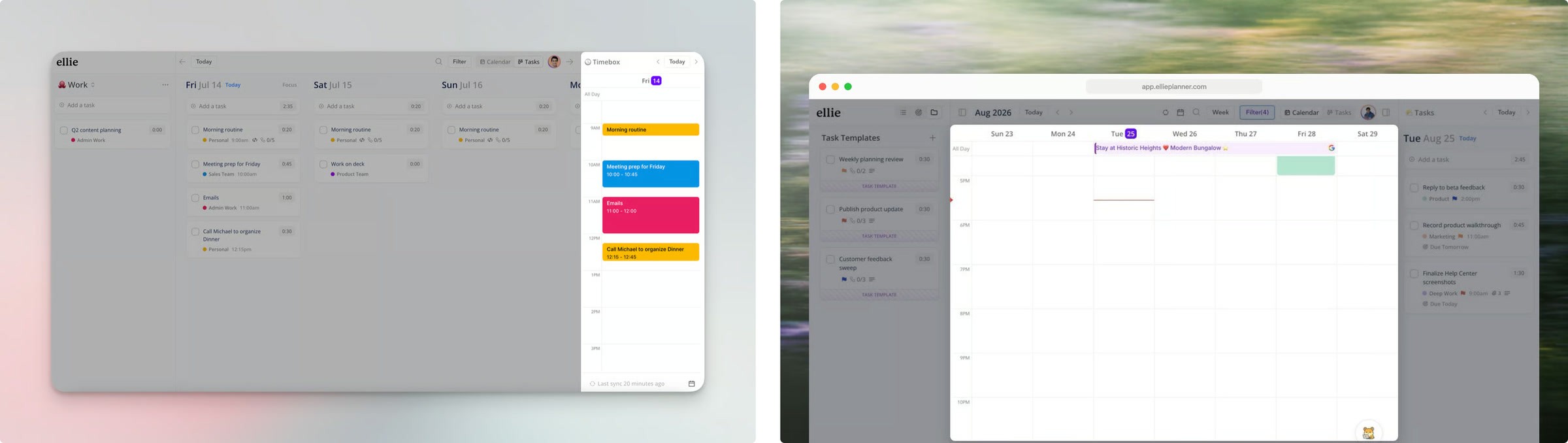
The first two images in Ellie’s Timebox help article. Left: uploaded July 14, 2023. Right: uploaded August 26, 2026. Screenshot of guide.ellieplanner.com, captured September 18, 2026.
Three habits keep a help center from ending up like that:
Redo by article, not by image. When one image in an article needs replacing, check its neighbors in the inventory. If they’re from the same old batch, redo them together.
Write the look down. Background, frame, crop, how you point at things, whether text goes on the image. Ellie’s written guidelines say, among other things, that the grain is “fine, monochrome, background only”, that there is “no text on the image” because the page supplies the caption, and to “keep the same background family across a set of images for one article.” Whether a person or an agent does the redo, a written look is what makes image 12 match image 1.
Name files so they say what and when. Ellie’s newer files are named by platform, subject and look, like
ellie-web-priority-green-light-v1-16x9.jpg. Put a date or version in the name, or keep it in the inventory, so the next audit can tell old from new without opening every file.
For how ten other help centers handle this, one annotated image each, see help center screenshot examples.
When another tool is the better choice
Your product is a web app with a large help center in Zendesk or Intercom, and nobody on the team writes code: LaunchBrightly is built for exactly this, with audits, approvals and sync, and its team will build the first recipes during the proof of concept.
You’d rather move the help center itself onto a platform that keeps text and images current: Ferndesk.
Your docs live in a repository and your developers own them: Heroshot, or Playwright if you already have end-to-end tests.
You need raw iOS captures in CI across many devices and languages: fastlane snapshot.
Your help center covers an iOS or Mac app, and you want finished images in a fixed look from a request to an agent: that is the case Moonjar, our product, was built for, with the limits above. You can request early access or see what it makes.
A checklist you can copy
Run the script on your sitemap and paste the result into the sheet above: article, image file, screen, feature, platform, file date.
Add
last_checked,next_checkandstatuscolumns, and an owner if more than one person edits.Add a line to your release checklist: filter the sheet by the features in this release and check those rows.
Put a quarterly audit on the calendar, starting with the most-viewed articles; use file dates to break ties.
For each image you check: keep it, crop it, or re-shoot it, and write down which.
Write down the look: background, frame, crop, highlight style, file naming.
Redo whole articles when their images come from the same old batch.
Keep the previous version of every image you replace.
After each swap, reread the steps around the image, then update
file_date,last_checkedandstatusin the sheet.
How this was made: the audit of guide.ellieplanner.com ran on September 18, 2026 against its public sitemap and the image files’ own dates. The images were made with Moonjar, our product, from captures of that site and from Ellie’s demo data; the cover and the redone images use a meadow photo by Bernd Dittrich on Unsplash. Vendor prices and features were rechecked on September 19, 2026. This page was drafted with AI assistance.