
How to automate App Store screenshots: fastlane, Xcode test plans or an agent
What fastlane, Xcode test plans and an AI agent each automate when you redo App Store screenshots every release, what each leaves to you, and a check script to run before any upload.
Chris Raroque
·

If your app already has UI tests, fastlane is the most complete way to automate App Store screenshots: snapshot runs a UI test on each simulator in each language, frameit adds a device frame and a translated headline, and deliver uploads the files. Xcode can do the capture half on its own, with a test plan that runs once per language. An AI agent that drives the Simulator needs no test code, but it redoes the set when you ask, not as a fixed script.
What was actually run for this page: the agent route (Moonjar, our Mac app in early access, on demo data in Ellie, a planner I build) and the check script at the end, both on September 18, 2026. The fastlane and Xcode routes are described from their documentation, source code and help text, rechecked on September 19; neither pipeline was run end to end, so treat their steps as a documented path, not a tested one.
What the automation has to produce
Apple’s screenshot specifications, rechecked September 19, 2026, allow one to 10 screenshots per set, as .jpeg, .jpg or .png, and images can’t include alpha channels or transparency.
iPhone: one 6.9-inch set, at 1260 x 2736, 1290 x 2796 or 1320 x 2868 in portrait. A 6.5-inch set is required only if you don’t provide 6.9-inch screenshots, and smaller iPhone slots you leave empty get scaled versions of the larger ones.
iPad, if the app runs there: one 13-inch set, at 2064 x 2752 or 2048 x 2732 in portrait; smaller iPad slots also get scaled versions.
That shrinks the job. fastlane’s snapshot docs open with the math of doing it by hand: 20 languages x 6 devices x 5 screenshots = 600 screenshots. With Apple scaling from the largest size, the same app on iPhone and iPad needs two device sizes, so 20 x 2 x 5 = 200 files. (The full size list is in the App Store screenshot sizes reference, and the plan, headlines and order that come before any automation are in how to make App Store screenshots.)
Every route below makes the same five layers, whichever tool owns each one:
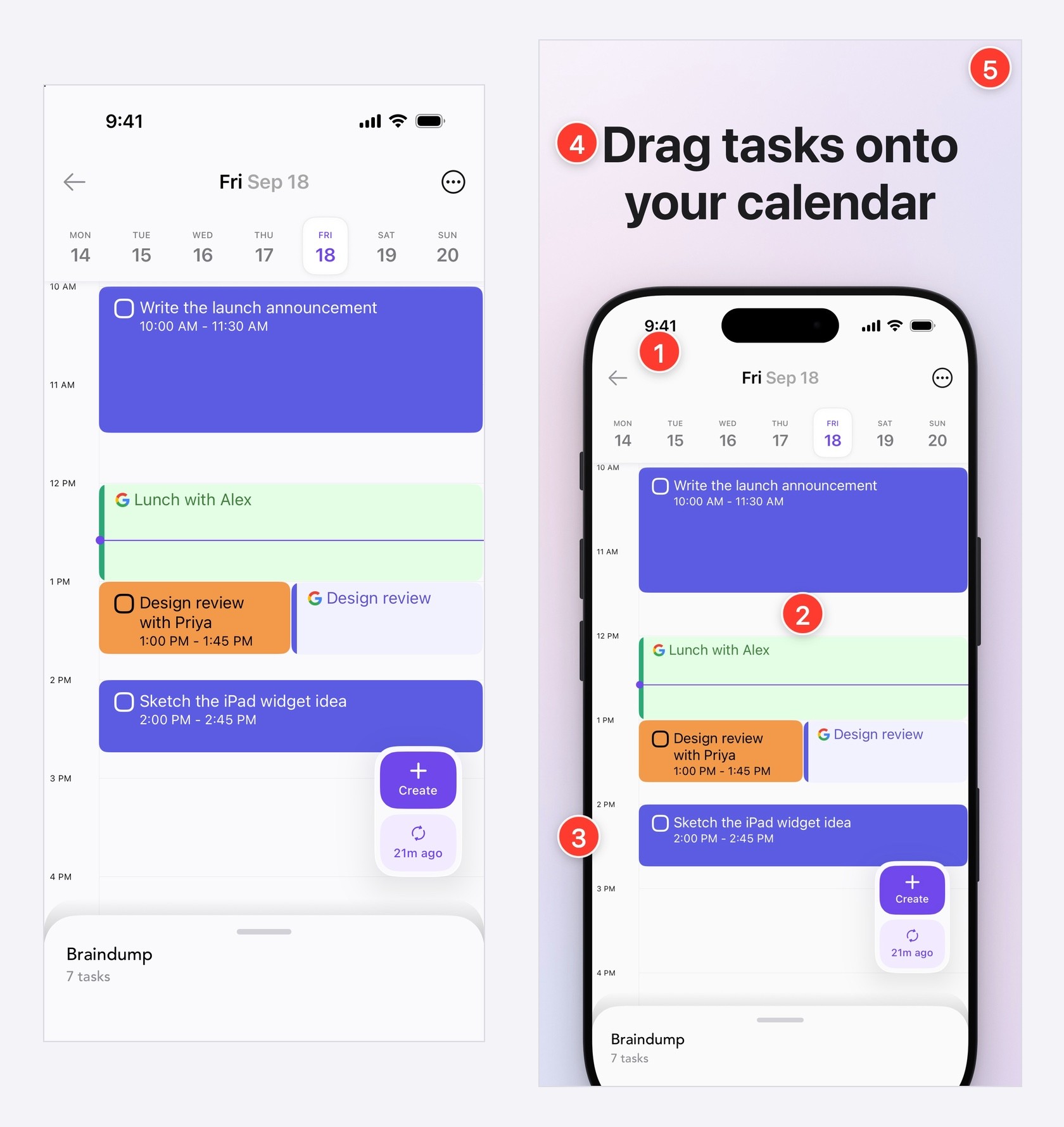
Left: a raw iPhone 17 Pro Simulator capture, 1206 x 2622. Right: the 1320 x 2868 upload file made from it, with the five layers numbered. Same pixel scale. Made with Moonjar from Ellie’s demo data, September 18, 2026.
A clean status bar: 9:41, full signal and battery.
The screen, reached in the app with believable demo data. This is the part that breaks when the app changes.
A device frame, if you use one. Here it also draws the Dynamic Island, which this capture doesn’t have.
A headline, one per language.
The canvas: a background, and an exact size from Apple’s list. The raw capture on the left is 1206 x 2622, Apple’s 6.3-inch size, so it can’t fill the 6.9-inch set on its own.
The routes at a glance
fastlane snapshot, frameit and deliver. You maintain UI tests, a Snapfile, a Framefile and .strings files for headlines. It leaves you device sizes frameit doesn’t know yet. Documented, not run here.
An Xcode test plan. You maintain UI tests and a test plan. It leaves you the frame, the headline and the upload. Documented; only the attachment export was tried.
An agent in the Simulator (Moonjar, ours). No screenshot test code was added for the example here. You still supply the app state, handle each language and check every run. A capture run and saved-look repeat were demonstrated; unattended recapture after an app change was not.
Goldie. The agent writes flows that replay, plus Android and a preview video. Documented, not run here.
Automate the whole set with fastlane (documented)
fastlane is free, and open source under the MIT license. Its screenshots guide shows a lane of three actions: capture_screenshots (snapshot), frame_screenshots (frameit) and upload_to_app_store (deliver). The latest release on September 19, 2026 was 2.240.1, from September 15.
Capture with snapshot
From snapshot’s docs:
Add a UI test target, run
fastlane snapshot initin the project folder, and add theSnapshotHelper.swiftit creates to the UI test target.In the test’s
setUp(), callsetupSnapshot(app)beforeapp.launch(). At each screen you want, callsnapshot("01Today").List the devices and languages in the
Snapfilethat init created.Run
fastlane snapshotfrom the command line. fastlane’s screenshots guide warns that running the test in Xcode “does not create the snapshots”.
A Snapfile for a 6.9-inch iPhone set and a 13-inch iPad set in three languages might read like this (an example assembled from the docs, not a file that was run):
The simulator names are from Xcode 27, and each one’s device profile gives the screen size: 1320 x 2868 for the iPhone 17 Pro Max and 2048 x 2732 for the iPad Air 13-inch (M4). Both are on Apple’s lists. The iPad choice matters for frameit, below.
What the docs say about the rest of the layers:
Status bar: off by default.
override_status_bar(true)shows “9:41 AM, full battery, and full reception”. Its default flags use--batteryState charged; for the plain full battery in this page’s images, pass--batteryState discharging --batteryLevel 100and the rest of your flags withoverride_status_bar_arguments(the Simulator screenshot guide lists every flag).Demo data: snapshot launches the app with
-FASTLANE_SNAPSHOT YES, which your app can read fromUserDefaultsto load demo content, andlaunch_argumentsadds your own.Output: files land in
./fastlane/screenshots, split by language and device, with an HTML page showing them all. Simulators run in parallel and without a window by default.Failures: snapshot retries failing UI tests once by default (
number_of_retries). If a device still fails, it gets no screenshots and the run moves on, unless you passstop_after_first_error.
On Xcode 27, keep snapshot headless. Xcode 27 no longer ships the Simulator app; simulators run in Device Hub. snapshot’s code opens the Simulator app when you turn headless off and when you pre-load media with add_photos or add_videos. That wasn’t tested for this page, but expect those two options to fail until fastlane catches up; the default headless run doesn’t use that path.
Frame and caption with frameit
frameit needs ImageMagick, downloads its frames the first time it runs, and fetches newer ones with fastlane frameit download_frames. Then, per its docs:
Without a Framefile, frameit only adds the frame, and the result “can’t be uploaded to the App Store directly”.
With a
Framefile.jsonin the screenshots folder, it adds a background and a headline. The background is required for titles. Each entry’sfiltermatches part of a file name, so each screen can get its own colors.Headlines per language come from
title.strings(and an optionalkeyword.strings) in each language folder. They are ordinary .strings files, so the same translation service as your app can fill them. The docs say they must be UTF-8 or UTF-16 and begin with an empty line.--resumeframes only screenshots that are new, or newer than their framed copy.
Two details in the source code decide which simulators to use. frameit sizes the background to the screenshot, so a framed file keeps the pixel size of the capture: to get a 6.9-inch file out, capture on a 6.9-inch simulator. And frameit picks the frame by pixel size from its device list. The iPhone 16 and 17 frames arrived in fastlane 2.234.0 in May 2026. As of 2.240.1 the list still has no iPhone Air size (1260 x 2736) and no 13-inch iPad Pro (M4 and M5) size (2064 x 2752), and its code raises an “Unsupported screen size” error when nothing matches. It does have 2048 x 2732, and every entry at that size is a 12.9-inch iPad Pro. That’s why the Snapfile above uses the iPad Air 13-inch (M4): by that list, its screenshots get a 12.9-inch iPad Pro frame.
Upload with deliver
deliver’s docs say it reads a screenshots folder with a subfolder per language and works out the device from each image’s resolution. Its source maps all three 6.9-inch sizes and both 13-inch sizes. It shows a summary before uploading, and overwrite_screenshots (off by default) clears the ones already in App Store Connect first.
frameit saves each result as a PNG beside its capture, with _framed added to the name. When a language folder holds framed files, deliver uploads those and skips the rest, so the _framed files are the ones to check before an upload. They’re PNGs, so check them for an alpha channel too (the script at the end does).
Where it takes work
The UI test is the part you maintain. When a screen changes, its test has to change with it, and a test that keeps failing leaves that device without screenshots for the run. The frame list has to catch up with each new device size. And the pipeline is Ruby, ImageMagick and a UI test target, on a Mac with Xcode.
Capture with an Xcode test plan, without fastlane (documented)
Xcode can capture the same screens with no extra tools. You write the UI test and get PNG files out; the frame, headline and upload are yours to add.
At each screen in a UI test, attach a screenshot and mark it to keep (the first block below).
Make a test plan with one configuration per language. Apple’s test plan guide lists Application Language and Application Region as configuration settings, and Xcode runs the plan’s tests once per configuration. For a one-off run,
xcodebuildalso takes-testLanguageand-testRegion.Boot the simulators and set the status bar before the run with
xcrun simctl status_bar <UDID> override, as in the Simulator screenshot guide.Run the plan on each device and export the attachments (the second block).
The attachment, in the UI test:
Apple’s docs for lifetime say attachments are discarded when their test passes unless you set .keepAlways, and XCTAttachment(screenshot:) stores a PNG.
The run and the export:
man xcodebuild in Xcode 27 says that with more than one -destination it tests on them concurrently and runs every enabled test on each. xcresulttool help export attachments says the export also writes a manifest.json listing the attachments for each test. You’ll need it: when the export was run with Xcode 27.0 on an existing result bundle from an earlier UI test run, it named each PNG by an ID (such as 6CCEBEA7-C91B-41C4-8C9A-25FDDBD6BE92.png), and manifest.json gave each file its test, its device name, a configuration name and a readable name that starts with the attachment’s name.
What comes out is the screen alone, at each simulator’s own size: layers 1 and 2 of the image above. The frame and headline are a separate step. frameit runs on any folder of screenshots, so it can do this part without snapshot once the files are renamed from the manifest and sorted into a folder per language. Or you write an image script of your own.
Have an agent drive the Simulator (Moonjar, our product, run here)
Here the agent is the script. Moonjar is a Mac app whose MCP server Claude Code or Codex calls to launch apps and open deep links in the iOS Simulator, capture screens and compose them into finished images, while you watch in the app. Nothing is added to your project.
What repeated exactly
On September 18, an agent made three App Store screenshots from Ellie in Demo Mode through Moonjar. About five hours later, an agent rebuilt the Timebox design from the same capture with the same style and headline: the PNG exports matched byte for byte, with the same SHA-256 hash. That checks whether the saved look repeats; it does not test an unattended run through a changed app.
The numbered image above shows the layers that need to repeat. The Claude Code screenshot walkthrough has the individual calls, the 49-second capture-to-export measurement and the headline correction. For a new release, replace the captures, reuse the look, and review the new screens before export.
What it automates
Reaching the screen without a test: the agent taps and types with its own tools (such as Claude Code’s iOS Simulator control or computer use), and Moonjar opens deep links and returns a screenshot after each change it makes. Moonjar can also pass launch arguments to the app, as snapshot does for demo data.
The status bar: Moonjar sets 9:41 before each Simulator capture by default, and its reply says so when it can’t.
Frame, background, headline and size in one call. The app-store look turns the 6.3-inch capture into a 6.9-inch file, so the iPhone 17 Pro was enough and no Pro Max simulator was needed.
Repeating a look. Each design stays in Moonjar’s library with its look and a history of its changes, and the agent can read both back and apply that look to fresh captures.
What it doesn’t
No language loop. Moonjar’s tools have no language setting, so each language is another pass: switch the app’s language, capture again, and write the headlines in that language.
Not a fixed script. The model decides each tap on each run, so look at the previews, which Moonjar’s instructions tell the agent to do too. Moonjar’s README documents running Codex non-interactively with
codex exec, so a run can be started from a script, but it still needs a Mac with Xcode and an agent session.iPad is a separate design. The app-store look always makes the iPhone canvas, even for an iPad capture. An iPad set keeps the look on a 4:3 canvas with the iPad’s size and position set in the design; one exported at 2752 pixels wide measured 2752 x 2064, an accepted 13-inch landscape size.
Early access and Mac only, with no published price. See what Moonjar does.
Moonjar also ships an MCP prompt, app_store_screenshots, that walks an agent through capturing, styling and comparing a set. Its last step exports PNG files, which carry an alpha channel even when every pixel is opaque, so ask for JPEG. The other agent routes, including the design skills, are compared in App Store screenshots with Claude Code; to connect an agent to Xcode and the Simulator in the first place, see Claude Code and Codex for iOS development.
Two other agent routes (documented)
Goldie sits between the scripted routes and this one. Its README says the agent explores the app and writes flows, and then
goldie allcaptures by replaying them on the Simulator, frames the captures, renders a preview video and checks the results against the stores’ rules, with output underout/screenshots/<device>/<locale>/. iPhone files come out at 1320 x 2868, and it also makes Google Play screenshots. Its own remark: flows fail when the app changes, and you ask the agent to repair them or record them again.Xcode 27’s own agents. Apple’s release notes say they can now boot simulators, install and launch apps, synthesize touch events and capture screenshots to verify UI behavior. That’s for checking your UI; frames, headlines and store sizes aren’t part of it.
Which route fits
You ship in many languages and already have UI tests: fastlane. Translated headlines are built in through .strings files, and snapshot’s docs point out that the run doubles as an integration test of each screen. Run it once on your own project before you rely on it, especially on Xcode 27.
You have UI tests and don’t want Ruby in the build: an Xcode test plan, plus your own framing step.
Few languages, screens that change often, no UI tests: an agent. Moonjar (ours, in early access, Mac only) keeps the looks and their history, so the next release is the same request again.
You want agent-written flows that replay, plus Google Play and a preview video: Goldie.
Check the files before they upload
Whatever makes the files, a short check catches the two file problems Apple’s page rules out: a size it doesn’t list, and an alpha channel. This script prints both for every file you pass it, and exits with status 1 if any file fails either:
Run on September 18, 2026 over the agent run’s three JPEGs, it passed all three (1320x2868, alpha no) and exited 0. With a PNG export of the same design and the raw capture added, it flagged the PNG for its alpha channel and the raw 1206 x 2622 capture as not a 6.9-inch size, and exited 1. sips -s format jpeg screen.png --out screen.jpg converts a PNG to a JPEG at the same size without the alpha channel: on a copy of that PNG export, the JPEG passed. If your set includes other devices, such as a Mac or an Apple Watch, add their sizes to the ok list.
In a fastlane lane, run the script with the sh action between frame_screenshots and upload_to_app_store, over the _framed files. Resolve paths from ./fastlane: a script stored at the project root is ../check-screenshots.sh inside sh, because Fastfile shell commands run from the fastlane folder even though actions run from the project root. fastlane’s sh action raises an error when a command exits with anything but 0, unless you pass an error_callback, so a failed check stops the lane before anything uploads.
The agent run and the numbered image were made with Moonjar, our product, from Ellie’s demo data on an iPhone 17 Pro Simulator on September 18, 2026, by AI agents (Claude, working in Claude Code); the numbered composite was assembled with ffmpeg, on Moonjar’s own gradient background. fastlane, frameit, deliver, Xcode and Goldie are described from their documentation, source code, help text and README, read on September 18 and rechecked on September 19; none of their pipelines was run. The Xcode attachment export was tried on an existing test result, and the check script was run on the files named above. This page was drafted with AI assistance.