
iOS Simulator screenshots: a device frame, a clean 9:41 status bar and where they save
How to take an iOS Simulator screenshot in Xcode 27 or earlier, find where it saved, set a clean 9:41 status bar and add a device frame.
Chris Raroque
·

An iOS Simulator screenshot is the device’s screen at full resolution, saved as a PNG with no device frame. In Xcode 27 you take it with the Screenshot button below the device in Device Hub, which replaced the Simulator app. In Xcode 26 and earlier, choose File > Save Screen in the Simulator app. Both save to your Desktop unless you’ve set another folder.
For an image you plan to publish, set a clean status bar first and capture from Terminal. This works in both versions:
Then add a frame, if you want one; the options are below. The commands and flags were checked against the help text in Xcode 27.0 (build 27A266a). The sample images use Ellie, the planner app I build, with its demo data, and were made with Moonjar, our Mac app, which is in early access.
Take a Simulator screenshot and find where it saved
Xcode 27: the Screenshot button in Device Hub
Xcode 27 has no standalone Simulator app. Simulated and physical devices share one window, Device Hub. Run your app, go to the screen you want, and click the Screenshot button below the device. Apple’s guide says the screenshot is taken at the device’s full resolution, whatever your Mac’s display is, and saved to your Desktop.

Xcode 27’s Device Hub, captured September 18, 2026. The orange circle and arrow mark the Screenshot camera icon below the device, next to Record. Sidebar names remain covered. Annotations revised September 22, 2026.
Apple’s Device Hub pages document only that button for screenshots. Recording has a menu item (Controls > Record Screen), but no screenshot shortcut is documented. If you want a keystroke, use the Terminal command above or the script at the end of this page; the macOS Shortcuts app can run a shell script and give it a keyboard shortcut.
To save somewhere else, Device Hub checks three settings in this order, according to the Xcode 27 release notes:
Device Hub’s own
screenCaptureLocationsetting (domaincom.apple.dt.devices)The old Simulator setting,
ScreenShotSaveLocationincom.apple.iphonesimulatorThe macOS screenshot folder (
locationincom.apple.screencapture), which you set under Options in the Screenshot app
If none is set, the file goes to the Desktop. If you already pointed the old Simulator at a folder, Device Hub keeps using it. To set one now, make the folder, then point the old Simulator setting at it:
If Device Hub doesn’t pick up the new folder, quit and reopen it.
If a script of yours opens the old app with open -a Simulator, it fails on Xcode 27 with “Unable to find application named ‘Simulator’”. The new app lives at /Applications/Xcode.app/Contents/Applications/DeviceHub.app, and xcrun simctl commands still work.
Xcode 26 and earlier: File > Save Screen
In the Simulator app, choose File > Save Screen. Other guides give Command-S as its shortcut; Apple’s own page names only the menu item. A preview appears next to the window. Leave it and the PNG saves to your Desktop, or click it to edit first. Hold Option when you choose File > Save Screen to pick a different folder. The file name starts with “Simulator Screen Shot”, then the device name, date and time.
The Simulator also has a menu item that takes a screenshot inside the simulated device. That one goes to the device’s camera roll, not to your Mac. If a screenshot seems to have vanished, check which one you used.
From Terminal, with either app
This saves the booted simulator’s screen as a PNG on your Desktop:
bootedtargets the booted simulator. If more than one is booted, pass its UDID instead, fromxcrun simctl list devices booted.--typesets the format:png(the default),tiff,bmp,giforjpeg.--maskdecides what happens outside the screen’s rounded outline:ignoredsaves the full rectangle,alphamakes those areas transparent,blackpaints them black.A bare file name saves into the current folder, and
-writes the image to stdout.
Xcode 27’s devicectl also lists a screenshot command (xcrun devicectl device capture screenshot --device <UDID> --destination screen.png, PNG only). This page sticks to simctl, which works in both versions; the devicectl command wasn’t run on a simulator for it.
Pixel sizes for current simulators
The file is the device’s native resolution, so its size tells you which App Store slot it fills. These sizes come from the screen outlines Xcode 27 ships for each simulator and match Apple’s spec pages; the iPhone 17 Pro and 13-inch iPad Pro (M5) sizes also match real captures.
Simulator in Xcode 27 | Portrait size (px) | App Store slot |
|---|---|---|
iPhone 18 Pro Max, iPhone 17 Pro Max, iPhone 16 Pro Max | 1320 x 2868 | 6.9-inch |
iPhone Air | 1260 x 2736 | 6.9-inch |
iPhone 16 Plus | 1290 x 2796 | 6.9-inch |
iPhone 18 Pro, iPhone 17 Pro, iPhone 17, iPhone 16 Pro | 1206 x 2622 | 6.3-inch |
iPhone 16 | 1179 x 2556 | 6.3-inch |
iPhone 17e, iPhone 16e | 1170 x 2532 | 6.1-inch |
iPad Pro 13-inch (M5) | 2064 x 2752 | 13-inch |
iPad Air 13-inch (M4) | 2048 x 2732 | 13-inch |
Landscape swaps the two numbers. Four different iPhones share 1206 x 2622, which matters when a frame tool has to guess the model from the file. Every other accepted size is in the App Store screenshot sizes reference.
Get a clean 9:41 status bar
Apple’s App Store marketing guidelines ask for a status bar with a full network icon, full Wi-Fi and a full battery. Xcode 27’s devicectl help describes 9:41 with a full battery and strong signal as the “classic Apple screenshot setup”. The override in the first code block does exactly that.

The status bar of the Ellie capture on this page, labeled with the flags that set each part. Moonjar runs this same override before each Simulator capture by default.
The override, flag by flag
The accepted values below are from xcrun simctl help status_bar in Xcode 27.0.
Clock:
--time 9:41. It takes any string; the help adds that a valid ISO date string also sets the date on relevant devices.Network icon:
--dataNetwork wifi. The choices arehide,wifi,3g,4g,lte,lte-a,lte+,5g,5g+,5g-uwband5g-uc.Wi-Fi:
--wifiMode activewith--wifiBars 3. The mode issearching,failedoractive, and bars go from 0 to 3.Cellular:
--cellularMode activewith--cellularBars 4. The mode isnotSupported,searching,failedoractive, and bars go from 0 to 4.Carrier name:
--operatorName ''. It takes any string, and an empty one hides the name.Battery:
--batteryState dischargingwith--batteryLevel 100. The state ischarging,chargedordischarging, and the level goes from 0 to 100.
Most examples, including Apple’s own from Xcode 11, use --batteryState charged. discharging at 100 gives the plain full battery in the image above, and it’s what Moonjar sends when it captures; a comment in Moonjar’s capture code gives the reason, that charged draws a green battery with a bolt. No charged capture was made for this page.
Check it, clear it, and set it again after a restart
xcrun simctl status_bar booted listshows the overrides in effect.xcrun simctl status_bar booted clearremoves them.Overrides have been reported not to survive the simulator shutting down since they were introduced in 2019, so run the override after every boot. This page didn’t recheck that on Xcode 27.
Run it once the simulator is fully up.
xcrun simctl bootstatus <UDID> -bboots the device if needed and waits until the boot finishes, but the home screen can take a few more seconds. fastlane’s screenshot tool runs that same command before its own override, and its code notes that the booted status isn’t enough: wait until the home screen shows.
On Xcode 27, devicectl also lists a one-line preset, xcrun devicectl device simulate statusBar preset screenshot --device <UDID>, which its help describes as 9:41, full battery and strong signals. It takes a UDID or a device name, not booted, and it wasn’t run on a simulator for this page. simctl still works in Xcode 27, so scripts you already have keep running.
Other things to set before you capture
Light or dark:
xcrun simctl ui booted appearance dark(orlight). With no value it prints the current style. In Device Hub, the Settings inspector has Appearance, Liquid Glass and Text Size.Text size and contrast:
xcrun simctl ui booted content_sizeandxcrun simctl ui booted increase_contrastprint or set them, so a setting left over from testing doesn’t end up in the shot.Data: Apple’s marketing guidelines ask for fictional account information instead of a real person’s. The images here use Ellie’s Demo Mode, which swaps in sample data.
Localized dates:
simctlcan’t put localized date and time strings in the status bar. SimulatorStatusMagic can, by injecting into SpringBoard on iOS 17 and later. Its README already covers iOS 27, where it says the status bar takes a minute or two to appear after injection.
Add a device frame
Why the screenshot has no frame
Device Hub surrounds the screen with a bezel while you work, but the screenshot is only the screen. The old Simulator was the same: its “device mask” option only made the areas outside the screen’s shape transparent, such as the rounded corners and the notch, and never saved the bezel.
A raw capture is plainer than people expect. The one below, shown from the top, came from the iPhone 17 Pro simulator with simctl’s default mask. It has square corners with app pixels right into them, and in this one no Dynamic Island: the pixels where the island would sit are Ellie’s background color. (Not every capture is like that; see the section on the Dynamic Island below.) Every pixel is opaque, but the PNG still has an alpha channel (sips -g hasAlpha says yes).

The top of a raw capture from the iPhone 17 Pro simulator, outlined so its edges show: square corners with app pixels right into them and, in this capture, no Dynamic Island.
Even the bezel Device Hub draws isn’t model-specific. In Xcode 27 the iPhone 16 Pro, iPhone 17, iPhone 17 Pro and iPhone 18 Pro simulators all name the same bezel artwork (chromeIdentifier is com.apple.dt.devicekit.chrome.phone11 in each device’s profile.plist). Capturing the window itself (Shift-Command-4, Space, then Option-click the window) gets you that shared bezel at your display’s resolution, not the device’s native pixels.
Your options
Apple’s product bezels. Apple’s design resources include product bezels as Photoshop and PNG files for current devices, including the iPhone 18, iPhone 17, iPhone 16 and iPad Pro (M5). You place the screenshot in them by hand in Photoshop, Figma or Sketch.
fastlane frameit. frameit is fastlane’s free, open source frame tool. In a folder of screenshots,
fastlane frameit download_framesfetches the frames andfastlane frameitframes every file; aFramefile.jsonadds a background and a title. It picks the frame by pixel size and, when several phones share a size, prefers the model named in the file name, so name files likeiPhone 17 Pro-tasks.png. Its device list gained the iPhone 16 and 17 lines in fastlane 2.234.0 (May 2026), but as of 2.240.1, the latest release on September 19, 2026, it has no iPhone Air (1260 x 2736) or 13-inch iPad Pro M4 and M5 (2064 x 2752) size, and its code raises an “Unsupported screen size” error when a file matches no entry.Shareshot. Shareshot is an app for iPhone, iPad and Mac (macOS 26 or later). Single framed screenshots are free with no watermark; batch mode, custom backgrounds, custom frames and Shortcuts need Pro, $1.99 a month or $14.99 a year on the US App Store (version 2.0.2, checked September 19, 2026). It doesn’t publish a model list.
Apple Frames. A free shortcut from MacStories that frames by resolution on iPhone, iPad or Mac, with a command line version for batches. How to add an iPhone frame to a screenshot walks through it step by step, with the other free routes.
Web and older Mac tools lag behind: WithFrame’s device list still stops at the iPhone 16 family and maps 1206 x 2622 to the iPhone 16 Pro, and FrameBuddy’s last update (November 2024) predates the iPhone 17 line.
If the image markets your app, read Apple’s App Store marketing guidelines before you pick a frame. They ask for Apple-provided product bezels used as is, and they list “creating any simulation of an Apple product” among uses that aren’t permitted, with an exception for illustrations in instructional material. That applies to any third-party frame in an ad or on a landing page, including Moonjar’s.
Moonjar’s drawn frames
Moonjar is our Mac app. It draws its devices in code instead of using bezel images: the iPhone 17 Pro, iPhone 17 Pro Max, iPhone Air and 13-inch iPad Pro, plus MacBook Pro and Apple Watch, in realistic colors or matte clay. It clips the screenshot to the screen’s rounded shape and, for captures at the three phones’ sizes, draws the Dynamic Island at the size and position measured from Simulator captures. The iPhone 17 Pro’s screen corner matches the outline Apple ships with the Simulator to within 2 pixels. You drive it through your coding agent rather than a canvas.
Here is the raw capture from above in two of its finishes:

Moonjar’s iPhone 17 Pro in black, a finish Apple does not sell for this model, drawn around the raw capture above.
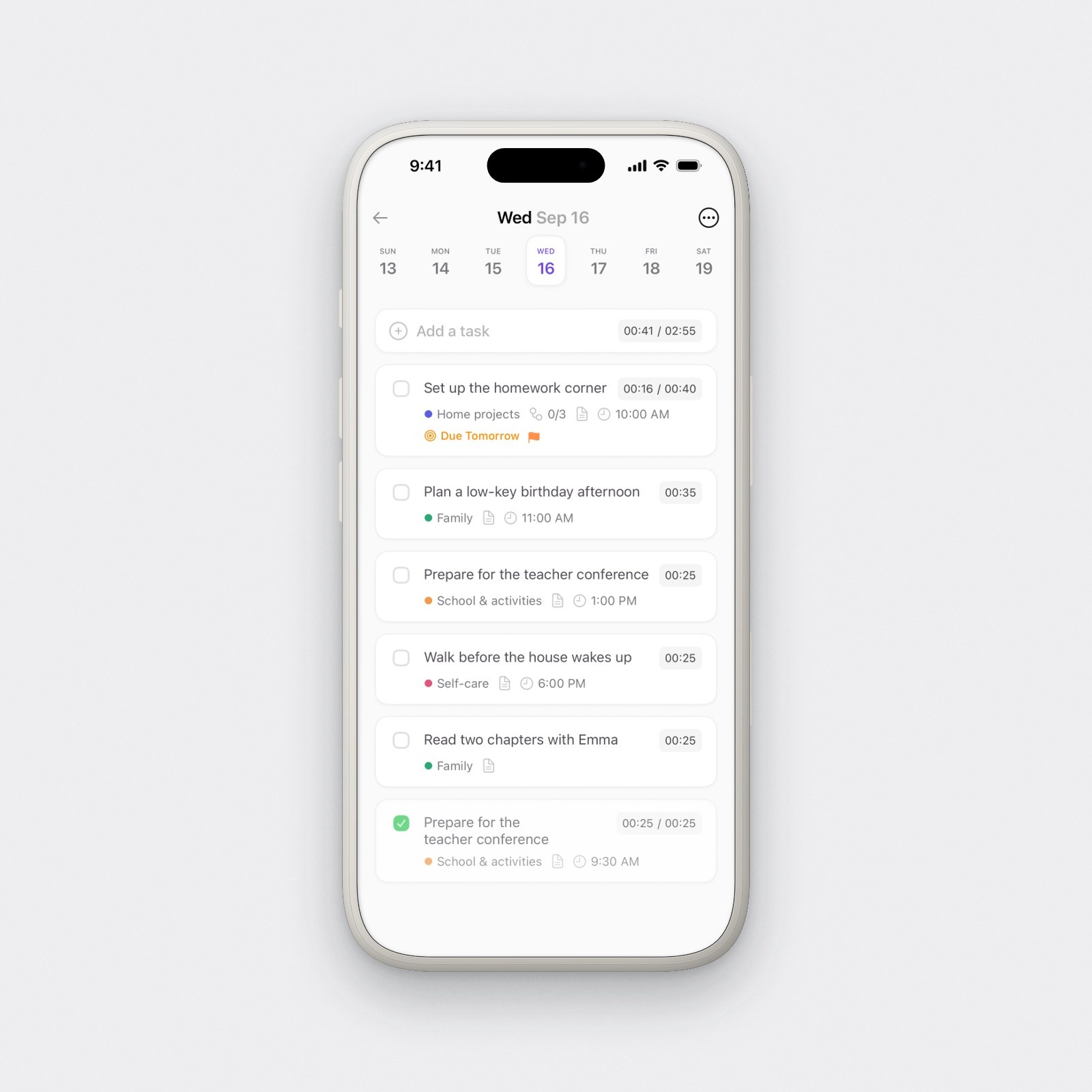
The same phone in Moonjar’s matte clay finish.
It has the same blind spot as the other tools: it picks the model by pixel size, so an iPhone 18 Pro, iPhone 17 or iPhone 16 Pro capture (all 1206 x 2622) gets the iPhone 17 Pro, and an iPhone 18 Pro Max capture gets the 17 Pro Max. Sizes it doesn’t draw get the nearest shape: an iPhone 16 or 17e capture gets the iPhone 17 Pro, and a 13-inch iPad Air capture gets the iPad Pro. It runs only on a Mac, and it’s in early access with no published price.
What to check in any frame
The model. A frame picked from pixel size can be last year’s phone, since 1206 x 2622 is four different iPhones.
The corners. The screen’s rounded corners should sit exactly in the frame’s opening, with no sliver of square corner and no gap of bezel color. To compare, Xcode ships each simulator’s exact screen outline as a PDF. In
/Library/Developer/CoreSimulator/Profiles/DeviceTypes/, open the device’s.simdevicetypefolder, thenContents/Resources/. TheframebufferMaskentry inprofile.plistthere names the PDF, which sits in the same folder. Open it in Preview.The Dynamic Island. The capture may or may not include the black pill. When it does, the frame’s island has to sit exactly on it; when it doesn’t, the frame has to draw one, centered and at the right size for that model.
One status bar. Apple’s bezel files carry status bar options as layers. Hide them if your screenshot already has its own.
Scale. Next to an iPad or another phone, keep true relative sizes. Apple’s guidelines ask for the same.
Screenshots without the notch or Dynamic Island
On a Dynamic Island iPhone, a Simulator screenshot usually has no island in it, like the raw capture above. Usually, not always. Of the 59 Simulator captures at 1206 x 2622 in the library these images came from, all taken with simctl io screenshot and no mask, 9 have the black pill at the top center, and one simulator produced a capture without it and one with it 15 seconds apart. What decides it isn’t clear from the files. So look at the top center of the file before you frame it, and if the pill is there and you don’t want it, take the screenshot again. A mask won’t remove it: on these models the screen outline covers only the four rounded corners.
The iPhone 16e and 17e simulators have a notch in their screen outline instead. Going by xcrun simctl help io and that outline, --mask=black should paint the notch area and the corners black and --mask=alpha make them transparent; this page didn’t capture one to check.
Simulator screenshots for the App Store
A Simulator screenshot works on the App Store as long as its size is on Apple’s list and the file has no alpha channel. Every simulator in the table above produces a listed size, but only the Pro Max, iPhone Air and iPhone 16 Plus simulators give you the 6.9-inch set Apple asks for; a 1206 x 2622 capture belongs in the 6.3-inch slot. For iPad, use the iPad Pro 13-inch (M5) or iPad Air 13-inch (M4).
Apple’s rule is that images can’t include alpha channels or transparency, and a simctl PNG carries an alpha channel even when every pixel is opaque. That also rules out --mask=alpha. JPEG has no alpha channel, so capture with --type=jpeg, or convert afterward with sips -s format jpeg screen.png --out screen.jpg.
From here, build the full App Store screenshot set: headlines, order, export and upload.
Every screen in your app
Once you need more than a few screens, or the same screens again after a redesign, there are three routes. The guide to automating App Store screenshots compares them in detail.
UI tests with fastlane snapshot. A UI test walks through the app and saves each screen, on every device and language you list, and frameit frames the results. Its
override_status_baroption sets a clean status bar, but its default uses--batteryState charged; to send the flags from this page instead, pass them inoverride_status_bar_arguments. It’s the most setup and the most repeatable.Xcode 27’s own agent. Apple’s release notes say agents in Xcode can now boot simulators, install and launch apps, synthesize touch events and capture screenshots to verify UI behavior. That’s aimed at checking your UI; the status bar and the frame are still up to you.
An agent with Moonjar. You ask Claude Code or Codex for the screens you want. Through Moonjar’s MCP tools, the agent launches your app, captures each screen with the 9:41 status bar set (Moonjar’s default) and frames them, several phones in one image if you ask. To move between screens it taps with its own Simulator control or computer use, because Moonjar has no input tools of its own. Each image keeps its history, so when your UI changes you can ask the agent to redo the same screens in the same look. Setting the agent up with Xcode and the Simulator is covered in Claude Code and Codex for iOS development. See what Moonjar does.
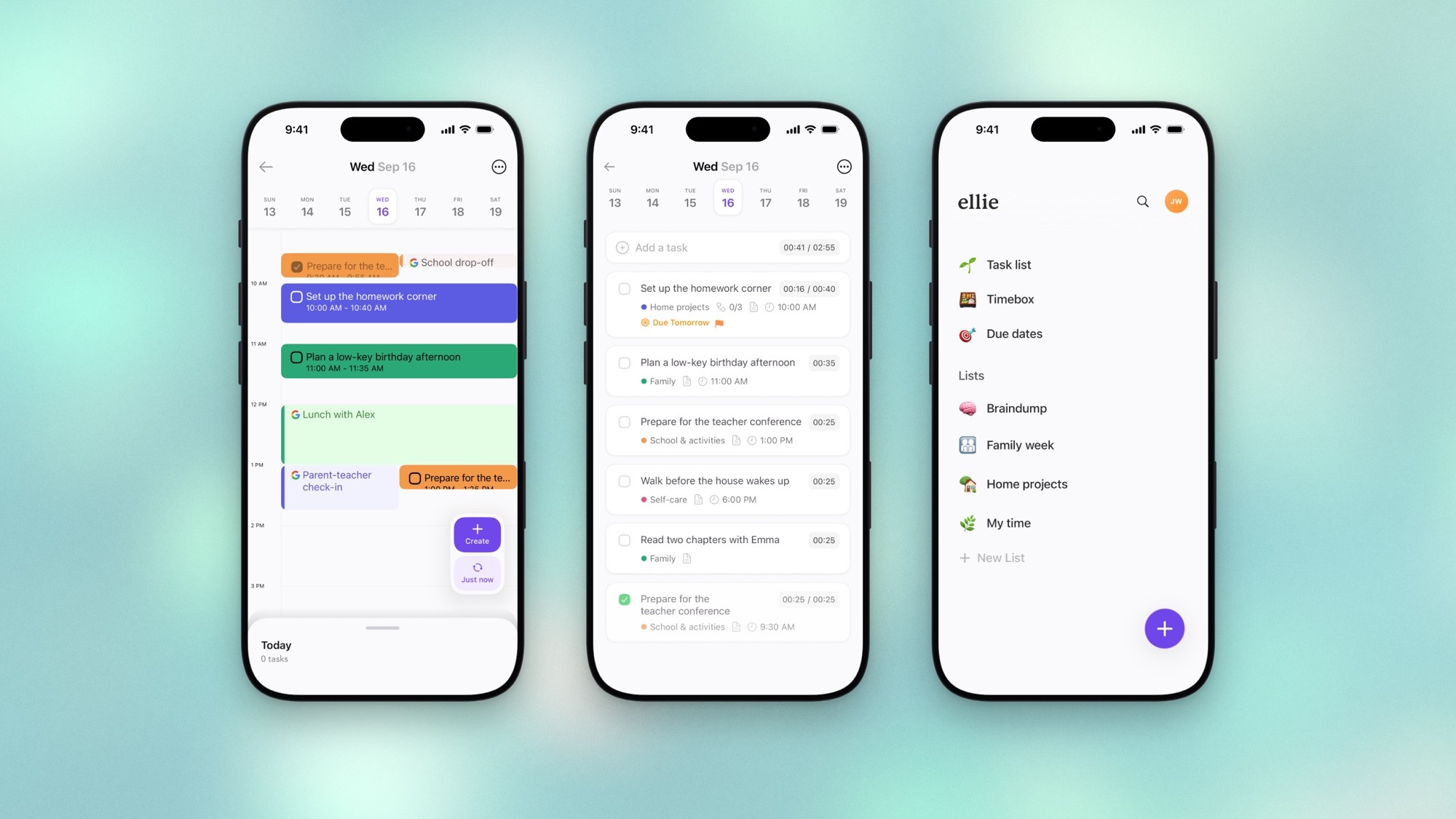
Three Ellie screens with one frame and one background, made with a single Moonjar call from Ellie’s demo data. Photo: Alexander Grey on Unsplash.
If you’re recording rather than capturing stills, record the Simulator with visible taps covers the video side of the same setup.
Put it all in one script
sim-screenshot.sh cleans the status bar, optionally switches light or dark, and saves a screenshot. It picks JPEG when the output name ends in .jpg, for App Store uploads.
Make it executable with chmod +x sim-screenshot.sh, then run ./sim-screenshot.sh booted dark ~/Desktop/home-dark.jpg. To leave the appearance alone, pass an empty string in its place: ./sim-screenshot.sh booted "" ~/Desktop/shot.png. Run it once the simulator’s home screen is up, for the reason in the status bar section. Tested end to end on September 19, 2026 with Xcode 27 and an iPhone 17 Pro simulator running iOS 26.5: both the dark-mode JPEG and PNG were 1206 x 2622. The JPEG had no alpha channel; the PNG did, so use JPEG for App Store uploads. The capture showed 9:41 and a full battery without a charging bolt.
Troubleshooting
open -a Simulatorfails. You’re on Xcode 27, where the app is Device Hub.xcrun simctlcommands still work.The status bar shows the real time again. The simulator restarted, or the override ran before it was fully up. Run
xcrun simctl bootstatus <UDID> -b, wait until the home screen shows, then run the override again.The battery shows a bolt. Use
--batteryState dischargingand--batteryLevel 100instead ofchargedorcharging.The screenshot isn’t on the Desktop. One of the three save-location settings above is set. The old settings can be read with
defaults read com.apple.iphonesimulator ScreenShotSaveLocationanddefaults read com.apple.screencapture location. Device Hub’s own setting is container-scoped; a plaindefaults readdid not verify it on this Mac. To bypass the save-location settings entirely, usexcrun simctl io booted screenshot "$PWD/screen.png"and look in the current folder. In the old Simulator, the in-device screenshot goes to the simulator’s camera roll instead.The screenshot is from the wrong simulator. More than one is booted. Pass the UDID from
xcrun simctl list devices bootedinstead ofbooted.The black Dynamic Island pill is in the screenshot. It shows up in some captures and not others. Take the screenshot again;
--maskwon’t remove it.App Store Connect won’t take it in the 6.9-inch slot. Check the pixel size table: a 1206 x 2622 capture belongs in the 6.3-inch slot. Capture again on a Pro Max or iPhone Air simulator.
A frame tool says the size isn’t supported, or shows the wrong phone. frameit has no iPhone Air or 13-inch iPad Pro (M5) size, WithFrame stops at the iPhone 16 family, and Moonjar draws the nearest shape for models it doesn’t have. Name the file after the model for frameit, or use a tool that has the device.
How this page was made
Commands and flags were checked against the help text of xcrun simctl and xcrun devicectl in Xcode 27.0 (27A266a) on September 18, 2026; Apple’s pages, fastlane’s device list and release, and the third-party tools’ pages were rechecked on September 19. None of the third-party tools were run. The images were made with Moonjar, our product, from captures of Ellie’s demo data on the iPhone 17 Pro simulator (iOS 26.5) taken on September 16, and from a window capture of Device Hub on September 18. The cover layout and Device Hub annotations were revised on September 22, 2026, using those same captures; the sidebar names remain covered. The Dynamic Island count comes from checking the top center of every 1206 x 2622 capture in that library. The background photo on the cover and in the three-phone image is by Alexander Grey on Unsplash. This page was drafted with AI assistance.