
How to record the iOS Simulator (with taps showing)
Neither simctl nor Device Hub’s Record button draws your taps. The recording commands, what the file holds, and four ways to make taps visible.
Chris Raroque
·

To record the iOS Simulator, boot it and run one Terminal command:
xcrun simctl io booted recordVideo --codec=h264 demo.mov
Press Control-C to stop. The file is the device’s screen at full resolution, with no device frame and no mark where anything was touched. Xcode 27’s Record button in Device Hub doesn’t draw touches either. So if viewers need to see the taps, something else has to draw them, and there are four ways:
In the Simulator window: a hidden preference of the old Simulator app draws touches in its window, so only a recording of the window can carry them, at your display’s resolution and with the window around it.
Inside your app, with a touch-visualizer library: every recording shows the taps, including those from UI tests.
By a helper app while it records, such as RocketSim: the taps are in the file when you stop.
Afterward, from a log of the touches: the take stays clean, and the taps can be restyled or removed later.
The rest of this page covers each in turn, after the recording commands and what the raw file actually holds. One of the options is Moonjar, our product, which also made the images on this page.
Record with simctl
simctl ships with Xcode. The help text in Xcode 27.0 (xcrun simctl help io) documents these options for recordVideo:
--codec:h264orhevc. The default ishevc. Pickh264if the file is going somewhere that may not play HEVC, including an App Store preview.--display: which display to record.xcrun simctl io booted enumeratelists the available screens and their IDs.--mask: what to do with a non-rectangular screen.ignoredsaves the unmasked framebuffer andblackrenders the mask black.alphais listed as not supported and also renders black.--force: overwrite the output file if it already exists.
Two more things from the help text matter when you script it. simctl writes Recording started to stderr once the first frame is processed, so a script can wait for that line before it starts tapping. And it stops on SIGINT (Control-C), then exits only after the in-flight frames are processed and the file is finalized, so let it exit on its own rather than killing it.
booted means the booted simulator. If more than one is booted, pass its UDID instead (xcrun simctl list devices booted shows them).
Record with the Record button in Device Hub
In Xcode 27, simulators run in Device Hub, which replaced the Simulator app; the Xcode 27.0 install used for this page has no Simulator app. Apple’s guide to capturing in Device Hub says:
Run your app on a simulated device and go to where the video should start.
Click the Record button below the device, or choose Controls > Record Screen.
Stop with the Stop button below the device, or Controls > Stop Recording.
Device Hub saves the video to your Desktop, with a file name that starts with Screen Recording followed by the device name and a timestamp. Apple describes recording for simulated devices; to record a physical iPhone, Apple’s App Store preview guidance uses QuickTime Player on a Mac.
In Xcode 26 and earlier, the Simulator app does the same from File > Record Screen. Apple’s older Simulator guide said it saves to the Desktop, that holding Option when you choose Record Screen lets you pick another location, and that the file name starts with “Simulator Screen Recording”.
What the raw recording contains
To see what you get, here is an existing recording of Ellie, the planner app I build, taken on an iPhone 17 Pro simulator (iOS 26.5) on September 16, 2026. It was made by simctl io recordVideo --codec h264, the same command as above, run by Moonjar’s recorder. Read with ffprobe on September 18:
Full device resolution. 1206 x 2622 pixels, the iPhone 17 Pro’s screen, H.264 because the codec was set.
No audio track. The file has one stream, video.
Frames only when the screen changes. 160 frames in 18.95 seconds, and the first frame is held for 5.9 seconds because the screen didn’t change. Players handle that, but some tools expect a steady frame rate; the ffmpeg step below converts it.
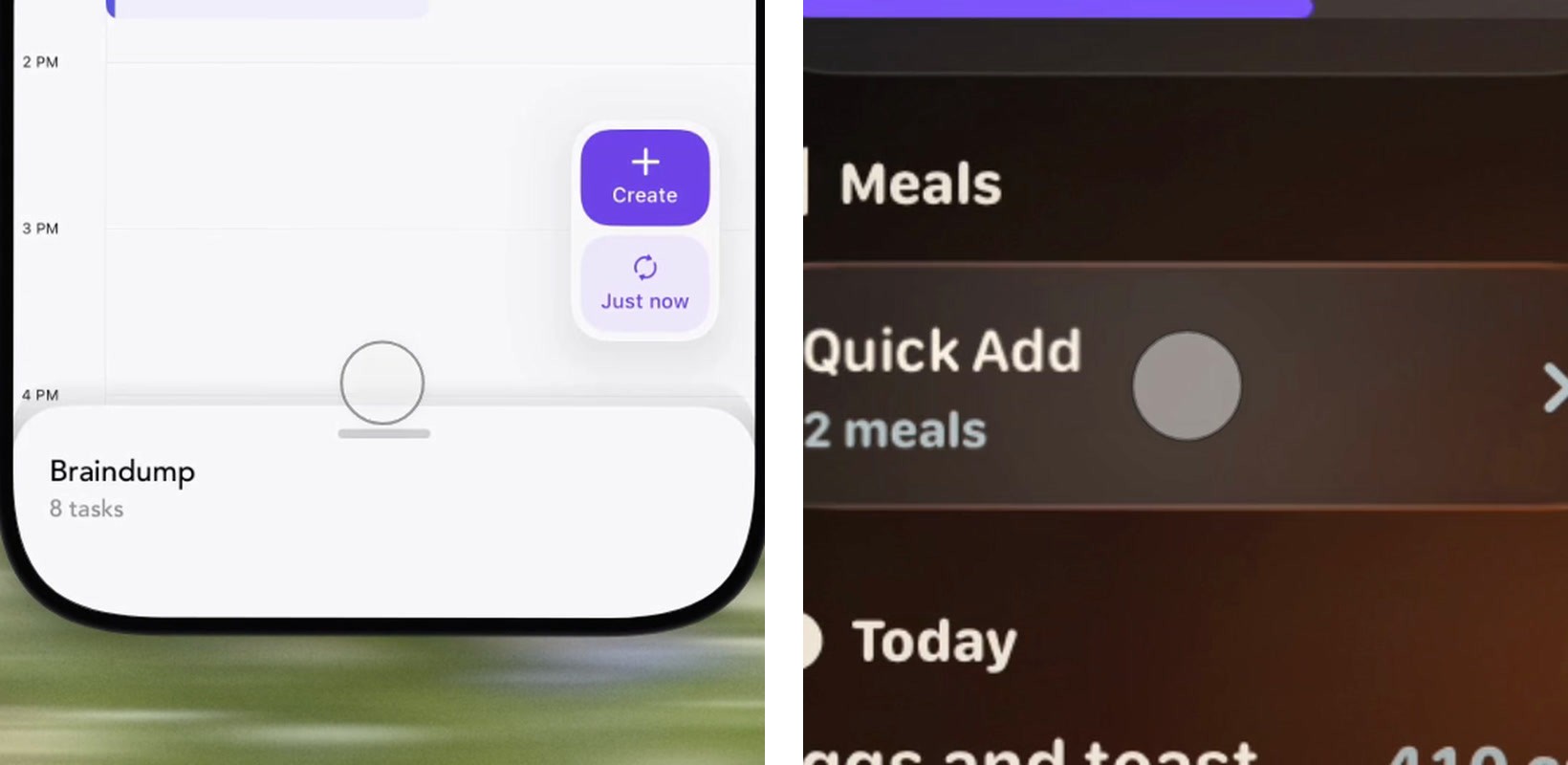
No touches. A swipe up from the Braindump sheet starts at 5.4 seconds, and nothing in the frame marks it.

Left: a frame of the raw simctl recording at the moment the swipe starts. Right: the same moment in a Moonjar cut of that recording, with the logged touch drawn at the sheet’s handle. Ellie demo data, recorded September 16, 2026. Background photo: Bernd Dittrich on Unsplash.
In a demo, that missing mark is the problem. A sheet that moves on its own looks like a glitch, and a button that works without a visible press reads like a skipped step. If you only need a still of the same screen, take a clean Simulator screenshot instead.
Four ways to show taps
They differ in where the indicator gets drawn: in the Simulator window, inside your app, by a helper app while it records, or afterward from a log of the touches. Only the last was used for this page; the first three are described from their own documentation.
1. The Simulator’s touch preference, with a window recording
The setting passed around for years is a hidden preference of the old Simulator app:
defaults write com.apple.iphonesimulator ShowSingleTouches 1
It turns on touch indicators in the Simulator window. Maestro’s post on showing tap indicators on iOS recordings (August 2025) names the catch: the indicators don’t show up in the screen recording. A recording of the window itself, with Shift-Command-5 or QuickTime, captures whatever the window shows, so it should include them, but the video then includes the window chrome and its resolution depends on your display rather than the device; that wasn’t tried for this page. The preference also belongs to the Simulator app, which Xcode 27 replaced with Device Hub, and Apple’s Device Hub guide mentions no touch setting.
2. Draw them inside the app
Maestro’s fix is to draw the touches in the app itself. Maestro’s post describes turning ShowTime, an open-source touch-visualizer library, into a dynamic framework and loading it at launch through the SIMCTL_CHILD_DYLD_INSERT_LIBRARIES environment variable, and injecting it into SpringBoard for touches outside the app. The post says every tap is then drawn on screen, so it ends up in the recording. The cost is that it’s baked in: to hide it for a clean shot, you record again.
3. A helper app that records with touches
RocketSim is a Mac app for the Simulator. Its recordings documentation describes a “Show touches in recordings” option and a Touch Attention Mode that keeps one indicator following your pointer, with GIF and MP4 export and a choice of no bezel, the Simulator’s bezel or a real device bezel. Its Device Hub support page, updated September 16, 2026, says screenshots and recordings keep working with Xcode 27’s Device Hub; it doesn’t mention touches. On September 18, its pricing page listed Touches on the Free, Individual and Teams plans; check whether the plan you pick watermarks recordings before you rely on it.
4. Draw them after recording, from a touch log
The last route keeps the take clean and records where each touch happened, then draws the indicators when the video is cut. You can change their look, or remove them, without recording again. This is how Moonjar does it, below.
Which one fits
It comes down to who does the tapping:
You, by hand, and you want the touches in the file when you stop: a helper app that draws them as it records, like RocketSim.
A UI test: drawing in the app, as in Maestro’s post, puts the taps in every recording the test makes.
An AI agent, and you want to restyle or remove the taps later: a touch log drawn when the video is cut.
A quick one-off: the touch preference plus a window recording, if you’re still on Xcode 26 and the lower resolution is fine.
If the video is an App Store preview, Apple allows touch hotspots but not a device frame around the recording; App Store preview videos has the rules.
Drawing taps after the take with Moonjar
Moonjar is our product: a Mac app in early access that an AI agent such as Claude Code or Codex drives to take screenshots and recordings of your app, style them, and cut demo videos.
For the Simulator it works like this:
The take is a plain simctl recording. Moonjar’s recorder runs
simctl io recordVideo --codec h264, so the file is exactly what the section above describes.The agent’s touches are logged. The agent rehearses the flow, then performs it during the take with its own tools, such as Claude Code’s iOS Simulator control, and reports each step to Moonjar, which saves the touch with its time and position. The Ellie take’s log holds one swipe: 5.42 seconds, from y 2370 to y 1260 in screen pixels.
The cut draws them. When the agent cuts the recording, each touch it reported becomes an indicator drawn in the video, inside the camera, so it scales with a zoom like the UI under it.
The default indicator matches iOS’s own AssistiveTouch overlay, measured off it in light and dark appearance: a white body at 46.7% opacity with a #282829 ring at 44.5%. That’s why it reads differently on different screens. Over light UI the body nearly disappears and the ring carries the edge; over dark UI the body carries it.
Moonjar’s default touch indicator in two existing cuts, enlarged. Left: over Ellie’s light day view, where the ring carries the edge. Right: over Amy’s dark Apple Watch dashboard, where the white body carries it. Both from demo data, recorded September 16, 2026.
You can ask the agent to change the indicator in the cut: the color ios (the default), moonjar (Moonjar’s older gray disc), dark, light or any CSS color, a size from 0.4 to 3 times the 44-point finger, and an overall strength. Turning touches off removes them for a clean version of the same cut.
The limits, plainly:
Only the steps the agent performs and reports to Moonjar during the take are logged. Taps you make in the simulator yourself during that recording aren’t logged, so they get no indicator.
A drag is not automatically a recorded gesture. In the Ellie take, the sheet-opening swipe was logged, but the task drag was not, so the export cannot draw that missing path.
Indicators can lead the visible response when the source holds a still frame between Simulator updates. Review the exported video in motion; speeding it up or adding an overlay cannot recover frames that were never captured. The agent editing walkthrough shows both limits in this take.
Renders are silent. Moonjar’s exports have no audio track.
Exports are MP4, MOV, WebM or GIF. A GIF is 960 pixels wide at 15 frames per second, narrower for clips past 10 and 20 seconds.
It’s Mac only and in early access. See what Moonjar does.
Make the file easy to share
If a tool you use expects a steady frame rate, convert the file first. This makes an H.264 MP4 at a constant 30 frames per second:
Run with ffmpeg 6.0 on a copy of the Ellie take on September 18, 2026, it turned 2.7 MB into 597 KB at the same 1206 x 2622 size. It also shortened the clip from 18.95 to 16.2 seconds: the conversion ends at the last frame the simulator drew, so a still stretch after the last change is dropped. If the video should hold on its final screen, add that time back in your editor.
For a loop in a README, a pull request or a chat, turn the recording into a small GIF. For a finished demo with a plan, cuts and captions, see how to make an app demo video.
Troubleshooting
The file won’t open. simctl finalizes the file after Control-C (SIGINT), according to its help text, so a process that was killed instead may leave a broken file. Stop it with Control-C and wait for it to exit.
It won’t overwrite an old file. Add
--force, or use a new file name.open -a Simulatorfails. On Xcode 27 it stops with “Unable to find application named ‘Simulator’”, because the app is now Device Hub.xcrun simctlcommands still work.No sound. A simctl take has no audio track, as the Ellie take shows. Record sound another way if you need it.
Taps missing from the video. That’s expected from both simctl and Device Hub’s Record button. Use one of the four ways above.
A tool rejects the file or its timing looks off. The take has frames only where the screen changed. Convert it to a constant frame rate with the ffmpeg command above.
The recordings on this page were made with Moonjar, our product, from Ellie’s and Amy’s demo data on September 16, 2026. The frames were taken from them, and the Ellie take was read with ffprobe and converted with ffmpeg on September 18, when the commands were also checked against the help text of Xcode 27.0. Apple’s Device Hub guide and RocketSim’s documentation were rechecked on September 19. Device Hub’s Record button, the ShowSingleTouches preference, ShowTime and RocketSim were not run for this page; they are described from their own documentation or Maestro’s post. The background photo in the side-by-side image and the cover is by Bernd Dittrich on Unsplash. This page was drafted with AI assistance.