
How to turn a Mac screen recording into a GIF (small enough to share)
One ffmpeg command turns a Mac screen recording into a sharp, small GIF. Measured on a real recording: what width, frame rate, dithering and trimming cost, when an MP4 is the better file, and what to try when a GIF comes out too big.
Chris Raroque
·

The Mac saves screen recordings as .mov video files, so a GIF takes one conversion. Before you record on macOS Tahoe 26 or later, open Options in the Screenshot toolbar (Shift-Command-5) and choose SDR (Most Compatible), which records H.264. The command below was tested on SDR H.264 recordings only; the HDR setting records HEVC, which wasn’t tested, and the command does no HDR-to-SDR conversion.
Install ffmpeg (with Homebrew, brew install ffmpeg), then run this in Terminal from the folder that holds your recording:
On a 19.9-second recording of a Mac app window, that made an 800-pixel-wide GIF of 858 KB. Running ffmpeg with no settings on the same file, ffmpeg -i in.mov out.gif, made a 7.0 MB GIF with speckled colors and frame delays too short for some players to keep. Check your own result’s size with ls -lh out.gif.
If the GIF will sit on a page that can play video, an MP4 of the same clip at the same width measured about a third of the size, or less (see when an MP4 is the better file).
Every file size here was measured on September 18, 2026, with conversions made that day in ffmpeg 6.0, on two recordings of Ellie, the planner I build, on demo data: a Mac window recording and an iPhone 17 Pro Simulator recording. Both were recorded with Moonjar, the Mac app I make for agent-made screenshots and recordings (our product, in early access), which saves SDR H.264 MP4 files; the commands as printed were run on a copy renamed to .mov. Nothing in the commands depends on Moonjar. Sizes use 1 KB = 1,000 bytes.
What the command does
Replace Screen Recording.mov with your file’s name. When the Mac saves a recording itself, it names it “Screen Recording [date] at [time].mov” and puts it on the desktop unless you chose another place in the toolbar’s Options. So start with cd ~/Desktop, and keep the quotes: the name has spaces. Each part of the filter does one job:
fps=15keeps 15 frames per second. A screen recording can run much faster (this one averaged about 57), and every frame costs bytes.scale=800:-1:flags=lanczosresizes to 800 pixels wide and keeps the height in proportion, with a sharp resampling filter.split[a][b]makes two copies of the video: one to build the palette, one to encode.palettegen=stats_mode=diffbuilds one palette for this clip: up to 255 colors, with the 256th slot kept for transparency, which helps GIF optimization.diffcounts only the pixels that differ from the previous frame, which favors the moving part when the background is static, as it mostly is in an app recording.paletteuse=dither=bayer:bayer_scale=3:diff_mode=rectanglemaps each frame to that palette with an ordered (Bayer) dither pattern, anddiff_mode=rectanglereprocesses only the rectangle that changed.
Every option is described in ffmpeg’s filter documentation under palettegen and paletteuse. GIFs made this way loop forever, which is the default for ffmpeg’s GIF output. Homebrew installed ffmpeg 9.0.2 as of September 19, 2026; the measurements here used 6.0, so a newer version may give slightly different sizes.

The command’s output: 800 x 444 pixels, 15 frames per second, 19.9 seconds, 858 KB. This copy doubles every pixel (1600 x 888, 2.2 MB); the frames are otherwise identical. Converted with ffmpeg 6.0 on September 18, 2026 from a Moonjar recording of Ellie for Mac on demo data.
Why a plain conversion comes out big and speckled
ffmpeg -i in.mov out.gif on the same recording kept its full 2700 x 1500 size and 1,133 of its 1,134 frames: 7.0 MB, larger than the 5.2 MB recording it came from. It has two more problems.
The colors. A GIF frame holds at most 256 colors. Without a palette step, ffmpeg falls back on a general-purpose palette that tries to cover every color, not the ones in your video. Flat interface colors that aren’t in it get approximated with patterns of dots.
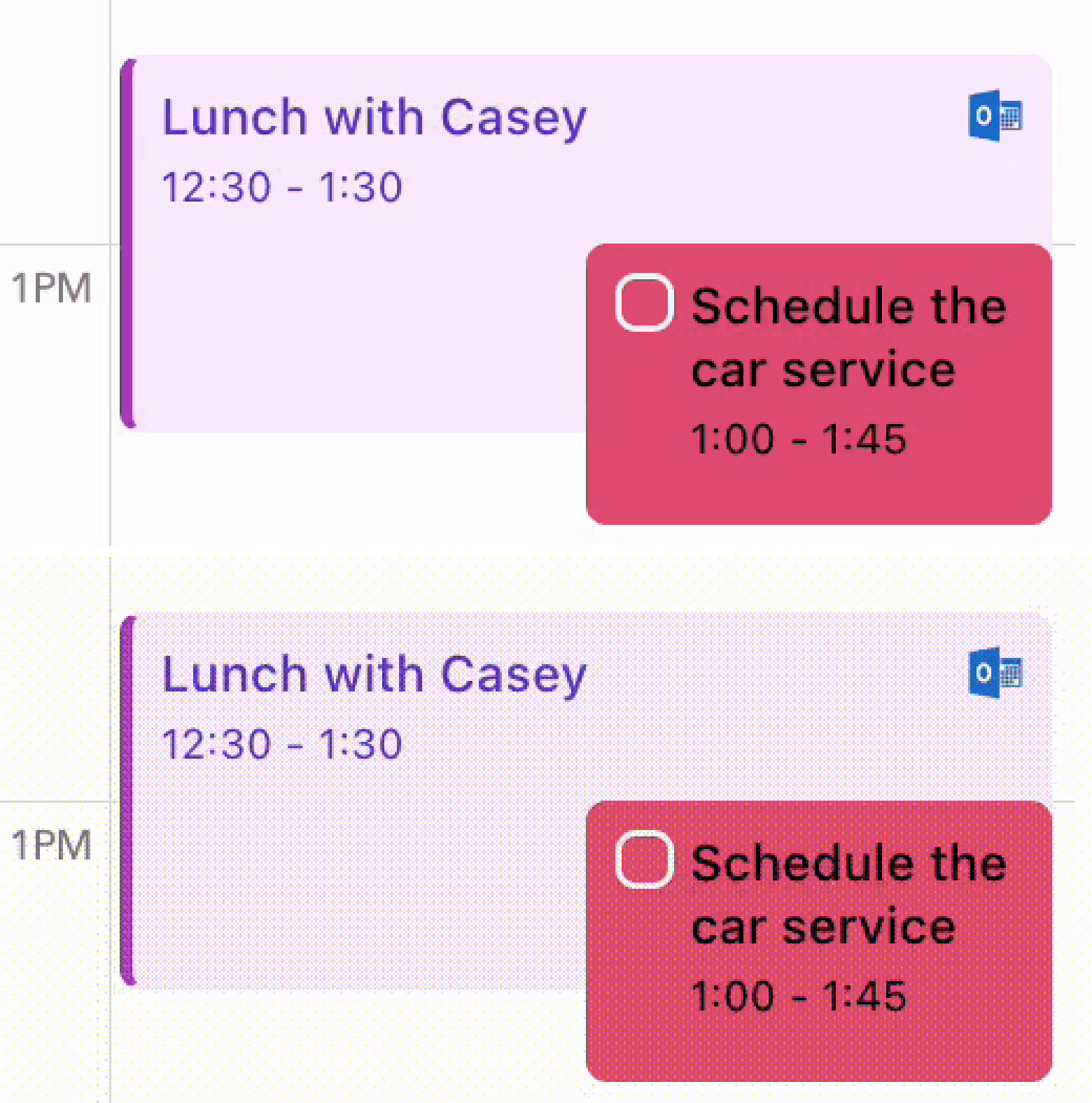
Top: the original recording. Bottom: the same frame from a plain ffmpeg -i in.mov out.gif, which has no palette built for the clip, so flat colors become patterns of dots. Both enlarged 3 times. Recorded with Moonjar (Ellie for Mac, demo data) on September 16, 2026; converted September 18, 2026.
The timing. A GIF stores how long to show each frame in hundredths of a second. At about 57 frames per second, ffmpeg wrote 284 frames with a delay of 1 hundredth and 848 with 2. The file’s delays add up to 19.8 seconds, but players don’t all honor delays that short: ffmpeg’s own GIF reader treats anything under 2 hundredths as invalid and falls back to 10, and ffprobe reads this file as 45.4 seconds long, which is what you get if each 1-hundredth frame is held for 10. With fps=15 the delays are 6 and 7 hundredths and the GIF plays in its real 19.9 seconds.
Pick the width for where the GIF will be shown
Width moved the file size more than any other setting tried here. Same recording, same command, only the width changed:
Width | GIF size |
|---|---|
640 px | 601 KB |
800 px | 858 KB |
1200 px | 1.7 MB |
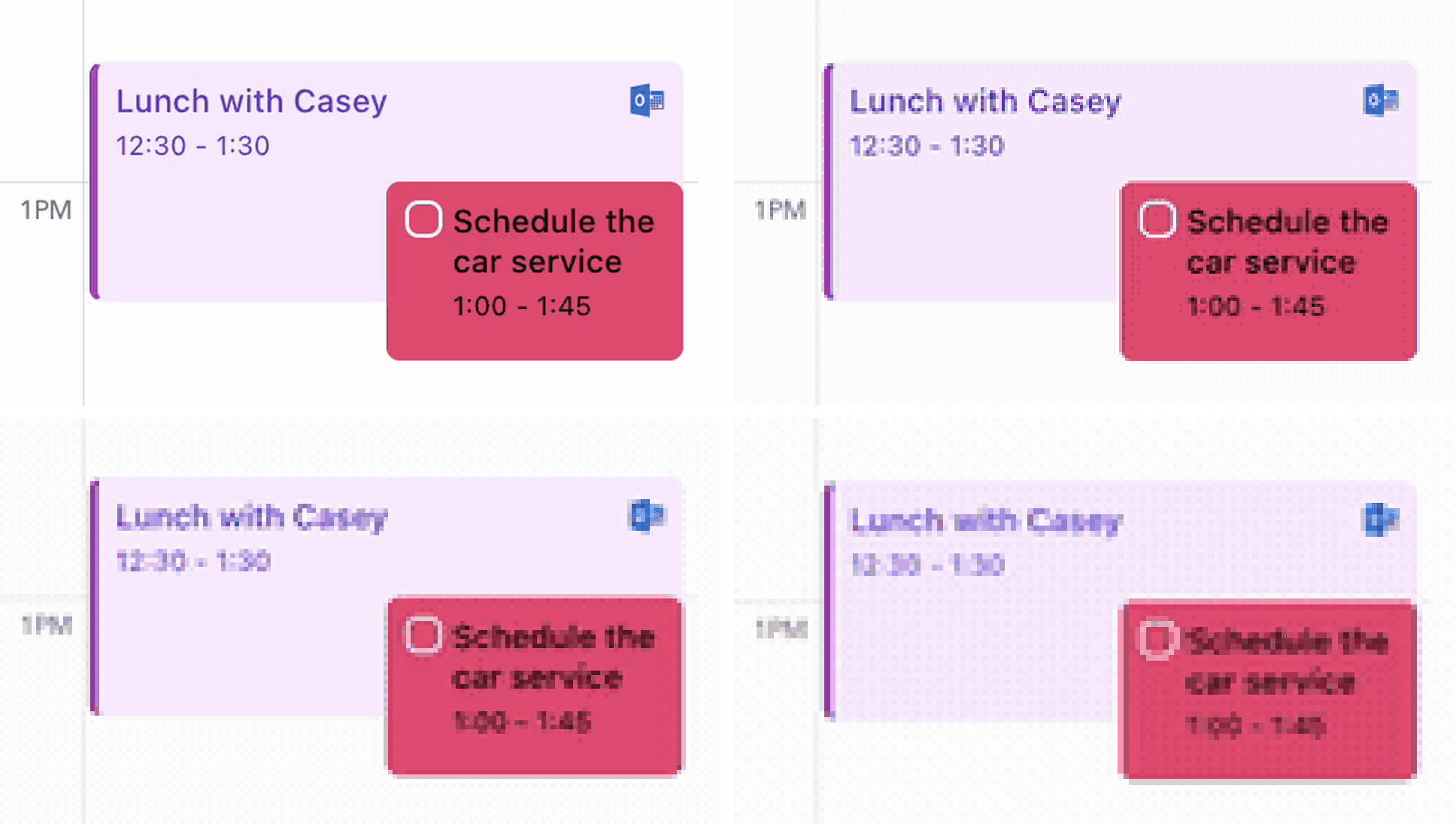
The same corner of the frame, enlarged to one size. Top left: the original recording. Top right: GIF at 1200 pixels wide. Bottom left: 800. Bottom right: 640. Recorded with Moonjar (Ellie for Mac, demo data) on September 16, 2026; converted September 18, 2026.
A 2700-pixel window scaled to 800 keeps its titles readable and its smallest labels just readable; at 640 the time labels start to break up. Two ways to get sharper text without a wider file:
Record less. Record one window or a selected portion instead of the whole screen. A smaller recording scales down less, so the same text stays bigger at 800 pixels. How to record one window on a Mac covers both.
Crop in ffmpeg. Add
crop=w:h:x:y(in the recording’s pixels) beforescaleto keep only the part of the screen the GIF is about.
Frame rate: 10 or 15 is enough for app UI
Same recording, 800 pixels wide:
Frame rate | GIF size |
|---|---|
10 fps | 704 KB |
15 fps | 858 KB |
30 fps | 1.3 MB |
Doubling from 15 to 30 added 46%. For clicks, typing and menus, 10 or 15 is plenty; keep 15 for drags and scrolling so motion doesn’t stutter. Because GIF delays are whole hundredths, some rates divide evenly and some don’t: in these files 10 fps is 10 hundredths every frame, 15 fps alternates 6 and 7, and 30 fps alternates 3 and 4.
Dithering: try none on flat interfaces
Dithering mixes palette colors in a pattern so gradients don’t break into bands. That pattern is more detail to store. Same recording, 800 pixels, 15 fps:
Palette settings | GIF size |
|---|---|
ffmpeg’s defaults | 956 KB |
The command above | 858 KB |
No dithering | 741 KB |
“ffmpeg’s defaults” means plain palettegen and paletteuse, which use full-frame statistics and the sierra2_4a error-diffusion dither. “No dithering” is the command above with dither=none. On this app’s flat colors, enlarged crops of the three looked the same, so no dithering was the free win. On the iPhone recording further down, the order changed: the command’s settings came out 4% larger than the defaults, and no dithering was still the smallest. Keep a dither when the recording has gradients, shadows or photos, where dither=none can show bands.
If you need it smaller still, gifsicle has -O3, which tries several optimization methods (its manual notes it can, rarely, make a file larger), and --lossy, which trades artifacts and noise for a smaller file. It wasn’t run for this page.
Trim first, but for the viewer more than the file
Cut the wait at the start and the pause at the end before you convert. On the Mac, click the thumbnail that appears after you stop recording and you can trim it there. In ffmpeg, put the start and end times in seconds before -i:
Trimming the iPhone recording to the 10.4 seconds with the action in them shrank the GIF by only 4%, from 1.12 MB to 1.07 MB (480 pixels wide, 15 fps, ffmpeg’s default palette settings). The cut seconds were nearly all still screen (the recording holds one frame for its first 5.9 seconds, and its last 1.9 seconds change once), and a still screen costs a GIF almost nothing, because ffmpeg writes only the part of each frame that changed. What costs bytes is motion across the whole frame: scrolling, a zoom, a moving background, film grain. The section on Moonjar’s export below has an example.
So trim for the person watching, and when a GIF is too big, look for what moves across the whole frame. Deciding which moments to keep is its own skill; how to make an app demo video covers cutting a take down to the moments that matter.
When an MP4 is the better file
Wherever the page plays video, an MP4 is far smaller at the same size on screen. The same recording as H.264 (CRF 23, no audio):
File | Width | Size |
|---|---|---|
GIF, the command above | 800 px | 858 KB |
MP4 | 800 px | 297 KB |
MP4 | 1600 px | 792 KB |
At twice the width, the MP4 is still smaller than the GIF. For the trimmed iPhone recording at 480 pixels it was 144 KB against 1.07 MB. That 480-pixel iPhone MP4 is the video player on this page, the measured file itself, so you can judge its text and motion before choosing a format. The command:
Use a GIF when one short action should play on its own and loop, in a README, a changelog entry, release notes or a help article that won’t play video. Use the MP4 for anything longer than a single action, where the page can play it.
When the GIF comes out wrong
What you see | What to try |
|---|---|
Over the size limit | Crop to the part that matters, then drop the width (800, then 640), then 10 fps, then |
Flat colors covered in dots | You skipped the palette step. Use the command at the top, not a plain |
Gradients or photos in bands | Keep a dither: the command’s Bayer setting, or ffmpeg’s default by removing the |
Plays too fast or too slow in some apps | Set |
Small text unreadable | Record a smaller window or crop before scaling. For a full Mac window, 800 px was the narrowest that kept labels readable here |
Doesn’t loop | ffmpeg’s GIFs loop by default. If another app re-saved it, convert again, or add |
Size limits where the GIF is going
Checked September 19, 2026, from each service’s own help:
GitHub (files attached to issues, pull requests and comments): 10 MB for images and GIFs. Videos can be up to 10 MB in a repository on a free GitHub plan, and 100 MB on a paid plan, with conditions on who uploads, per GitHub’s docs on attaching files. For sizing, dark mode and autoplay in a README, see screenshots and GIFs in a GitHub README.
Slack: files up to 1 GB, and an image shows inline only if it’s under 25,000 pixels on its longest side and 45 million pixels in total, per Slack’s help on adding files. For a GIF, Slack’s cap is rarely the limit that matters.
Help Scout Docs takes PNG, GIF or JPG images up to 10 MB, per Help Scout’s Docs editor help.
Zendesk has a 20 MB limit for help center article images, on every Suite plan and on Support with Knowledge Professional or Enterprise, per Zendesk’s help on inserting images.
Intercom takes images and GIFs up to 104 MB in articles, per Intercom’s article formatting help.
Changelog tools set their own caps. Check the editor’s help before you export.
iPhone screen recordings
Start one from Control Center; the recording is saved in the Photos app, per Apple’s guide to recording the iPhone screen. Get it onto your Mac (AirDrop works), then use the same command with a narrower width, since a portrait recording is more than twice as tall as it is wide. If you’re recording an app you’re building, the iOS Simulator gives you a cleaner file with a fixed status bar: see how to record the iOS Simulator with taps showing.
Measured on a 1206 x 2622 portrait recording of Ellie for iOS made in the iPhone 17 Pro Simulator, trimmed to 10.4 seconds, at 15 fps with ffmpeg’s default palette settings:
Width | Height | GIF size |
|---|---|---|
320 px | 696 px | 570 KB |
480 px | 1044 px | 1.07 MB |
720 px | 1565 px | 1.96 MB |
At 480 pixels the text of this phone app stays readable, but the GIF is over a thousand pixels tall, so it can push everything around it off screen. Crop to the part of the screen that changes if you can.
Without Terminal
Two routes skip the command line. Neither was run for this page, so the measurements above don’t carry over to them.
Gifski, a free Mac app by Sindre Sorhus, converts a video you drop on its window. Its App Store listing lists trimming, cropping, size and speed controls, and says you can share a screen recording to it from the thumbnail that appears when you stop recording. The current version, 3.0.6, requires macOS 26 or later; the listing says the last version for macOS 15 is on the app’s website (checked September 19, 2026).
Shortcuts. Apple’s Shortcuts app has a Make GIF action that builds an animated GIF, shown in Apple’s guide in an example that starts from photos. ScreenSnap’s guide to recording GIFs on Mac chains Select Photos (with videos turned on), Make GIF and Save to Photo Album to convert a screen recording, and says Make GIF lets you set the loop, frame rate and size; Apple’s page doesn’t document those settings. That chain starts from Select Photos, so add the recording to the Photos library first.
Moonjar’s GIF export (our product)
Moonjar is a Mac app, in early access, that an agent such as Claude Code or Codex drives to capture screens, record them and cut the recordings. A cut can be rendered straight to a GIF with render_video {format:'gif'}. Moonjar picks the width by length (960 pixels wide, 800 past 10 seconds, 640 past 20), renders at up to 15 frames per second, and uses the same palette settings as the command at the top of this page. Its render notes suggest an MP4 or WebM, or a shorter range, when a GIF passes about 10 MB.
It doesn’t convert the finished MP4. It renders the cut again for the GIF, into a near-lossless intermediate file, and changes two things on the way: the slow drift of the background photo is held still, and the film grain stays but no longer changes from frame to frame. In the MP4, both change every pixel on every frame. A cut of the iPhone recording above shows what that is worth. It is 9.5 seconds: the 4.2 to 7.2 and 8.1 to 14.6 second stretches of the take, on a photo background, with one zoom.
How the 960 px GIF was made | Size |
|---|---|
Moonjar’s GIF export of the cut | 8.6 MB |
ffmpeg on the cut’s MP4, the command’s settings | 27.2 MB |
ffmpeg on the cut’s MP4, default settings | 32.5 MB |
The first two rows use the same palette settings, so the gap between them comes from the input: converting the MP4 means encoding the drift and the changing grain in every frame, from a compressed file. The same idea works in other editors: if the look has a moving background or animated grain, turn those off for the GIF version, and where your editor allows it, export the GIF from the project rather than converting the finished MP4. Even so, 8.6 MB is close to GitHub’s 10 MB and ten times the plain window GIF at the top of this page, which runs twice as long. For a README, a plain window recording at 800 pixels is the lighter choice; where the styled look matters, as in a help article, the Moonjar GIF still fits under a 10 MB cap.
See what Moonjar does, or ask for early access.
How this page was made
The recordings are Moonjar recordings of Ellie for Mac and Ellie for iOS on demo data, made September 16, 2026. The GIFs and MP4s were converted with ffmpeg 6.0 on September 18, 2026, except Moonjar’s own GIF, which Moonjar rendered the same day; every size was read from the files. The close-ups are frames from those files, the GIF near the top is shown with its pixels doubled, and the cover is a frame of a Moonjar cut of the same Mac recording, on a background photo by Bernd Dittrich on Unsplash. Service limits and app details were rechecked on September 19, 2026. This page was drafted with AI assistance.