
How to screen record one window on a Mac
macOS Tahoe 26 added Record Selected Window to the Screenshot toolbar. How to use it, what to do on older Macs, what ends up in the file, and fixes for a frozen, black or silent window recording.
Chris Raroque
·

To screen record one window on a Mac, press Shift-Command-5, click Record Selected Window, then click the window you want. That click starts the recording, and Command-Control-Esc stops it. If your toolbar has no such button, your Mac is on macOS Sequoia 15 or earlier: choose Record Selected Portion and drag its frame to the window’s edges.
The Ellie for Mac images on this page come from a window recording of the planner I build, on its demo data, made with Moonjar, the Mac app I make for agent-made screenshots and recordings. Moonjar is our product and is in early access. It has its own short section near the end; every step before it works without it.
Record one window on macOS Tahoe 26 or later
Apple’s guide to recording the screen on Mac lists three record buttons in the Screenshot toolbar: Record Entire Screen, Record Selected Window (available in macOS Tahoe 26 or later) and Record Selected Portion. The steps:
Press Shift-Command-5 to open the Screenshot toolbar.
Click Record Selected Window, the second of the three record buttons.
Click Options if you want to change a setting (listed below).
Click the window you want to record. This click starts a window recording, in place of the Record button.
To stop, click the Stop button in the menu bar or press Command-Control-Esc.
Click the thumbnail that appears in the corner to trim the recording, or wait and it saves. By default it goes to your desktop, named “Screen Recording [date] at [time].mov”.
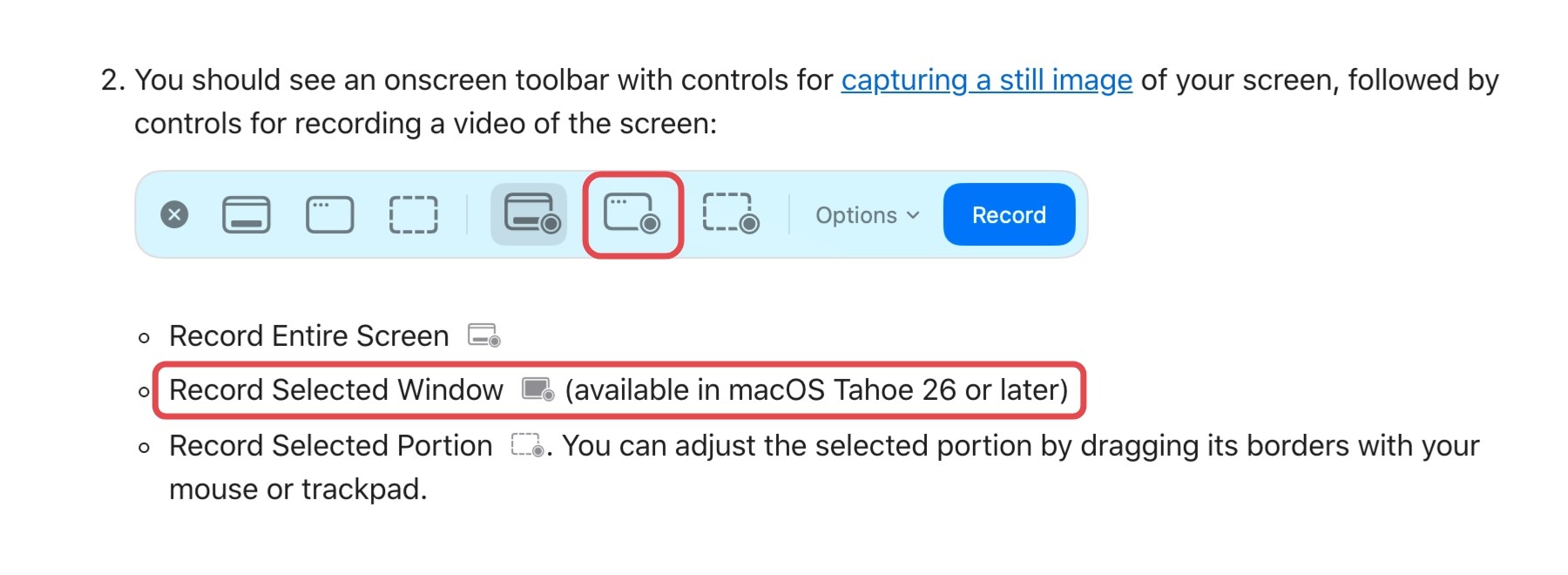
Screenshot of Apple Support’s How to record the screen on Mac, captured September 18, 2026. The red boxes, added by us, mark the Record Selected Window button and its line in Apple’s list.
The recording Options, per the same guide (rechecked September 19, 2026):
Microphone: choose one to record your voice.
Include System Audio: records the Mac’s own sound, in macOS 27 Golden Gate or later.
Show Mouse Clicks: draws a black circle around the pointer each time you click.
Timer: waits a number of seconds after you start before recording.
Save to: the desktop, unless you pick another place.
SDR or HDR: on supported Macs with macOS Tahoe 26 or later. SDR records H.264 and is the one Apple labels Most Compatible; HDR records HEVC.
QuickTime Player gets you to the same toolbar: File > New Screen Recording, or Control-Command-N. Apple’s guide adds that if QuickTime opens its own Screen Recording window instead, you can only record the entire screen or drag to select an area. It also warns that some apps, such as the Apple TV app, might not let you record their windows.
On macOS Sequoia 15 or earlier, record a portion around the window
Apple’s Mac User Guide for macOS Sequoia 15 lists two recording tools, the entire screen and a portion of it; the macOS Tahoe 26 version of the same page adds a third, Record a window. On an older Mac, draw the portion around the window yourself:
Place and size the window first. The frame you draw stays where you put it; it doesn’t follow the window.
Press Shift-Command-5 and click Record Selected Portion.
Drag the frame over the window, then drag its edges to line up with the window’s edges.
Optional: in Options, turn on Remember Last Selection so the same frame comes back for the next take.
Click Record. Stop with the Stop button in the menu bar or Command-Control-Esc.
A portion is a rectangle of the screen, not the window, so anything that passes through it is in the video: a notification banner, another window you drag across, a menu from another app, the pointer. Turn on Do Not Disturb and keep other windows clear of that area until you stop. If that’s too fragile, the apps listed further down record a single window on older systems too: OBS Studio and CleanShot X support macOS 13 and later, and Screen Studio recommends macOS 13.1 or later.
Get the window ready before you record
Size the window to the video you want. In a window recording, the window is the frame, so a wide window makes a wide video. Resize it before you start, not after.
Fill it with demo data. Everything inside the window is recorded: names, emails, calendar events, the account photo in the toolbar.
Make it the active window if the title bar will show. A window that isn’t active draws its inactive look, with gray traffic lights and no blinking text cursor.
Decide about the pointer. With Record Selected Window, the click that starts the take leaves the pointer on the window, so if the take doesn’t need clicks (a video playing, a page scrolling on its own, typing), move the pointer off the window right after that click and trim the first moment in the thumbnail editor. With Record Selected Portion, keep it outside the frame from the moment you click Record. If the take does need clicks, move slowly and click deliberately, and consider Show Mouse Clicks so viewers see each click. The cursor guide covers what you can and can’t do about the pointer afterward.
Know what you’re about to show. A clean window is half of a good demo; the other half is deciding which few moments to record. How to make an app demo video covers that planning.
What happens if the window is covered, moved or minimized
Apple’s guides don’t say, and neither do the OBS, CleanShot X and Screen Studio pages listed below.
Moonjar’s window recorder is built on Apple’s ScreenCaptureKit, using a filter that Apple’s developer documentation says captures only the specified window. Moonjar’s engineering notes, written while building that recorder, record what it saw when the recorded window was out of sight. These are notes from Moonjar’s development, not tests run for this article, and Apple’s own Record Selected Window wasn’t tested this way:
Covered by other windows: the recording kept showing the window’s own content, not what sat on top of it, as long as the app kept drawing. Native AppKit and SwiftUI windows did. Web views (WKWebView) and Electron or Chromium windows in their default setup stopped drawing once fully covered, so their recording froze or went blank. Leaving any sliver of the window visible, even a rounded corner, kept them drawing.
Minimized, or the app hidden: no frames came through.
Pushed almost entirely off the display: the recording still held the whole window, the part off screen included (seen with a Chrome window about 97% off screen).
On another Space or in full screen: not tested.
Ellie for Mac, the app in the frames below, is built on Electron, so it belongs to the group that stops drawing when fully covered. The freeze comes from the app, which stops drawing, so any recorder that captures the window itself is likely to show it too. Two rules cover it: never minimize a window you’re recording, and if you keep working while it records, leave a corner of it showing.
What ends up in the file
The frames below are from a 21.9-second window recording of Ellie for Mac on its demo data, made with Moonjar on September 16, 2026, on macOS 27.0. Some of what they show comes from macOS and some from Moonjar’s choices, so each item says which.
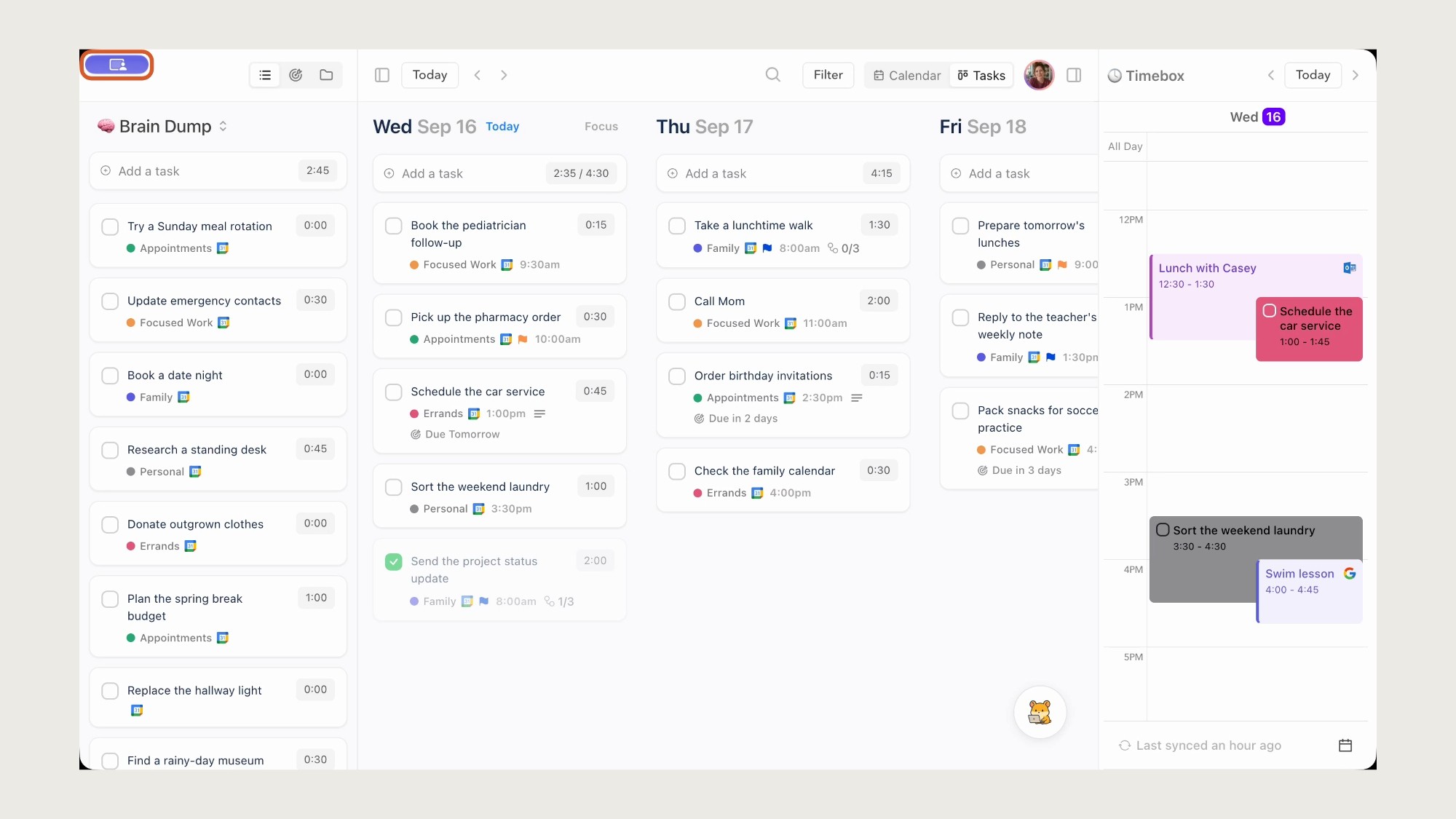
A frame from the September 16, 2026 recording of Ellie for Mac on demo data, with its original black corners. The rounded orange outline marks the purple capture pill in place of the traffic lights. Layout made with Moonjar September 18; annotation revised September 22.
Only the window. No desktop, menu bar, Dock or other apps. The window measured 1350 by 750 points on a Retina display, and the file is 2700 by 1500 pixels. Moonjar also leaves out the window’s shadow. Menus from the menu bar are left out too: a window recording shows only the window, so use the window’s own toolbar buttons, or record the display, if viewers need to see each step.
A purple pill where the traffic lights go (macOS). It sits at the top left, where the close, minimize and zoom buttons usually are, in every frame sampled from this take (seven, from 0.2 to 21.5 seconds) and in three other Ellie for Mac window takes recorded with Moonjar the same week. Moonjar’s engineering notes saw the same pill on macOS 26 when recording a window in the background. Apple’s pages don’t say whether Record Selected Window shows it, so if your title bar will be in the video, make a five-second test take first.
Black corners (the file format). The window’s rounded corners come out black, because the file’s H.264 video has no transparency. The Moonjar cut of this take draws the corners rounded again when it puts the window on a background.
No sound (Moonjar). Moonjar’s recorder writes video only, and this file has no audio track. Apple’s toolbar can record a microphone and, on macOS 27, the Mac’s own sound.
No pointer (Moonjar). Moonjar keeps the pointer out of the pixels and logs its path next to the video.

The same frame. The take’s pointer log puts the Mac’s pointer inside the red circle for about the first 15 seconds, but the frames don’t show it. The red marks were added with Moonjar, September 18, 2026.
Because the pointer lives in a log rather than in the frames, a cut can draw it, hide it, smooth its path or move it after the take. A recorder that draws the pointer into the frames leaves you only cropping or covering it later.
When a window recording goes wrong
What happened | What to do |
|---|---|
No Record Selected Window button | Your Mac is on macOS Sequoia 15 or earlier. Record a portion around the window (above), or use one of the apps below |
The video freezes or goes blank partway | Most likely the window was fully covered or minimized. In Moonjar’s development notes on ScreenCaptureKit window capture, web-view and Electron windows stopped drawing once fully covered and minimized windows sent no frames. Keep a corner visible and never minimize it |
One app’s window records black | Some apps block recording; Apple’s guide names the Apple TV app |
A third-party recorder shows nothing | Allow it in System Settings > Privacy & Security > Screen & System Audio Recording (Apple’s steps) |
No sound | Pick a microphone in Options. The Mac’s own sound needs Include System Audio, on macOS 27 or later |
A notification or another window got in | That happens with a portion, not a window. Turn on Do Not Disturb, or record the window itself |
You can’t find the file | It’s on the desktop as “Screen Recording [date] at [time].mov” unless Options > Save to says otherwise |
Other apps that record one window
Read from each vendor’s own pages on September 18 and rechecked September 19, 2026. None was installed or tested for this article.
OBS Studio (free and open source, version 32.2.2, macOS 13.0 and newer). Its macOS Screen Capture source is based on ScreenCaptureKit and has a Window Capture method for recording a single window. Its Show cursor setting is on by default; turn it off in the source’s properties to record the window without the pointer (the cursor guide covers what that trades away). It records audio on macOS 13 and later. If OBS is more than a single-window recording needs, OBS alternatives for Mac compares the lighter options.
CleanShot X. Its feature list says it records a specific window, part of the screen or the full screen, as MP4 or GIF, with a Show/Hide cursor setting, click and keystroke overlays, and microphone and computer audio, plus a video editor that smooths cursor movement and changes the cursor’s size and style. It’s a one-time purchase with a year of updates, or a Pro subscription, and needs macOS 13.0 or newer.
Screen Studio. Its single-window guide says to choose Window in the recording modal and click the window, or right-click Window and pick it from a list; for an app in full screen, choose Display instead. It records microphone and system audio, and smooths and resizes the cursor after recording. It’s a subscription; you can use it without an active plan, but exporting video files requires a plan. It recommends macOS Ventura 13.1 or later.
For current prices and more recorders side by side, see Screen Studio alternatives.
Record a window with an agent: Moonjar (our product, early access)
Moonjar is a Mac app with an MCP server, so your coding agent, such as Claude Code or Codex, can record a window for you.
The agent finds the window by app name, title or window id and rehearses the demo without recording, clicking through the app with its own computer use once you approve that app. Moonjar records the window only after you approve the plan.
It records with ScreenCaptureKit window capture, so the window doesn’t need to be in front during the take. The covered-window rules above still apply. The agent’s own computer use may bring the app to the front and move the pointer while it clicks, so plan to leave the Mac alone for the take.
The pointer and clicks are logged, not recorded into the frames, so in the cut the agent can draw, hide, smooth or move the pointer and zoom toward the clicks.
The agent then cuts the take: it trims dead time, puts the window on a background, and adds zooms and captions.
Limits: a recording stops by itself after 10 minutes, recordings have no sound, and Moonjar is Mac only, with no published price.
See what Moonjar makes or request early access.
After the recording
A window recording is raw footage. Three next steps, depending on where it’s going:
Clean up the pointer if it parked on the wrong thing or wandered: how to hide, smooth or fix the cursor.
Make it small enough to share as a GIF, or as an MP4 at about a third of the GIF’s size: how to turn a Mac screen recording into a GIF.
Cut it into a demo with the waiting removed and the moments that matter kept: how to make an app demo video.
How the images on this page were made
The two Ellie for Mac images are one frame of a window recording of Ellie for Mac on its demo data, made with Moonjar, our product, on September 16, 2026, and placed and marked up with Moonjar on September 18, 2026. The capture-pill annotation was revised September 22, 2026 to a rounded orange outline on the original frame, retaining its black corners. The toolbar image is a capture of Apple’s support page from September 18, 2026, with our red boxes added. The cover puts the same frame on a meadow photo by Bernd Dittrich on Unsplash. Apple’s pages and the other apps’ pages were rechecked on September 19, 2026. The text was drafted with AI assistance.