
How to hide, smooth or fix the cursor in a Mac screen recording
What to do about the pointer before you record, and after: what the Mac’s own recorder can’t do, the free routes (OBS and Cap), why a pointer already in the video can only be cropped or covered, and how to hide, smooth or move one kept on its own layer.
Chris Raroque
·
How you hide the cursor in a Mac screen recording depends on two things: whether the take needs clicks, and whether you’ve recorded it yet.
No clicks needed (a page scrolling on its own, a video playing, typing): the Mac’s own recorder works. Press Shift-Command-5, choose Record Selected Portion (or Record Selected Window on macOS Tahoe 26 or later), and keep the pointer outside that area for the whole take.
You’ll be clicking, and it has to be free: record with OBS Studio, with Show cursor turned off in its macOS Screen Capture source. The pointer is never recorded, so it can’t be brought back or smoothed later.
You’ll be clicking, and want to hide or smooth the pointer afterward: use a recorder that logs the pointer separately and draws it on at export. Cap does this and is free for personal use (a demo of your company’s product needs its paid license); Screen Studio, CleanShot X and Screenflick are paid.
Already recorded, with the pointer drawn into the picture (Apple documents no setting that keeps it out of the Mac’s own recordings): it’s part of the image now, like the button under it. Crop or zoom so it falls outside the frame, cover it with a blur or a patch in a video editor, or record again. Nothing switches it off.
The examples on this page are re-cuts of two recordings of Ellie for Mac, the planner I build, on its demo data, made with Moonjar, the Mac app I make for agent-made screenshots and recordings. Moonjar is our product and is in early access. Each fix works the same way in any app that keeps the pointer separate; the free and paid apps are described from their own documentation.
What the Mac’s built-in recorder does with the pointer
Shift-Command-5 opens the Screenshot toolbar, with Record Entire Screen, Record Selected Window (macOS Tahoe 26 or later) and Record Selected Portion; QuickTime Player’s File > New Screen Recording opens the same toolbar on Macs where the Screenshot app does the recording, and QuickTime’s own Screen Recording window on Macs where QuickTime does. Apple’s guide to recording the screen on Mac lists the recording options: a microphone, the Mac’s own sound on macOS 27, Show Mouse Clicks (a black circle around the pointer each time you click), a timer and where to save. It lists no setting that leaves the pointer out of a recording. Apple’s Mac User Guide does describe a Show Mouse Pointer option, but only in terms of whether the pointer appears “in the picture”, and the recording guide doesn’t list it, so this page doesn’t count on it for video.
So with the built-in recorder, plan on the pointer being in the video whenever it’s inside the area you record. The dependable built-in route is the first bullet above: record a portion or one window and keep the pointer out of it. With Record Selected Window, the click that starts the take leaves the pointer on the window, so move it off right away and trim the first second in the thumbnail editor that appears when you stop. How to record one window on a Mac covers both routes step by step.
Record without the pointer, free: OBS Studio
OBS Studio is free and open source; its current version needs macOS 13.0 or newer. Its macOS Screen Capture source records a display, one window or an app’s windows, and has a Show cursor property, on by default, that sets whether the mouse cursor is captured. Turn it off in the source’s properties before you record.
The pointer is then left out at the moment of recording. There’s no separate track to restore it from and nothing to smooth, and viewers won’t see what you clicked, so this suits takes where the screen’s response shows what happened. When the click itself needs showing, use one of the recorders in the next section instead.
Which fix you need
What’s wrong | What to do |
|---|---|
The pointer sits on the thing you’re showing, or wanders while nothing happens | Hide it for that stretch (Fix 1) |
The pointer shakes, jumps or crawls | Smooth it, but not over menus (Fix 2) |
The pointer was in the wrong place, or never moved while the app did | Move it to where it should have been (Fix 3) |
It’s already burned into the video | Crop it out, cover it, or record again |
The first three need a recording where the pointer was logged separately from the picture.
Record with the pointer on its own layer
Some recorders capture the screen without the pointer, log where the pointer went, and draw it on top when you export. Because the drawn pointer isn’t part of the video, it can be hidden, resized or smoothed after the take. These four document that kind of control; each was read from the vendor’s own pages on September 18 and 19, 2026, and none was installed or tested for this article:
Cap (free for personal use). For recordings made with Cap, its Studio Mode editor can show or hide the cursor, change its size, hide it after a set time without movement, and smooth its motion with presets or your own settings. Cap’s docs say these controls rely on cursor data Cap records itself, so they don’t work on an imported video. The free plan is for personal use: Cap’s licensing page counts demos of your employer’s product as commercial use, which needs its paid Desktop License. Screen Studio vs Cap covers which license you need.
Screen Studio (subscription). Its cursor settings include Hide cursor, which removes it from the whole recording, and Hide cursor if it’s not moving. To hide it for one part, select that fragment on the timeline, right-click it and choose Hide mouse cursor. It also smooths cursor movement and changes the cursor size after recording. Without a plan, everything works except exporting video files, so you can try these on your own take first.
CleanShot X (one-time purchase with a year of updates, or a Pro subscription). Its feature list has Show/Hide cursor among its screen recording settings, and smooth cursor movement and cursor size, style and click effects in the video editor that arrived with version 5.0 on September 1, 2026.
Screenflick (one-time purchase, macOS 11 or later). It records the screen, keystrokes, clicks and audio on separate tracks. Its how-to page turns the cursor off at export: in the Export view, the Mouse tab has a Show Mouse Cursor switch, so a take never has to be recorded again. It lists no cursor smoothing.
Current prices for Cap, Screen Studio and CleanShot X, and what each lets you try before paying, are compared in Screen Studio alternatives.
Moonjar (our product, in early access). Moonjar records Mac windows without the pointer in the frames and logs its path separately, so the pointer in a cut can be hidden, smoothed, resized, moved or added where the take missed it. You don’t drag anything on a timeline: you ask a coding agent such as Claude Code or Codex, and it sends the edits through Moonjar’s MCP server. The fixes below show the edits each cut was made with.
Fix 1: Hide the pointer where it distracts
Hide the pointer for a stretch, not for the whole video, when it sits on something that isn’t the point or wanders while nothing happens. Fade it out and back in rather than cutting it, so it doesn’t blink.
In this Ellie for Mac take, the recorded pointer sits on an unrelated task in the Wed column as the Filter menu opens, so it reads as if that task is about to be clicked. For the rest of the take it wanders around the window, and more than once off it, while labels get picked. With the pointer hidden, the menu carries the moment.
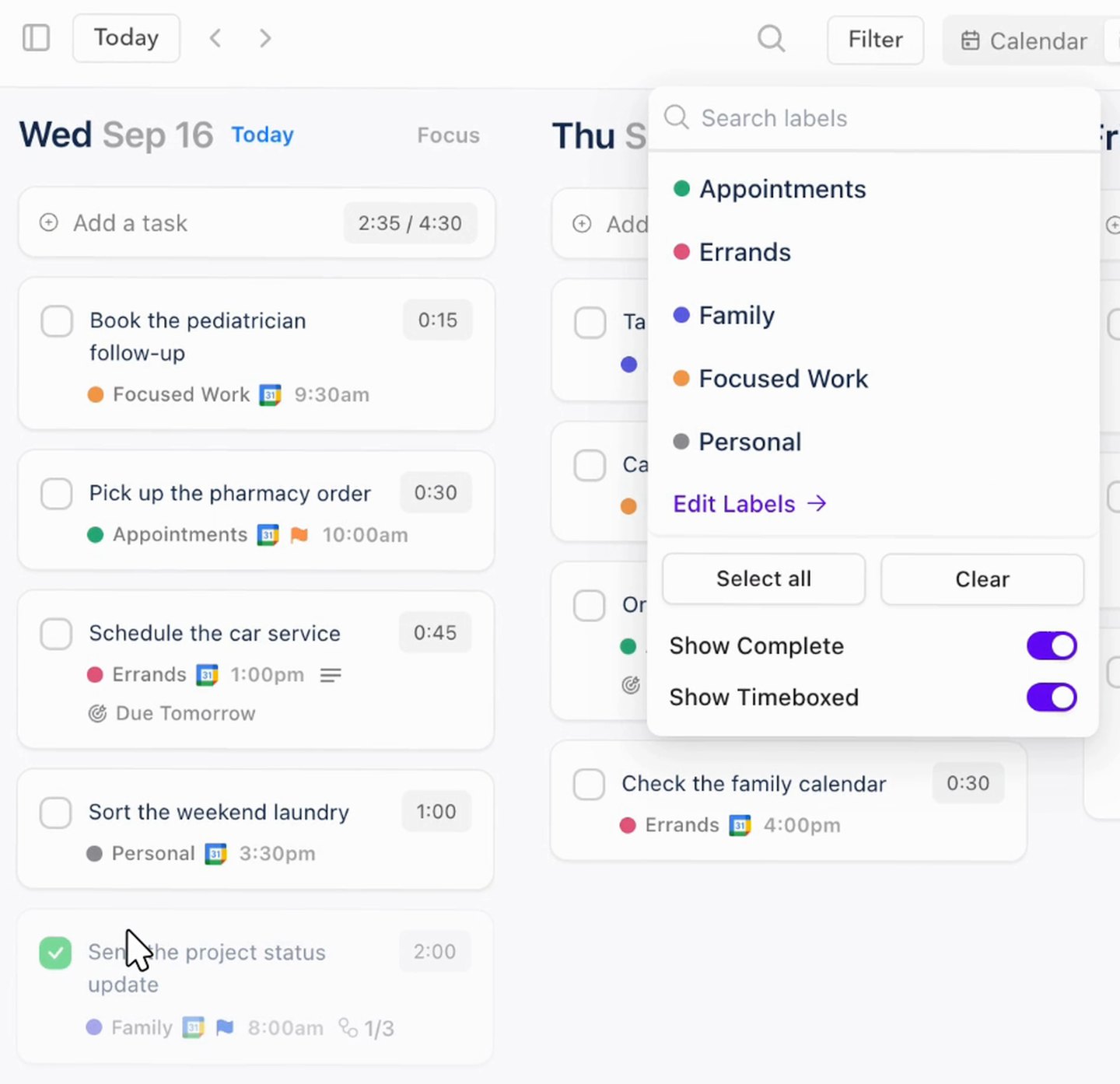
Before: the pointer as recorded, parked on an unrelated task in the Wed column while the Filter menu is open. Re-cut with Moonjar from an Ellie for Mac recording on demo data, September 18, 2026.

After: the same moment, cropped the same way, with the pointer hidden from 4.5 to 26 seconds. Re-cut with Moonjar from the same Ellie for Mac recording, September 18, 2026.
The edit, as sent to Moonjar, is {op:'hide_cursor', start:'00:04.50', end:'00:26.00'}. It fades the pointer out at the start of the span and back in at the end.
The cost: with no pointer, nothing on screen shows what opened the menu. When the click is part of what you’re teaching, move the pointer instead (Fix 3).
In the other apps, as documented: Screen Studio hides the cursor for a fragment you right-click on its timeline, or drops it while it sits idle. Cap can hide it, or hide it after a set time without movement. Screenflick’s switch applies to the whole exported movie. CleanShot X’s feature list names Show/Hide cursor without saying whether it can be changed after recording. OBS can only leave the pointer out of the whole recording, decided before you record.
Fix 2: Smooth the pointer, except over menus
A reach with a mouse is rarely one straight line. The reach below, from the pointer log of an Ellie for Mac take, is a fast throw, a pause, a second throw and a slow creep onto the target. Smoothing redraws a path like that as one steady glide between the points that matter.
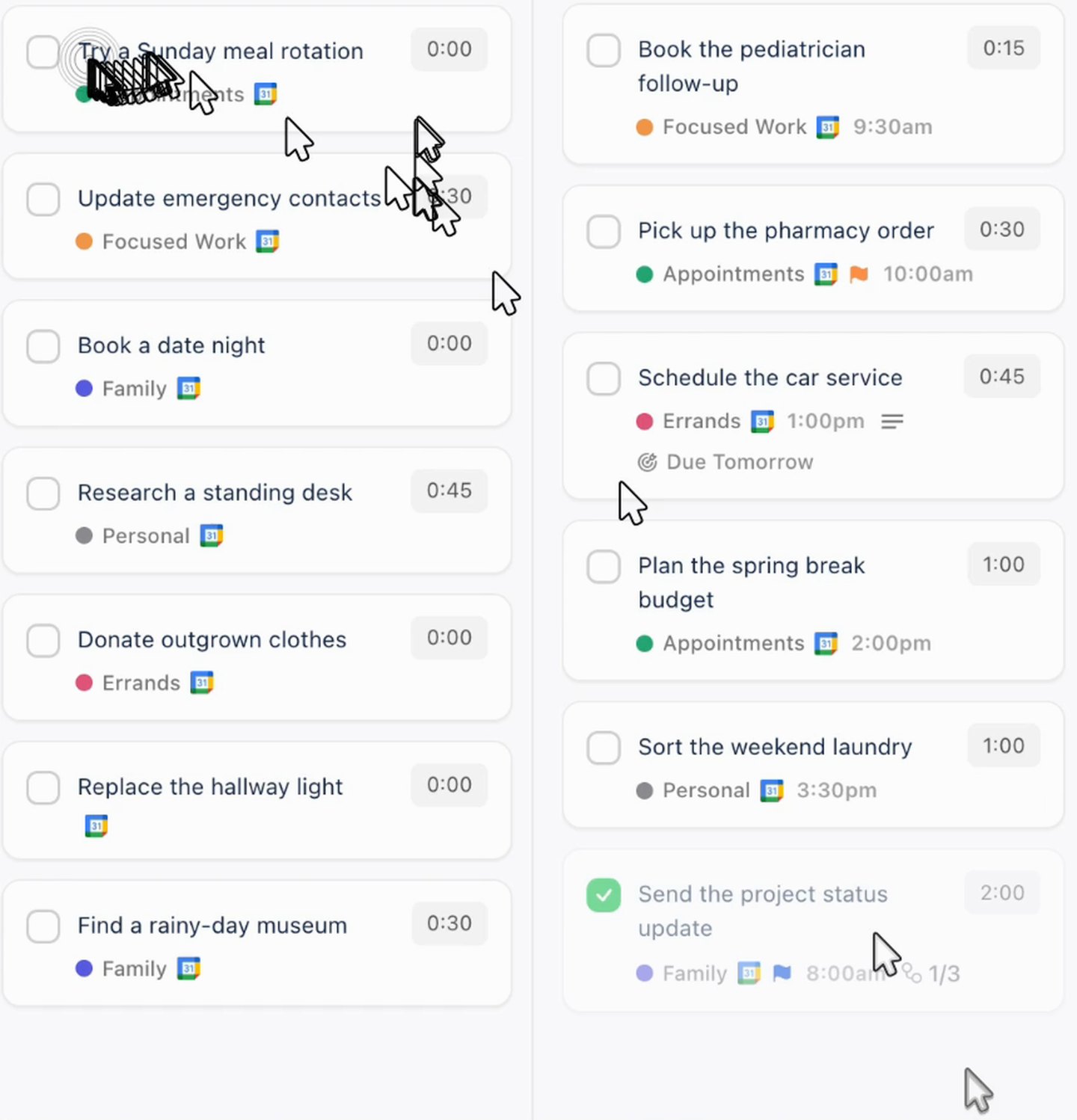
Smoothing 0, the path as logged: all 48 frames of a 1.6-second reach from an Ellie for Mac recording, stacked into one image. It jumps and stalls on the way. Made with Moonjar from demo data, September 18, 2026.
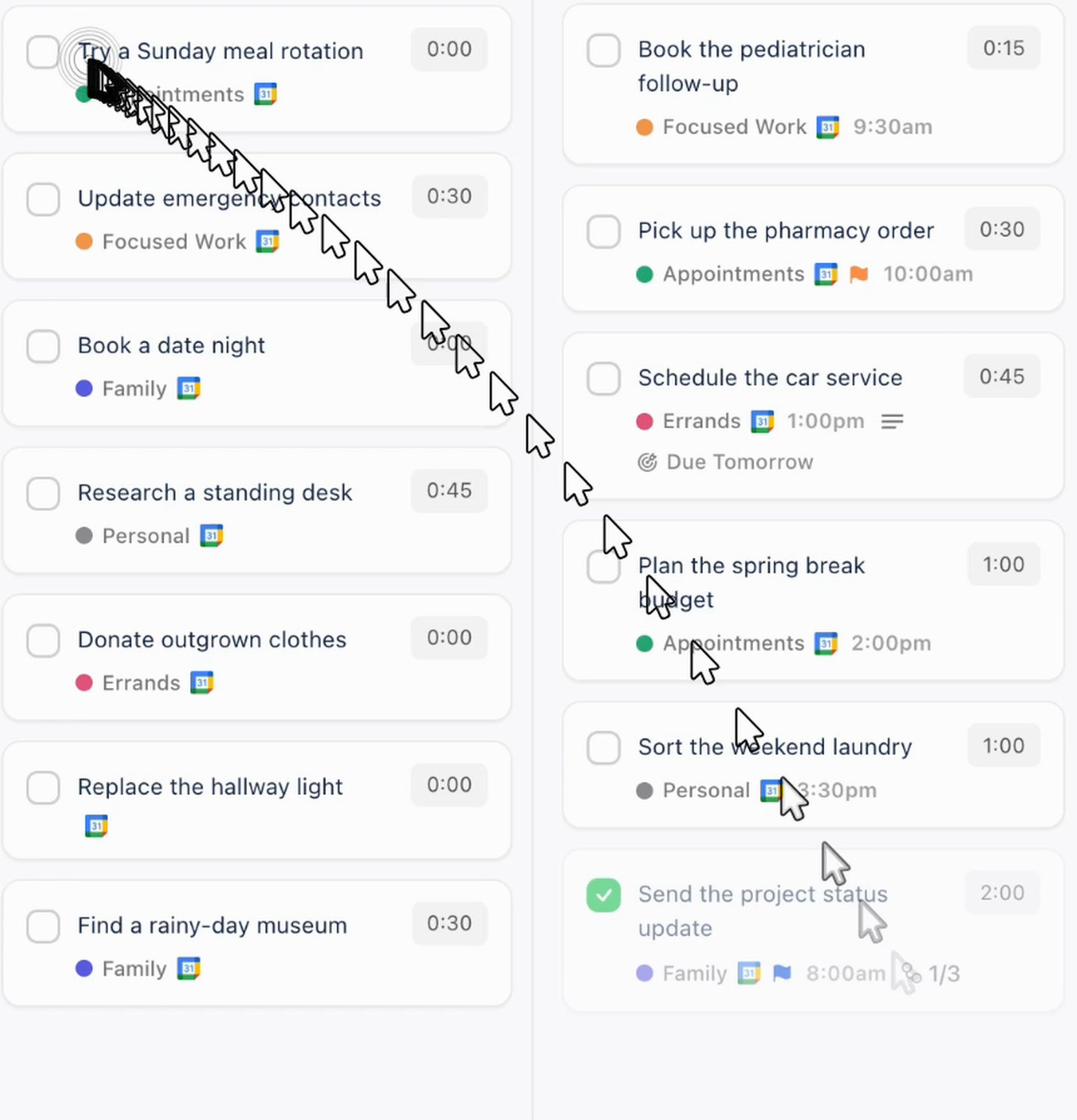
Smoothing 0.6, Moonjar’s default: the same reach, rendered again and stacked the same way, is one steady glide to the same click. Made with Moonjar from demo data, September 18, 2026.
Smoothing is a change in motion, and these are still images, so they show it indirectly. Each one stacks the arrow’s position in every one of the 48 frames; there’s no playable version of these two renders on this page. Read the spacing: arrows bunched together mean the pointer barely moved between frames (a stall), wide gaps mean it jumped, and even gaps along one line are what a steady glide looks like frozen. What a still can’t show is timing against the app, such as a drawn pointer arriving after the menu it opened has already appeared. Check that by playing the result in whatever editor you use.
In Moonjar, smoothing runs from 0 to 1. The default is 0.6, 0 draws the logged path exactly, and set_cursor changes it for the whole cut or for one span.
Whatever app you use, check two things after smoothing:
The click stays where it happened. Moonjar pins the smoothed path to every press and release, so a click lands on the exact spot it landed in the take.
The drawn pointer doesn’t lag. A smoothing filter that only runs forward in time trails behind the real pointer, so a menu opens before the arrow gets there. Moonjar runs its filter forward and then backward over the path, which cancels the lag.
Turn smoothing off over a drop-down menu or anything else that reacts to hover. The menu highlights whichever item the real pointer was over, and a smoothed path is a slightly different path, so the highlight can land on a row the drawn arrow isn’t touching. Screen Studio’s guide recommends switching smoothing off for sections with drop-down menus, with a per-fragment “Disable smooth mouse movement” toggle. In Moonjar, set_cursor with a start, an end and smoothing: 0 draws the exact path for that span and leaves the rest of the cut smoothed.
Fix 3: Move the pointer to where it should have been
Sometimes the recorded pointer is in the wrong place. It starts on the far side of the screen, or the app was driven without the mouse, so the pointer didn’t follow the action.
That happened in both Ellie for Mac takes on this page. In both, an agent drove Ellie with input that didn’t move the Mac’s pointer, so the logged pointer doesn’t follow what the app did. In the take below, a task was dragged from Brain Dump onto the Timebox, but the pointer log shows the Mac’s pointer sitting still near the bottom of the window for the whole drag. Hiding the pointer would leave the task sliding across the screen on its own, so the fix is to draw the move that should have happened: onto the task, grab, drag to 2 PM, let go.
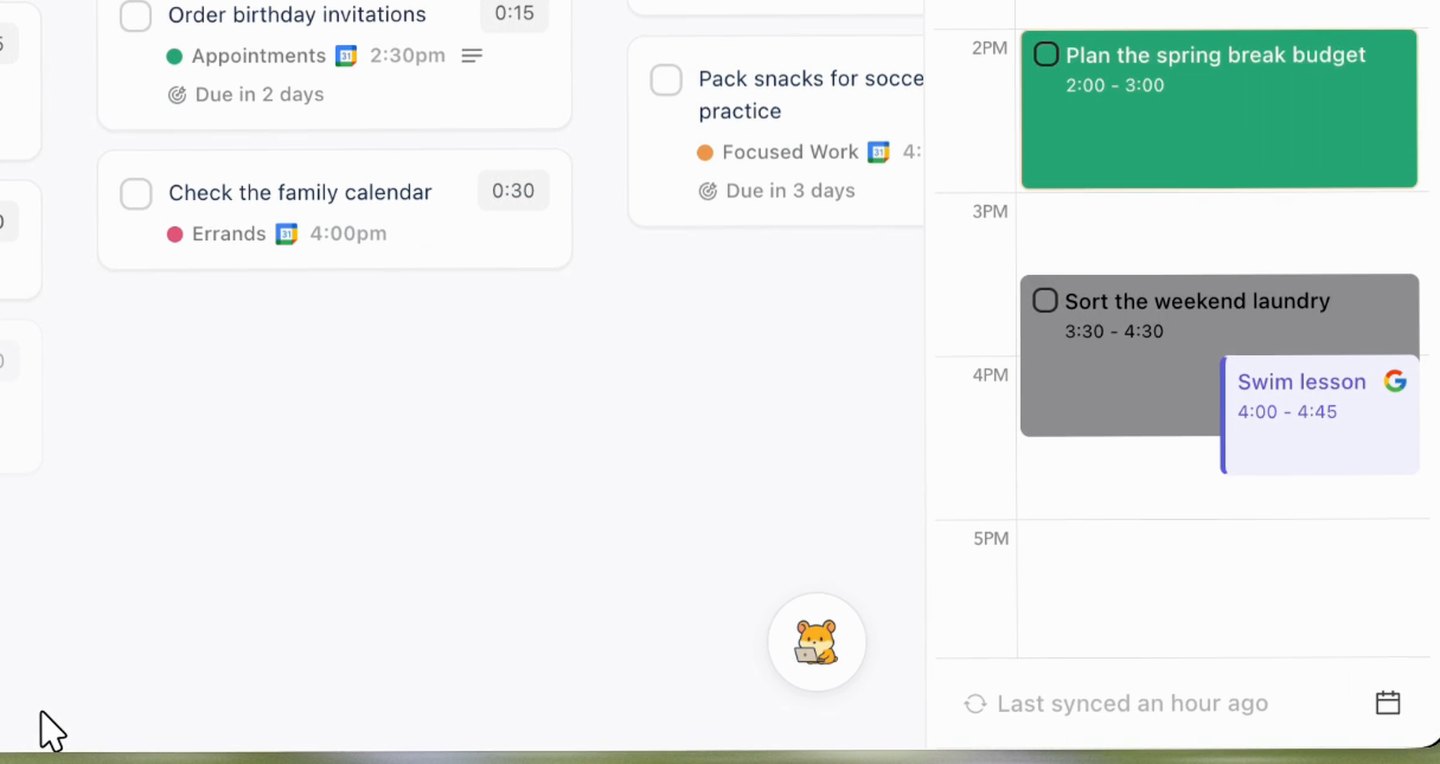
Before: the pointer as recorded, at the bottom left, still at the bottom of the window while the task lands at 2 PM on the Timebox. Re-cut with Moonjar from an Ellie for Mac recording on demo data, September 18, 2026.
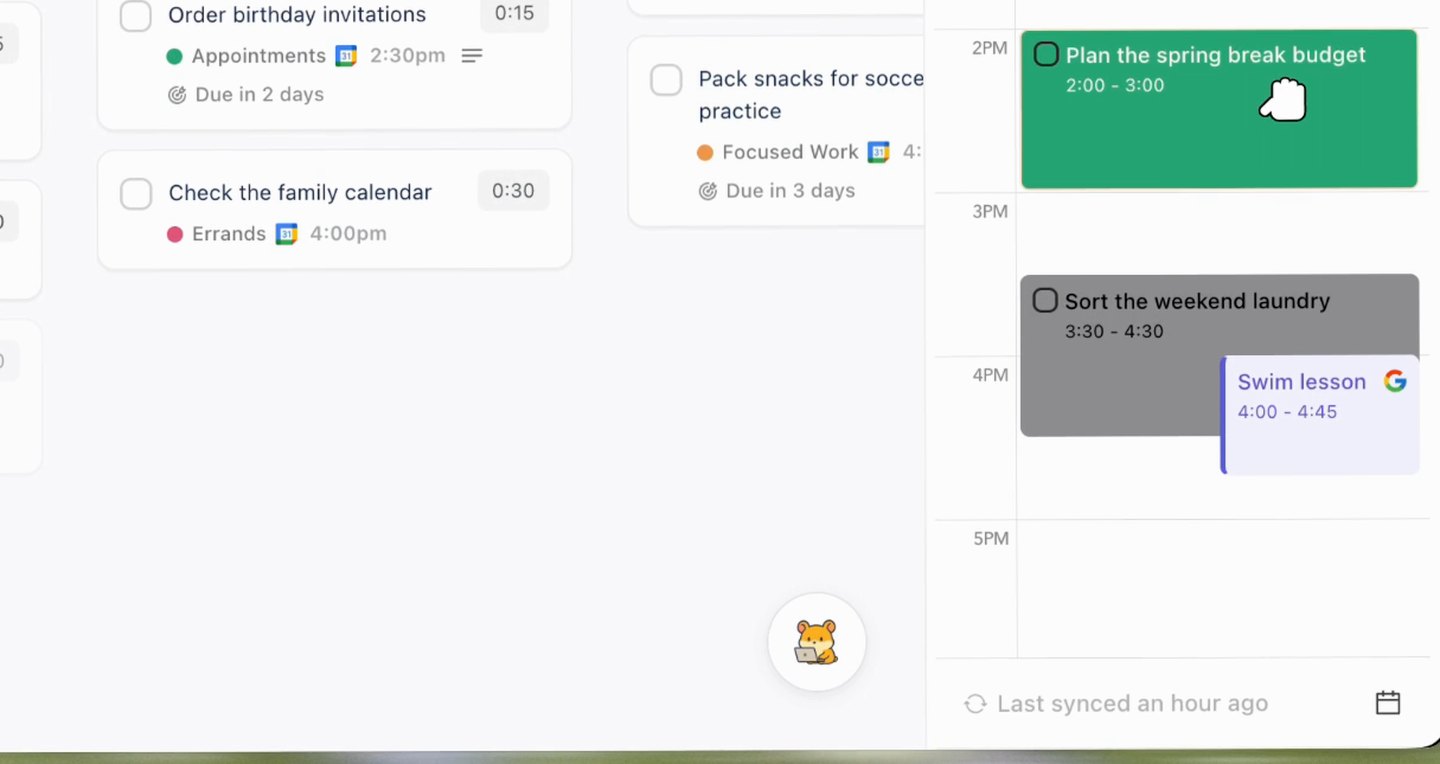
After: the same moment with a pointer drawn in afterward, which grabs the task and drops it at 2 PM; the Mac’s own pointer never made this move. Re-cut with Moonjar from the same Ellie for Mac recording, September 18, 2026.
The drawn gesture is four spans in the finished cut. Times are in the cut, and positions are in points of the recorded window:
1.20 to 2.30 s: move onto the task at (110, 572).
2.30 to 2.50 s: rest on it as an open hand.
2.50 to 2.95 s: drag, as a closed hand, to 2 PM on the Timebox at (1262, 388).
2.95 to 3.35 s: rest on the dropped block as an open hand.
In Moonjar each span is one edit, move_cursor for the moves and place_cursor for the rests. The first reads {op:'move_cursor', start:'00:01.20', end:'00:02.30', to_points:{x:110, y:572}}. Moonjar stores each waypoint as a fraction of its span, so if the cut is trimmed or sped up later, the gesture moves with it.
Two rules keep a drawn pointer honest:
Only draw what the app did. The pointer should arrive before the thing it clicks reacts, follow a drag the whole way, and never point at a button nobody pressed.
Know which parts are drawn. Moonjar’s
get_videosays whether the drawn pointer is the logged path as recorded, the logged path smoothed, or drawn with no log behind it, and lists every span an edit wrote on top, such as the four above.
Show clicks, or leave them out
A click ring tells the viewer that something happened at that spot. The built-in recorder’s Show Mouse Clicks draws a black circle around the pointer on each click. In Moonjar, click ripples are on by default, set_cursor with clicks: false turns them off, and cursor_click adds one the take never had.
Keep rings for clicks that change the screen, such as a button or a menu item. For a drag, the moving object already shows what happened, so a ring at the start adds little.
After the cursor
A clean pointer is one part of a demo that reads well. Automatic zooms have the same problem the pointer does, because they follow the input log rather than what changed on screen: check the zooms as well as the cursor. To have an agent make these edits for you, Claude Code video editing walks through a full cut. And for the whole sequence, from choosing the moments to exporting for each place the video plays, see how to make an app demo video.
If you want your agent to make and fix recordings like these, see what Moonjar does or request early access. It’s Mac only.
How the images on this page were made
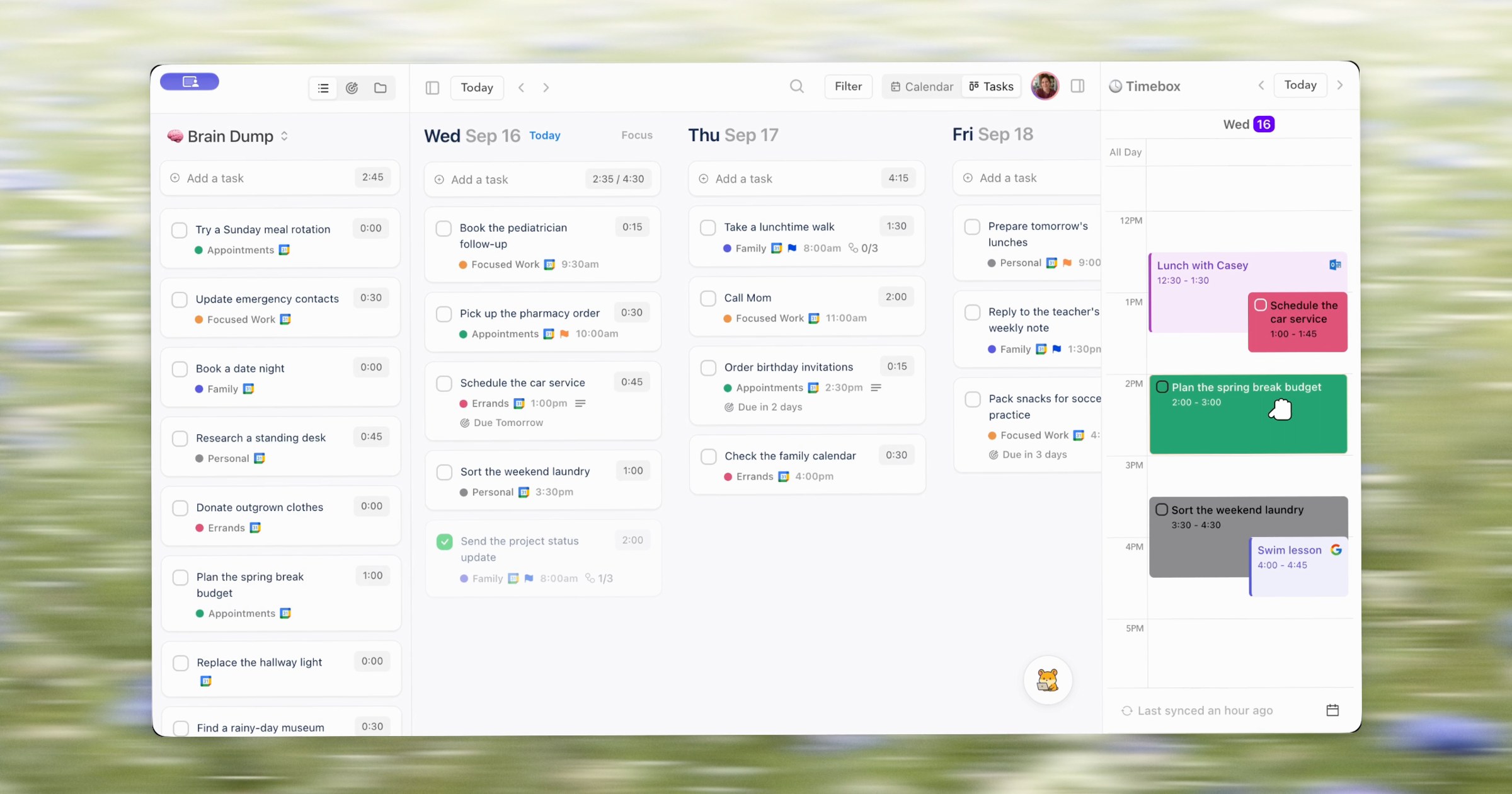
The images come from two Ellie for Mac window recordings made on Ellie’s demo data on September 16, 2026, re-cut and rendered with Moonjar, our product, on September 18, 2026. Each before and after pair is the same moment from two renders of the same take, cropped the same way around the pointer; only the pointer changed. The two smoothing images each stack all 48 frames of a 1.6-second render into one picture, one per setting. The cover is a frame from the cut with the drawn drag, on a background photo by Bernd Dittrich on Unsplash. Apple’s and the other vendors’ pages were read on September 18 and rechecked on September 19, 2026; OBS’s and Cap’s documentation was read on September 19. None of the apps, OBS and Cap included, was run for this page, and the Mac’s own Options menu wasn’t inspected, so the built-in advice rests on Apple’s documentation. The text was drafted with AI assistance.