
Screen Studio vs Cap: which Mac recorder fits your demos
Screen Studio is a Mac-only subscription built for polished videos. Cap is open source, free for personal use, and sells a $58 one-time license for work. Which license a product demo needs, and how to compare the two on your own app for free.
Chris Raroque
·

Pick Screen Studio over Cap if finished videos of a Mac app are what you publish: launch videos, tutorials, courses, demos with your voice and face. Zooms appear on your clicks without asking, it records a real iPhone or iPad over USB (without automatic zooms there), and its share links hold up to 30 minutes on either plan. It runs only on macOS, and new buyers can only subscribe, at $29 a month or $9 a month billed yearly.
Pick Cap (cap.so) if the price or the platform decides it. It is free for personal use, work use costs $29 a year or $58 once, it runs on Windows (in beta) and Linux as well as macOS, the source is public, and an agent can drive it from the command line. Going by its docs, its editor now covers most of what Screen Studio’s does; what it lacks by comparison is phone recording, and share links longer than 5 minutes below its Pro plan.
Watch the free plan’s fine print. Cap counts demos of your employer’s product as commercial use, so most product demo work needs a paid Cap license. Even then, the Desktop License is $29 a year against Screen Studio’s $108.
Both vendors’ own sites, docs and pricing pages were read on September 18 and rechecked September 19, 2026 (Screen Studio 3.7.5, Cap 0.6.0). Neither app was installed, so every feature below is as its maker documents it; the free comparison further down is how to settle the rest on your own app. The page captures were made with Moonjar, the Mac app I build for having a coding agent make product screenshots and recordings. It’s our product, in early access, with one section near the end, and it isn’t one of the picks.
At a glance
Screen Studio | Cap | |
|---|---|---|
What it is | A Mac recorder and editor for polished videos | An open source recorder with an editor, instant share links and screenshots |
Price | $29 a month, or $9 a month billed yearly | Free for personal use; $29 a year or $58 once for work; Pro $12 a user a month |
Runs on | macOS 13.1 or later | macOS (13.1 or later suggested), Windows (beta), Linux |
Source code | Not published | Public; AGPLv3, some parts MIT |
Automatic zoom | On by default, on your clicks | Generated from recorded clicks on the zoom track |
Cursor | Smoothed, resized or hidden after recording | The same, from Cap’s recorded cursor data |
Captions | Made on your Mac from your voiceover | Made on your Mac, in several languages (beta) |
iPhone or iPad | Over USB, without automatic zoom | Not listed |
Still images | None; copy a frame of a recording | Screenshot Mode, with a background and annotation |
Share links | Up to 30 minutes, with comments | Up to 5 minutes (unlimited on Pro), with comments and reactions |
Agent access | None listed | Command line tool and local MCP server |
What each one costs
Checked September 18 and 19, 2026:
Screen Studio | Cap | |
|---|---|---|
Without paying | Every feature except exporting video | Free for personal use, with 5-minute share links |
Pay once | Not for new buyers | Desktop License, $58 |
Yearly | $108 ($9 a month) | Desktop License $29; Cap Pro about $98 per user ($8.16 a month) |
Monthly | $29 | Cap Pro $12 per user |
Education | 40% off | 30% off for students |
Refunds | Its terms say fees are non-refundable | Not mentioned on its pricing page |
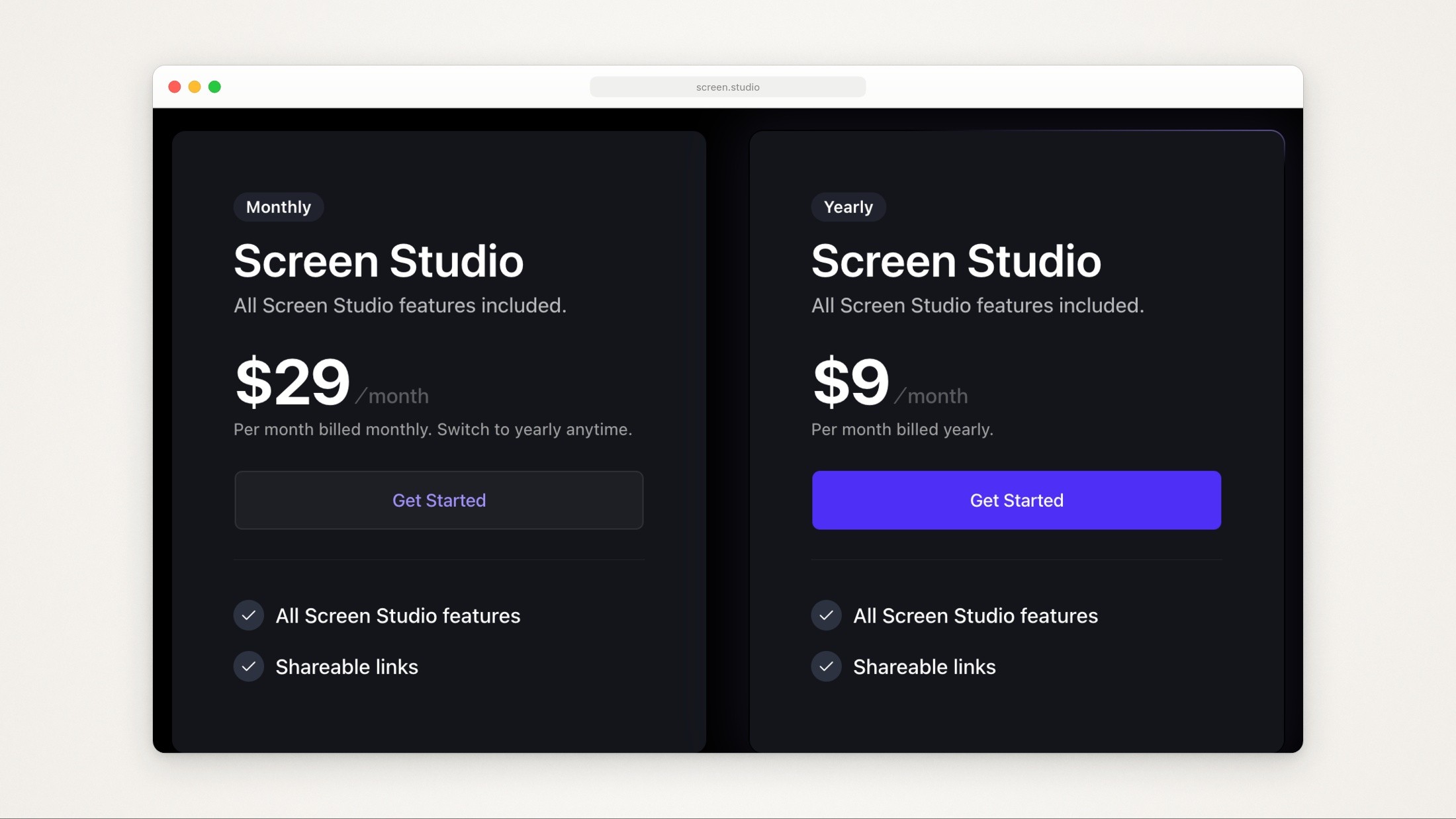
Screen Studio’s two plans. Captured from screen.studio with Moonjar on September 18, 2026.
Screen Studio has one product and two ways to pay for it. You can use it without an active plan, but exporting video files requires a plan, so you can record and edit a real demo before paying. One-time licenses bought in the past still work and can be renewed, but its FAQ says they are “no longer available for new purchases.”
Beyond the free plan, Cap sells two plans. The Desktop License is a commercial license for the app with unlimited local recording and editing, one user per license, at $29 a year or $58 once “for a license that never renews.” Cap Pro adds the cloud: unlimited share links and storage, AI titles, summaries, chapters and transcriptions, password-protected shares, a custom domain and your own S3 bucket or Google Drive.
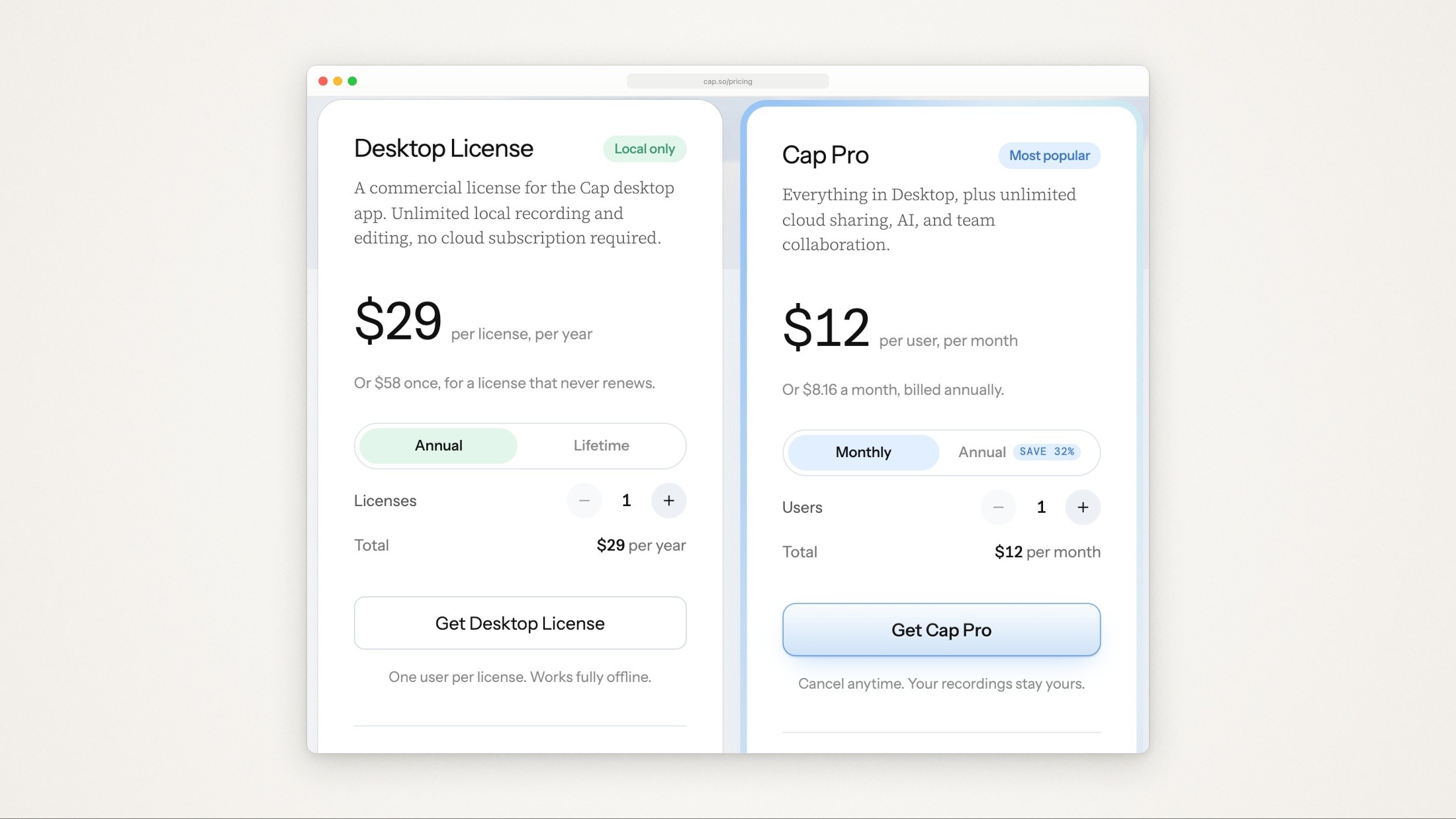
Cap’s Desktop License and Cap Pro on its pricing page. Captured from cap.so with Moonjar on September 18, 2026.
Over two years, Screen Studio’s yearly plan costs $216. Cap’s Desktop License costs $58 either way (once, or $29 twice), and Cap Pro billed yearly costs about $196 per user. In year three the gap widens: $324 for Screen Studio against $58 for the one-time Cap license.
Which Cap license a product demo needs
Cap’s commercial licensing page says its app is free for personal use and needs a commercial license for “any use of Cap Desktop for recording or editing content that will be used as part of revenue-generating activities.” Its two examples are “producing content for promotion or demonstration of your employer’s product or service” and videos for communication between team members of a company. So:
Recording for yourself (a hobby project, a personal how-to): the free plan.
A demo of the product you sell, client work or a course you sell: the Desktop License, $29 a year or $58 once. The $58 license costs the same as two years of the yearly one and never renews.
A team that shares recordings by link every day, or needs links longer than 5 minutes: Cap Pro, per user.
You build Cap yourself from its source: the same page says the license requirement covers only the binaries Cap distributes, not versions you build. Most of the code is under AGPLv3, with the
cap-cameraandscapcrates under MIT, so AGPL’s own terms still apply to what you build and share.
The pricing page is also unclear about the free plan’s recording limit. Its text says Free covers personal use “with no time limit on local recordings,” while its own comparison table marks “Unlimited local recordings & editing” as not included on Free. The FAQ on Cap’s homepage is plainest: “Studio Mode lets you record locally without a time limit.” So two statements say there is no limit and one table row suggests otherwise. If you plan to stay on the free plan, check the app before you rely on it.
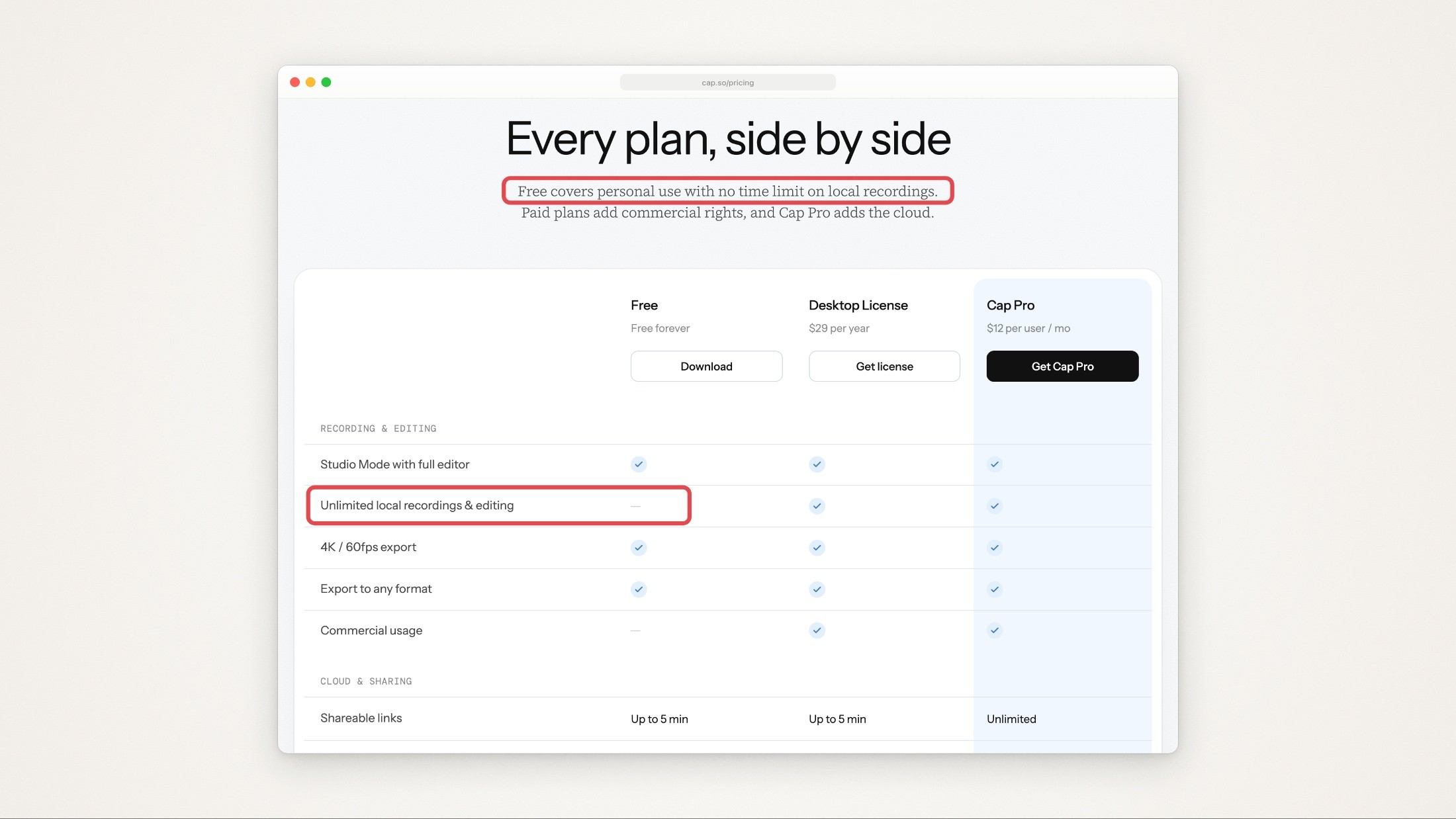
Cap’s plan table says the free plan has no time limit on local recordings, then marks unlimited local recordings as not included on Free. The red outlines are ours. Captured from cap.so with Moonjar on September 18, 2026.
Recording and editing a product demo
The job: 30 seconds to a few minutes of clicking through a Mac app, with zooms, a clean cursor and maybe your voice, for a landing page, a launch post or a help article. This is where the two are closest.
Screen Studio. You record a display, a window or an area, and the zooms are made for you: a setting called “Create zooms automatically” is on until you switch it off, and each automatic zoom aims at a spot you clicked. For a stretch with no click, you pick the area yourself as a manual zoom. The pointer is never in the captured video: Screen Studio logs the mouse separately and draws the cursor in afterward, which is why you can still smooth it, enlarge it or let it hide while idle once you have stopped. Voice volume is normalized and background noise removed automatically, and captions are made on your Mac from your voiceover with a Whisper model, or with Apple’s speech recognition on macOS 26 or later. Export is MP4 or GIF, with video up to 4K at 60 fps, and you can copy any frame of a project as an image.
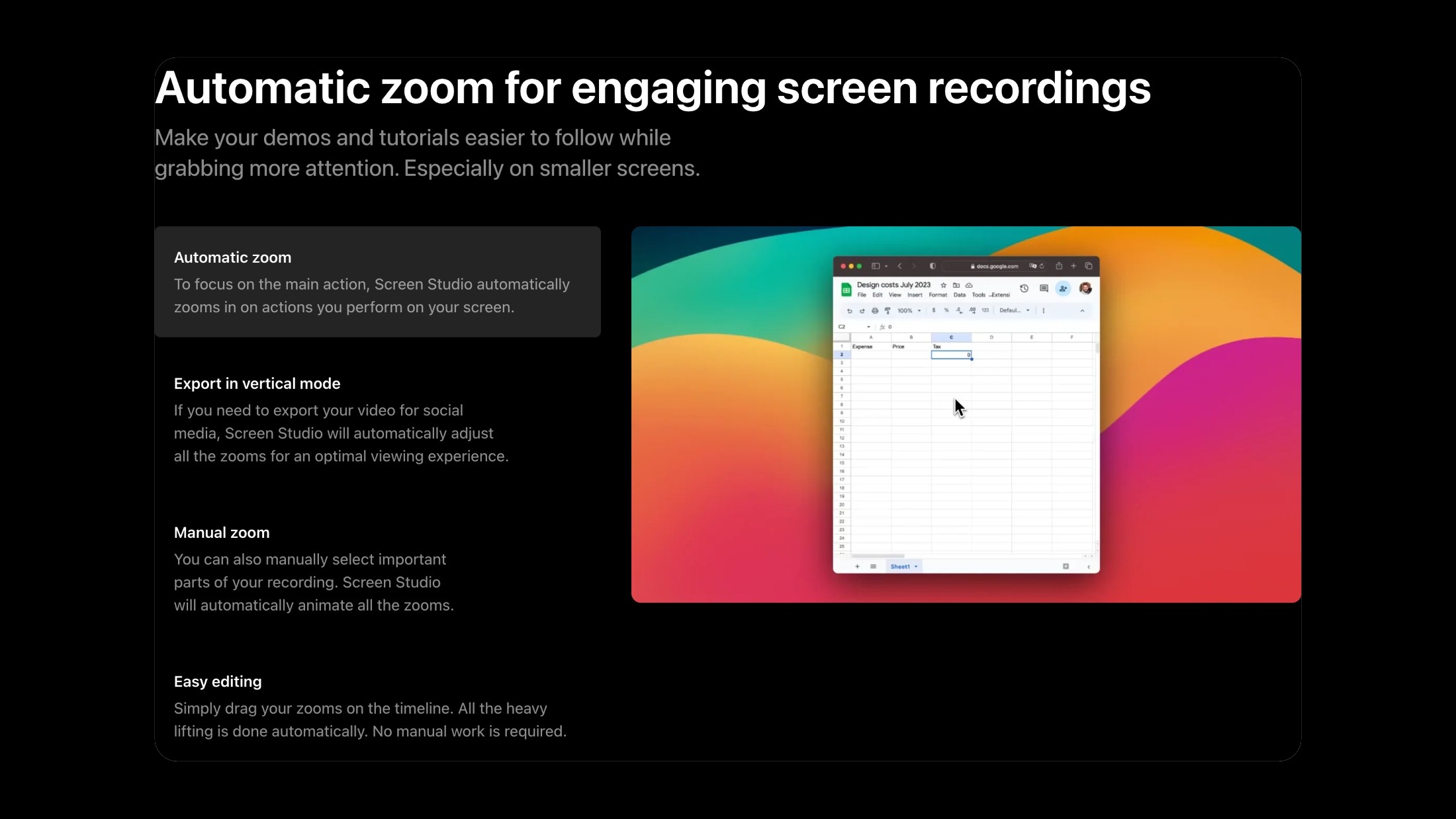
Screen Studio’s homepage section on automatic zoom. The spreadsheet on the right is a still from the page’s demo video. Captured from screen.studio with Moonjar on September 18, 2026.
Cap. For a polished video you record in Studio Mode: a display, a window, an area or the camera alone, with screen, camera and microphone on separate tracks. When you stop, the editor opens. Its docs describe a zoom track where you generate zooms around your recorded clicks, each following the recorded action, or draw manual zooms from 1x to 4.5x. The cursor works like Screen Studio’s, from cursor data Cap records: show or hide it, resize it, or smooth its motion with presets or tension, friction and mass controls. The docs also list scenes that switch between screen and camera, blur or pixelate masks, text tracks, keystroke overlays (beta), backgrounds and window or MacBook frames, and captions transcribed on your Mac (beta). Export is MP4 at up to 4K and 60 fps, or GIF at up to 1080p and 30 fps. Version 0.6.0 on September 15, 2026 added a redesigned editor, 3D camera moves, color grading and microphone noise reduction.
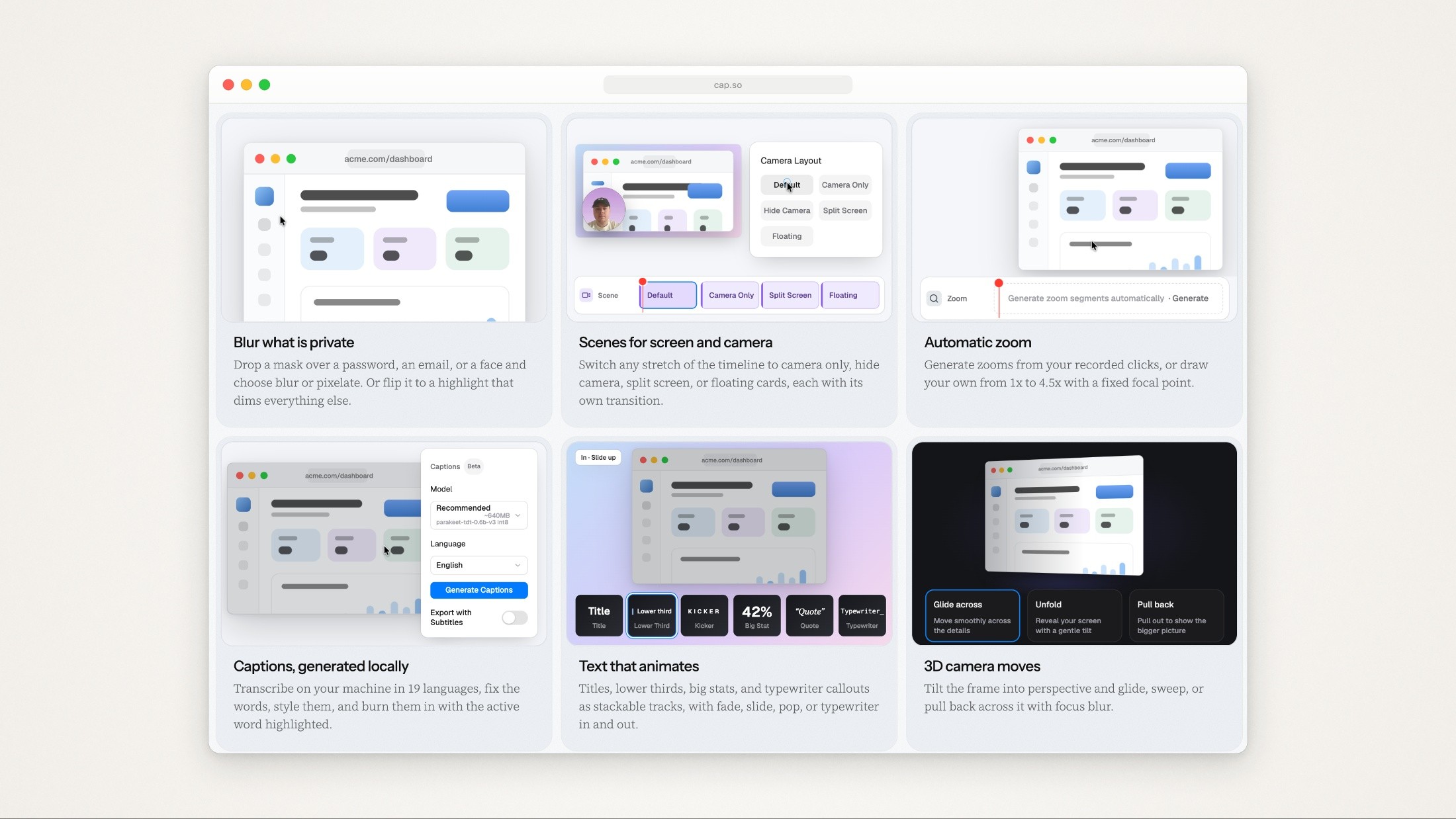
Six of the editor features on Cap’s homepage, shown as Cap’s own illustrations. Captured from cap.so with Moonjar on September 18, 2026.
The differences that matter for a demo, as each company documents them:
How zooms start. Screen Studio adds them on its own unless you switch that off. Cap’s docs describe generating them from the zoom track. Both let you place zooms by hand.
How settled the editor is. Screen Studio has been refining one editor since at least November 2022, the oldest entry on its changelog. Cap redesigned its editor in 0.6.0 on September 15, 2026, and still labels its captions and keystroke tracks beta.
Quick videos. Cap’s Instant Mode uploads while you record and gives you a share link when you stop. Screen Studio shows a quick share widget when you stop, with Share to generate a link or Edit to polish first.
Compare them on your own app, for free
What no documentation can settle is how the zooms and cursor look on your own take, and neither app charges you to find out: Screen Studio records and edits without a plan (download it from its download page), and Cap’s app is free to download (Cap’s download page). Cap’s free plan is for personal use, so read its licensing page (linked above) before you use it to try out a work demo, and buy the license before you publish one.
Record the same 30 seconds in both, with one click on a small control, one drop-down menu, one drag and one typed field.
In Cap, generate zooms from the clicks; in Screen Studio, let it make them. Count how many each made and ask, for each one, what changes on screen while it’s in. The auto zoom guide explains the usual misses.
Watch the cursor over the drop-down, and try each app’s smoothing settings there. The cursor guide shows why smoothing and menus don’t mix.
Fix one bad zoom in each editor and time it.
For the steps around the recording (planning the moments, cutting the waiting, exporting for each place), see how to make an app demo video.
Recording an iPhone or iPad
Screen Studio records an iPhone or iPad connected by USB cable and frames it in a device mockup matched to the model and color it detects. Its guide names two limits, both because finger taps aren’t recorded: nothing zooms automatically, so you place the zooms yourself, and no cursor appears unless you pair a Bluetooth mouse with the device, which then shows a round one. On macOS Sequoia or later, the iPhone Mirroring window can be recorded like any other window.
Cap doesn’t list phone recording on its homepage, download page or Studio Mode docs. If a real phone is part of your demos, Screen Studio is the one of the two built for it. If your phone demos come from the iOS Simulator instead, neither app is needed for the capture: see how to record the Simulator with taps showing.
Sharing, cloud and privacy
Screen Studio. Both plans include shareable links, up to 30 minutes long, with comments. Its FAQ says your recordings stay on the Mac for storage and processing, and transcription and its other AI features run there too.
Cap. A shared capture gets a Cap page that viewers watch in the browser, with comments and reactions. Links are capped at 5 minutes on the free plan and the Desktop License (20 links a month on the Desktop License); Pro makes them unlimited and adds transcriptions, AI titles, summaries and chapters, and password protection. Studio Mode uploads nothing until you choose a shareable link. Keeping shared recordings in your own S3 bucket or Google Drive is a Cap Pro feature; to keep everything on your own servers instead, you can run Cap’s web side yourself with Docker Compose (Cap’s self-hosting docs).
Cap describes itself as the open source alternative to Loom, and if your team shares recordings in a browser every day, Cap Pro is the plan built for that. If you share a finished video now and then, Screen Studio’s links cover it without a second plan. If it is Loom you are replacing, Loom alternatives for Mac compares Cap, Screen Studio and the other Mac recorders for product demos.
Windows and Linux
Screen Studio is Mac only. Its FAQ answers “Is the Windows version ready?” with “No, and there are no near-future plans to add Windows support.” It asks for macOS Ventura 13.1 or later, recommends Apple M1 or later, supports Intel MacBook Pro models from 2018 and MacBook Air from 2020, and needs 8 GB of memory.
Cap runs on macOS, Windows and Linux. Its download page recommends macOS 13.1 or later, lists the Windows build as a beta, and offers Linux packages for Debian and Ubuntu, Fedora, Arch and an AppImage. Its homepage asks for Windows 10 or newer. There is also a Chrome extension.

Cap’s download page recommends macOS 13.1 or later and lists its Windows build as a beta. The red outline is ours. Captured from cap.so with Moonjar on September 18, 2026.
If anyone on your team records on Windows or Linux, Cap is the only one of the two that works for them.
If a coding agent is part of your workflow
Cap ships a command line tool and a local MCP server. Its Cap for Agents page says Claude Code, Codex, Cursor, OpenCode or any agent that can run a shell can record your screen, upload the result, read the transcript and manage the library, that setup is one prompt you paste into the agent, and that the agent asks before anything records, uploads or costs money. It counts 76 MCP tools and says capture and upload stay in the command line tool, so no secret passes through the model.

The Cap for Agents section of Cap’s homepage. Captured from cap.so with Moonjar on September 18, 2026.
Screen Studio’s guide lists no command line tool, API or MCP server. On its feedback board, a request for a Claude Code plugin to edit a recorded video had 29 upvotes and the status “In Review” on September 19, 2026.
When the demo has to be made again
In both apps, a person performs the demo. Cap’s command line tool lets an agent start and stop a recording, but neither company documents an agent clicking through your app for you. When the app’s interface changes, someone records it again, and for a help center or an App Store page full of product shots, that redoing is the expensive part.
That’s the job I built Moonjar for. Moonjar is our product, a Mac app in early access with no published price, and it isn’t one of the picks above. You ask your coding agent, such as Claude Code or Codex, through Moonjar’s MCP server. The agent rehearses the demo and shows you the plan. Once you approve it, the agent taps through your app in the iOS Simulator, or clicks through a Mac app you allow, with its own computer use, while Moonjar records the Simulator or the window. Then the agent cuts the take: zooms toward the logged taps and clicks, cuts and speed-ups, and a cursor drawn after the take that it can smooth, move or hide. It replaces neither app: its renders have no audio, it records no webcam and no real iPhone, and it makes no share links. See what Moonjar makes or ask for early access.
If neither of these two fits, Screen Studio alternatives compares FocuSee, CleanShot X, Tella and free options too, and Screen Studio vs CleanShot X covers screenshots as well as recordings.
How this comparison was made
Everything above comes from each company’s own pages, read on September 18, 2026 and rechecked on September 19: Screen Studio’s homepage, FAQ, download page, guide, terms, changelog (version 3.7.5, August 5, 2026) and feedback board, and Cap’s homepage, pricing page, download page, docs, commercial licensing page, Cap for Agents page and GitHub repository (release 0.6.0, September 15, 2026). No app was installed and no account was created. The images are captures of those public pages made with Moonjar on September 18, set on a plain background (off-white, or black for Screen Studio’s zoom section); the red outlines are ours. This page was drafted with AI assistance.