
Loom alternatives for Mac when the video is a product demo, not a message
Loom is built for quick messages you share by link. For a product demo or walkthrough people watch as a finished video, these Mac recorders fit better.
Chris Raroque
·

Which of the Loom alternatives for Mac fits depends on what you hand over at the end. Loom’s output is a link to a video message. A product demo is usually a file that plays on a landing page, in a launch post or in a help article, and it needs zooms, a clean cursor and a sharp export. For that job, look at Screen Studio (Mac only, $29 a month or $9 a month billed yearly), Cap (free for personal use, $58 once for work, and it makes Loom-style links too), CleanShot X (a screenshot app with a new video editor, $35 once) or Tella (Loom-style sharing with a real editor, from $13 a user a month billed yearly). If it has to be free, OpenScreen is open source, free for work too, and adds automatic zooms; the Mac’s own Screenshot toolbar and OBS Studio record the screen without them.
A note on who wrote this: I build Moonjar, a Mac app your coding agent uses to record and cut product demos. It’s our product and it’s in early access, so it isn’t one of the picks; it has its own box near the end. The images on this page were made with Moonjar too, not with any of the apps below.
Checked September 24, 2026, against the vendors’ own pages: pricing, help docs, downloads and changelogs, each linked where it’s used. Prices are in US dollars. Nothing here comes from installing or trying an app; each section reports what its maker documents, and the free plans and trials in the quick picks are the way to judge one on your own demo.
A message or a demo: which are you making?
Loom’s homepage describes it as a way to record and share video messages with your teammates and customers, and its screen recorder guide says that when you stop, the recording uploads to your Loom account and a share link is ready (Loom’s screen recorder page). That’s exactly right for a reply, a bug report or a status update. A demo you publish asks for different things:
What differs | A message | A demo |
|---|---|---|
Who watches | A teammate or customer, once | Anyone who finds it, many times |
Where it lives | A link in a chat or an email | A site, a launch post, a help article |
What it needs | Speed, your face and voice, replies | Zooms, a clean cursor, a file at the right size |
How long it lasts | Until the question is answered | Until the app changes |
Cap splits recording the same way inside one app. Its Instant Mode is meant for quick updates, feedback and team communication, and its Studio Mode for tutorials, courses and product demos (Cap’s Instant Mode page). Most of the apps below do some of both, so each section says what it offers for a demo and what it offers for a quick message.

Cap’s Instant Mode page, captured September 23, 2026: the company’s own comparison of its two recording modes.
Quick picks for recording demos on a Mac
App | Price, Sept 24, 2026 | Best for |
|---|---|---|
Loom, for reference | Free; Business $18 a user a month | Quick messages by link |
$29 a month, or $9 a month billed yearly | Polished demos you narrate | |
Free for personal use; for work, $29 a year or $58 once | Paying once, with quick links too | |
Basic $35 once | Captures and demos in one app | |
Pro: $13 a user a month yearly, or $26 monthly | Teams that edit and share on the web |
Every plan is in each app’s own section below. First, the basics, from the same vendor pages:
Runs on. All five have a Mac app. Screen Studio and CleanShot X are Mac only. Loom and Tella also have Windows apps, and Cap runs on Windows (labeled beta) and Linux. On a Mac, Loom asks for macOS 12.3 or later, CleanShot X for 13.0, and Tella for 13.1, while Screen Studio and Cap recommend 13.1.
Before you pay. Loom’s Starter plan is free, with the limits below, and Business + AI has a 14-day trial. Without a plan, Screen Studio does everything except export video files. Cap is free for personal use. CleanShot X has no trial but gives your money back within 30 days, or you can try it through Setapp’s 7-day trial. Tella gives every new workspace a 7-day Pro trial with no card.
Where the video goes. Loom uploads each recording to your Loom account when you stop, and Tella saves it on your Mac, then uploads it. Screen Studio’s FAQ says recordings are stored and processed on your computer, and Cap’s Studio Mode also records and edits locally, while its Instant Mode uploads as you record. CleanShot X’s FAQ says its Cloud is needed only for uploading.
Two pages that rank for this search, both published by software makers, quote prices the vendors’ own pages don’t show. ScreenSnap Pro’s list of Loom alternatives for Mac, published May 27, 2026, gives Screen Studio as $149 once and CleanShot X as $29 once, and BuildBetter’s list of local Mac recorders, dated September 5, 2026, also gives CleanShot X as $29. Screen Studio no longer sells one-time licenses to new buyers, and CleanShot Basic is $35. Go by the prices here, each read from the vendor’s page.
What Loom gives you, and where a demo outgrows it
Loom’s Mac app needs macOS 12.3 or later, an Apple silicon Mac or an Intel Mac from 2018 on, and 8 GB of memory; Loom also records on Windows, in Chrome and on phones (Loom device compatibility). Its plans on September 24, 2026 (Loom pricing):
Starter, free: up to 25 videos per person, 5 minutes per screen recording, video up to 720p, screen and camera bubble, transcripts, comments and reactions.
Business, $18 a user a month, or $180 a user a year billed yearly: unlimited videos and recording time, video up to 4K, trim and stitch, no Loom branding, and uploading and downloading videos.
Business + AI, $24 a user a month, or $240 a user a year billed yearly: adds AI summaries and chapters, filler word and silence removal, editing by transcript, and text, box and arrow overlays. You can try it free for 14 days.
Enterprise: priced through sales.
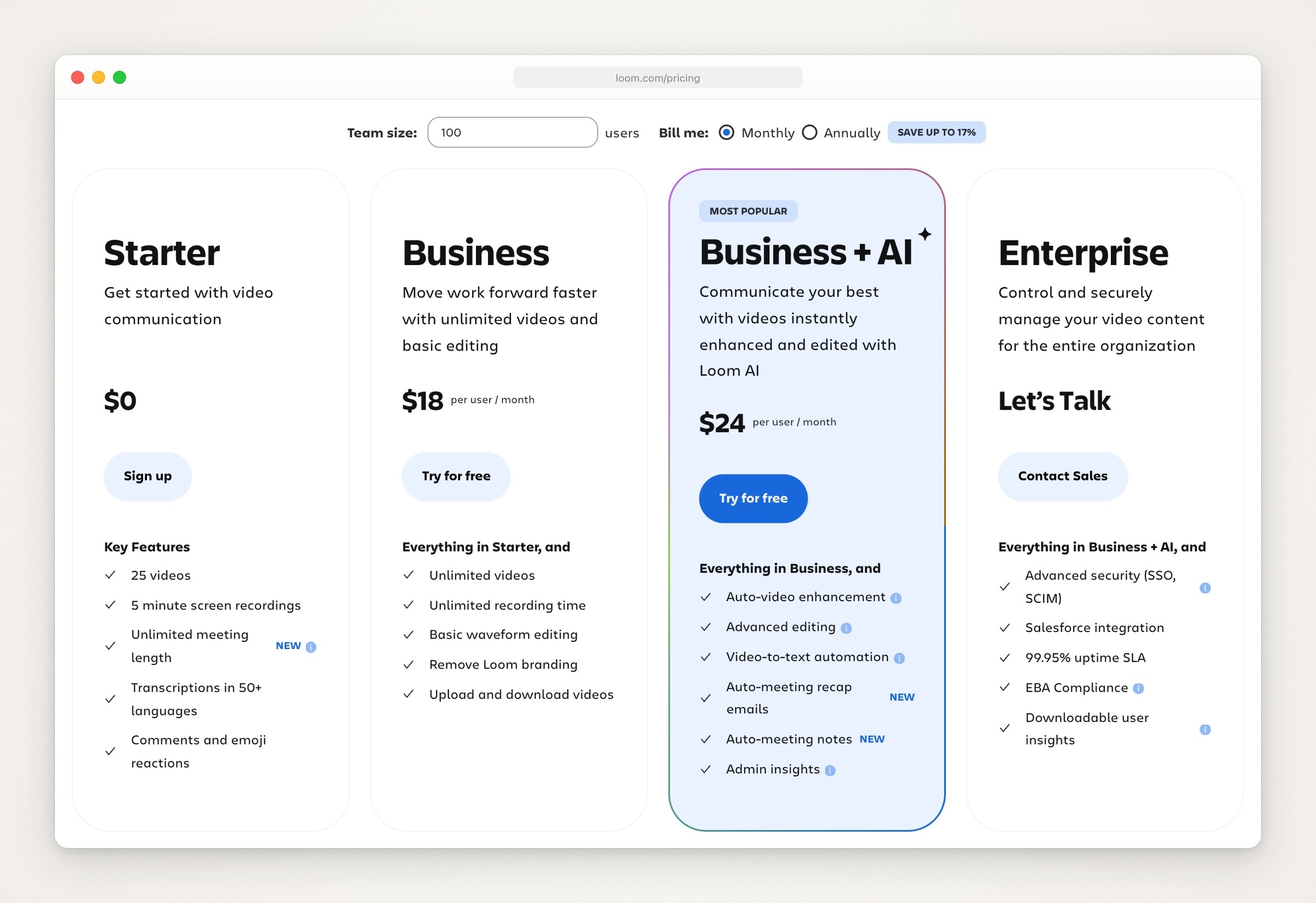
Loom’s pricing page with monthly billing, its default, captured September 23, 2026.
For a demo you publish, four things on Loom’s own pages matter:
Getting the file takes a paid plan. Loom’s help page on downloading says admins and creators can download on Business and Business + AI, and that nobody on the free Starter plan can. Downloads are MP4 files that keep your trims but leave out CTAs, filler word and silence removal, chapters and captions (Download your Loom video). If those edits are why you paid for Business + AI, they stay on Loom’s player.
The free plan is short and small. Five-minute screen recordings at 720p are plenty for a reply, and tight for a demo on a landing page.
Automatic zoom is on the “coming soon” list. Atlassian’s page on Loom’s editing features lists auto-zoom there, next to AI voices and avatars (Loom editing features). On every plan except Starter, the desktop app can highlight your clicks as you record (Highlight your mouse clicks), and the pricing page lists no cursor smoothing.
The editor cuts more than it polishes. Trim and stitch come with Business, and editing by transcript with Business + AI (Edit your Loom video). The pricing page adds backgrounds on Business and text, box and arrow overlays on Business + AI.

Loom’s help page on downloading videos, captured September 23, 2026.
When to stay with Loom
Stay if most of these describe your videos:
They are replies. Someone watches once and answers with a comment or a reaction, and the link is the point.
Your face matters. Every Loom plan records a camera bubble, with virtual backgrounds and camera frames.
Your team works in Slack, Jira and Confluence. Loom’s pricing page lists those integrations on every plan.
People record on Windows or a phone too. Loom has apps for Windows, iPhone and Android as well as the Mac.
You rarely publish a video outside Loom. Then the download rules above never come up.
The alternatives, app by app
Each section covers the same things: where it runs, what it costs, what it does for a demo, what it does for a quick message, and the catch. The order isn’t a score. For how these apps decide where to zoom, and why an automatic zoom sometimes lands on nothing, see auto zoom in screen recordings.
Screen Studio
Best for: polished demos of a Mac app that you record and narrate yourself.
Runs on: Macs only, with Ventura 13.1 or later recommended. The FAQ on Screen Studio’s homepage rules out a Windows version for now: there are no near-future plans for one.
What it costs (checked September 24, 2026): a subscription of $29 a month, or $108 a year ($9 a month) if you pay yearly. New buyers can’t get a one-time license anymore. Until you subscribe, every feature works except exporting video files (Screen Studio’s download page), and the Screen Studio terms of service say fees are non-refundable.
For a demo: its FAQ explains that it records the screen without the pointer, logs the mouse separately and draws the pointer back in, so you can smooth it or change its size after you stop. It zooms in automatically, records webcam, microphone and system audio, and exports up to 4K at 60 fps, or a GIF. It can also record an iPhone or iPad on a USB cable, though its guide says automatic zooms aren’t supported there and no cursor shows (recording an iPhone or iPad).
For a quick message: a shareable link works for a recording up to 30 minutes long. Anything longer goes out as an exported file instead (Screen Studio shareable links).
The catch: a subscription with no refunds, and Mac only. For apps built along the same lines, see Screen Studio alternatives.
Cap
Best for: an open source recorder you can pay for once, and one app for both jobs: Instant Mode for messages, Studio Mode for demos.
Runs on: Macs (macOS 13.1 or later recommended), plus a Windows app labeled beta and a Linux one. Its download page also says Cap is open source and available on GitHub (Cap’s download page).
What it costs (checked September 24, 2026): Cap Pro is $12 a user a month, or $8.16 a month billed yearly. Personal use is free, and a Desktop License for one person’s commercial use is $29 a year or $58 once (Cap pricing).
For a demo: Studio Mode records on your Mac at up to 4K and 60 fps, keeps screen and camera on separate tracks, and has a timeline editor with automatic zooms, custom backgrounds, and MP4 or GIF export (Cap’s Studio Mode page).
For a quick message: Instant Mode uploads while you record, so the link is ready when you stop. Links run up to 5 minutes on the free plan and the Desktop License (20 a month on the license); Cap Pro makes them unlimited and adds a Loom video importer.
The catch:
Free means personal use. Cap’s commercial license page counts both demos of your employer’s product or service and communication between team members of a company as commercial use, so a work demo or a message to your team needs a paid plan: the Desktop License or Cap Pro.
The free plan’s recording limit is unclear. The pricing page’s text promises no time limit on local recordings, but the plan table below it marks unlimited local recording as not included on Free.
For Cap and Screen Studio side by side, see Screen Studio vs Cap.
CleanShot X
Best for: one Mac app for your screenshots and your polished demos, bought once.
Runs on: macOS 13.0 or newer. There is no Windows version, and its FAQ says none is planned.
What it costs (checked September 24, 2026): Basic is a $35 purchase that includes a year of updates and 1 GB of CleanShot Cloud, then $19 a year if you want to keep updating. Pro, at $10 a user a month billed yearly, adds unlimited Cloud storage, a custom domain and team features (CleanShot pricing). Setapp carries it too.
For a demo: Studio Mode came with version 5.0 on September 1, 2026. The changelog lists smart zooms that follow the cursor, smoother cursor movement, motion blur, backgrounds for recordings, and cursor size, keystrokes and camera settings you can adjust afterward (CleanShot’s changelog). Recordings can include a webcam bubble and export as MP4 or GIF (CleanShot’s homepage).
For a quick message: upload a recording to CleanShot Cloud and a link is ready to send, with comments attached to it (CleanShot’s homepage).

CleanShot X’s changelog, captured September 23, 2026, with the 5.0 release that added Studio Mode.
The catch:
The video editor is new. Studio Mode arrived in 5.0 on September 1, 2026, and 5.0.1 followed on September 18 with minor bug fixes.
Updates are free for one year from the purchase date and $19 a year after that (why updates expire), so a Basic license whose year of updates ended before September 1, 2026 gets Studio Mode only with the renewal.
You can’t try it free from CleanShot itself: it offers a 30-day refund instead, and Setapp, which includes it, has a 7-day trial.
Tella
Best for: teams that want Loom-style links and a real editor in the same place.
Runs on: a Mac app that needs macOS 13.1 or later, a Windows app, a Chrome extension and the web (Tella Mac app requirements).
What it costs (checked September 24, 2026): Pro and Premium cost $13 and $19 a user a month when billed yearly, or $26 and $39 month to month, and Enterprise is priced on request (Tella pricing). A new workspace starts with a 7-day Pro trial that needs no card, and its owner can extend it once by another 7 days. Tella’s help page says there is no forever-free plan (how Tella’s trial works).
For a demo: by default the Mac app records the pointer apart from the screen, and finished recordings open in a web editor that draws it back as a smooth cursor you can change (Tella’s Mac app guide). The editor has timeline and transcript editing, layouts, zoom effects and auto zoom, backgrounds and subtitles, and exports up to 4K. 60 fps export is limited to videos up to 5 minutes on Pro, and has no limit on Premium.
For a quick message: the video is ready to share as a link as soon as you finish recording or editing, with comments, reactions and viewer analytics. In the Mac app’s quick mode, the link is copied the moment you stop. The FAQ on Tella’s homepage says recording is as quick as Loom’s, with a full editor, layouts and 4K export on top, and Tella’s pricing page lists a Loom migration tool on every plan.
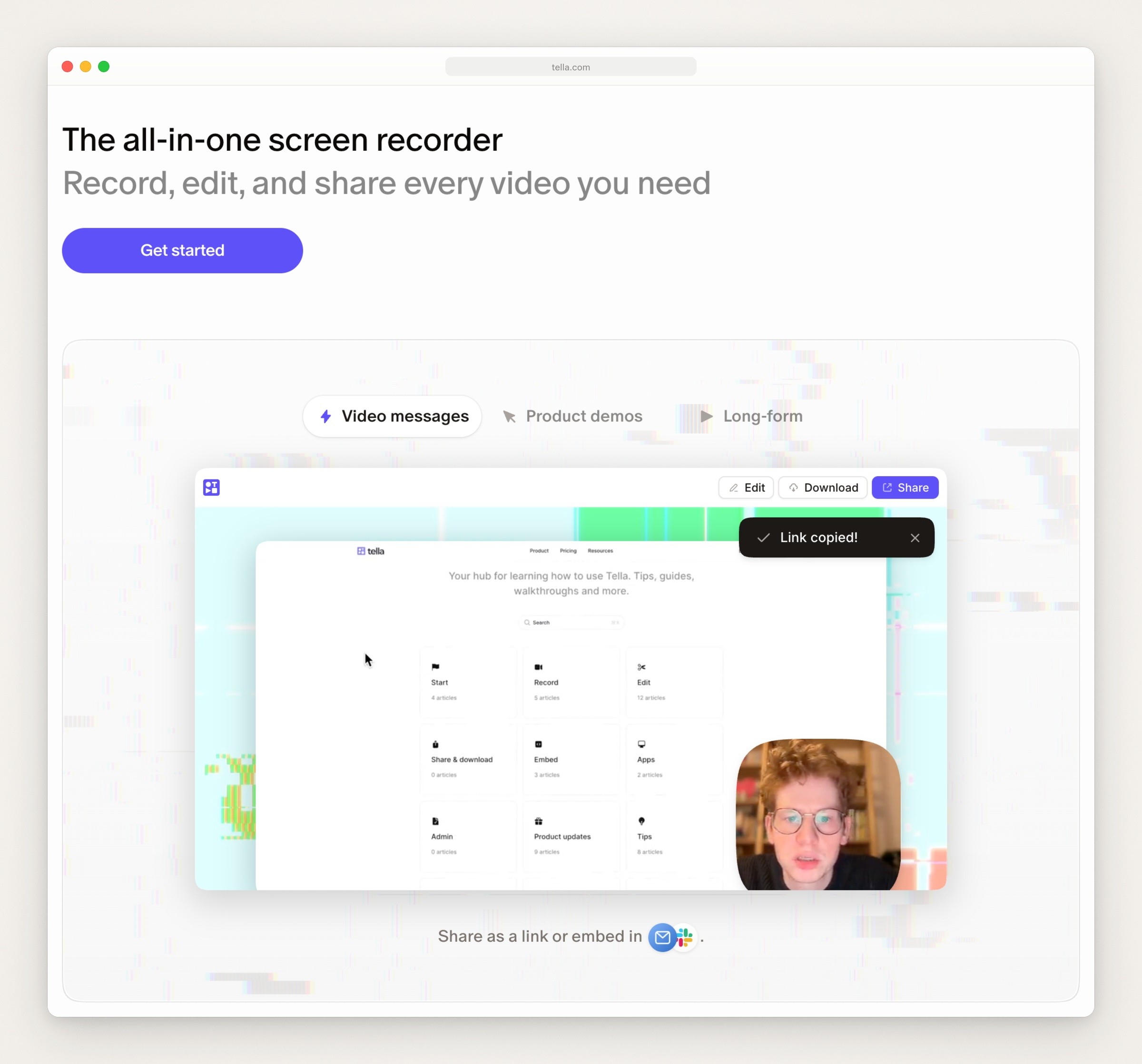
Tella’s homepage, captured September 23, 2026. The sample video page in the picture is Tella’s own product image, and the colored pixel pattern is the page’s own animation.
The catch:
Once the trial runs out, Tella won’t record, edit or export until you pay, though the videos you made stay up and can still be shared.
It leans on the cloud. Each recording is saved on your Mac first and then uploaded, and Tella’s requirements page asks for an upload speed of at least 2.5 to 5 Mbps.
Trial exports are HD at 30 fps; 4K export comes with a paid plan.
Also considered
ScreenFlow (Mac only): Telestream’s recorder and full video editor, from $199. Its free trial has no time limit, but exported movies carry a watermark (ScreenFlow overview).
Camtasia (macOS 14 or later, and Windows): TechSmith’s screen recorder and video editor, with cursor smoothing and cursor path editing. Camtasia Essentials, the lowest plan whose editor exports without a watermark, is $179.88 a year, with a 14-day money-back guarantee (Camtasia store).
More recorders built like Screen Studio, such as FocuSee, CursorClip and Screen Charm, are compared in Screen Studio alternatives.
Free alternatives to Loom for recording a demo on a Mac
OpenScreen. An open source recorder under the MIT license, free for work as well as personal use, for macOS 13 or later, Windows and Linux (OpenScreen on GitHub). The README lists zooms that follow your cursor, cursor smoothing, a webcam overlay and MP4 or GIF export, and warns that the app is under active development, with rough edges. The latest stable release is 1.12.2, from September 18, 2026. It exports files; its README mentions no share links.
The Mac’s own Screenshot toolbar and QuickTime Player. Press Shift-Command-5 to record the whole screen, one window (on macOS Tahoe 26 or later) or part of the screen, or choose New Screen Recording from QuickTime Player’s File menu. The toolbar’s options add a microphone, system audio on macOS 27 Golden Gate or later, and a black circle around the pointer when you click, and the recording saves as a .mov file (Apple’s guide to recording the screen on Mac). There are no zooms, so plan to add them in an editor. Recording one window on a Mac covers what ends up in the file.
OBS Studio. Its homepage calls it free and open source software for video recording and live streaming (OBS Studio), and the Mac version needs macOS 13.0 or newer (OBS’s download page). Neither page lists automatic zoom or cursor smoothing.
Cap’s free plan. Cap is open source, and the free plan covers Studio Mode and Instant Mode for personal use. A demo of your employer’s product, or a message to your team, needs the Desktop License or Cap Pro.
Loom Starter. Free for 25 videos per person, with screen recordings of up to 5 minutes at 720p. Nobody on the plan can download them.
Choosing a recorder settles only part of the job. How to make an app demo video covers the rest: which moments to show before you record, and how to cut the waiting afterward.
Where Moonjar fits (our product, early access)
Moonjar is the Mac app I’m building, and it’s our product. It’s in early access with no published price, and it doesn’t replace Loom or the apps above: it records no webcam, its renders have no audio, it doesn’t record a real iPhone, and it makes no share links.
It does one part of the demo job: product demos your coding agent records and cuts from your real app, and redoes when the app changes. You ask Claude Code, Codex, Cursor or any MCP client, and the agent works through Moonjar:
Record. The agent rehearses every step off camera before Moonjar records, and you can watch it work in Moonjar. Moonjar records the iOS Simulator or a Mac window while the agent performs the steps with its own computer use; Moonjar has no input tools of its own.
Cut. The agent trims the waiting, slows down or speeds up moments, adds captions and places zooms where they help. On a Mac window take, the pointer is stored apart from the picture, so it can be smoothed, moved or hidden afterward. Moonjar renders the cut to MP4.
Redo. When the app changes, ask the agent to record the flow again and cut the new take the same way. Agents read your product’s guidelines in Moonjar (its flows and your style) before they record, and every item keeps its history. Moonjar doesn’t notice app changes by itself.
If you talk to the camera, record on Windows, or want a link the moment you stop, one of the apps above fits better. Some of them work with agents too: Cap’s CLI and local MCP server let Claude Code, Codex or Cursor record your screen and manage your Cap library (Cap for Agents), Tella’s MCP server lets an AI assistant edit your Tella videos, cuts, layouts and zooms included (Tella MCP server), and OpenScreen’s command-line tool lets an agent record the screen, change a project’s zooms, trims and annotations, and render it to MP4 or GIF (OpenScreen on GitHub). If your demos are of your own Mac or iPhone app and you want your agent to make and remake them, see what Moonjar does or get early access (Mac only).
Other questions
Can I bring my Loom videos with me?
Yes. On a plan that allows downloads you can save them as MP4 files: beyond Business and Business + AI, Loom’s help page lets only admins download on Education, and admins and members on Enterprise (Download your Loom video). You can also import them without downloading anything. Cap’s Loom importer, part of Cap Pro, fetches each recording from its Loom share link (Cap’s Loom import page). Tella’s migration tool imports single videos or public Loom folders, and its free Tella Transfer app signs in to your Loom account to export private videos or a whole library (Tella’s guide to switching from Loom).
Is there a student or education discount?
Screen Studio gives 40% off with an email address from a university or other educational institution, and sends a discount code to students who show proof of their status another way. Cap says students save 30% (Cap student discount), and CleanShot X gives 30% off with a university email. Tella for Education gives teachers and students 6 months of Pro free, then 50% off while they qualify. Loom’s pricing page sends students and teachers to Atlassian’s Classroom licenses, which take 75% off Business and Business + AI for those who are eligible (Atlassian’s licensing FAQ). All of these were checked on the vendors’ own pages on September 24, 2026.
How this page was made
Everything about the other apps was read on their makers’ own pages on September 23, 2026, and read again on September 24, 2026. The page images are captures of those pages, made on September 23 with Moonjar, our product, and set in a plain browser frame without changing anything on them. For the cover, captures of the Loom, Screen Studio and Cap homepages, made the same day, overlap in three browser windows on one of Moonjar’s procedural backgrounds. The text was drafted with AI assistance.