
How to make an app demo video: plan, record, cut and export
Plan a few moments, record clean takes, cut the waiting and export a version for each place it plays. A plan template to copy, the rules of each destination, and four real app demos taken apart.
Chris Raroque
·

An app demo video shows one job in your app from start to finish, at the speed of the app rather than the speed of the person recording it. Most of the work sits on either side of the recording: deciding where it will play and which few moments it needs, then cutting everything between those moments.
The whole job, in order:
Decide where it will play. That sets its shape, length and whether anyone hears it.
Plan one job as three to five moments, with a caption for each, before you record.
Set up the app and record clean takes.
Cut the waiting, then add zooms, cursor, taps and captions only where they help.
Export a version for each place it will play.
The examples are real demos of two apps I build, recorded on demo data: Amy, a food journal for iPhone and Apple Watch, and Ellie, a planner, in its iPhone and Mac apps. They were cut with Moonjar, our product, a Mac app in early access, but any editor that can trim, change speed, zoom and add text can do each step by hand.
Plan first: one job, three to five moments
Fill this in before you open a recorder. The right column is the Amy Apple Watch demo as it was actually cut:
Decide | How to answer | Amy Watch demo |
|---|---|---|
The job | One thing a person gets done, in one sentence | Log a meal by voice from the watch |
The moments | Three to five things the viewer sees happen, each with a short name | Tap Speak; Amy calculates; Review; Logged |
The takes | One take, or one per moment | Six short takes, 2.3 to 7.9 seconds each |
The ending | The finished screen, held long enough to read | Logged, 1,180 cal |
The length | As long as the moments take | 15.3 seconds |
Then plan by these rules:
Pick one job. “Log a meal from your watch” is one job. A tour of every screen is not.
Split it into three to five moments, each one thing the viewer sees happen, and write a short label for each now. Use that as a caption unless the app’s own words already explain the moment clearly.
Open on the job, not on a logo or a title card. Google recommends showing the core features within the first 10 seconds; a short demo can show them in the first frame.
End on the result, the finished screen, and hold it long enough to read.
Choose one take or one take per moment. A single take keeps every transition real. Short takes, one per step, can each be redone on their own, and the cut takes the best second or two from each.
The playable Amy Watch example uses the app’s own Calculating, Ready and Logged labels; it has no added captions or tap indicators. The captioned Amy iPhone frames farther down show how to add words when the screen alone does not explain the step. The Amy Watch demo took the second route. Its six takes were cut into four moments with seven clips, most of them joined by crossfades of 0.25 to 0.3 seconds, so the watch doesn’t jump between states.
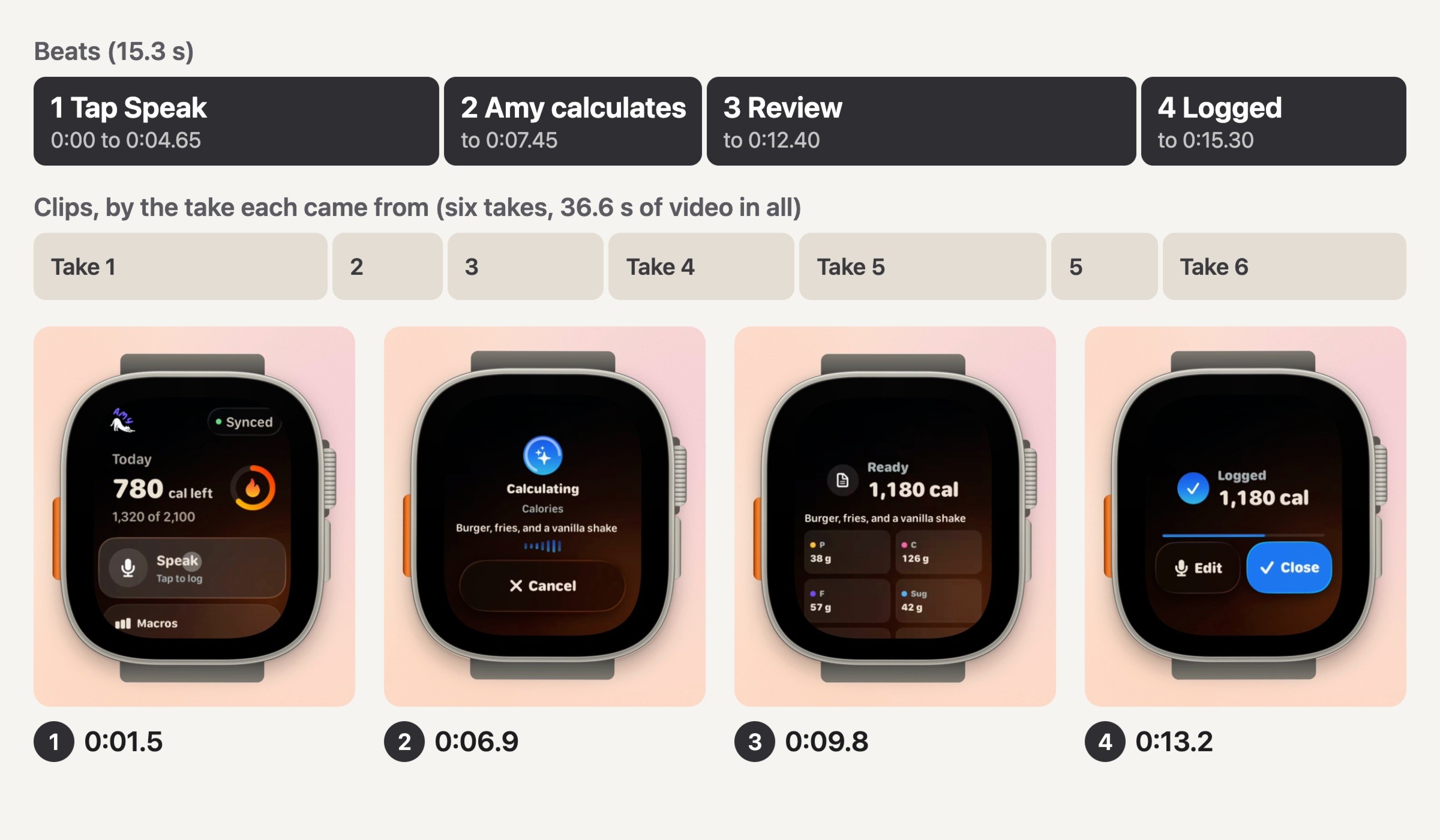
A 15.3-second Apple Watch demo cut as four moments from six short takes, one per step, 36.6 seconds of footage in all. Top: the four beats. Middle: the seven clips, by the take each came from. Bottom: one frame from each beat. Amy on an Apple Watch Ultra 3 Simulator with demo data, recorded September 16, 2026, cut with Moonjar.
Decide where it will play
Where the video goes sets its shape, its length and whether anyone hears it. This is what each place asks for, from its own pages, rechecked September 19, 2026:
Where it plays | Format | Length or limit |
|---|---|---|
App Store page | 886 x 1920 portrait on iPhone | 15 to 30 s |
Google Play listing | YouTube link | First 30 s autoplay |
Product Hunt | Full YouTube link | Not specified |
YouTube Shorts | Square or vertical | Up to 3 minutes |
GitHub issue, PR or README | MP4, MOV, WebM or GIF | 10 MB per upload on free plans |
Your own site | Any shape | Your call |
App Store. Apple’s app preview specifications accept 886 x 1920 portrait (or 1920 x 886 landscape) for the 6.1-inch to 6.9-inch iPhone displays, in H.264 or ProRes 422 HQ, at up to 30 frames per second and 500 MB, with up to three previews per device size; the table lists stereo audio. Apple’s app preview guidance says previews play with the sound muted by default, must show only content within the app itself, and shouldn’t film people interacting with a device, such as fingers tapping the screen. The App Store preview guide covers the export.
Google Play. Google’s preview video help takes one YouTube URL, public or unlisted, with ads turned off and no age restriction, in landscape or portrait. Only the first 30 seconds autoplay, and Google recommends showing the core features within the first 10 seconds.
Product Hunt. Only YouTube links, and the full URL, since shortened links won’t load. The Product Hunt guide covers the gallery images the video sits beside.
YouTube Shorts. Files of up to 3 minutes with a square or vertical aspect ratio.
GitHub. GitHub’s attaching files docs cap images and GIFs at 10 MB, and videos at 10 MB in repositories on a free plan or 100 MB on a paid one, with conditions on who uploads. Videos can be .mp4, .mov or .webm, and GitHub recommends H.264.
Your own site. Chrome’s autoplay policy always allows muted autoplay, and on iPhone a muted video can autoplay and play inline when it has the
playsinlineattribute.
How long should an app demo video be?
As long as its moments take, and no longer. Apple takes previews of 15 to 30 seconds and Google Play autoplays only the first 30, so a demo of 15 to 30 seconds works in both. Here is what four short demos came to:
Demo | Footage | Finished cut |
|---|---|---|
Amy, Apple Watch voice log | 6 takes, 36.6 s | 15.3 s, 4 moments, no zoom |
Amy, iPhone watch guide | 1 take, 42.5 s | 21.9 s, 8 waits cut, 2 zooms |
Ellie for Mac, week board | 1 take, 21.9 s | 11.7 s, drags slowed to 0.4x |
Ellie on iPhone, Timebox | 1 take, 16.2 s | 9.5 s, 2 clips, 1 zoom |
None runs longer than 22 seconds, and each kept between two fifths and three fifths of its footage. (The Ellie iPhone file reports 19.0 seconds, but no new frame arrives after 16.2.) The two Ellie cuts are shorter than Apple’s 15-second minimum, so they’d need another moment to be App Store previews.
App Store previews start muted, and Chrome lets a site video autoplay with sound only in some cases, such as after the visitor has interacted with the site, so the video has to work with the sound off. Music or a voiceover can be added, but the words on screen carry the demo.
Set up the app before you record
Load demo data. Fill the app with believable, invented content: names, amounts and lists that look lived in. Nothing that belongs to a real person or customer should be on screen, including in a sidebar or a settings screen the flow passes through.
Silence the device. Turn on Do Not Disturb so no notification slides in mid-take; on a Mac, Apple’s Focus help shows how to turn it on from Control Center.
Size the window. For a Mac or web app, set the window to roughly the shape you’ll export, hide toolbars and bookmarks you don’t need, and use a browser profile with no extensions showing.
Pick light or dark mode for the whole video, and keep the default text size unless larger text is the point.
Start on the first screen of the flow, so the first frame is already part of the demo.
In the iOS Simulator, also fix the status bar so every take shows the same time. simctl’s help lists override flags for the time, the battery level and the signal bars:
Record clean takes
On a Mac, including web apps in a browser. Press Shift-Command-5 to open the Screenshot toolbar. Apple’s guide to recording the screen on Mac lists Record Entire Screen, Record Selected Window (macOS Tahoe 26 or later) and Record Selected Portion, with Options for a microphone, the Mac’s own sound (macOS 27), Show Mouse Clicks and a timer. Command-Control-Esc stops the recording. Recording one window keeps the rest of your desktop out of the video; how to record one window on a Mac covers it on every macOS version.
On an iPhone. Apple’s guide to recording the screen on iPhone starts a recording from the Record button in Control Center, after a three-second countdown, and saves it to Photos.
In the iOS Simulator. With a simulator booted, this records until you press Control-C: xcrun simctl io booted recordVideo --codec=h264 take.mov. The file shows no touches, so if viewers need to see the taps, something has to draw them: see how to record the Simulator with taps showing.
Then perform it like a demo, not a test:
Rehearse the flow once without recording.
Move a little slower than feels natural, and pause for a beat before and after each action. A pause is easy to cut, and a gesture made at a readable pace doesn’t need slowing down later.
Keep the pointer still when it isn’t doing anything.
Record two or three takes and keep the cleanest.
Which recorder you use matters less than these habits. If you’re choosing one with automatic zooms and a smoothed cursor, Screen Studio alternatives compares the main options and what each lets you try before paying. If you have been sending demos as Loom links, Loom alternatives for Mac explains where a video message stops fitting a demo.
Cut the waiting, keep the gestures
A raw take is full of waiting: for the next tap, for a sheet to settle, for the person recording to decide what comes next. The Amy iPhone take below is 42.5 seconds with eight logged touches. The cut keeps 24.9 seconds of it and plays the two scrolls at 1.8 times speed, which leaves 21.9 seconds. These times use the video track; the MP4 container reports a longer 44.9-second duration. Comparing the same kind of duration avoids overstating how much footage was removed.

Before and after on one timeline: the raw 42.5-second take on top, the 21.9-second cut below at the same scale. 17.5 seconds of waiting came out in eight pieces, the biggest a 6.0-second still start and 4.9 seconds on a still screen, and the two scrolls play at 1.8 times. Measured from the video track and Moonjar’s edit timeline; Amy on the iPhone 17 Pro Simulator with demo data, recorded September 16, 2026.
Any editor that can split a clip, change its speed and add text can make these cuts; Apple’s recording guide notes you can open a recording in QuickTime Player, iMovie and other apps that edit video, and Camtasia alternatives for Mac sorts the Mac editors by how much editing you do. What the cuts follow:
Cut every wait, but keep a short lead-in before each action, so the eye is already there when something moves. Under a second is usually enough.
Speed up what has to be there but isn’t the point, such as scrolling to the next section or a loading state. Amy’s two scrolls play at 1.8 times.
Slow down what is too quick to follow. In the Ellie for Mac week board demo, each card drag took about half a second in the take; the cut plays them at 0.4 times, so each lasts 1.25 to 1.4 seconds.
Hold the result. The Amy cut stays on its last screen for about two seconds after the last touch.
Add zooms, cursor, taps and captions, sparingly
Zoom only when the thing that matters is too small to read at the size people will watch. Zoom in as it happens, hold, then ease out; never zoom in on part of the screen where nothing is changing. The 16:9 Amy cut zooms 2x on the watch demo for its first 12 seconds, because at full frame the watch is a small square inside the phone. Automatic zooms follow clicks, not what changed, so check and fix automatic zooms before you trust them.
The cursor, on Mac and web demos, pulls the eye wherever it goes. A pointer that jitters, parks over the thing you’re showing, or sits in the middle of the screen between actions distracts. Some recorders keep the pointer on its own layer so it can be hidden, smoothed or moved after the take; with one that records it into the picture, keep it still and out of the way while you record. The cursor guide covers both cases.
Taps, on phone demos. Apple and Google both ask you not to film fingers on the device. If you draw tap indicators instead, draw one for every gesture, or a screen that changes with no indicator looks like the app moving on its own.
Captions: one short line per moment, placed where it covers the least. Apple asks that text be legible and stay on screen long enough to read, and suggests leaving out prices and dated references in previews; Google recommends captions for people who are deaf or hard of hearing and for people in loud places. The three Amy versions in the next section carry one caption per moment, on screen for 12.2, 3.7 and 4.6 seconds.
If you’d rather describe these edits to an agent than make them by hand, Claude Code video editing walks through one cut call by call. For a launch teaser built on type and motion rather than a recording, see Remotion vs a screen recording.
Export a version for each place
A wide video letterboxed into a vertical feed wastes most of the screen, so each place gets its own render. The versions below were made from the same Amy cut, with the same clips and captions, on September 19, 2026.
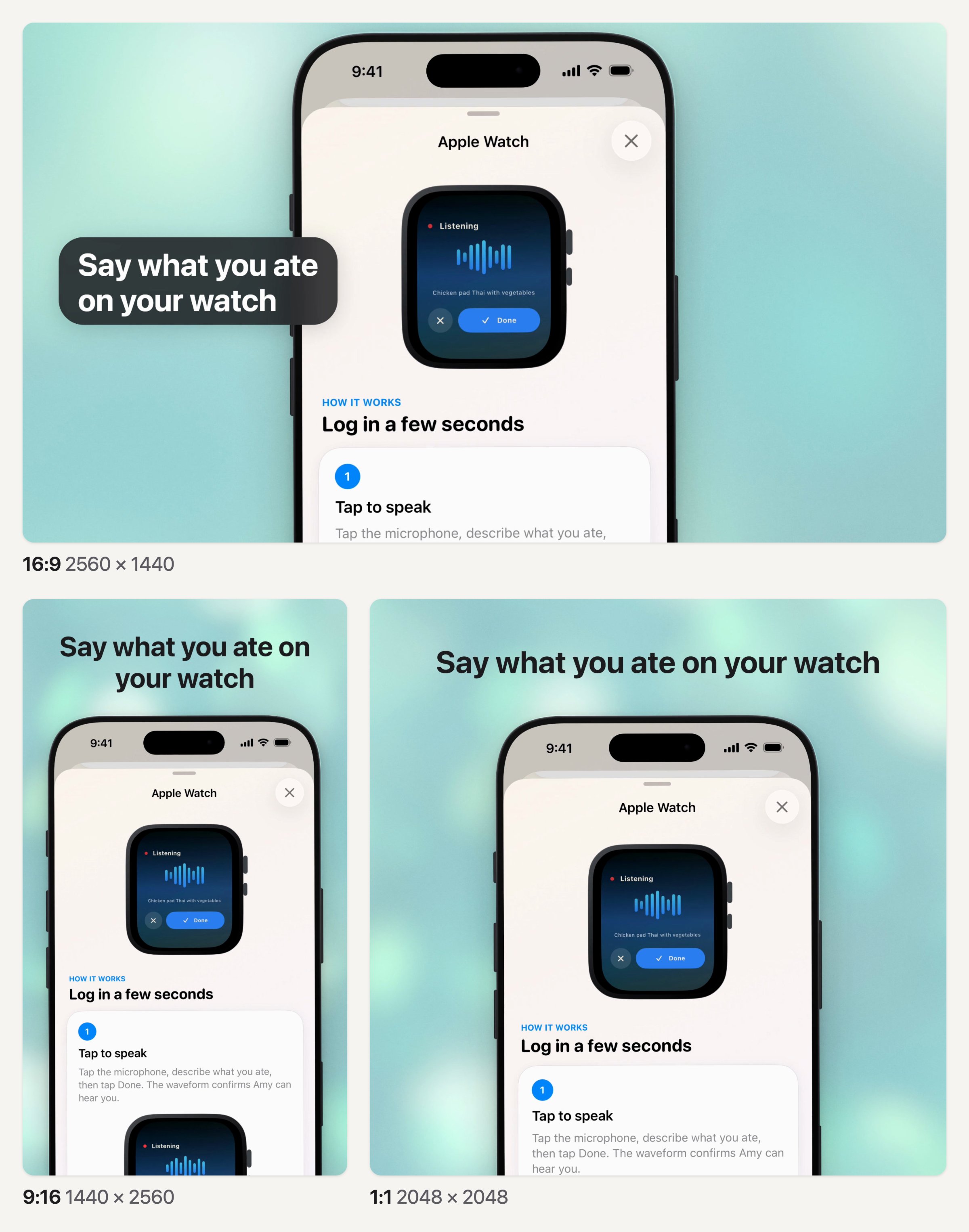
One cut, three shapes, at the same moment. 16:9 keeps its 2x zoom with the caption beside the phone. In 9:16 and 1:1 the zoom came out, the phone moved down and the caption went on top. Made with Moonjar from Amy’s demo data on September 19, 2026. Background photo by Alexander Grey on Unsplash.
Three things needed another look in each shape:
The zoom. The 2x zoom that works in 16:9 cut the first letter off the heading on the sheet in 9:16. The zooms came out of the tall version, and out of the square one to leave room for the caption.
The captions. Left to the default placement, each caption sat over the lower part of the phone, in the wide version as well as the tall one. In 16:9 they moved beside the phone; in 9:16 and 1:1 the phone moved down to leave a band at the top, and the captions went there.
Every cut boundary. In the 16:9 render, the phone turned black at the join at 3.0 seconds. The stills above show layout choices, but those three renders are working examples, not finished delivery files. Scrub each join and watch the complete export before sharing it; a good storyboard can miss a bad frame.
After changing the shape, watch every zoom, caption and cut again. The separate Watch video near the top is the playable example on this page. Then pick the file:
MP4 with H.264 plays in the most places. All three Amy renders are H.264 at 30 frames per second, and the 16:9 one is 28.4 MB for 21.9 seconds at 2560 x 1440, nearly three times GitHub’s 10 MB video limit on a free plan. A version for a GitHub issue or README on a free plan has to be shorter or smaller, such as one moment at a lower resolution.
A GIF for a single looping action in a README, changelog or help article: how to turn a screen recording into a small GIF has the command and measured sizes, and when an MP4 is the better file.
App Store previews need Apple’s exact size, 886 x 1920 for a portrait preview on 6.1-inch to 6.9-inch iPhones, at 30 frames per second or less, and the audio track its table lists. Apple’s rule that previews show only content within the app points to the app’s own screen, full frame, rather than a phone on a background like the versions above.
Google Play and Product Hunt play from YouTube, so upload the best file you have and let YouTube make the smaller versions.
Where Moonjar fits
Moonjar is our product: a Mac app in early access that coding agents such as Claude Code, Codex or Cursor drive over MCP, while you watch the work in the app. For demo videos it covers these parts:
Recording. It records the iOS Simulator or a Mac window. Moonjar doesn’t tap, type or click anything itself: your agent performs each step with its own computer use. Before a take, the agent rehearses every step without recording and shows you the plan, and Moonjar records only after you approve it.
Separate layers. Taps are logged apart from the picture, and so is the pointer on a Mac, so zooms can aim at the taps and the drawn pointer can be hidden, smoothed or moved after the take.
Cutting by asking. It reports the dead time in a take with ready-made cuts that keep 0.8 seconds before each action, and trims, changes speed, zooms, captions and names the moments when you ask your agent.
Rendering. MP4, MOV, WebM or GIF, at 16:9, 4:3, 1:1, 4:5 or 9:16.
What it doesn’t do: its renders are silent, so music or a voiceover goes on in another editor, and it doesn’t upload anywhere. See what Moonjar does, or ask for early access.
How this was made: the images come from Moonjar, our product. The Amy and Ellie recordings are demo data captured on September 16, 2026, and were cut by Claude Code through Moonjar on September 16 and 17. The three reshaped Amy cuts, the frames and the layouts were made on September 19, 2026; the layouts were drawn in HTML and captured with Moonjar. The background photo in the reshaped Amy frames and on the cover is by Alexander Grey on Unsplash. The other services are described from their own pages, read and rechecked on September 19, 2026. This page was drafted with AI assistance.