
App Store preview videos: the specs, then how to make one
The App Store preview video specs from Apple’s own pages, then a real 16-second preview made from a Simulator take, finished to spec with one ffmpeg command and checked with ffprobe.
Chris Raroque
·

An App Store preview video is 15 to 30 seconds of your app, and for every current iPhone it’s 886 x 1920 pixels in portrait. It has to be H.264 (.mov, .m4v or .mp4) or ProRes 422 HQ (.mov), at most 30 frames per second and 500 MB, and Apple’s spec lists a stereo audio track even though previews autoplay muted. Keep it the app’s own screen at full size: a developer has posted an App Review rejection for a preview that showed the recording shrunk onto a background.
The first half of this page is the specs and rules, from Apple’s pages rechecked on September 19, 2026. The second half makes a real preview step by step: a Simulator take of Ellie, the planner I build, cut with Moonjar, our product, then finished to spec with plain ffmpeg that works on any editor’s export, and checked with ffprobe.
App Store preview video specs
From Apple’s App preview specifications and its help on uploading previews and screenshots:
Spec | Apple’s requirement |
|---|---|
Length | 15 to 30 seconds |
File size | 500 MB at most |
Format | H.264 in .mov, .m4v or .mp4; ProRes 422 (HQ only) in .mov |
Frame rate | 30 fps at most |
H.264 video | 10 to 12 Mbps target, progressive, up to High Profile Level 4.0 |
Audio | Stereo, 256 kbps AAC (PCM is also allowed with ProRes), 44.1 or 48 kHz, all tracks enabled |
How many | Up to 3 per device size and language |
Poster frame | The frame at 5 seconds, unless you set one |
Orientation | Portrait or landscape on iPhone and iPad; landscape only for Mac and Apple TV |
Previews are optional. When you provide one, it always comes before your screenshots on iPhone, iPad, Mac and Apple TV, and processing can take up to 24 hours. Apple’s App Previews page adds that previews autoplay on your product page and in search results, and can be used in Apple Ads.
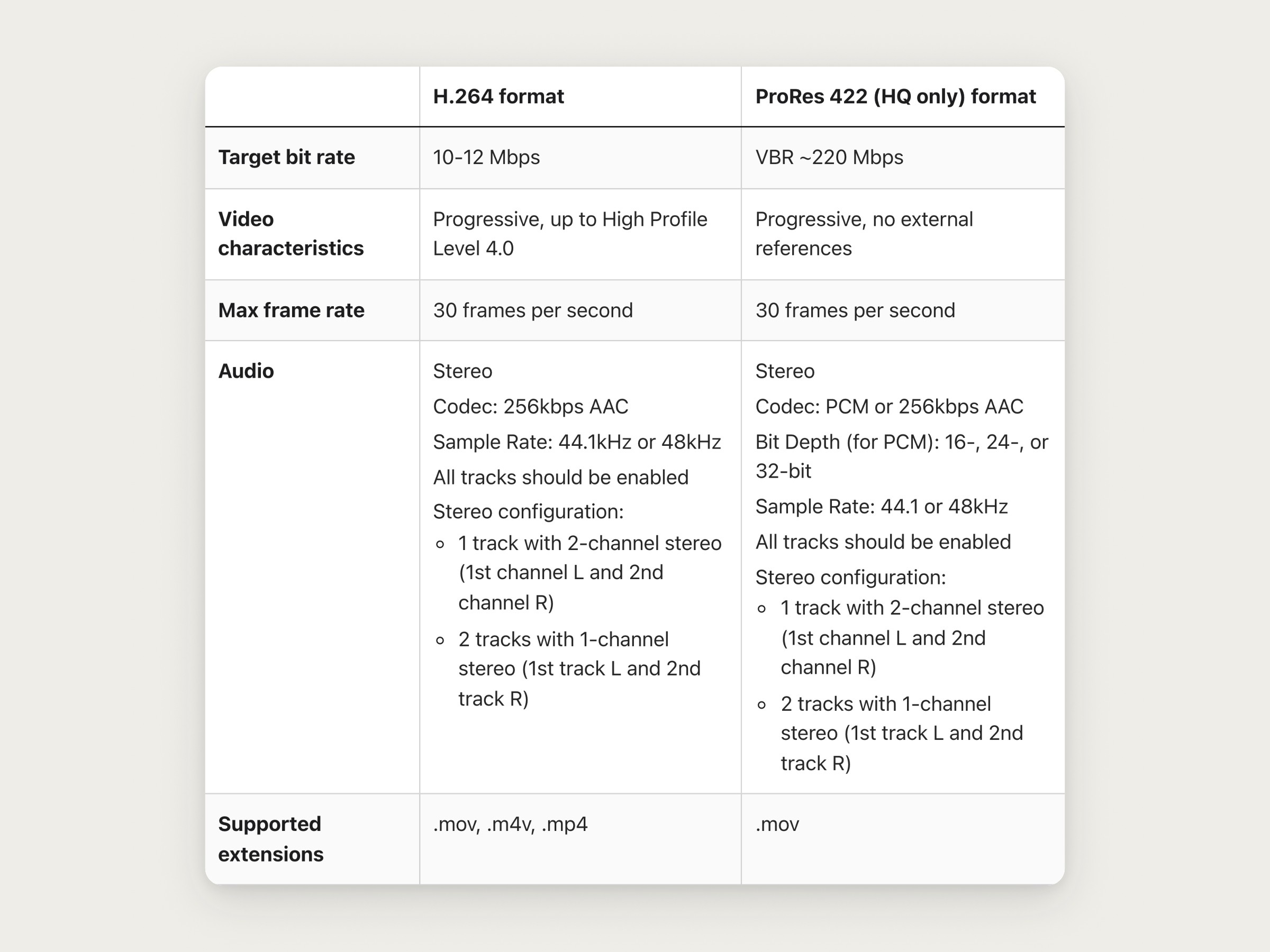
The video specifications table in Apple’s App Store Connect Help. Screenshot of developer.apple.com, captured September 18, 2026.
App preview sizes by device
Display | Portrait | Landscape |
|---|---|---|
iPhone 6.9, 6.5, 6.3 and 6.1 inch | 886 x 1920 | 1920 x 886 |
iPhone 5.5 and 4 inch | 1080 x 1920 | 1920 x 1080 |
iPhone 4.7 inch | 750 x 1334 | 1334 x 750 |
iPad 13, 11 and 10.5 inch | 1200 x 1600 | 1600 x 1200 |
iPad 9.7 inch | 900 x 1200 | 1200 x 900 |
Mac and Apple TV | none | 1920 x 1080 |
Apple Vision Pro | none | 3840 x 2160 |
A few things the table hides:
One iPhone size covers most phones. Every class from 6.1 to 6.9 inches takes 886 x 1920, and when you don’t provide a smaller class, scaled previews from a larger one are used. The 3.5-inch class doesn’t support previews at all. Apple also lists an “iPhone Duo” class at 886 x 1920, with a note that uploading for it will be available later this year; on September 19 that note was still there.
The 12.9-inch iPad (2nd generation) accepts either 1200 x 1600 or 900 x 1200.
Preview sizes aren’t screenshot sizes. A 6.9-inch screenshot is 1260 x 2736, 1290 x 2796 or 1320 x 2868 (the App Store screenshot sizes reference has the rest). A preview for the same phones is 886 x 1920.
886 x 1920 isn’t 9:16. It’s the iPhone’s own tall shape (about 19.5:9), so a video exported at 1080 x 1920 has to be cropped or padded, not just scaled. A modern iPhone recording is very close: an iPhone 17 Pro’s 1206 x 2622 scales to about 883 x 1920, three pixels short, so scale it to 886 wide and trim a few rows.
What gets a preview rejected
App Review Guideline 2.3.4 says previews may only use video screen captures of the app itself, and allows narration and video or text overlays to explain what isn’t clear. Apple’s App Previews page and the rest of Guideline 2.3 fill in the rest:
No people or hands. Don’t film someone using a phone, over the shoulder or with fingers on the screen. Graphic touch indicators are fine: Apple says you may add touch hotspots to show how interaction works.
No device frames, and nothing around the recording. A developer posted the rejection they got in September 2025 on Apple’s Developer Forums: their preview was declined because it “Includes device images and/or device frames,” and the message said previews should show how the app will appear when played in full screen. The screenshots attached to the post show no phone hardware at all; the recording is shrunk onto a blue background with rounded corners, under an app name, a logo and a headline. So keep the recording full screen, with no mockup, background or border around it.
Prices and paywalls. No specific prices, since they vary by region. If you show features that need an in-app purchase, or the app uses a subscription or requires a login, say so in the footage or the end frame.
All ages. Guideline 2.3.8 holds screenshots and previews to a 4+ rating even if the app is rated higher.
Fictional data. Guideline 2.3.9 asks for fictional account information instead of a real person’s data, and for the rights to everything you show, including any music.
Nothing that dates it. Apple suggests avoiding seasonal references such as “new for spring”, and dates.
Keep it current. Guideline 2.3 asks that previews reflect the app’s core experience and stay up to date with new versions.
Apple also recommends capturing the native UI resolution rather than zooming in on the view, and plain transitions such as dissolves and fades that don’t imply functionality your app doesn’t have. That’s a reason to go easy on automatic zooms; if your editor adds them, check and fix automatic zooms before you export.
Make a preview, step by step
Plan three to five moments and a caption for each.
Record the flow in one continuous take.
Cut it to 15 to 30 seconds, full screen, with captions over the app.
Finish the file to Apple’s numbers with one ffmpeg command.
Check the file with ffprobe.
Upload it and set the poster frame.
For the general craft of planning and cutting a demo, see how to make an app demo video; the steps below are what’s specific to the App Store.
1. Plan the story before you record
Previews autoplay muted, so the words on screen carry the message. Apple’s advice, in short: keep text legible and on screen long enough to read, use the first preview to give an overview, and make each extra preview show something new.
Three to five moments fit in 30 seconds. Write one caption per moment before you record, and record the moments in one continuous flow if you can, so the cut is trims rather than stitching.
The 15-second minimum matters more than it sounds. A single short flow, trimmed of every idle second, can come in under it. The Ellie take used below holds one short flow: open the task sheet, drag a task onto the day. The dead-time cuts Moonjar suggested would have left 6 seconds, so the cut keeps part of the pause before the gesture and holds the finished screen under a caption to reach 16 seconds. A real listing would spend that time on more moments.
2. Record the footage
Apple’s App Previews page describes capturing from a device: connect the iPhone to a Mac and record it with QuickTime Player, then edit in iMovie or Final Cut Pro. Apple’s upload help lists what you need as a Mac, a video editor, and an iPhone with a 6.5-inch display, an iPad with a 13-inch display, an Apple TV or an Apple Vision Pro.
The other route is the iOS Simulator. With a simulator booted, this records it as H.264 until you press Control-C (simctl’s default codec is HEVC, which Apple’s table doesn’t list):
xcrun simctl io booted recordVideo --codec=h264 take.mov
Apple’s preview pages describe capturing from a device and don’t mention the Simulator. A Simulator recording is still a screen capture of the app itself, which is the wording Guideline 2.3.4 uses, but none of those pages says how App Review treats one. Set a clean status bar before you record (xcrun simctl status_bar booted override --time 9:41 sets the clock), and if viewers need to see where you tapped, record the Simulator with visible taps covers the ways to add them.
A simctl take is not a preview yet. The Ellie take used here, recorded on an iPhone 17 Pro simulator on September 16, 2026, is 1206 x 2622 with one video stream and no audio, and it holds 160 frames over 18.95 seconds because simctl writes a frame only when the screen changes.
3. Cut it full screen, with captions over the app
For a preview, the cut is simpler than a marketing video:
Trim to 15 to 30 seconds. Cut dead time, but don’t go under 15.
Keep the footage full screen. No device frame, no background, no rounded corners around it.
Put captions over the app. Short lines, one per moment, placed where they cover the least important UI.
Decide on touch indicators. They’re allowed. If you add them, add them for every gesture, or the ones without look like the app moving on its own.
Skip heavy zooms, per Apple’s recommendation above.
The Ellie preview was cut with Moonjar: the recording at its own size with no device or background, auto zoom off, the first 3 seconds of idle screen removed, and three captions. Touch indicators are off, because Moonjar logged the swipe that opens the Braindump sheet but not the drag that follows, and drawing one and not the other would have looked wrong.
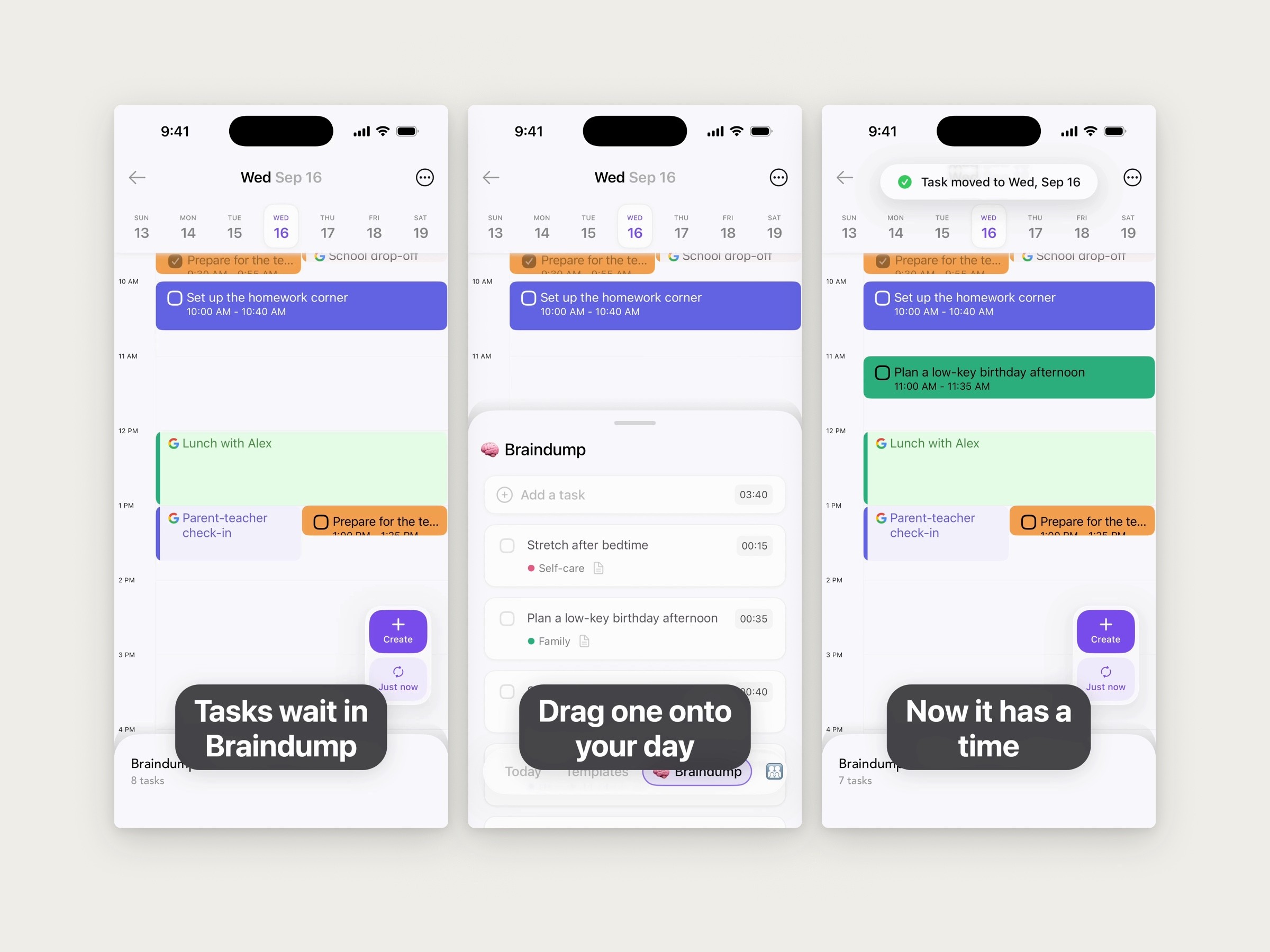
The finished preview at 1.2, 5 and 9 seconds, laid out side by side for this page (the preview itself is full screen, with square corners). The middle frame, at 5 seconds, is where Apple’s default poster frame falls. Cut with Moonjar from Ellie’s demo data.
The render that came out, read with ffprobe: H.264 High Profile at Level 5.0, 1206 x 2622, a constant 30 fps, 15.97 seconds, 0.5 Mbps, and no audio stream. Four things are off against Apple’s table: the size, the level (above 4.0), the bit rate (below the 10 to 12 Mbps target) and the missing audio. Another editor’s export can miss the same ones, which step 5 will show, and one ffmpeg command fixes all four.
4. Finish the file with ffmpeg
This takes a portrait iPhone cut and writes an 886 x 1920 H.264 file at 30 fps, around 11 Mbps, with a silent stereo AAC track made by macOS’s AudioToolbox encoder. First run ffmpeg -hide_banner -encoders | grep aac_at; if no encoder is listed, this command needs a macOS ffmpeg build with AudioToolbox support.
What each part does:
anullsrcgenerates silence as a second input;-shortestends the file when the video ends.scaleandcropfill 886 x 1920 and trim the overflow, so any tall recording fits without black bars. For iPad, use 1200:1600 in both places.-r 30makes the frame rate a constant 30, which also evens out a simctl take’s irregular frames.-profile:v high -level:v 4.0keeps the stream within Apple’s High Profile Level 4.0.The
11Mrates andnal-hrd=cbrhold the video at a constant 11 Mbps. With only a target and a cap (-b:v 11M -maxrate 12M -bufsize 12M, no-minrateand nonal-hrd=cbr), the Ellie cut, mostly a still app screen, encoded at about 1.4 Mbps, well under Apple’s 10 to 12 Mbps target.aac_atin CBR mode is Apple’s AudioToolbox AAC encoder, which ffmpeg builds on macOS can include (ffmpeg -encoderslists it if yours does). It writes silence at a full 256 kbps. With ffmpeg’s built-in encoder instead (-c:a aac -b:a 256k), the same silence came out at 2.3 kbps, because that encoder spends almost nothing on silence.
If aac_at is unavailable, -c:a aac -b:a 256k can replace the whole -c:a aac_at -aac_at_mode cbr -b:a 256k line, but the built-in encoder’s low-rate silence does not match the 256 kbps measurement below. That fallback was not checked in App Store Connect; use an AudioToolbox-capable build for the measured silent-track recipe.
If your cut already has sound, delete the anullsrc line. To add music, replace that line with -i music.m4a, using a track at least as long as the video, because -shortest ends the file at the shorter of the two.
Cut first, then finish. Run on the raw simctl take instead, the same command made a 16.23-second file from 18.95 seconds of recording: nothing on screen changed after 16.19 seconds, so simctl wrote no more frames, and the conversion stops at the last one.
5. Check the file with ffprobe
Before you upload, read the finished file back and compare it with Apple’s table:
What to look for: width and height from the size table, profile=High with level 40 or lower (ffprobe writes Level 4.0 as 40), avg_frame_rate of 30/1 or less, a video bit_rate near 10,000,000 to 12,000,000, an aac stream with channels=2 and a sample_rate of 44100 or 48000, a duration between 15 and 30, and a size under 500 MB.
The Ellie file, run through the command above with ffmpeg 6.0 on September 18, 2026 and read back with ffprobe:
Video: H.264 High Profile, Level 4.0, 886 x 1920, 30 fps constant, 479 frames, 15.97 seconds, 10.9 Mbps.
Audio: AAC LC, stereo, 48 kHz, 256 kbps.
Tracks: both enabled in the MP4’s track headers (read with a short script, since ffprobe’s output doesn’t show that flag).
File: .mp4, 22.3 MB.
Every number is inside Apple’s table. The file wasn’t uploaded to App Store Connect for this page, so App Store Connect’s own checks haven’t run on it.
Does a preview need an audio track?
Apple’s spec lists audio settings for both formats, and its App Previews page suggests music, sound effects or a voiceover, while also noting that previews play muted by default. None of Apple’s pages says whether a file with no audio track at all is refused. A silent track costs one line in the command and matches the spec, so the command above always adds one.
6. Upload it and set the poster frame
From Apple’s upload and poster frame help:
In App Store Connect, open the app and click the version under the platform in the sidebar. You can add previews while the version is in Prepare for Submission, or in one of the rejected or Invalid Binary statuses.
Drag the file into the previews and screenshots well. For iOS, pick the iPhone or iPad tab first. For other sizes and languages, use View All Sizes in Media Manager.
To change the poster frame, hold the pointer over the preview in Media Manager, click Edit Poster Frame, move to the frame you want, click Set Poster Frame, then Done.
You need the Account Holder, Admin, App Manager or Marketing role. Apple’s upload help says that once an app is approved you need a new version to update its screenshots, and its App Previews page says that changing the poster frame on an approved preview means submitting a new version of the preview.
Pick the poster frame on purpose: it’s what people see when they’ve turned off autoplay. In the Ellie preview, the default at 5 seconds lands on the open Braindump sheet before the task moves (the middle frame above), while the frame at 9 seconds shows the result.
A preview shows in every storefront unless you add one for a specific language. If you localize your captions, upload each language’s version to that localization. The preview sits in front of your screenshots, so plan them together: how to make App Store screenshots covers the rest of the page.
If App Review rejects the preview
Read the reason against the rules above first: device frames, a shrunk or bordered recording, people or hands, prices, and anything that isn’t the app’s own screen are the documented causes. In the forum thread above, Apple’s staff pointed the developer to three options: reply to the App Review message in App Store Connect to ask what triggered it, request a call, or appeal to the App Review Board.
Where Moonjar fits
Moonjar is our product, a Mac app in early access that AI agents such as Claude Code or Codex drive to take screenshots and recordings of your app and cut them. For the Simulator it records with simctl while the agent runs the flow with its own computer use, and the agent then cuts the take in Moonjar: trims, captions and any zooms it places. The Ellie cut on this page has three captions and no zooms.
What it doesn’t do for a preview: its renders are silent, none of its canvas presets is the 886 x 1920 preview size, and it doesn’t upload. That’s why this page finishes the file with ffmpeg. See what Moonjar does.
The preview on this page was cut with Moonjar on September 18, 2026, from a recording of Ellie’s demo data made on September 16. The same day, the finishing command was run and measured with ffmpeg 6.0 and ffprobe (and re-run independently with the same numbers), the frames were taken from the finished file for the image and the cover, and Apple’s table was captured. The reader command in step 5 was also run against the same finished file on September 19 and returned those values. The file was not uploaded to App Store Connect. Apple’s pages and the forum thread were rechecked on September 19. This page was drafted with AI assistance.