
How to make App Store screenshots, step by step
Six steps from a running app to an upload-ready set: what to make for each device, Apple’s rules, a pre-upload checklist and a real five-screen example.
Chris Raroque
·

When you make App Store screenshots, App Store Connect is strict about the files and relaxed about the design. Each file has to be one of Apple’s exact pixel sizes, with no alpha channel, and you upload one to 10 per device size. What they show has to be your app in use, with no real person’s data in it. The headlines, the order and whether there’s a device frame are up to you.
The example on this page is a set of five screenshots of Ellie, the planner app I build, made from its demo data with Moonjar, our screenshot app (in early access). It was made for this article and isn’t Ellie’s App Store listing. Apple’s requirements below were rechecked on September 19, 2026.

An example set of five 1320 x 2868 screenshots of Ellie, in upload order. With no app preview, the first three can appear in App Store search results. Made for this article with Moonjar from captures of Ellie’s demo data; it isn’t Ellie’s App Store listing.
What you need to make
Apple scales your largest screenshots down to every smaller size you leave empty, so most apps need one set per kind of device, not one per phone:
Your app runs on | Sets to upload | Make them at |
|---|---|---|
iPhone | One 6.9-inch set | 1320 x 2868 portrait |
iPhone and iPad | That set, plus one 13-inch iPad set | 2064 x 2752 portrait |
Mac | One Mac set | 2880 x 1800, 16:10 |
Apple Watch | One Watch set | Your watch’s size, the same in every language |
A 6.5-inch iPhone set is only required if you don’t provide 6.9-inch screenshots. Each set holds one to 10 images, and each language you localize gets its own. So five screenshots for an iPhone and iPad app in three languages is 5 x 2 x 3 = 30 files; the same app in English only is 10. Every other accepted size, including Apple TV and Apple Vision Pro, is in the App Store screenshot sizes reference.
The six steps at a glance
Plan the set. Write one headline per screenshot before you capture anything, and make the first three explain the app on their own.
Capture the screens with a clean status bar and sample data.
Add a short headline to each screen in the same style, and decide whether to use a device frame.
Put them in order, strongest first.
Export each one at an accepted pixel size as a JPEG, because Apple doesn’t allow an alpha channel and a JPEG can’t have one.
Upload them on the version page in App Store Connect, then use Media Manager for other sizes and languages.
Step 1: Plan what the set has to say
Apple’s guidance on creating your product page sets the structure. When there’s no app preview video, the first one to three screenshots show up in search results, depending on their orientation, so those should carry the core of the app. Apple suggests giving each screenshot after that one main benefit or feature, and, if your app supports Dark Mode, including at least one screenshot in it.
So start with a list of headlines, not with the Simulator. Each line is one screenshot and one idea. This was the whole plan for the Ellie set:
Put your tasks on your calendar: the day view, with tasks placed between calendar events.
Dump every task in one place: the Brain Dump list.
Keep every detail with the task: one task with its date, due date, estimate, notes and subtasks.
Reuse the tasks you repeat: Task Templates, opened under the day’s calendar.
See where your time went: Analytics for the last 14 days.
Apple accepts one to 10 screenshots per set and doesn’t say how many to use. Five covered what Ellie does here without two screenshots making the same point.
Pick screens with real work on them: a filled list, a planned day, a chart with data. An empty state tells a stranger nothing, and Apple’s review rules below say a login page or a splash screen on its own isn’t enough.
Check what Apple allows on a screenshot
Section 2.3 of Apple’s App Review Guidelines, in short:
Show the app in use (2.3.3), not only title art, a login page or a splash screen. Text and image overlays are allowed, including an animated touch point to show how something is used.
Use fictional account information rather than a real person’s data (2.3.9), and make sure you have the rights to everything shown.
Leave prices out (2.3.7), along with terms and descriptions that don’t belong in a screenshot.
Say when something costs extra (2.3.2): if a featured item, level or subscription needs an in-app purchase, the screenshots have to make that clear.
Keep them suitable for a 4+ rating (2.3.8), even if the app itself is rated higher.
Don’t show other mobile platforms (2.3.10): no names, icons or imagery of other mobile platforms or alternative app marketplaces, unless there’s specific, approved interactive functionality behind them.
Keep them accurate as the app changes: section 2.3 asks for screenshots and the rest of your metadata to reflect the app’s core experience and stay current with new versions.
Step 2: Capture the screens
Pick the device before you capture
Capture on a phone from Apple’s 6.9-inch list, such as an iPhone 18 Pro Max or 17 Pro Max, or their simulators. Apple lists the iPhone 18 Pro Max screen at 1320 x 2868, one of the three accepted 6.9-inch sizes, so its screenshots need no resizing.
A capture from a 6.3-inch phone such as the iPhone 17 Pro is 1206 x 2622. That’s an accepted size, but only for the 6.3-inch slot, so it has to go on a 6.9-inch canvas first. That’s what happened with the Ellie set: its captures came from an iPhone 17 Pro simulator and were placed on 1320 x 2868 canvases.
For iPad, use a 13-inch model. Ellie’s captures from an iPad Pro 13-inch (M5) simulator are 2752 x 2064, an accepted 13-inch landscape size. For a Mac app, the window has to be fitted to a 16:10 canvas; Mac App Store screenshots covers that.
Take the screenshot
Xcode 27: run the app in Device Hub, go to the screen and click the Screenshot button below the device. It saves the device’s full resolution to your Desktop unless you’ve set another folder.
Xcode 26 and earlier: in the Simulator app, choose File > Save Screen.
A physical iPhone with Face ID: press the side button and volume up together. The status bar then keeps the phone’s real time, signal and battery, because the override below only works on simulators.
For images you’ll publish, set a clean status bar first. From Terminal, this sets 9:41 with full signal and battery on the booted simulator, then saves the screen:
If more than one simulator is booted, replace booted with the device’s UDID from xcrun simctl list devices booted. The Simulator screenshot guide explains each flag, where Device Hub saves if you’ve set a folder, and why the override has to be run again after a restart.
If you’d rather have Claude Code or Codex open each screen and capture it, App Store screenshots with Claude Code compares four ways to do that.
Clean up the status bar and the data
The 9:41 clock is a convention, not a rule, but a low battery or a carrier name distracts from the app. Apple’s App Store marketing guidelines ask for a full network icon, full Wi-Fi and a full battery in marketing images of your app, and the override above sets exactly that.
For the data, use a demo account or seeded sample content, both for rule 2.3.9 and because your own account is full of things you don’t want public. Ellie has a Demo Mode that swaps in sample tasks, lists, labels and calendar events, and that sample data is what the example set shows.
Step 3: Add a short headline, then decide on a frame
A headline tells someone what they’re looking at before they read the screen. Keep it to one benefit, in the words a user would use, and short enough to stay big. Screenshots are usually seen small, in search results or while someone scrolls, and a long headline turns into small print.
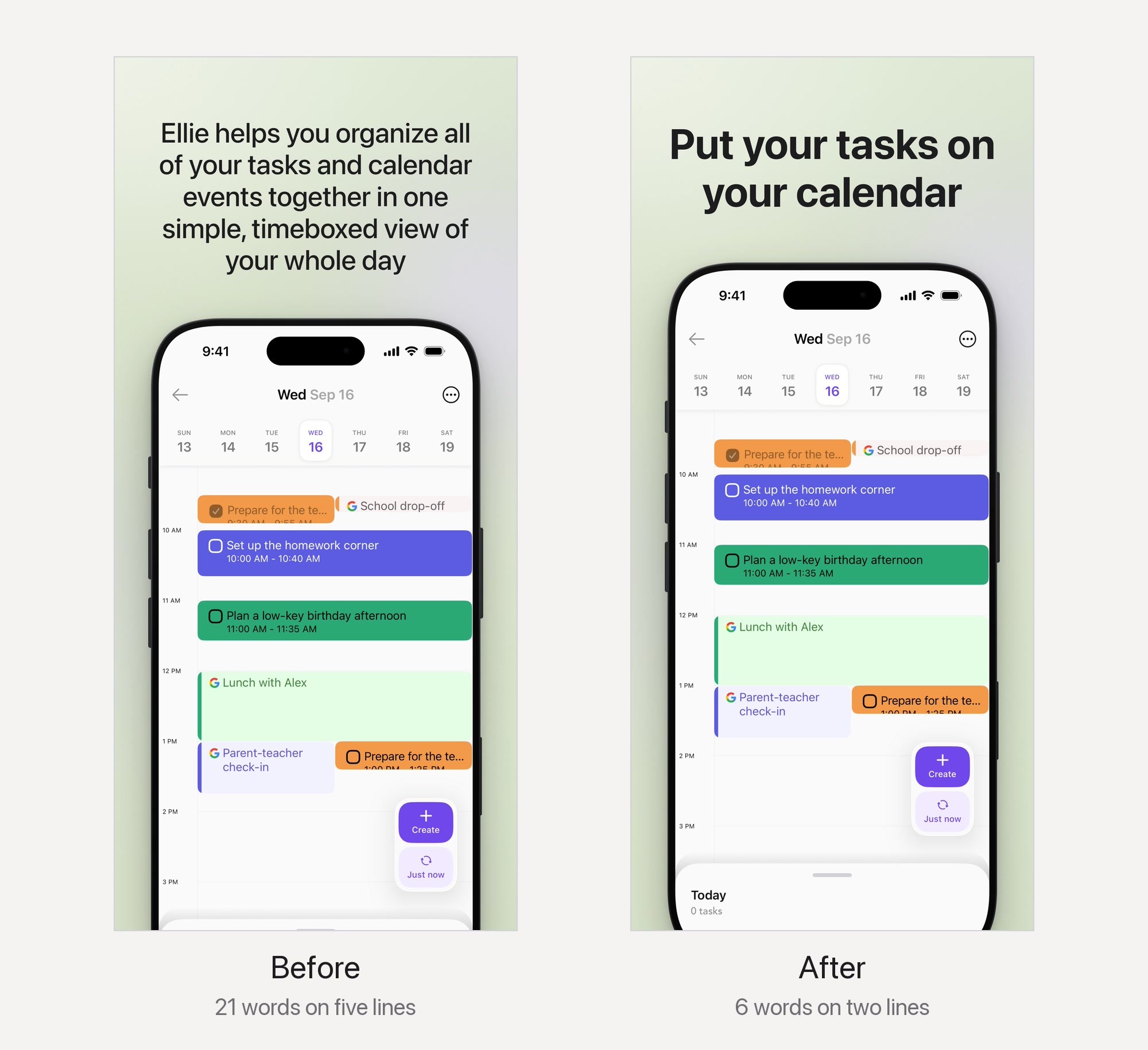
Before: a 21-word headline, set a third smaller and in a lighter weight, still takes five lines and pushes the phone down. After: 6 words on two lines at the set’s headline size. Same capture, same 1320 x 2868 canvas.
The long version says more and shows less. Even in type a third smaller and lighter than the set’s headlines, it wraps to five lines, so the phone had to move down and the Today panel at the bottom of Ellie’s day view drops off the canvas. The short one reads at a glance and leaves room for the app.
You don’t need a special tool. In a design tool such as Figma or Sketch, make the artboard the exact upload size (1320 x 2868 for a 6.9-inch iPhone set), place the screenshot, add the headline, and export the artboard at its actual size (1x) as JPEG, so the file comes out at that size. If you would rather not start from a blank artboard, App Store screenshot templates covers the Figma, Sketch, Canva and Photoshop files and which ones match Apple’s sizes today.
Then make the set look like one set. Use the same font, size and position for every headline, the same background and the same placement for the screen. In the Ellie set, only the words and the screen change from one image to the next.
Frame or no frame
A device frame makes the image read as a phone, but it takes room, so the app itself gets smaller. With no frame, the screen fills more of the canvas and dense screens stay readable. Apple’s review rules allow text and image overlays and don’t mention device frames either way. If you use one, how to add an iPhone frame to a screenshot covers the free routes and what to check in the result.
If the same images will also market the app outside the store, read Apple’s App Store marketing guidelines first. They ask for Apple-provided product bezels used as they are, and they don’t permit creating a simulation of an Apple product. Apple offers those bezels on its design resources page. The same check applies to a frame drawn by any tool, including the one in the Ellie set, which Moonjar draws.
Step 4: Put the strongest screen first
The first screenshot does the most work: when there’s no preview video, it can appear in search results with up to two more, and it leads the screenshots on the product page. If you add an App Store preview video, it always comes before your screenshots, even if you rearrange them, so your first screenshot sits after it.
Lay the set out in a row and look at the first three on their own. They should say what the app is and why someone would want it, without the rest. In the Ellie set, the first shows a day planned on a calendar, the thing Ellie is for; the second and third show where tasks come from and what a task holds. Templates and analytics come last because they matter once someone is already interested.
Step 5: Export at an accepted size, as JPEG
Apple lists exact pixel sizes, so each file has to match one. The sizes most apps need, in portrait (swap the numbers for landscape):
6.9-inch iPhone: 1320 x 2868, 1290 x 2796 or 1260 x 2736.
13-inch iPad: 2064 x 2752 or 2048 x 2732.
The three 6.9-inch sizes aren’t quite the same shape (1320 x 2868 scaled to 1290 wide is about 2803 tall, not 2796), so export straight to the one you chose instead of resizing a finished file. Every other device’s list is in the accepted App Store screenshot sizes.
Files can be .jpeg, .jpg or .png, and Apple’s rule is that images can’t include alpha channels or transparency. A file can break that rule while looking completely opaque. The five raw Simulator captures behind the Ellie set are PNGs whose every pixel is fully opaque, yet sips reports each one with hasAlpha: yes. JPEG has no alpha channel, so exporting the finished screenshots as JPEG settles it. On a Mac, check a file’s size and alpha channel with:
To turn a PNG into a JPEG at the same size, run sips -s format jpeg screen-1.png --out screen-1.jpg. On a copy of one of the raw Ellie captures, that gave a 1206 x 2622 JPEG with hasAlpha: no.
The five exports of the Ellie set each measured 1320 x 2868 with no alpha channel, at 398 to 457 KB. Apple’s specifications don’t give a file size limit for screenshots.
Step 6: Upload the set in App Store Connect
From Apple’s help on uploading previews and screenshots:
In Apps, select your app.
In the sidebar, click the app version under the platform.
For an iOS app, select the iPhone tab and drag the screenshots into the iOS Previews and Screenshots section. Do the same on the iPad tab for the iPad set.
To add screenshots for another device size, click View All Sizes in Media Manager, click the device tab, click Edit for that size and drag the files in. Required screenshots for watchOS and iMessage apps go in Media Manager too.
For another language, choose it from the pop-up menu at the top right first, then use Media Manager.
A few limits from the same page:
Who can upload: the Account Holder, Admin, App Manager and Marketing roles.
When: only while the version is in Prepare for Submission, Invalid Binary, Rejected, Metadata Rejected or Developer Rejected.
After approval: new screenshots need a new version.
Scaling: if your interface is the same across device sizes and languages, Apple recommends uploading only the highest-resolution set and letting it scale down.
Before you upload: a checklist
Copy this into your release notes or ticket and tick it off for each set:
After the first set
Localize the screenshots for each market you sell in, since headlines are text. Apple’s product page guidance also covers two ways to use more than one set: product page optimization tests alternate screenshots on a share of randomly chosen App Store users and reports the results in App Analytics, and custom product pages are extra versions of your page, each at its own URL, with their own screenshots.
If you’ll redo the set every release, the guide to automating App Store screenshots compares fastlane, Xcode test plans and an agent. If you’d rather use a template editor or an AI tool than a design app, the App Store screenshot generators comparison lists what each one’s free plan exports, and AppScreens vs AppLaunchpad compares two of the hosted editors plan by plan.
How the example set was made
The five screenshots were made with Moonjar, our Mac app, which Claude Code or Codex drives through its MCP tools. It’s in early access. The captures came from an iPhone 17 Pro simulator running Ellie’s demo data on September 16, 2026, with the 9:41 status bar Moonjar sets by default. On September 18, its app-store look put each capture in a drawn iPhone frame on a 1320 x 2868 canvas with the headline on top, in the same style on all five, and the JPEG exports are the files measured in step 5. Moonjar stops at the files, so the upload in step 6 is still done by hand. See what Moonjar does.
Apple’s pages were read on September 18, 2026 and rechecked on September 19. The file measurements were taken with sips on September 18; the simctl flags were checked against Xcode 27.0’s help text rather than run for this page. The side-by-side images were assembled from Moonjar exports with ffmpeg. This page was drafted with AI assistance.