
App Store screenshots with Claude: four routes compared, and one real agent run
Four ways to get App Store screenshots out of Claude Code or Codex, which of them keep your real screens, and a three-screen set an agent made and measured.
Chris Raroque
·

The best route to App Store screenshots with Claude Code or Codex depends on two things: who captures the app, and whether the final image still shows your real screen. If you already have good screenshots, a design skill or Claude Design turns them into slides. If you want the agent to work in the app itself, Goldie has it write flows that replay in the Simulator, and with an MCP server such as Moonjar (our product), Claude Code or Codex reaches each screen and captures it directly.
Only one route on this page was run: an AI agent (Claude, in Claude Code) made the set below with Moonjar, our Mac app in early access, on September 18, 2026, from demo data in Ellie, a planner I build. Everything about the other tools comes from their own READMEs, skill files, help pages and pricing pages, rechecked on September 19.

The set from the run described below: three Ellie screens in Moonjar’s app-store look, each exported at 1320 x 2868. Made by an AI agent (Claude in Claude Code) through Moonjar from Ellie’s demo data on September 18, 2026, and placed side by side for this page.
The four routes at a glance
A design skill (ParthJadhav’s, ScreenshotWhale’s). You capture the screens; the skill lays your real screenshots out as slides. Documented only.
A skill with an image model (Adam Lyttle’s, shots, inference.sh’s). You capture the screens, or the skill draws the phone from a prompt; the final picture is the model’s output. Documented only.
Claude Design. You upload screenshots and design around them in Claude; there’s no PNG or JPEG export. Documented only.
An agent that drives the Simulator (Goldie, Moonjar). The agent reaches and captures each screen, so the pixels are your app’s. Goldie documented only; Moonjar run on this page.
On Codex: ParthJadhav’s skill, ScreenshotWhale’s skill, shots, Goldie and Moonjar all list Codex as well as Claude Code. Adam Lyttle’s README covers Claude Code only, and Claude Design runs inside Claude, including Claude Code’s /design command.
What Apple checks the files against
From Apple’s App Store Connect screenshot specifications, rechecked September 19, 2026:
One to 10 screenshots per set, as .jpeg, .jpg or .png, and the images can’t have an alpha channel or transparency.
For iPhone, one 6.9-inch set: 1260 x 2736, 1290 x 2796 or 1320 x 2868 pixels in portrait. A 6.5-inch set (1284 x 2778 or 1242 x 2688) is required only if you don’t provide 6.9-inch screenshots.
For iPad, if the app runs there, a 13-inch set: 2064 x 2752 or 2048 x 2732 in portrait.
The full list is in the App Store screenshot sizes reference.
Apple’s App Review Guidelines add the content rules. Section 2.3 asks that screenshots accurately reflect the app’s core experience, and 2.3.3 says they should show the app in use, not only title art, a login page or a splash screen, and that they may include text and image overlays, which is where a headline sits. So the screen under the headline should be what your app really shows. That matters most for the routes that pass the picture through an image model.
A skill that designs the slides
None of these skills opens your app. You capture the screens (from the Simulator or a device), and the skill turns them into slides with a frame and a headline. If you still need the captures, the Simulator screenshot guide covers a clean 9:41 status bar and which simulator gives which size.
ParthJadhav’s app-store-screenshots
ParthJadhav/app-store-screenshots (MIT) has the agent scaffold a Next.js screenshot editor as its own project. Its README says the agent first asks for your app context, source screenshots, platforms, locales, visual direction and slide count, then scaffolds the editor. You run it locally, edit copy and layout in the browser, and export PNG files.
Sizes: its export table lists 1320 x 2868 for 6.9-inch iPhone, plus 6.5, 6.3 and 6.1-inch sizes and Google Play sizes. iPad is in its device selector, but the table gives no iPad size, so measure an iPad export against Apple’s 13-inch sizes before you rely on it. The files are PNGs, so run the alpha check at the end of this page too.
Install:
npx skills add ParthJadhav/app-store-screenshots. The README says this works with Claude Code, Cursor, Windsurf, OpenCode and Codex. It needs Node.js 18 or newer.The catch: capturing and refreshing the source screenshots is still your job, and the deck is a web app you keep in your repo.
ScreenshotWhale’s skill
ScreenshotWhale, a web editor for store screenshots, wrote up its own skill in March 2026. The post and the skill file say the agent asks about your app, reads your code, asks for your screenshots, lays out 18 device sizes (seven iPhone, seven iPad and four Android), and sends it all to ScreenshotWhale’s API, which returns a link to the project in its web editor.
Install: the skill is one Markdown file you download into
.claude/skills/. The post says it also works with Codex, Cursor and Windsurf.Account and price: no account or API key to run it; you sign up for free to keep the project, and export happens in the web editor. Its pricing page lists “standard exports” on the free plan, and all device types plus high-resolution export from the Solo plan ($9.99 a month). It also sells single templates from $4.99 and a $14.90 Launch Pack with 30 days of full access.
The catch: your screenshots leave your machine for ScreenshotWhale’s servers, so use demo data, and the skill file notes a limit of five projects a day.
A skill that runs your screens through an image model
These produce a more produced look, but the final pixels come out of an image model, so compare every slide with the real screen before you upload it.
Adam Lyttle’s ASO App Store Screenshots skill
adamlyttleapps/claude-skill-aso-appstore-screenshots (MIT) is a Claude Code skill. Its README describes four phases: read your codebase to find the app’s core benefits, rate your Simulator screenshots and pair each with a benefit, generate the images, then make a side-by-side showcase.
How it draws: a Pillow script lays out the headline, a device frame and your screenshot, then Nano Banana Pro, through the
@houtini/gemini-mcpserver, enhances that layout with what the README calls a photorealistic device frame, breakout elements and visual polish. It makes three versions of each slide (v1 to v3) before you approve one.Sizes: approved images land in
screenshots/final/as PNGs, at 1290 x 2796 by default. The README calls that iPhone 6.7-inch; Apple now lists 1290 x 2796 under 6.9-inch, so it fits the 6.9-inch set. Run the alpha check on these too.Setup: add the skill, install Pillow, install Apple’s SF Pro Display Black font, and configure the Gemini MCP server in Claude Code.
Cost: that server needs a Gemini API key, and Google’s Gemini API pricing lists Nano Banana Pro with no free tier, at $0.134 per image at 1K or 2K. With three versions per slide, a five-slide set is at least 15 images, about $2 at 1K or 2K.
shots
hypersocialinc/shots (the repo has no license file) is a /shots command. Its README says it can start from your App Store URL, researches your app, market and competitors, takes your own screenshots from a folder, and generates the slides with GPT Image 2.
Needs: an
OPENAI_API_KEYwith image generation, or aFAL_KEYfor fal.ai. The README estimates about $0.50 per run of three screenshots on your own key.Sizes: iPhone panels come out at 1284 x 2778, a 6.5-inch size, which covers iPhone on its own because Apple requires 6.5-inch only when there’s no 6.9-inch set. Its table marks iPad (2048 x 2732) and Android as not fully tested, and Apple Watch as not supported.
Agents: Claude Code, Cursor, Codex and others, through
npx skills add hypersocialinc/shots.
inference.sh’s skill, which draws the screen from a prompt
inference.sh’s app-store-screenshots skill doesn’t start from your screenshots at all. It’s a guide to gallery order, captions and store specs, plus commands for inference.sh’s belt command line tool (which starts with belt login) that describe the phone and the app screen in a text prompt and generate the picture with hosted models such as Seedream, at sizes such as 1024 x 1536, which isn’t on Apple’s list. inference.sh bills per call: its pricing page listed Seedream 4.5 on September 19, 2026 at $0.045 an image up to 2.36 megapixels and $0.09 above that. A screen drawn from a prompt isn’t a capture of your app, so this suits concept or lifestyle images better than the store set itself.
Claude Design
Anthropic launched Claude Design in April 2026 as a research preview. Its Get started with Claude Design help article, rechecked September 19, 2026, says:
It’s in beta on the Pro, Max, Team and Enterprise plans, not Free. It’s on by default for Pro, Max and Team; on Enterprise an owner turns it on.
You can use it in a conversation, from the Artifacts tab, in Claude Code with
/design, or at claude.ai/design.You can attach screenshots as context, which is how you’d bring your app’s screens in.
Export options are a .zip, PDF, PPTX, Google Slides (from claude.ai/design only), standalone HTML, integrations with tools such as Canva and Miro, and handoff to Claude Code.
It counts toward the same usage limits as the rest of Claude.
The export list has no PNG or JPEG. So Claude Design is a place to design the layout and headlines around screenshots you upload, and getting files at an exact pixel size like 1320 x 2868 is a separate step you do outside it.
Goldie: an agent that writes replayable flows
Goldie, sponsored by Software Mansion, is the other route where the agent works in the app. Its README says the agent explores the app and writes flows, Software Mansion’s argent replays them on an iOS Simulator or an Android emulator, and Goldie frames the captures with a bezel, a background and a headline, joins clips into an App Store preview video, and checks the result against the stores’ upload rules.
Sizes: iPhone screenshots at 1320 x 2868, an 886 x 1920 preview video, and 1080 x 1920 for Google Play. The README doesn’t mention iPad.
Install:
npm i -g goldiefor the tool; the skill installs throughnpx skills add kacperkapusciak/goldieor Claude Code’s plugin command. It needs Node 20 or newer and ffmpeg, and macOS with Xcode for the iPhone side.License: the code is MIT, but the bundled iPhone bezel images are CC BY 4.0, since they’re derived from a Figma community file. Unless you swap in your own bezel or turn it off, those images are in the screenshots you ship, with an attribution requirement.
The catch, from its own README: flows fail when the app changes, and you ask the agent to repair them or record them again. Use a Release build, since Debug builds paint LogBox banners into the captures.
Moonjar: your agent drives the Simulator (our product, tested here)
Moonjar is our screenshot and recording app for the Mac, in early access. Claude Code or Codex calls its MCP server’s tools to launch apps and open deep links in the iOS Simulator, capture screens and compose them into finished images, while you watch in the Moonjar app. Taps and typing, when a screen needs them, come from the agent’s own tools, such as Claude Code’s iOS Simulator control or computer use. Here is what one agent did with it on September 18, 2026, on Ellie in Demo Mode on an iPhone 17 Pro Simulator. The replies are copied from the tool results and shortened where marked with “…”.
The calls that made the set
moonjar_status {}confirmed the capture tools, one booted iPhone 17 Pro and"problems":[]. Two more calls listed the Simulator’s apps and read the elements on screen.Ellie was already on its Timebox.
capture_screenshot {target:'simulator'}repliedSaved screenshot shot_0mu78kc5a00r1mw ... · 1206×2622 (@3x) · 252 KB.andUI tree saved (193 elements).simulator {action:'open_url', url:'ellie://openList?id=brain_dump'}opened the Brain Dump through Ellie’s deep link, and a second capture saved it.ellie://openTodayand a third capture did the same for the Today list.create_design {item:'shot_0mu78kc5a00r1mw', style:'app-store', caption:{text:'Drag tasks onto your calendar', position:'top'}}repliedStyled shot_0mu78kc5a00r1mw as des_0mu78kxmo00r37f ... · 1320×2868.withframe: device iphone-17-pro blackandbackground: look lilac-haze. The other two screens got the same call with their own headline.export_item {item:'des_0mu78kxmo00r37f', format:'jpg'}repliedExported des_0mu78kxmo00r37f ... (390 KB).andEncoded as JPEG q95., and the same for the other two.
How long it took, and what that number covers: Moonjar’s library stamped the first capture at 12:32:09 CDT, and the third JPEG was written at 12:32:58, so 49 seconds passed from the first capture to the last export, including the agent’s own time between calls. It doesn’t include setting up Moonjar, the three check calls before the first capture, or the two review edits afterward. The headlines came from example lines in the Ellie guidelines stored in Moonjar (one was shortened), rather than being written from scratch.
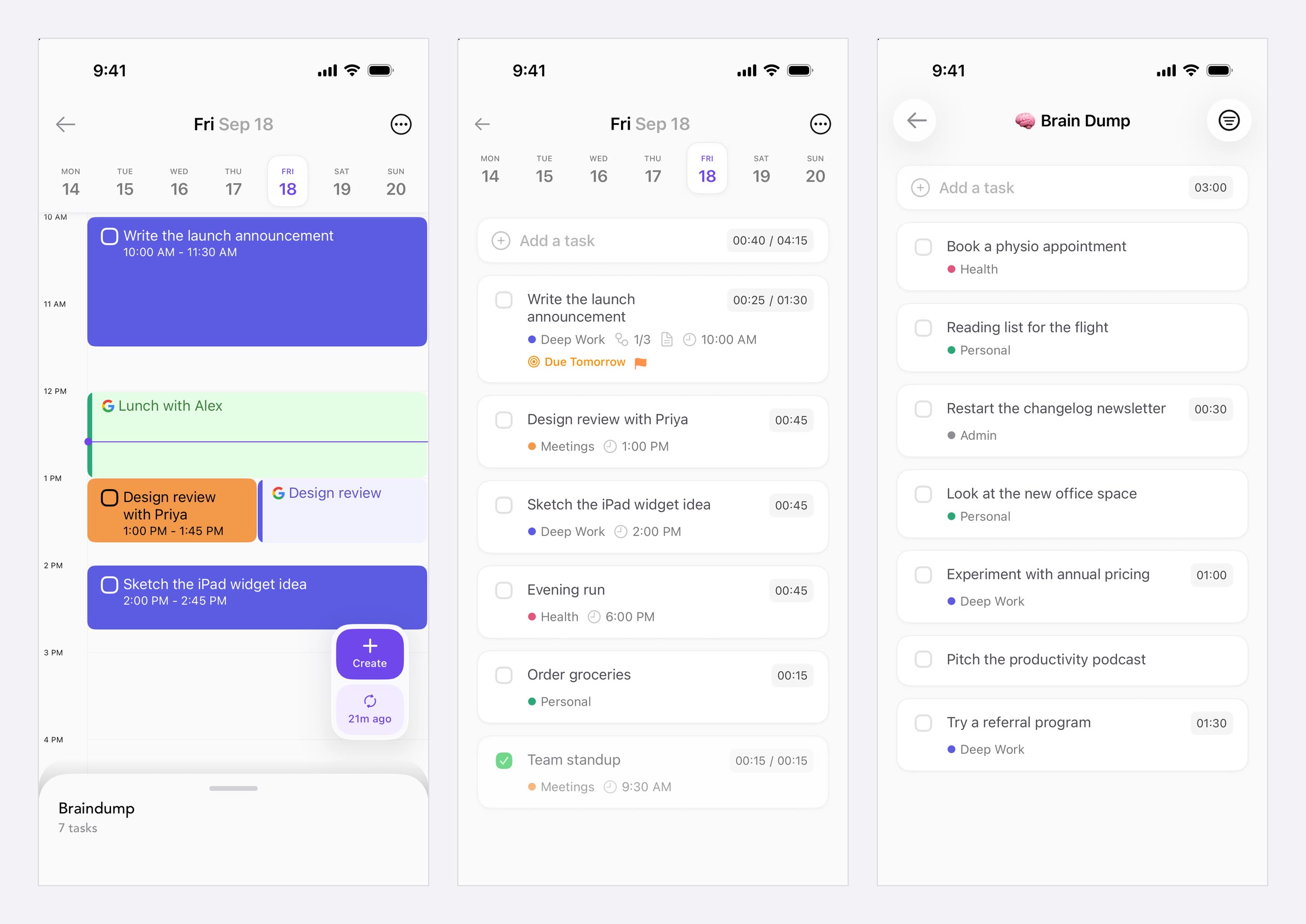
What the agent captured, before styling: three iPhone 17 Pro Simulator screens of Ellie’s demo data, 1206 x 2622 each, with the 9:41 status bar Moonjar sets by default. Captured September 18, 2026.
Moonjar sets a clean 9:41 status bar before each Simulator capture by default, and says so in the reply if it can’t. By default each capture also saves the screen’s accessibility tree, when the app exposes one, which is what let the change below name a row instead of measuring it.
Two changes after the first pass
The first was a variant rather than a fix: lift the first task so it reads at store size. update_design {design:'des_0mu78l0ge00bsje', highlight:{label:'Write the launch announcement'}, as_new:true} found the row by its label (matched StaticText "Write the launch announcement") and saved a new design, leaving the original as it was.
The second was a fix. The middle headline broke as “Plan a realistic” with “day” alone on the second line, because Moonjar fills each line of a headline with as many words as fit. A typed line break settled it: update_design {design:'des_0mu78l0ge00bsje', caption:{text:'Plan a\nrealistic day', position:'top'}} replied Changed: caption "Plan a realistic day" (top) → "Plan a / realistic day" (top). The same call on the variant kept the pair below identical apart from the lift.
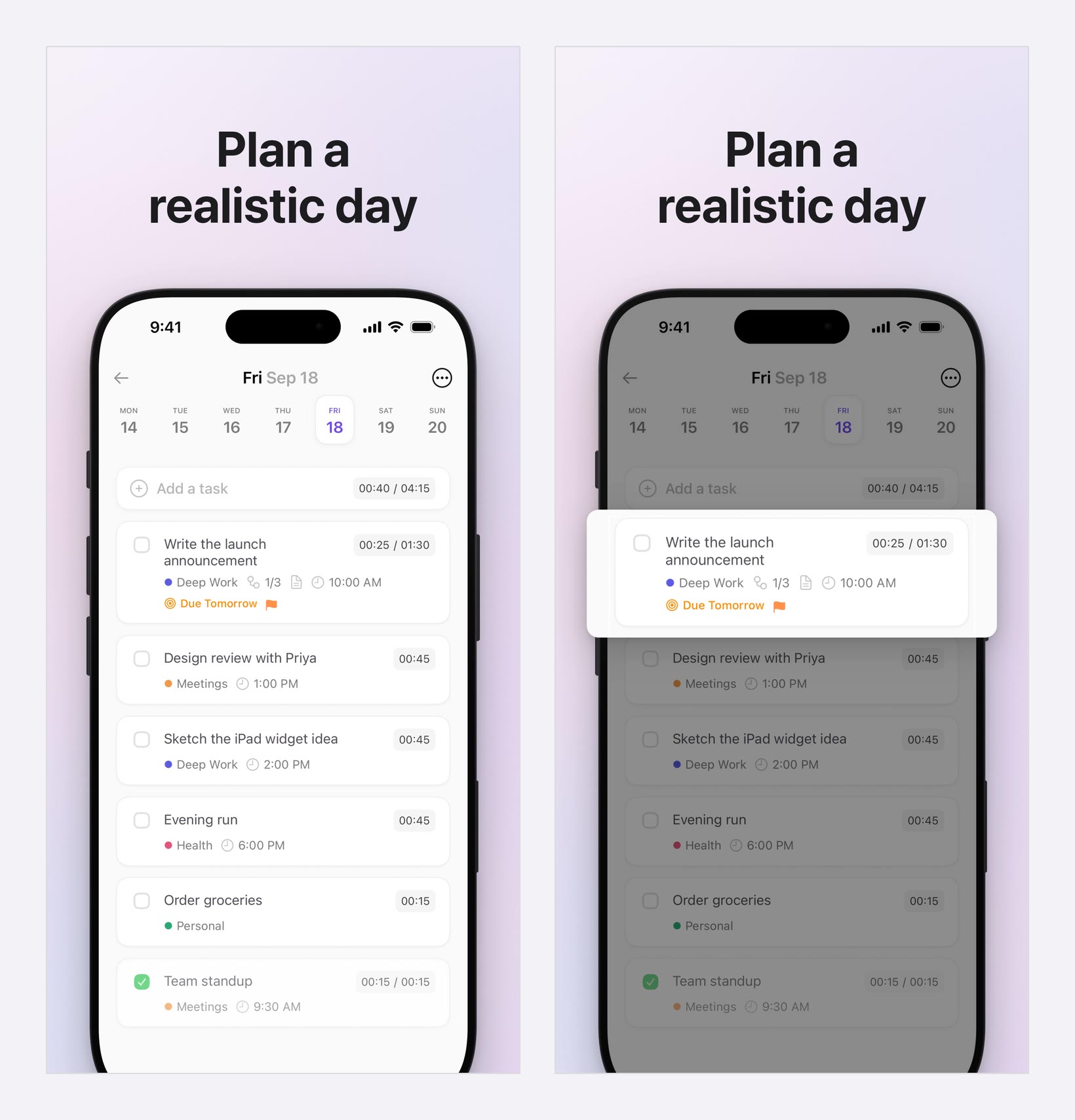
Before: the Today screenshot as it is in the set. After: a variant with the first task lifted; the original design is unchanged. Both 1320 x 2868, made with Moonjar from Ellie’s demo data on September 18, 2026.
The finished set keeps the plain version, so all three slides treat the screen the same way.
What came out, measured
Each file was checked with sips -g pixelWidth -g pixelHeight -g hasAlpha on the Mac that made it:
File | Measured | Against Apple’s page |
|---|---|---|
Raw Simulator capture | 1206 x 2622 PNG, alpha channel | A 6.3-inch size, not the 6.9-inch set |
Design exported as JPEG | 1320 x 2868, no alpha, 372 to 390 KB | Fits the 6.9-inch set |
Same design as PNG | 1320 x 2868, alpha channel, 1.9 MB | Convert before upload |
The PNG export’s alpha channel was fully opaque (every pixel at 255), but Apple’s rule is about the channel, so the JPEG is the file to upload. The iPhone 17 Pro is a 6.3-inch device in Apple’s list, which is why its raw capture isn’t a 6.9-inch file; placing it in a drawn frame on the 1320 x 2868 canvas is what makes the 6.9-inch file. None of the files were uploaded to App Store Connect.
What this route doesn’t do
Moonjar runs on a Mac with Xcode, and it’s in early access with no published price.
On its own, the app-store look makes a 1320 x 2868 canvas, the 6.9-inch iPhone size, and it puts an iPad capture on that same canvas. An iPad set needs another canvas, such as 4:3, the shape of the 13-inch iPad’s landscape size (2752 x 2064).
It draws Apple devices only (iPhone, iPad, MacBook and Apple Watch models), and its Simulator tools drive the iOS Simulator only. There are no Android frames.
There is no localization step: each language is another round of captions, and of captures if the app’s text changes.
The agent writes or picks the headlines, and nothing checks them against your app. That review is yours.
What it adds is direct control. The Simulator calls that change the screen return a screenshot of it, the capture and design calls return a preview, and Moonjar’s instructions tell the agent to review each preview before changing it. Each design stays in Moonjar’s library with its look and a history of its changes, so a later run can repeat the look on fresh captures when the app changes.
Two setup notes. In Codex, start the request with “Use the Moonjar MCP tools to” when other simulator or screenshot tools are installed, so Codex doesn’t reach for those instead. And the server ships an MCP prompt, app_store_screenshots, that walks an agent through capture, styling and a side-by-side review; Claude Code lists it as /moonjar:app_store_screenshots if you named the server moonjar. It takes the app’s name or bundle id and a comma-separated list of screens, and Claude Code splits command arguments on spaces, so write the list without any and pass the bundle id if the app’s name contains a space. Its last step exports PNG files, so ask for JPEG instead. See what Moonjar does.
Which route to use
You have polished screenshots and want designed slides fast, with your real screens: ParthJadhav’s skill if you want an editor you keep in your repo, plus Google Play; ScreenshotWhale’s if you’d rather finish in a hosted editor and don’t mind your screens going to its servers.
You want benefit-led copy and a more produced look, and will check every slide against the app: Adam Lyttle’s skill (paid Gemini key) or shots (your OpenAI or fal.ai key).
You want to design with Claude in a canvas: Claude Design, on a paid plan, with a separate step to get exact-size image files.
You want flows saved as files that replay whenever you run them, with Android and a preview video: Goldie.
You want the agent to reach and capture each screen itself, frame it on a drawn device, and keep the looks and their history: a screenshot MCP server such as Moonjar (ours, in early access, Mac only).
If you don’t want an agent involved at all, the App Store screenshot generators comparison covers template editors and their free plans, and the guide to automating App Store screenshots covers fastlane and Xcode test plans. To connect Claude Code or Codex to Xcode and the Simulator in the first place, see Claude Code and Codex for iOS development.
Checks before you upload, whichever route
Exact pixels and no alpha channel. Measure the file you’ll upload: on a Mac,
sips -g pixelWidth -g pixelHeight -g hasAlpha screen.jpg. A PNG can carry an alpha channel even when it looks opaque, as the Simulator captures and the PNG export here did;sips -s format jpeg screen.png --out screen.jpgmakes a JPEG at the same size without one. On a copy of the PNG export here, that gave a 1320 x 2868 JPEG with no alpha channel.The real app. If an image model touched the picture, compare each slide with the actual screen.
Headlines that break well. Read each one at thumbnail size; a single word on its own line is the easiest thing to miss.
The full pre-upload checklist, and the planning, ordering and upload steps around it, are in how to make App Store screenshots.
How this page was made: the screenshots and images were made on September 18, 2026 by an AI agent (Claude, working in Claude Code) through Moonjar, our product, from Ellie’s demo data on an iPhone 17 Pro Simulator, and measured with sips the same day. The side-by-side images were assembled from Moonjar’s exports with ffmpeg; the backgrounds are Moonjar’s own gradient, not photos. The other tools were not installed or run; they are described from their READMEs, license and skill files, posts, help and pricing pages, and Apple’s pages, read on September 18 and rechecked on September 19. This page was drafted with AI assistance.