
App Store screenshot sizes: iPhone, iPad and Apple Watch, from Apple’s own spec
Every screenshot size App Store Connect accepts, which sets are required, and what to do when an upload says the dimensions or the format are wrong.
Chris Raroque
·

Of all the App Store screenshot sizes, most apps need only two. Make your iPhone screenshots at a 6.9-inch size such as 1320 x 2868 pixels, and, if the app runs on iPad, your iPad screenshots at 2064 x 2752. Apple scales those down for every smaller device. The rest of this page is the full list, from Apple’s App Store Connect screenshot specifications, rechecked on September 19, 2026.
The short answer
iPhone: one 6.9-inch set, at 1260 x 2736, 1290 x 2796 or 1320 x 2868 pixels in portrait (swap the numbers for landscape). If you don’t have 6.9-inch screenshots, a 6.5-inch set (1284 x 2778 or 1242 x 2688) is required instead.
iPad: if your app runs on iPad, a 13-inch set is required: 2064 x 2752 or 2048 x 2732 in portrait, or the same swapped for landscape.
Apple Watch: required for Watch apps, at one of six sizes from 422 x 514 down to 312 x 390, and the same size in every language.
Mac: required for Mac apps, at 1280 x 800, 1440 x 900, 2560 x 1600 or 2880 x 1800.
Every set: one to 10 screenshots, as .jpeg, .jpg or .png, with no alpha channel or transparency.

Three files at accepted sizes, side by side at the same pixel scale: a 13-inch iPad screenshot, a 6.9-inch iPhone screenshot and an Apple Watch Ultra 3 capture. Exported from Moonjar on September 18, 2026, from Ellie and Amy demo data.
Apple’s upload help puts the rule in one line: if your interface is the same across device sizes and languages, upload only the highest-resolution screenshots required, and they scale down to smaller devices. If a scaled version doesn’t look right on some device, you can add screenshots for that size in Media Manager.
This page covers the screenshot files; for video, see App Store preview video specs. For the rest of the job (planning, headlines, order, upload), see how to make App Store screenshots.
iPhone screenshot sizes
Portrait, in pixels. Landscape swaps the two numbers, except the 4-inch and 3.5-inch sizes without a status bar, which are 1136 x 600 and 960 x 600 in landscape.
Display | Portrait sizes (px) | If you leave it empty |
|---|---|---|
6.9-inch | 1260 x 2736, 1290 x 2796, 1320 x 2868 | Upload 6.5-inch instead |
6.5-inch | 1284 x 2778, 1242 x 2688 | Scaled from 6.9-inch |
6.3-inch | 1179 x 2556, 1206 x 2622 | Scaled from 6.5-inch |
6.1-inch | 1170 x 2532, 1125 x 2436, 1080 x 2340 | Scaled from 6.5-inch |
5.5-inch | 1242 x 2208 | Scaled from 6.1-inch |
4.7-inch | 750 x 1334 | Scaled from 5.5-inch |
4-inch | 640 x 1136; 640 x 1096 without status bar | Scaled from 4.7-inch |
3.5-inch | 640 x 960; 640 x 920 without status bar | Scaled from 4-inch |
Each empty slot falls back to a larger class, so a single 6.9-inch set ends up in every iPhone slot. The only iPhone requirement on Apple’s page is on the 6.5-inch row: required if the app runs on iPhone and 6.9-inch screenshots aren’t provided.
Which phones are in each class
These are Apple’s lists. The classes are App Store buckets, not screen sizes: Apple’s iPhone Air spec page gives it a 6.5-inch display at 2736 by 1260 pixels, yet App Store Connect files it under 6.9-inch.
6.9-inch: iPhone Air, iPhone 18 Pro Max, 17 Pro Max, 16 Pro Max, 16 Plus, 15 Pro Max, 15 Plus, 14 Pro Max
6.5-inch: iPhone 14 Plus, 13 Pro Max, 12 Pro Max, 11 Pro Max, 11, XS Max, XR
6.3-inch: iPhone 18 Pro, 17 Pro, 17, 16 Pro, 16, 15 Pro, 15, 14 Pro
6.1-inch: iPhone 17e, 16e, 14, 13 Pro, 13, 13 mini, 12 Pro, 12, 12 mini, 11 Pro, XS, X
5.5-inch: iPhone 8 Plus, 7 Plus, 6S Plus, 6 Plus
4.7-inch: iPhone SE (3rd and 2nd generation), 8, 7, 6S, 6
4-inch: iPhone SE (1st generation), 5S, 5C, 5
3.5-inch: iPhone 4S, 4
So a screenshot from an iPhone 17 Pro or 18 Pro (1206 x 2622) is an accepted size, but it belongs in the 6.3-inch slot and doesn’t give you the 6.9-inch set.
Picking one of the three 6.9-inch sizes
Any of the three works, but they aren’t quite the same shape: 1320 x 2868 scaled to 1290 pixels wide comes out about 2803 tall, not 2796. So export straight to one size rather than resizing a finished image from one to another. 1320 x 2868 is the iPhone 18 Pro Max’s own screen and the largest of the three.
iPad screenshot sizes
Display | Portrait sizes (px) | If you leave it empty |
|---|---|---|
13-inch | 2064 x 2752, 2048 x 2732 | Required if the app runs on iPad |
12.9-inch | 2048 x 2732 | Scaled from 13-inch |
11-inch | 1488 x 2266, 1668 x 2420, 1668 x 2388, 1640 x 2360 | Scaled from 13-inch |
10.5-inch | 1668 x 2224 | Scaled from 12.9-inch |
9.7-inch | 1536 x 2048 or 768 x 1024; without status bar, 1536 x 2008 or 768 x 1004 | Scaled from 10.5-inch |
Landscape swaps the numbers, except the 9.7-inch sizes without a status bar, which are 2048 x 1496 and 1024 x 748 in landscape.
Apple’s lists for the classes you’re most likely to need:
13-inch: iPad Pro (M5, M4), iPad Pro (6th, 5th, 4th, 3rd and 1st generation), iPad Air (M4, M3, M2)
12.9-inch: iPad Pro (2nd generation)
11-inch: iPad Pro (M5, M4), iPad Pro (4th to 1st generation), iPad Air (M4, M3, M2), iPad Air (5th and 4th generation), iPad (A16), iPad (10th generation), iPad mini (A17 Pro), iPad mini (6th generation)
2064 x 2752 is exactly 3:4, so a design made on a 3:4 canvas (or 4:3 for landscape) exports to it with nothing cropped. 2048 x 2732 is very slightly off 3:4.
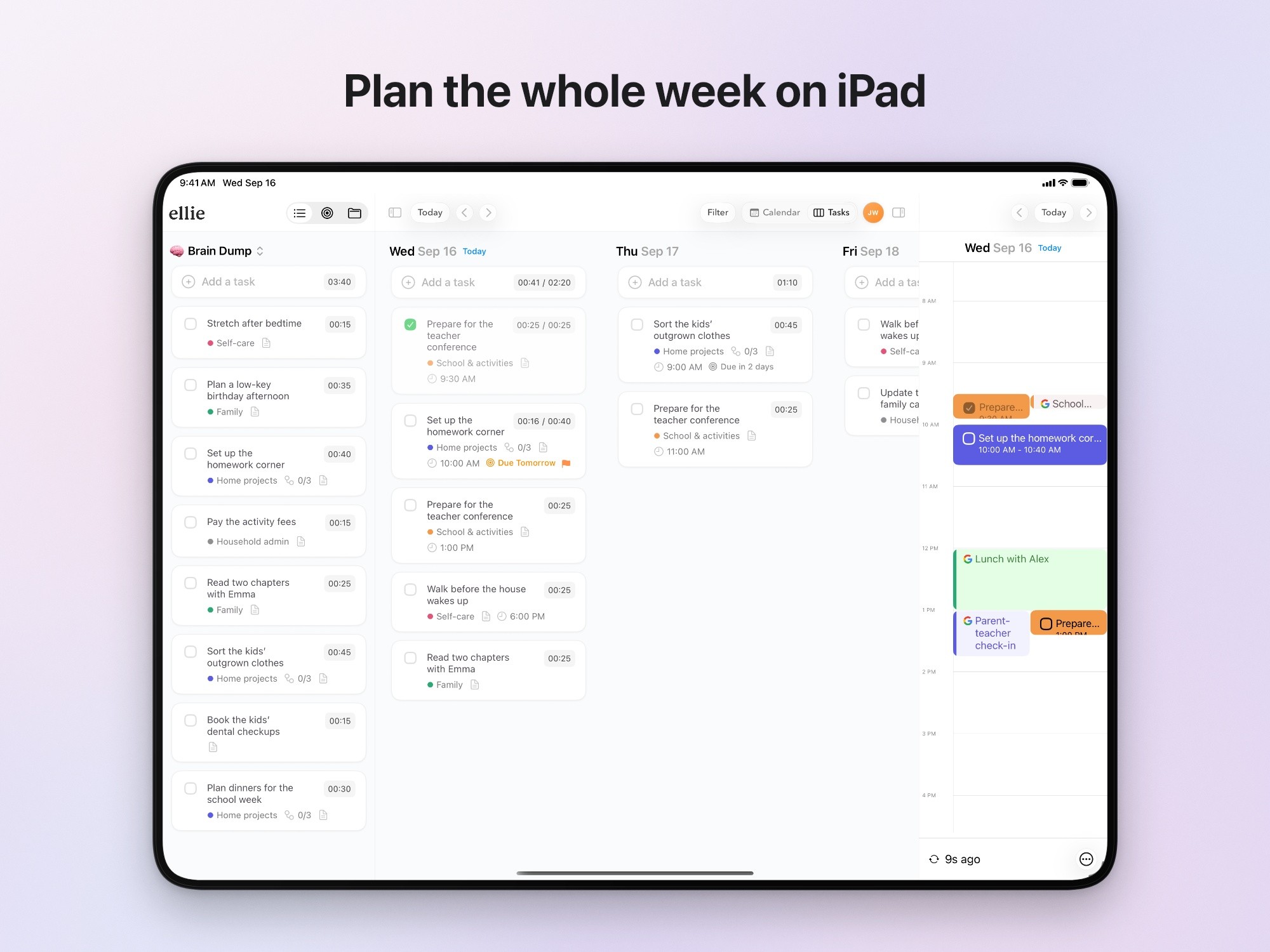
A 13-inch iPad screenshot of Ellie’s week, made on a 4:3 canvas. The upload file is 2752 x 2064, an accepted landscape size; this copy is smaller. Made with Moonjar from Ellie’s demo data.
Apple Watch screenshot sizes
Screenshots are required for Apple Watch apps. Upload one of these sizes:
Size (px) | Watches |
|---|---|
422 x 514 | Ultra 4, Ultra 3 |
410 x 502 | Ultra 2, Ultra |
416 x 496 | Series 12, 11, 10 |
396 x 484 | Series 9, 8, 7 |
368 x 448 | Series 6, 5, 4, SE 3, SE 2, SE |
312 x 390 | Series 3, 2, 1 |
Two things work differently for the Watch. Apple requires the same Watch screenshot size across all of an app’s localizations, so pick one size before you make screenshots in several languages. And the Watch screenshots go in through View All Sizes in Media Manager, not the iPhone or iPad tab.
The sizes aren’t one shape either (422 x 514 is taller relative to its width than 416 x 496), so capture or design at the size you’ll upload. The Apple Watch Ultra 3 (49mm) Simulator capture in the to-scale image above is 422 x 514, as captured.
Mac, Apple TV and Apple Vision Pro
Platform | Sizes (px) |
|---|---|
Mac | 1280 x 800, 1440 x 900, 2560 x 1600, 2880 x 1800 |
Apple TV | 1920 x 1080, 3840 x 2160 |
Apple Vision Pro | 3840 x 2160 |
Each is required for apps on that platform. The Mac sizes are all 16:10, which almost no Mac window or screen capture is out of the box; Mac App Store screenshots shows how to get a window onto 2880 x 1800 without stretching it.
iPhone Duo: listed, not open yet
Apple’s page lists an iPhone Duo with two sets of sizes: 1398 x 2034 (or 2034 x 1398) for the outer display and 2007 x 2853 (or 2853 x 2007) for the inner display. Its note says uploading assets for this device in App Store Connect “will be available later this year.” When this page was rechecked on September 19, 2026, the note was still there, so there’s nowhere to put them yet.
File rules: count, format and no alpha channel
From Apple’s screenshot specifications and upload help:
Count: one to 10 screenshots per set.
Format: .jpeg, .jpg or .png.
Transparency: “Images can’t include alpha channels or transparencies.”
File size: neither page gives a limit.
When you can change them: while the version is in Prepare for Submission, Invalid Binary, Rejected, Metadata Rejected or Developer Rejected. Once a version is approved, new screenshots need a new version.
The alpha rule catches files that look fine. Three raw Simulator captures (iPhone, iPad and Watch) measured for this page are PNGs with an alpha channel even though every pixel in them is opaque, and a PNG export of a finished design from Moonjar had one too. JPEG has no alpha channel, so converting settles it. On a Mac, sips does both the check and the conversion. To see the size and whether the file has an alpha channel:
To convert to JPEG at the same size, with no alpha channel:
On the iPhone 17 Pro capture shown below, the first command reported 1206 x 2622 with hasAlpha: yes, and the JPEG came out 1206 x 2622 with hasAlpha: no. If you have ffmpeg installed (it doesn’t come with macOS) and need to keep PNG, ffmpeg -i screen.png -pix_fmt rgb24 flat.png writes one without the alpha channel.
How to get a file at an accepted size
Apple lists exact pixel sizes, so the file has to be one of them, not just the right shape. There are two ways to get there.
Capture on a device from the class you need
A Simulator screenshot is the device’s full screen at native resolution. Measured for this page: the iPhone 17 Pro capture is 1206 x 2622, the iPad Pro 13-inch (M5) capture is 2752 x 2064 in landscape, and the Apple Watch Ultra 3 (49mm) capture is 422 x 514. Each is on Apple’s list for its class. So for a 6.9-inch set, run your app on a phone from the 6.9-inch list, such as the iPhone 18 Pro Max (1320 x 2868), and for iPad, on a 13-inch iPad. Convert the files to JPEG before you upload them. The Simulator screenshot guide has each current simulator’s size and the clean 9:41 status bar command.
Place a smaller capture on an exact canvas
If your screens come from a 6.3-inch phone, or you want a frame and a headline, make the image on a canvas of an accepted size, in a design tool or an App Store screenshot generator, and export at exactly that size. In a design tool, set the artboard to 1320 x 2868 (or 2064 x 2752 for iPad) and export it at its actual size (1x) as JPEG. If you export PNG instead, check it with the sips command above, because an opaque design can still come out with an alpha channel. A template’s size label can be wrong, so read its pixels first; App Store screenshot templates shows how.
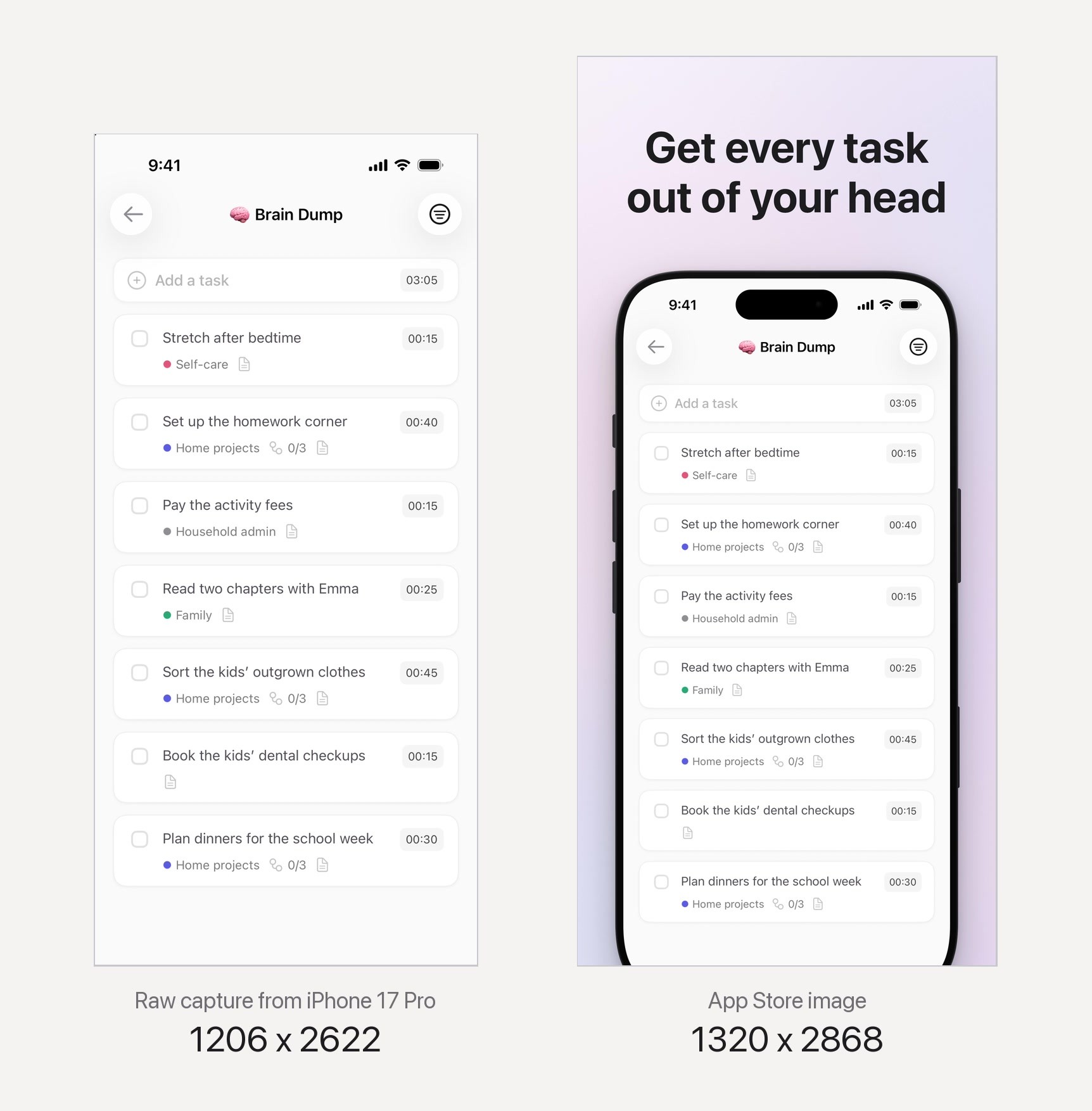
Before: the raw capture from the iPhone 17 Pro Simulator, 1206 x 2622, a 6.3-inch size. After: the same capture in a drawn iPhone frame on a 1320 x 2868 canvas, a 6.9-inch size. Same pixel scale. Both exported from Moonjar from Ellie’s demo data.
There’s a cost. The file got bigger, but the app got smaller: in the pair above, the list text is smaller in the framed image than in the raw capture, because the frame and the headline take room. If a screen is dense, a native 6.9-inch capture with no frame keeps the text larger.
Don’t stretch a capture to the target size. Resizing only keeps the proportions when the file is already the target’s shape; otherwise everything in it gets taller or wider than it should be.
When App Store Connect rejects a screenshot
“The dimensions of one or more screenshots are wrong.” That’s the wording developers have reported from App Store Connect for years when a file isn’t on the exact list for the slot it was dropped into. Measure it with the
sipscommand above. The usual causes: a 6.3-inch capture (1206 x 2622) in the 6.9-inch slot, a file a few pixels off after resizing, or an export at a generic size such as 1080 x 1920. Re-export at one of the sizes in the tables above.“One or more screenshots are in the wrong format.” Developers on Apple’s forums have reported this since 2020, and the fixes that worked for them vary: converting PNG to JPEG, re-exporting a JPEG from a design tool, or removing a doubled extension such as
.jpg.jpg. Apple’s help doesn’t list causes beyond the format and alpha rules above, so checkhasAlpha, re-export as a JPEG with a single extension, and try again.Watch screenshots accepted in one language and not another. The Watch size has to be the same in every localization.
You can’t add or replace screenshots. The version isn’t in one of the editable statuses listed above. After approval, create a new version.
How the examples on this page were made
The images were made with Moonjar, our Mac app in early access, which Claude Code or Codex drives through its MCP tools (the calls for a three-screen set are in App Store screenshots with Claude Code). They started from Simulator captures of Ellie’s and Amy’s demo data (Ellie and Amy are apps I build), taken on September 16, 2026. The iPhone example uses Moonjar’s app-store look, which puts a capture in a drawn iPhone frame on a 1320 x 2868 canvas; exported as JPEG it measured 1320 x 2868 with no alpha channel. The iPad example is the same look on a 4:3 canvas, exported 2752 pixels wide, which came out at exactly 2752 x 2064. The Watch file is Amy’s capture itself, exported as JPEG at 422 x 514. See what Moonjar does.
Sizes, lists and rules come from Apple’s screenshot specifications and upload help, read on September 18, 2026 and rechecked on September 19, and Apple’s iPhone spec pages, read on September 18. The error messages are as developers have reported them; no upload was made for this page. The file measurements were taken with sips on September 18, and the two side-by-side images were assembled from Moonjar exports with ffmpeg. This page was drafted with AI assistance.