
App Store screenshot templates: where to get them and how to fill one
Where to find App Store screenshot templates for Figma, Canva, Sketch and Photoshop, which ones match Apple’s sizes today, and how to fill one.
Chris Raroque
·

For App Store screenshot templates, start in the Figma Community, and check each file’s frame size before you build on it. Of the 24 free App Store screenshot files there that came up in searches for this page on September 24, 2026, five showed “6 months ago” or newer as their last update, and only two of those five, ASO.dev’s and AppLaunchpad’s, label both a 6.9-inch iPhone layout and a 13-inch iPad layout, the sizes Apple asks for now. The Sketch and Photoshop templates found name no phone newer than the iPhone 11 Pro Max, and Canva’s search for App Store screenshot templates returned Instagram posts, presentations and logos.
Disclosure: Moonjar, the Mac app I’m building, is our product. Your coding agent uses it to capture your app in the iOS Simulator and turn the captures into App Store screenshots, so it’s an alternative to using a template at all. It’s in early access and isn’t one of the picks; it has its own section near the end. The cover and the page captures were made with Moonjar; none of the templates below was opened in its design tool.
Checked September 24, 2026: each template’s own Community page, listing or README, Apple’s screenshot specifications, App Review Guidelines and design resources, and the price shown on each listing or pricing page. No template file was downloaded and no account was made, so this page says what each listing states, not how a template looks once you open it. Prices are in US dollars unless a listing shows another currency.
Quick answer by the tool you work in
If you work in | Start with, then check |
|---|---|
Figma | ASO.dev’s or AppLaunchpad’s free file. Read the frame sizes: even recent files name 5.5 to 6.7-inch sizes. |
Canva | A custom 1320 x 2868 design and a phone mockup. Its search results include no template named for the App Store. |
Sketch | The MIT-licensed shots template, as a layout. Its README stops at the iPhone 11 Pro Max. |
Photoshop | Apple’s bezels on a canvas of an accepted size. None of the PSD templates found names a 6.9-inch size. |
A paid pack | UI8’s iOS App Store Screenshot Kit, $24. None of five paid listings names a 6.9-inch size. |
A template is a file you edit yourself. If you’d rather have a hosted editor or your agent lay out the set and export every size, the section “Template or generator?” below compares the two.
What size must a template export today?
App Store Connect takes one to 10 screenshots per set as .jpeg, .jpg or .png files with no alpha channel or transparency, according to Apple’s screenshot specifications, read September 24, 2026. For iPhone you need a 6.9-inch set, or a 6.5-inch set if you don’t provide the 6.9-inch one. If the app runs on iPad, a 13-inch set is required too. These are the sizes a template has to export, in portrait for iPhone and iPad and at 16:10 for Mac:
Set | Sizes that count (pixels) | When it’s needed |
|---|---|---|
iPhone 6.9-inch | 1260 x 2736, 1290 x 2796, 1320 x 2868 | The set to make |
iPhone 6.5-inch | 1284 x 2778, 1242 x 2688 | Only if you skip 6.9-inch |
iPad 13-inch | 2064 x 2752, 2048 x 2732 | If the app runs on iPad |
Mac | 1280 x 800, 1440 x 900, 2560 x 1600, 2880 x 1800 | For Mac apps |
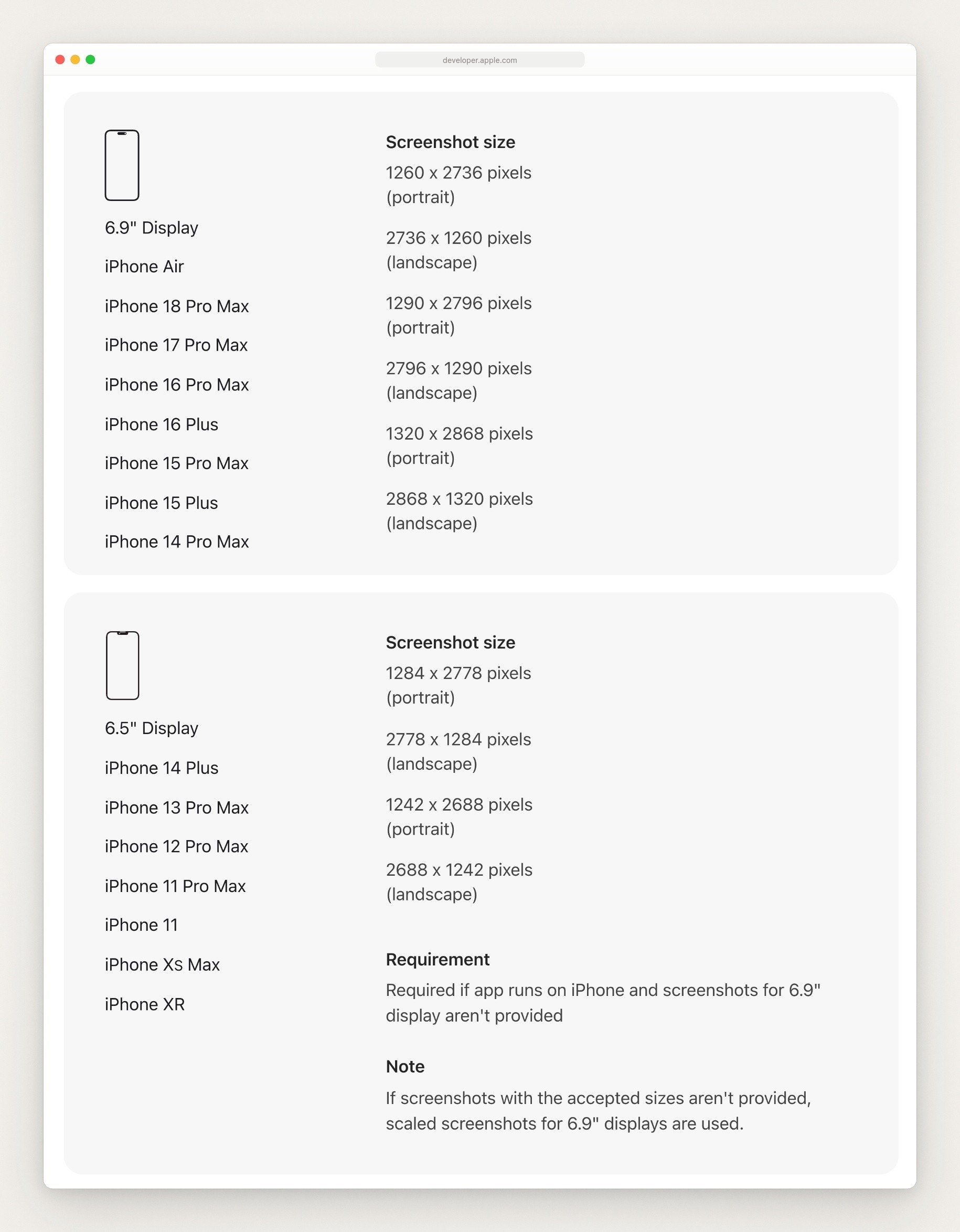
The 6.9-inch and 6.5-inch iPhone rows of Apple’s Screenshot specifications, captured September 24, 2026.
Apple’s page also lists sizes for the iPhone Duo, with a note that App Store Connect will accept them later this year. App Store screenshot sizes has every table, including Apple Watch and which phones sit in each class.
Templates label their sizes by screen diagonal, and Apple’s classes have shifted since many were made, so a label tells you less than the pixels do. Select one screenshot frame in the file, read its width and height in the design panel, and compare:
6.7-inch. Apple’s page has no 6.7-inch class, and the label can mean two sizes. The iPhone 15 Pro Max’s 6.7-inch screen is 2796 by 1290 pixels according to Apple’s iPhone 15 Pro Max specs, and Apple’s list puts that phone in the 6.9-inch class, so a 1290 x 2796 frame still counts. The iPhone 13 Pro Max’s 6.7-inch screen is 2778 by 1284 pixels according to Apple’s iPhone 13 Pro Max specs, and Apple’s list files that phone under 6.5-inch, so a 1284 x 2778 frame makes the fallback set.
6.5-inch. Still a class, at 1284 x 2778 or 1242 x 2688, but it’s the fallback: Apple requires it only if you skip 6.9-inch.
5.5-inch and smaller. 1242 x 2208 and 750 x 1334 are still on Apple’s list, but neither is the 6.9-inch or 6.5-inch set an iPhone app needs.
iPad Pro 12.9-inch. 2048 x 2732 is one of the two sizes in the 13-inch row, so that frame still works.
A listing can get the label wrong, too. An Envato Elements PSD gives two App Store sizes, 750 x 1334 and 1242 x 2208, labeled 5.5-inch and 5.8-inch. Apple’s list has both, as its 4.7-inch and 5.5-inch sizes, and neither is a 6.9-inch or 6.5-inch set.
Figma Community templates
The Figma Community is where the most free App Store screenshot files came up. Figma’s licensing page says free files are CC BY 4.0: you can share and adapt them for any purpose, commercial included, as long as you credit the creator. Figma’s Starter plan is free, and ASO.dev’s guide says the free plan is enough for its template.
Twenty-four files came up in the searches. Figma shows a relative label such as “5 months ago”, not a date. These five showed “6 months ago” or newer, newest first, with what Figma showed on September 24:
File (updated, users) | Sizes it names |
|---|---|
AppLaunchpad’s free template (2 months ago, 4.2k) | iPhone 6.9-inch, iPad 13-inch, plus Android |
BRIX Templates’ file (4 months ago, 9.4k) | iPhone 14, 8 and SE, iPads, Apple Watch; no pixel sizes |
ASO.dev’s Screenshot Creator (5 months ago, 2.7k) | iPhone 6.5 and 6.9-inch, iPad 13-inch, MacBook |
Max Rudberg’s App Store template (6 months ago, 26k) | iPhone 15 Pro frames, iPad, older Home button phones; no pixel sizes |
Five Eight Bloom’s template (6 months ago, 4.7k) | iPhone 6.7-inch (1290 x 2796) down to 5.5-inch; no iPad size |
The other 19 were last updated a year or more ago, from Median.co’s 500+ templates (1 year, 20.7k users) to Marvis’s and Agatha Richards’s files (5 years). Four of the five files with the most users, 20.3k to 46.5k, are among them; the fifth is Max Rudberg’s. Figma’s user count shows what was popular, not what fits Apple’s rules now. A search on another day can turn up other files, and the frame check above works on any of them.
ASO.dev’s App Store Screenshot Creator
Best for: a full set of up to 10 screens, with iPad and Mac pages, that you might translate later.
What’s in it: iPhone, iPad and MacBook pages. On the iPhone page there are 6.5-inch and 6.9-inch layouts, and ASO.dev’s guide to the file (last updated May 1, 2026) says the screenshot you drop into the 6.9-inch layout should preferably be 1290 x 2796. Each template is 11 numbered screenshots named for their size, such as iPhone-6-9-V01-00, and the guide says to delete one, because the App Store takes 10. There are six background options, iPhone 17 colors, light and dark themes through Figma Variables, and PNG export at 1x, which the guide says already gives the right sizes. The Community page adds that the file works with ASO.dev’s Figma plugin, which translates screenshots into 39 locales.
Costs: free, with a free Figma account.
The catch: the Community page asks for a visible link to ASO.dev when you share or publish your version of the file, and it doesn’t say whether that covers exported store screenshots. The file’s naming and checklist also assume you upload through ASO.dev’s own bulk uploader; the sizes are the same if you upload by hand in App Store Connect. The guide also starts you on its 6.5-inch layout: its tip says to choose 6.5-inch first because it covers most devices, and it files the iPhone 14 Pro, 15, 15 Pro and Air under that layout. Apple’s page lists the first three in its 6.3-inch class and the Air in its 6.9-inch class, and makes 6.9-inch the set to provide, so start on the file’s 6.9-inch layout and read the frame’s pixels.
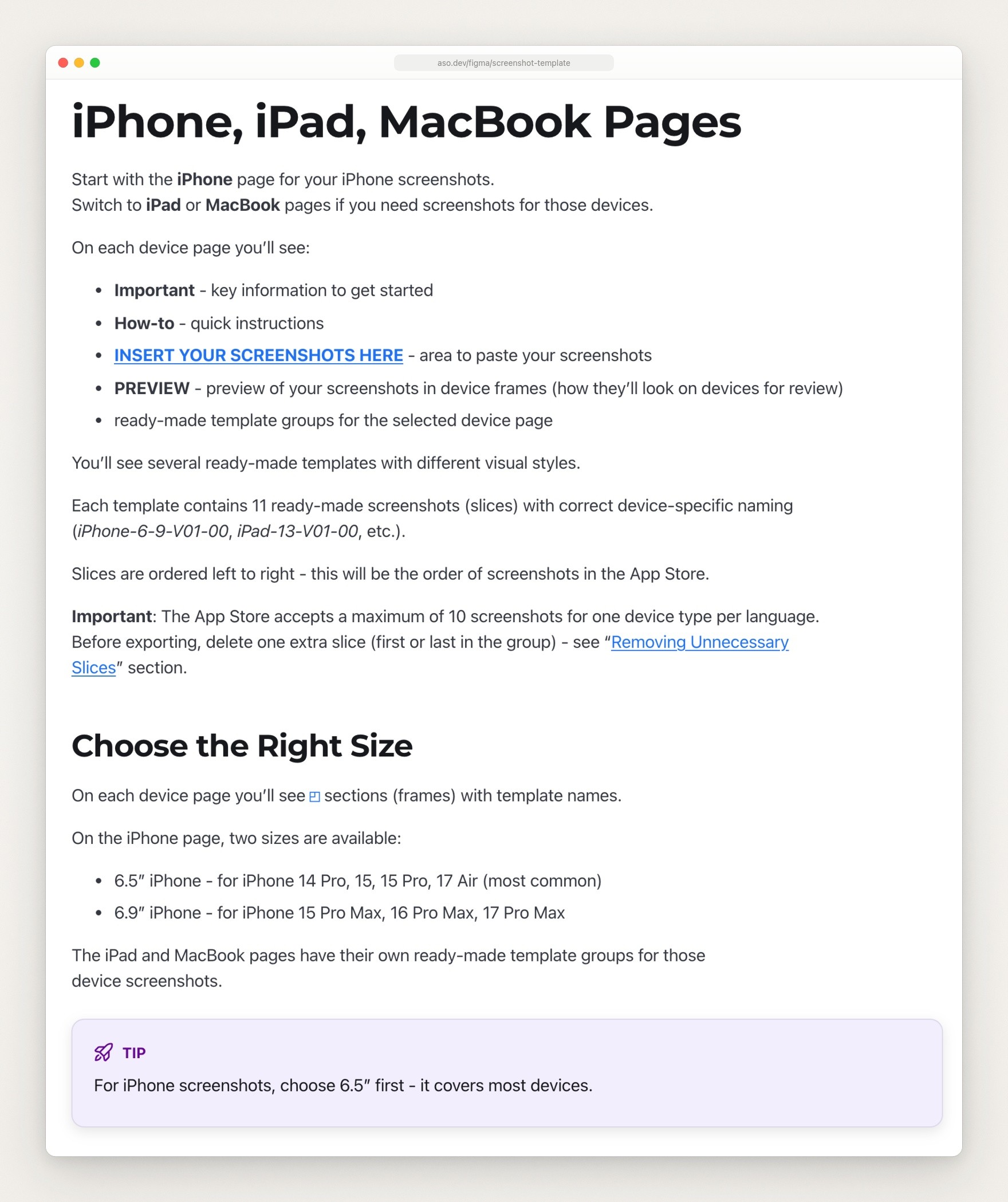
ASO.dev’s guide to its Figma file, captured September 24, 2026. It says each template has 11 screenshots, the App Store takes 10, and to delete one before exporting.
AppLaunchpad’s free file
Best for: iPhone and iPad layouts labeled for the current size classes, if you don’t mind a file that also advertises a paid tool.
What’s in it: five templates each for an iPhone 6.9-inch, an iPad 13-inch, an Android phone and an Android tablet, 20 in all, built from components and auto layout. AppLaunchpad is a screenshot editor with paid plans, and the page points to its 1,000+ premium templates. Our guide to App Store screenshot generators covers those plans.
Costs: free.
The catch: it’s a two-store file. Delete the Android pages and any Play Store badge before you export: Apple’s App Review Guidelines (rule 2.3.10; the guidelines page was last updated June 8, 2026) ask that App Store metadata leave out names, icons and imagery of other mobile platforms.
Recent files that still name older sizes
BRIX Templates’ file (4 months ago, 9.4k users) lists templates for the iPhone 14, iPhone 8, iPhone SE, several iPads and the Apple Watch, with no pixel sizes. Its description also points to a BRIX Templates Freebie License inside the file, on top of the CC BY 4.0 label Figma shows, so read that license too. Max Rudberg’s file (6 months ago, 26k users) says it has iPhone 15 Pro frames, iPad in portrait or landscape and older phones with a Home button, which it calls still required; Apple’s page now requires only the 6.9-inch set, or the 6.5-inch one in its place. The description gives no pixel sizes, but the creator’s reply in the comments says to upload for the 6.9-inch display and let the App Store resize the rest. Five Eight Bloom’s file (6 months ago, 4.7k users) lists 6.7-inch at 1290 x 2796 as its largest size, which is on Apple’s 6.9-inch list, then 6.5, 6.1, 5.8 and 5.5-inch, and no iPad size.
The older files most people use
Harsh Shah’s and Vitaly’s files have the most users of the 24 and were last updated 4 years ago; neither page states a size. Harsh Shah’s description says to replace the screens with a mockup plugin, so it isn’t a plain drag and drop file. Di Smolskii’s (2 years) lists 6.7-inch, 6.5-inch, 6.1-inch and 5.5-inch iPhone and iPad Pro 12.9 specifications, with no 6.9-inch or 13-inch size, and thepentool.co’s (4 years) exports 5.5 and 6.5-inch sets and includes an iOS 14 App Store preview. yVincent’s Screenshot Builder (1 year, 13k users) does list pixel sizes, and its largest iPhone and iPad sizes still count: 1290 x 2796, which it labels 6.7-inch, is on Apple’s 6.9-inch list, and 2048 x 2732, which it gives for a 13-inch iPad Pro, is in Apple’s 13-inch row. Use these for layout ideas, and expect to resize most of the frames before you export.
Canva templates
Canva’s template search for “app store screenshot” is titled “20,000+ App Store Screenshot Templates”, but on September 24 none of the 50 results it showed was named for the App Store. They were such things as Instagram posts, stories, presentations, prototypes, logos and store-hours flyers.
You can still make the set in Canva. Its help page on size limits says a custom design can be 40 to 8000 pixels on each side, so every size in the table fits, and its iPhone mockup page describes the steps as selecting an iPhone mockup and uploading your app design. Canva doesn’t say which iPhone models its mockups show, so match the frame to your screenshot by eye. There is also a Canva app from another developer, App Screenshot Gen, that its page describes as making App Store and Play Store screenshots with device frames, backgrounds and marketing text. It asks to read and change your design, to access your uploaded media and to upload new media for you. It wasn’t run for this page.
Canva suits a one-off set when you already work in it. You build the layout yourself rather than fill one, so the free Figma files above are the faster start.
Sketch templates
Sketch’s editor is a Mac app: its homepage says it requires macOS Sequoia (15.0.0) or newer. The pricing page offers a 30-day free trial, then $12 a month per editor billed yearly for Standard, or a Mac-only license at $120 per seat that includes one year of updates and leaves out the collaboration features. Apple’s design resources list UI kits for Sketch and Figma, but no App Store screenshot template.
The free Sketch templates found for this page are old:
jtholloran/shots is MIT-licensed, with Figma and Sketch files. Its README names exports for the iPhone 4, SE, 8, 8 Plus, 11, 11 Pro and 11 Pro Max, and the repository’s last push was October 24, 2019.
MengTo/AppStoreSketch exports for the iPhone 4, 5, 6 and 6 Plus. Its last push was October 1, 2016. GitHub lists no license, but the README says you can use all the resources any way you’d like.
Todor Iliev’s free Sketch template on Gumroad states no sizes.
The biggest phone in either README is the iPhone 11 Pro Max, named in the shots README, which Apple’s list files under 6.5-inch, so the largest set shots says it makes is the 6.5-inch fallback. In Sketch, treat them as layouts: rebuild the screen frames at 1290 x 2796 or 1320 x 2868 and swap in a current device.

The end of the README of jtholloran/shots on GitHub, captured September 24, 2026.
Photoshop and PSD templates
Apple gives you frames, not a layout. Apple’s design resources list Product Bezels as Photoshop and PNG files, including the iPhone 18, iPhone 17, iPhone 16 and iPhone Duo, iPad Pro (M5) and MacBook Pro M5. You set the canvas at an accepted size and add the headline and background yourself.
The PSD templates found for this page name older phones and tools:
Apply Pixels’ iPhone Screenshots is $29. It puts your screenshot in an iPhone 11 Pro Max or iPhone 8 through a Smart Object, and exports five screenshots at each required size with Adobe Asset Generator or Photoshop’s own export options. Its page lists Photoshop, Sketch and Figma versions, and its instructions end with the screenshots shown in the iOS 12 App Store.
PSD Repo’s iPhone App Store Screenshot Mockup was made in Photoshop CC 2015.
An Envato Elements PSD comes with a subscription from $16.50 a month and a lifetime commercial license, per its page, and lists the two older sizes above.
If you don’t have Photoshop, Photopea is a free editor in the browser, and its homepage says it opens and saves PSD files.
Paid template packs
A pack buys layouts and frames, not correct sizes. Three Figma packs:
UI8’s iOS App Store Screenshot Kit, $24. Figma, with iPhone 17 Pro mockups in several colors (the page counts 28 unique mockups), 21 general-purpose templates and 7 starter templates. The page gives no export size. The device in a mockup and the canvas it sits on are separate, and the iPhone 17 Pro’s own screen, 1206 x 2622, is in Apple’s 6.3-inch class, so ask the seller for the canvas size before you buy.
Figma To Store on Gumroad, from €19. Eight screenshots for the App Store and Play Store in 5.5-inch and 6.5-inch categories, with iPhone 11, iPhone 8 and Pixel 4 frames; the page lists iPad as coming soon.
App Store Screens Template on Gumroad, $25. A Figma file with app icons, screenshots, banners and text placeholders; the page states no sizes.
None of the five paid listings read for this page, these three plus the Envato PSD and Apply Pixels’ $29 template, names a 6.9-inch size. Their licenses weren’t compared, so read the seller’s before you use a pack in a shipped app.
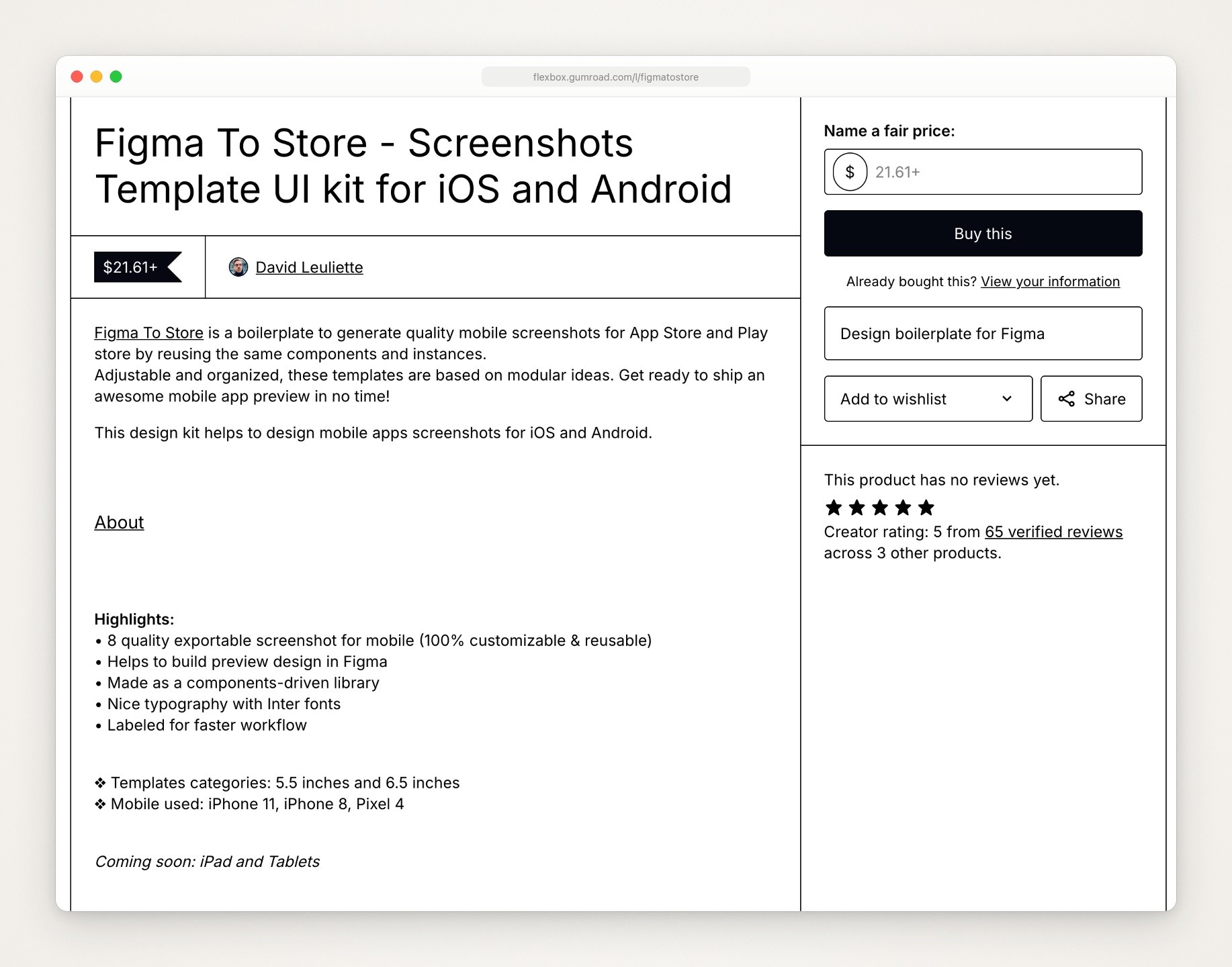
The Figma To Store page on Gumroad, captured September 24, 2026, with its template sizes and devices. Gumroad showed the seller’s €19 price as $21.61 to this US visitor.
Template or generator?
A generator is a hosted editor, or a tool your agent drives, that lays out the set and exports the sizes. A template is the better pick when:
You already work in Figma, Sketch or Photoshop and want every layer yours. ASO.dev’s FAQ says you duplicate the file and your copy doesn’t affect the original.
It’s one set and price matters. The Figma files above cost nothing, while AppScreens’ free plan exports up to 5 screenshots and marks its 6.9-inch and 6.5-inch iPhone sizes as paid; its Pro plan is $99 a year.
You want a layout no gallery has.
A generator is the better pick when:
You need many languages or a direct upload. AppScreens’ Pro plan lists translation for up to 10 languages and direct upload to the App Store and Google Play. The ASO.dev file can reach 39 locales, but through ASO.dev’s Figma plugin, so that route is a template plus a plugin.
You redo the set every release and don’t want to place each screenshot by hand.
Hosted editors keep template galleries of their own. AppScreens’ template gallery lists 150+ templates and 500+ editable layouts, and its cards name the sizes they fit, such as iPhones 6.9-inch and iPad 13-inch. Our comparison of App Store screenshot generators sets twelve side by side with their prices, from hosted editors to agent tools, and automating App Store screenshots covers redoing a set every release.
How do you put real screenshots into a template?
Pick the set, then check the frame. Choose the 6.9-inch iPhone set, and iPad 13-inch if the app runs on iPad. Select one screenshot frame in the template, read its width and height, and check them against the table above. If they aren’t on Apple’s list, resize the frame or pick another file.
Capture the real screen at that size. Use a Simulator model from Apple’s 6.9-inch list, the screen you want and demo data, and save a screenshot, not a recording. How to make App Store screenshots has the capture steps. A capture from a 6.3-inch phone such as the iPhone 17 Pro is 1206 x 2622. If the template’s screen area is one of the three 6.9-inch sizes, that capture is scaled up by about 4.5 to 9.5 percent, and text comes out a little softer. The shape is close enough that no more than about 9 pixels of height are cropped.
Clean the capture. A 9:41 clock, full signal and battery, and made-up names and numbers. Apple’s rule 2.3.9 asks for fictional account information, not a real person’s data.
Replace the placeholder. How depends on the tool:
In Figma, ASO.dev’s guide says to click Duplicate on the Community page so you edit your own copy, then drag the PNG onto the screenshot area, or choose Fill, Image, Choose Image. Check that it fills the screen, and use Fill container or Fit if it’s cropped wrong. Some older files, such as Harsh Shah’s, expect a mockup plugin, so read the description first.
In Sketch, the shots README says to put the screenshots into symbols, and the AppStoreSketch README says to change the Pattern Fill and pick the file.
In Photoshop, Apply Pixels says to open the screenshot layer’s Smart Object, then the Smart Object inside it, paste the screenshot and save.
In Canva, upload the screenshot and place it in a phone mockup.
Write one short line per screen. ASO.dev’s guide suggests 3 to 7 words for a feature line and a headline of at most two lines, with room for longer languages. Screenshots may carry text overlays; Apple’s rule 2.3.3 asks that they show the app in use.
Put the strongest screens first, and keep it to 10 or fewer. Apple’s product page guidance says that, depending on orientation, the first one to three screenshots appear in search results when there’s no app preview. ASO.dev’s template makes 11 per set, so delete one.
Export at the frame’s size and check the file. On a Mac,
sips -g pixelWidth -g pixelHeight -g hasAlpha screen.pngprints the size and whether the file has an alpha channel. IfhasAlphasays yes,sips -s format jpeg screen.png --out screen.jpgwrites a JPEG copy at the same size, with any transparent pixels turned white. Check every file, whichever tool exported it.
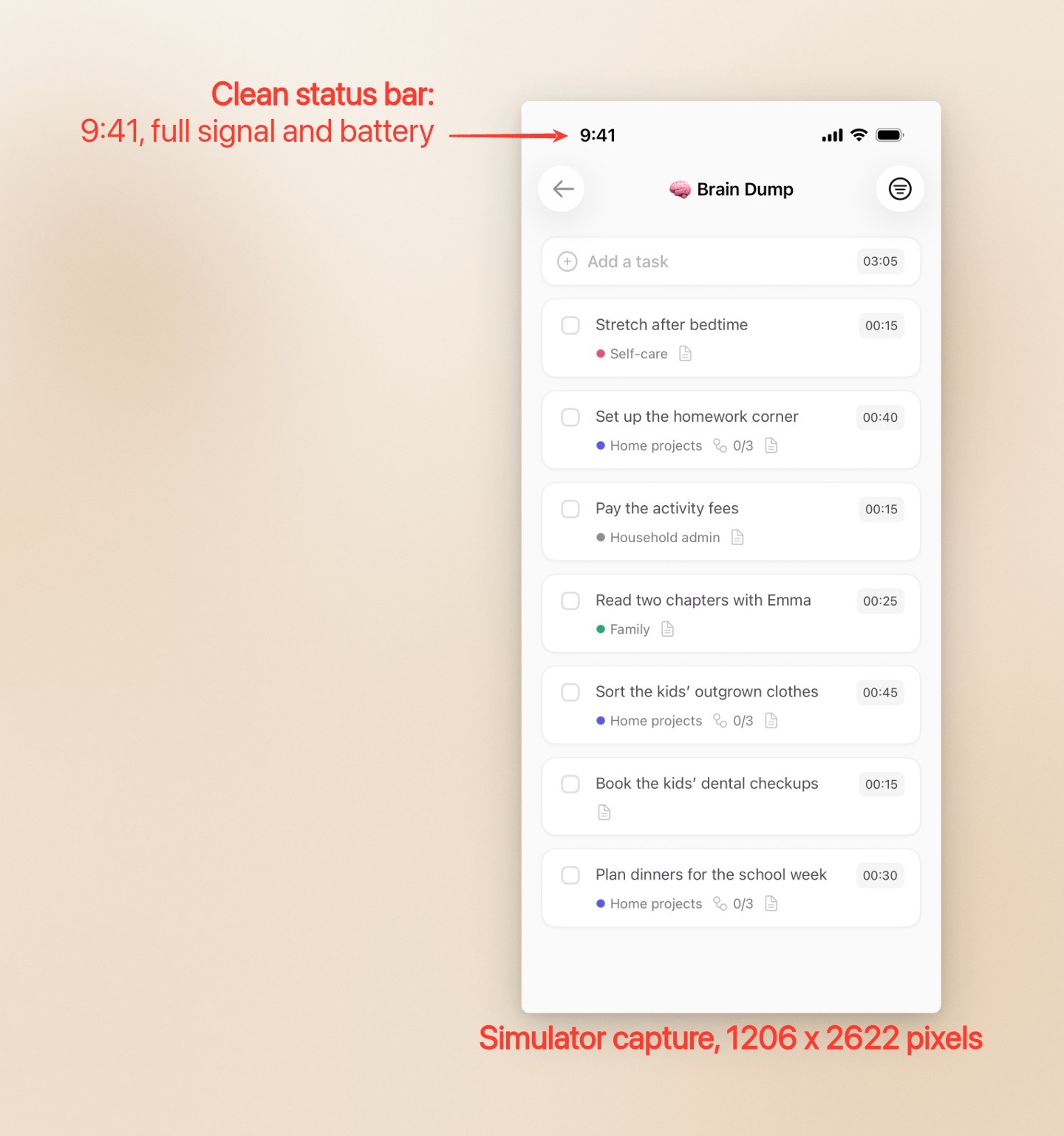
Made with Moonjar, our product: a Simulator capture of Ellie’s demo data, shown here on a background with two annotations; the capture itself has neither. It has a 9:41 clock, full signal and battery, no personal data and no device frame. Captured September 16, 2026; the background and annotations were added September 24, 2026.
Step 6 of how to make App Store screenshots covers the upload.
What to check before you upload a template set
Rights. Rule 2.3.9 makes you responsible for the rights to everything in your screenshots, so that includes a template’s fonts, illustrations and frames. A CC BY 4.0 file needs credit to its creator, a free file such as BRIX Templates’ can point to a license of its own, and a paid pack has its own license.
Other platforms. Strip Android and Pixel frames and Play Store badges from two-store files (rule 2.3.10).
Placeholder copy. Rule 2.3.7 says metadata such as screenshots shouldn’t include prices, terms or descriptions that aren’t specific to the metadata type, so replace every line of a template’s promo text and check it for prices.
Frames outside the store. If you reuse the images in ads or on your site, Apple’s marketing guidelines ask for Apple’s own product bezels, used as they are, and a template’s phones may be drawn by its author instead.
Where Moonjar fits (our product, early access)
Moonjar is our product, a Mac app in early access with no published price, so it isn’t one of the picks above. It has no template files to open or edit, and there’s no canvas to drag things around on. Your coding agent, such as Claude Code, Codex, Cursor or any MCP client, drives it. It touches this page’s job in two places:
The capture a template needs. The agent gets your app to the screen in the iOS Simulator, and Moonjar captures it with a clean 9:41 status bar, which is the default. The capture can be exported as a PNG or JPEG to drop into any template above. The capture is the Simulator device’s own resolution, so run the app on a phone from the 6.9-inch list.
The slide without a template. Moonjar has ready-made looks. Its App Store look sets the capture on a drawn iPhone on a 1320 x 2868 canvas with room for a headline, and exporting it as JPEG at that width gives a 1320 x 2868 file, which has no alpha channel because a JPEG can’t have one. Each styled screenshot keeps the capture it came from and its history, so when the app changes the agent can capture the screen again and style it the same way. It doesn’t notice changes on its own.
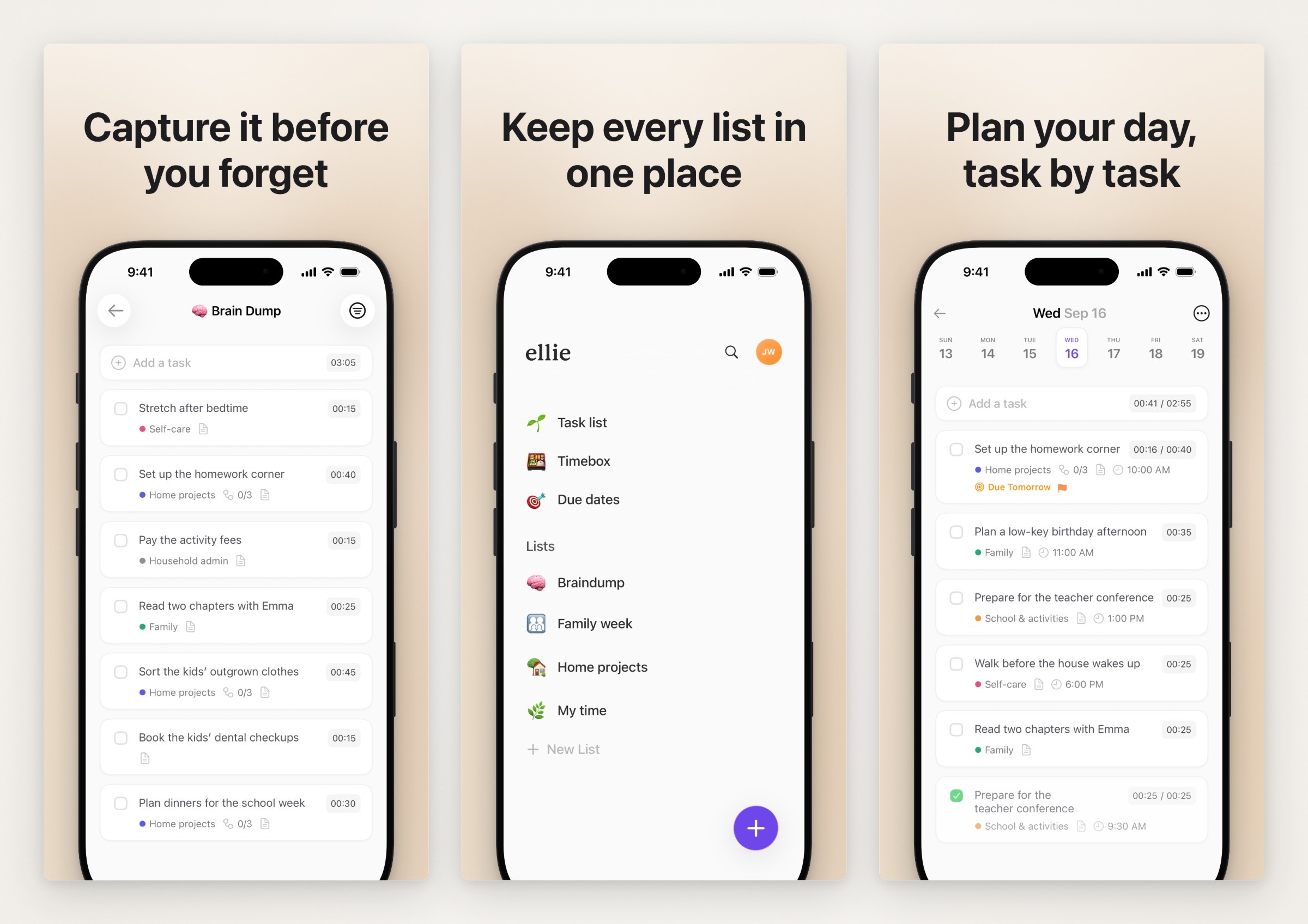
Made with Moonjar, our product: three 1320 x 2868 App Store slides from Ellie’s demo data, made without a template. Each slide was exported from Moonjar, and the three were set side by side in one Moonjar image for this page. Captured September 16, 2026; styled September 24, 2026. They aren’t Ellie’s live App Store listing.
The limits: it runs only on a Mac, with Xcode for the Simulator. It has no Android frames, no localization step and no upload to App Store Connect, and its device frames are drawn, not Apple’s bezels. If you want a designer’s layout, or a file you can edit by hand, use a template above. If you make the same shots every release, see what Moonjar does or ask for early access (Mac only).
How this page was made
Template listings, sizes and rules were read from each seller’s, tool’s and Apple’s own pages on September 24, 2026: with curl where a page loaded, and in a browser for the Figma Community, Canva, UI8 and AppScreens pages, which draw their content with scripts or refuse scripted requests. Nothing was signed in to, downloaded or installed, so nothing here describes how a template behaves once opened. The cover and the page captures were made that day with Moonjar, our product, and set in a plain browser frame; nothing on the pages was changed. Moonjar’s web capture was refused by the Figma Community, Canva and UI8 pages (HTTP 403), so none of them is pictured here. The cover shows the GitHub page for jtholloran/shots, ASO.dev’s guide to its Figma template and the Gumroad page for Figma To Store, arranged with Moonjar on one of its gradient backgrounds. The Ellie images use captures of Ellie’s demo data from September 16, 2026; Ellie is an app I build. This page was drafted with AI assistance.