
Mac App Store screenshots: the four sizes and how to make a set that looks good
Apple accepts four 16:10 sizes for Mac screenshots. How to get a window or full-screen capture to one of them without stretching it, with the crop math and a worked example set.
Chris Raroque
·

The four Mac App Store screenshot sizes are 1280 x 800, 1440 x 900, 2560 x 1600 and 2880 x 1800 pixels, according to Apple’s App Store Connect screenshot specifications, rechecked on September 19, 2026. Screenshots are required for Mac apps, and you upload one to 10 of them as .jpeg, .jpg or .png files with no alpha channel. The hard part on a Mac is that almost nothing you capture comes out at one of those sizes: a window is whatever size you left it, and most current Mac screens aren’t 16:10 either.
The example on this page is a set of four screenshots of Ellie for Mac, the planner app I build, made from its demo data with Moonjar, our screenshot app (in early access). It was made for this article and isn’t Ellie’s App Store listing.
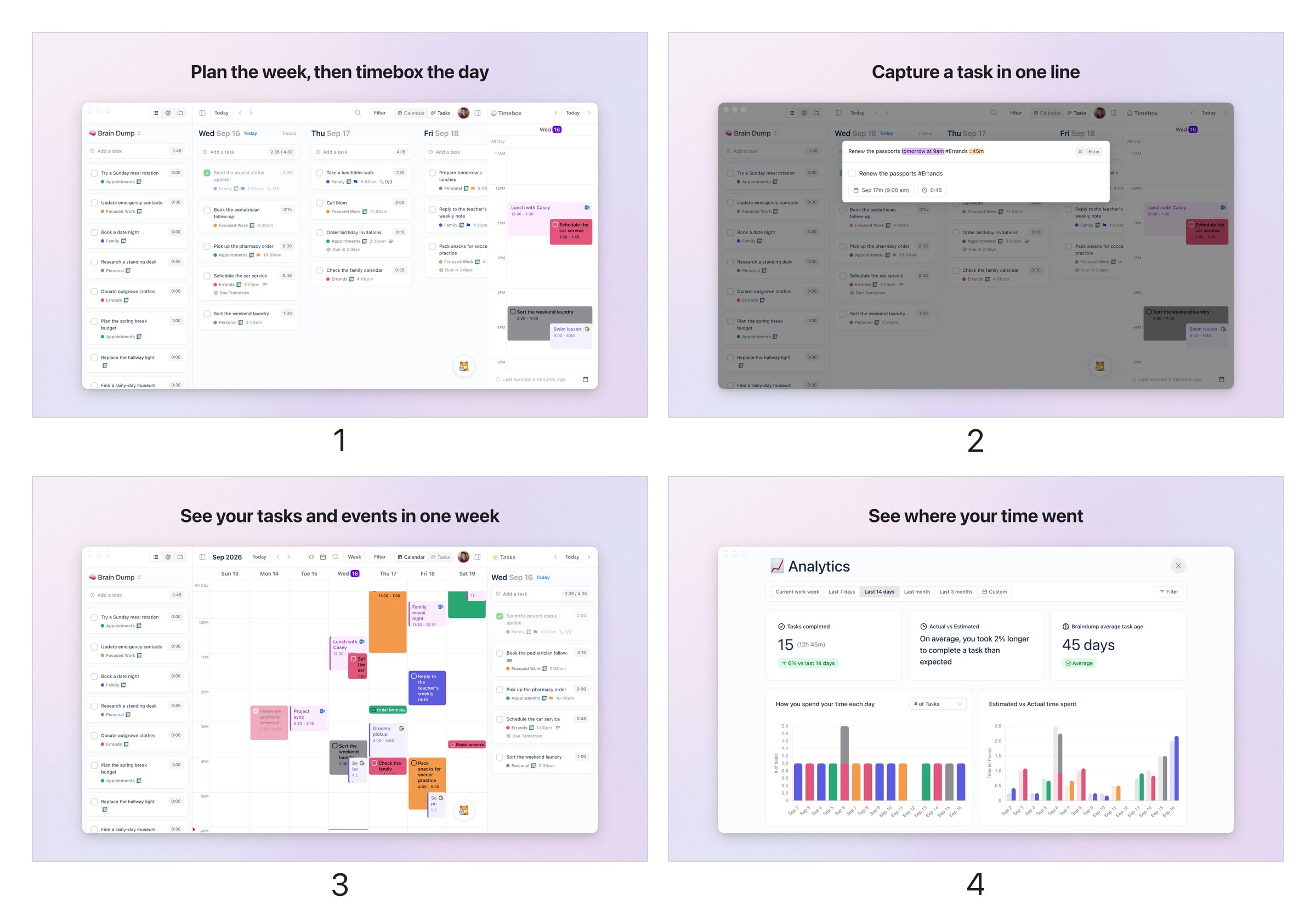
An example set of four 2880 x 1800 Mac App Store screenshots of Ellie for Mac, in upload order. Made for this article on September 18, 2026 with Moonjar, from window captures of Ellie’s demo data taken September 16; it isn’t Ellie’s App Store listing.
Which of the four sizes to use
All four are the same 16:10 shape. Apple lists them as one set for Mac, rather than splitting Macs into display classes the way it does for iPhone and iPad.
Make 2880 x 1800 unless you have a reason not to. It’s the largest size on the list, and exactly twice 1440 x 900, so a design made at 2880 x 1800 also exports cleanly at half size. 2560 x 1600 is likewise exactly twice 1280 x 800.
Some third-party guides list a 16:9 size such as 2560 x 1440, or only three sizes. Apple’s page lists these four and no others. It doesn’t state a color space or a file size limit for screenshots, and neither does Apple’s upload help. The sizes for every other Apple platform are in the App Store screenshot sizes reference.
Why a Mac capture is rarely one of those sizes
A window is the size you left it. A Retina display draws two pixels for every point, so a window capture there is twice the window’s size in points. The Ellie window in the example is 1350 x 750 points, so its capture is 2700 x 1500 pixels, a 9:5 shape that isn’t on Apple’s list. A window set to exactly 1440 x 900 points would capture at 2880 x 1800, but it would leave no room for a headline and would still have the transparent corners described below.
A full-screen capture takes the screen’s shape. Going by the native resolutions on Apple’s spec pages, the 13-inch and 15-inch MacBook Air and the 14-inch and 16-inch MacBook Pro are all slightly taller than 16:10, while the 24-inch iMac and the Studio Display are 16:9, which is wider. The MacBook Neo’s 13-inch screen, 2408 by 1506, is one pixel row off exact 16:10. The file’s pixel size also depends on the resolution you’ve chosen in System Settings > Displays, so measure your own capture before you crop it (the next section has the math).
A window capture has transparent corners. The raw Ellie capture is a PNG whose four rounded corners are see-through: 804 fully transparent pixels and 364 partly transparent ones, all within 47 pixels of a corner. Apple’s rule is plain: images can’t include alpha channels or transparency. Converting this capture to JPEG with sips removed the alpha channel and filled the corners with white, but the file was still the wrong size.
Crop a full-screen capture to 16:10
If you’d rather show the whole desktop, with the menu bar and wallpaper, capture the screen with Shift-Command-3 and crop before you scale. The rule: on a screen taller than 16:10, keep the full width and make the height the width divided by 1.6, taking the extra rows off the bottom so the menu bar stays. On a 16:9 screen, keep the full height and make the width the height times 1.6, trimming both sides equally.
First measure the capture: sips -g pixelWidth -g pixelHeight screen.png. Use the file’s dimensions, not the display’s advertised panel resolution: macOS display scaling can change the capture size. These are crop calculations for files with the measured sizes shown, not promises about what a particular Mac saves:
Capture measures | Crop to | Then |
|---|---|---|
2880 x 1864 | 2880 x 1800, 64 rows off | Upload as is |
2560 x 1664 | 2560 x 1600, 64 rows off | Upload as is |
2940 x 1912 | 2880 x 1800, 30 columns off each side and 112 rows off the bottom | Upload as is |
3024 x 1964 | 3024 x 1890, 74 rows off | Scale to 2880 x 1800 |
3456 x 2234 | 3456 x 2160, 74 rows off | Scale to 2880 x 1800 |
4480 x 2520 | 4032 x 2520, 224 columns off each side | Scale to 2880 x 1800 |
5120 x 2880 | 4608 x 2880, 256 columns off each side | Scale to 2880 x 1800 |
2408 x 1506 | 2408 x 1505, 1 row off | Scale to 2560 x 1600 |
Three of those need no scaling at all: cropped, they are already accepted sizes. For the rest, crop in any image editor, then scale the cropped file down with sips --resampleHeightWidth 1800 2880 cropped.png --out screen.png. Scale only after the crop, when the file is already 16:10 (use 1600 2560 for the last row); the next section shows what happens otherwise. The 2408 x 1506 row scales up by about 6%, which softens text slightly; if you can, capture on another Mac. If your capture doesn’t match any row, apply the same rule to its own numbers.
How to make a Mac App Store screenshot set
1. Write one headline per screenshot
Apple’s guidance on creating your product page says that, depending on their orientation, the first one to three screenshots appear in search results when there’s no app preview, and that each screenshot after that should focus on one main benefit or feature. Mac screenshots are landscape, and Apple doesn’t say how many landscape screenshots fit in a search result, so make the first one explain the app on its own.
Write the headlines before you capture anything. This was the whole plan for the Ellie set:
Plan the week, then timebox the day: the Calendar Kanban with the Timebox beside it.
Capture a task in one line: Quick Capture reading “tomorrow at 9am” and “=45m” in a typed line as a date and a duration.
See your tasks and events in one week: the week in Calendar mode.
See where your time went: Analytics for the last 14 days.
The same page suggests including at least one screenshot in Dark Mode if your app supports it. The Ellie set is all light mode, because the captures were. The general planning, headline and ordering advice is in how to make App Store screenshots; the rest of this page is what’s different on a Mac.
2. Stage the app before you capture
Use sample data. Section 2.3.9 of Apple’s App Review Guidelines asks for fictional account information instead of a real person’s data. Ellie’s demo data is a made-up family’s week.
Make it the active window. A window that isn’t active draws gray traffic lights. The Ellie windows in the example were captured in the background, which is why their traffic lights are gray.
Size the window to the space it will fill. In the example, the window spans 84% of a 2880-pixel canvas, about 2,420 pixels, so a window around 1,200 points wide lands there at its captured size. The 1350-point Ellie window was scaled down to about 90%, which keeps the text sharp; a much smaller window would have to be scaled up and would go soft.
Show only what the headline promises. Close panels and popovers that aren’t part of the story, and put the thing the headline names somewhere large.
3. Capture the window
Press Shift-Command-4, then the Space bar, and click the window. Hold Option while you click to leave out the window’s shadow, per Apple’s guide to screenshots on Mac. Without the shadow, the file is the window alone, which is easier to place on a canvas.
4. Place the capture on a 2880 x 1800 canvas
In a design tool, make an artboard of exactly 2880 x 1800, set a calm background, put the headline at the top and the window under it, then export the artboard at its actual size (1x). Use the same background, headline font, size and position on every screenshot, so the set reads as one set: in the Ellie set, only the words and the window change.

Before: the window capture as saved, 2700 x 1500, a 9:5 shape Apple doesn’t accept. After: the same capture on a 2880 x 1800 canvas with a headline, scaled to about 90% and not stretched. Same pixel scale. Made with Moonjar from Ellie’s demo data.
Don’t resize the capture itself to 2880 x 1800. On a copy of the 2700 x 1500 Ellie capture, sips --resampleHeightWidth 1800 2880 produced a 2880 x 1800 file, an accepted size, but it made the width 1.07 times larger and the height 1.2 times, so everything in it is 12.5% taller than it should be. Resizing only keeps the proportions when the image is already 16:10.
5. Decide whether to use a device frame
A drawn MacBook tells people at a glance that this is a Mac app, but the laptop takes room the app would otherwise use.
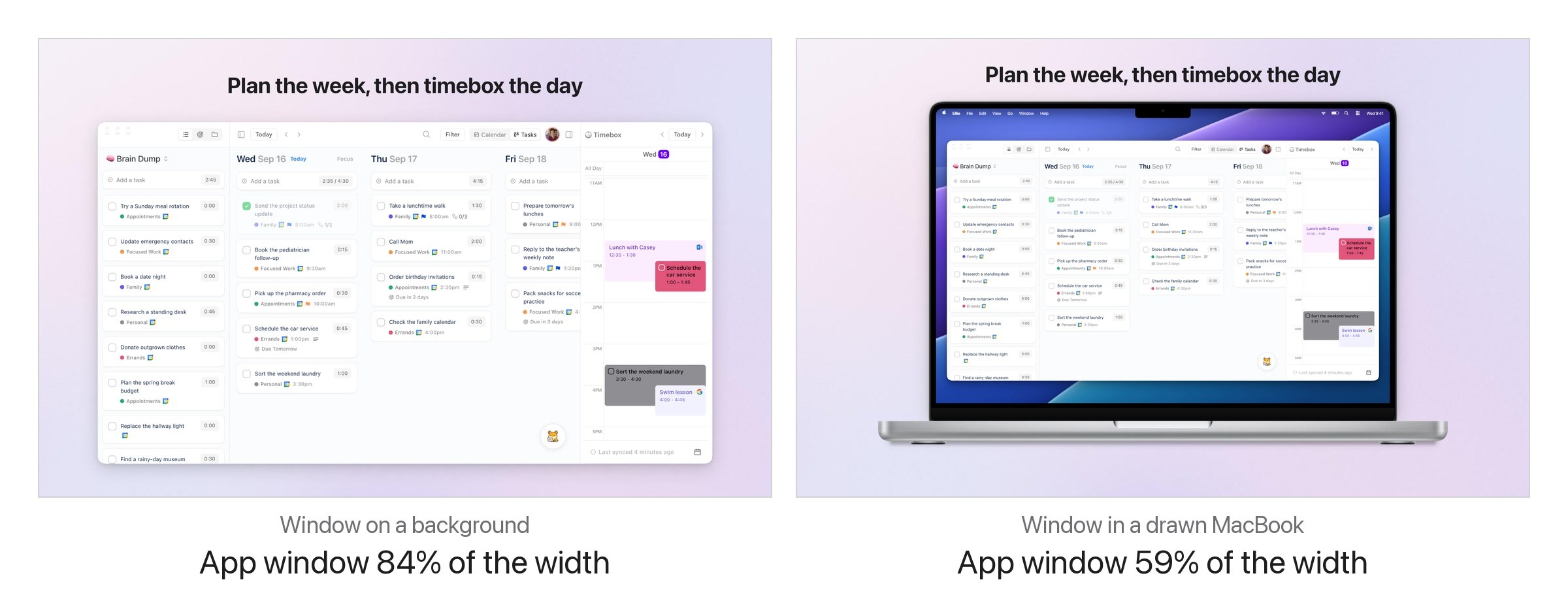
Same capture, same headline, same 2880 x 1800 canvas. On the left the window alone spans 84% of the width; on the right, inside a drawn MacBook, 59%, so the app is about 30% smaller. The MacBook is Moonjar’s drawing, not an Apple bezel.
With the window alone, it spans 84% of the canvas; inside a drawn MacBook, 59%. For a dense app like a planner, the window alone keeps the task names larger.
Apple’s review guidelines allow text and image overlays on screenshots (2.3.3) and don’t mention device frames either way. If the same images will also be used in marketing outside the store, read Apple’s App Store marketing guidelines first. They ask for Apple-provided product bezels used as they are, don’t permit creating a simulation of an Apple product, and, for Mac product images in the desktop display option, ask you to add your icon to the Dock and customize the menu bar titles to match your app’s menu bar.
6. Export as JPEG and check the file
JPEG has no alpha channel, so exporting as JPEG settles the transparency rule. On a Mac, sips -g pixelWidth -g pixelHeight -g hasAlpha screen-1.jpg prints a file’s size and whether it has an alpha channel, and sips -s format jpeg screen-1.png --out screen-1.jpg converts a PNG at the same size.
The four Ellie screenshots, exported as JPEG, each measured 2880 x 1800 with hasAlpha: no and an sRGB profile, at 552 to 658 KB. A PNG export of the first one measured 2880 x 1800 too, but sips reported hasAlpha: yes even though every pixel in it is fully opaque. Apple’s rule names alpha channels, not only visible transparency, so check a PNG before you upload it, or use the JPEG.
7. Upload the set in App Store Connect
Apple’s upload help describes the steps: in Apps, select your app, click the app version under the platform in the sidebar, and drag the screenshots into the screenshot well. The same page sets the limits:
Who can upload: the Account Holder, Admin, App Manager and Marketing roles.
When: only while the version is in Prepare for Submission, Invalid Binary, Rejected, Metadata Rejected or Developer Rejected. Once a version is approved, new screenshots need a new version.
App previews: up to three per language for Mac apps, landscape only at 1920 x 1080, and they always come before the screenshots, even if you rearrange them. App Store preview videos covers the video specs, and recording one window on a Mac covers the capture.
Other languages: choose the language at the top right, then use View All Sizes in Media Manager.
How the example set was made
The set was made with Moonjar, our Mac app, which Claude Code or Codex drives through its MCP tools. It started from four window captures of Ellie for Mac taken with Moonjar’s window capture on September 16, 2026. Moonjar’s desktop-window look centers a window with a soft shadow; for this set the background was switched to a procedural lilac gradient, the headline went on top in the same style on all four, and the canvas was set to 2880 x 1800 for each screenshot, since Moonjar’s canvas presets don’t include 16:10. The JPEG exports are the files measured in step 6. The drawn MacBook in the comparison is the same capture on Moonjar’s macbook-pro-14 frame. Moonjar stops at the files, so the upload is done by hand. See what Moonjar does.
The sizes, rules and steps come from Apple’s screenshot and app preview specifications, upload help, product page guidance, App Review Guidelines, App Store marketing guidelines and Mac screenshot guide, and the native display resolutions from Apple’s spec pages for the MacBook Neo, MacBook Air, MacBook Pro, iMac and Studio Display, read on September 18, 2026 and partly rechecked on September 19. The crop table is arithmetic from those native resolutions; no full-screen capture was cropped for this page. The files were measured with sips on September 18, and the grid and side-by-side images were assembled from Moonjar exports with ffmpeg. This page was drafted with AI assistance.