
How to make a good product screenshot
A good product screenshot shows one idea from the real app, big enough to read, on a background that stays out of the way, and it matches the images around it.
Chris Raroque
·

Most of what makes a product screenshot look professional is a short list of decisions, made the same way every time. Below are 12 of them, most shown as a pair: the same capture from Ellie, the planner I build, once without the rule and once with it. The data is Ellie’s demo account, so nothing private is on screen, and every rule works by hand in whatever tool you already use. The images were made with Moonjar, our Mac screenshot app (in early access), except Ellie’s published help image in rule 1.
The checklist
Capture a real, clean state: demo data, a fixed status bar, one appearance.
One idea per image.
Crop to make the UI big. Don’t shrink the whole screen to fit.
Point at one thing by lifting it, not by drawing an arrow at it.
Draw annotations heavy enough to survive being scaled down.
Frame it for where it will be seen: a device, a window, a browser, or nothing.
Treat the background as texture, not subject.
Use soft, wide shadows, or none.
Use one texture idea at a time, and never on the UI.
Center the subject unless the asymmetry is on purpose.
Keep a set consistent: one layout, one background, one device color.
Keep text out of the image unless the image has to stand alone.
Then export at about twice the display size and redact with a solid box. Both are covered after rule 12.
Start from where the image will be seen
Where a screenshot ends up decides its size, its frame and whether it carries any text, so settle that before you capture.
Where it goes | Export | Frame and text |
|---|---|---|
Help article | Twice the column width | Crop to the step; no text |
App Store | Apple’s exact sizes, no transparency | Device and one short headline |
Changelog entry | Landscape, twice the slot | Crop to what changed |
Landing page | Twice the slot it fills | Device or window; the page has the words |
GitHub README | Twice the width you set | Phone or window, little else |
Link preview | 1200 x 630, under 8 MB | One idea, one short headline |
Help articles need one step per image, the named control lifted, and the same layout on every page, because readers arrive at one article from search and then move between them. The documentation screenshot style guide has column widths measured on real help centers and a style sheet to copy, and keeping help center screenshots current covers what to do after each release.
App Store: when there’s no app preview video, Apple shows the first one to three screenshots in search results, depending on their orientation, so lead with the one that explains the app and give each one after it a single benefit. How to make App Store screenshots takes a real set from capture to upload.
Changelogs: crop to the new thing, show a changed screen before and after at the same crop, and put the date on the entry rather than in the image. The changelog examples show how eleven update pages handle their images.
Landing pages: the first image does most of the explaining. Show the one screen that says what the product does, big, and give each feature section below it one image in the same style (rule 11).
GitHub README: README screenshots and GIFs covers the width attribute, a separate dark-mode image and GIFs that play.
1. Start from a real, clean app state
Capture the real app in a state a customer would recognize, with nothing on screen you’d have to explain.
Three things to fix before you capture.
The data. Use a demo account with believable content: real-sounding task names instead of “test 1” and “asdf”, and no real customer names, emails or balances. For email addresses, use example.com. It’s reserved for documentation and can’t be registered, so a screenshot can never point at someone’s real inbox.
The status bar. A real clock and a half-charged battery date the image and pull the eye to the corner. On the iOS Simulator, one command sets a clean bar:
With discharging at 100 you get the plain full battery in the second image below. xcrun simctl status_bar booted clear puts the real bar back. The override doesn’t survive the simulator shutting down, so run it again after each boot. (The flags are from xcrun simctl help status_bar in Xcode 27.0.) The iOS Simulator screenshot guide explains each flag and where the file saves.
It’s an easy one to miss. The image on Ellie’s own Siri integration help page still shows 9:53 and a charging battery. Below it is a capture of another Ellie screen, made with the bar set first.
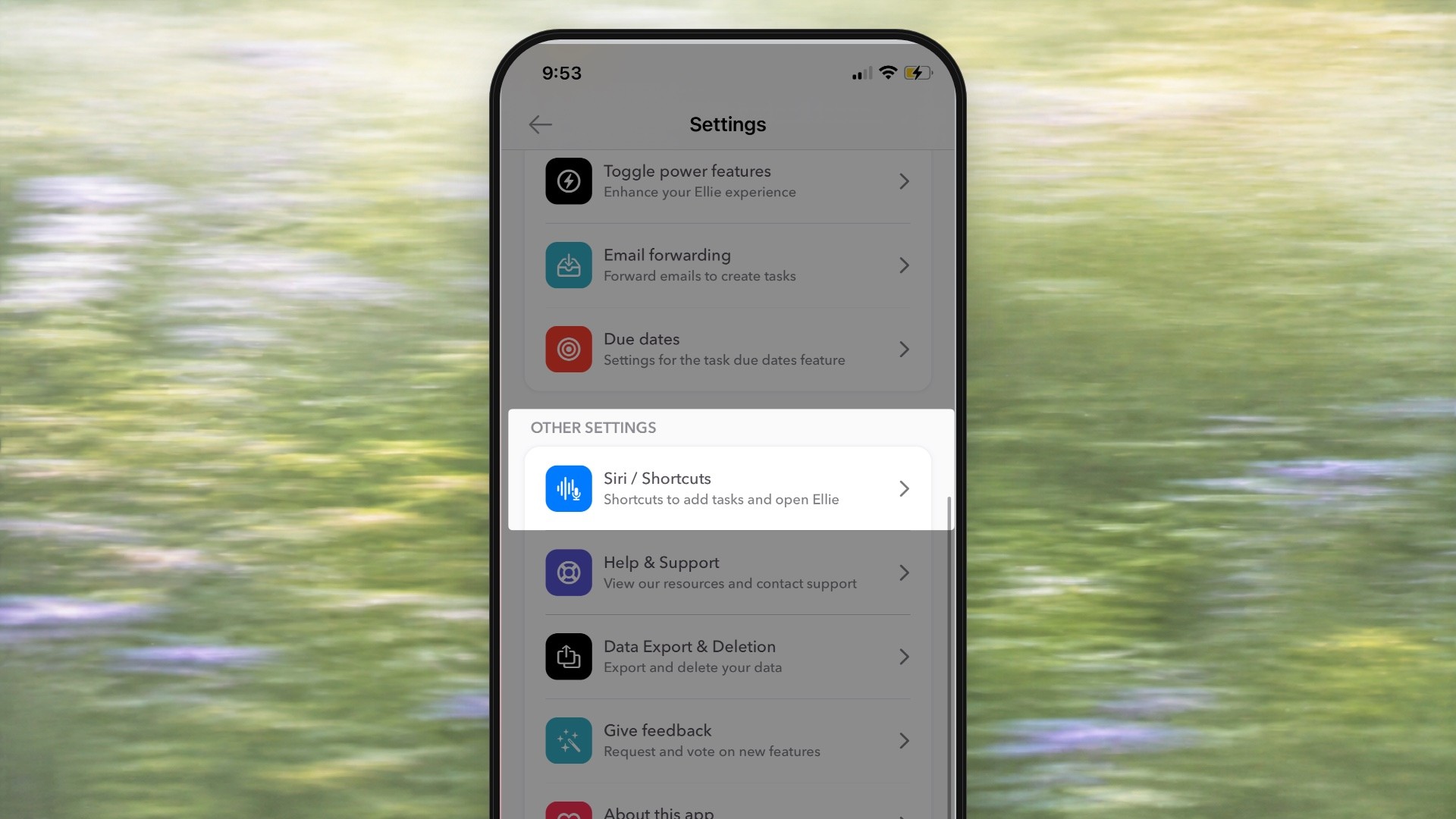
Ellie’s published help image for Siri integration, as of September 18, 2026. The row is lifted and the phone is big, but the status bar reads 9:53 and charging.

The fix: a capture made with the status bar set to 9:41, full signal and a full battery. Photo: Bernd Dittrich on Unsplash.
The appearance. Use light or dark for a whole article, not a mix. On the App Store, Apple suggests including at least one Dark Mode screenshot if your app supports it; give it its own slot rather than mixing modes inside one image.
On a Mac, capture one window rather than the screen: press Shift-Command-4, then the Space bar, then click the window. Hold Option while you click to leave out macOS’s window shadow, which you want if you’ll add your own later. Close anything personal in the sidebar first; a window capture still shows everything inside the window.
On macOS Tahoe 26 or later, also check the capture format. On Macs that support it, the Screenshot app’s Options menu (Shift-Command-5) offers SDR (Most Compatible), which saves PNG, and HDR, which saves HEIF. App Store Connect takes only JPEG and PNG, so choose SDR for anything headed to the store, and PNG is the safer file for a help desk or CMS too. If your screenshots have started arriving as .heic files, this is the setting to change.
For a web page, set the viewport before you capture. Chrome’s device mode lets you choose a width and add a device pixel ratio from its More options menu, then take the shot from the same menu with Capture screenshot. A pixel ratio of 2 gives you a sharp image to scale down later.
2. One idea per image
If the caption needs “and”, make two images.
A screenshot next to a sentence gets a glance, not a study. When the image holds the whole screen, the reader has to hunt for the part the sentence means. Cut it down to the one idea: one block on the timeline, one setting, one new button.
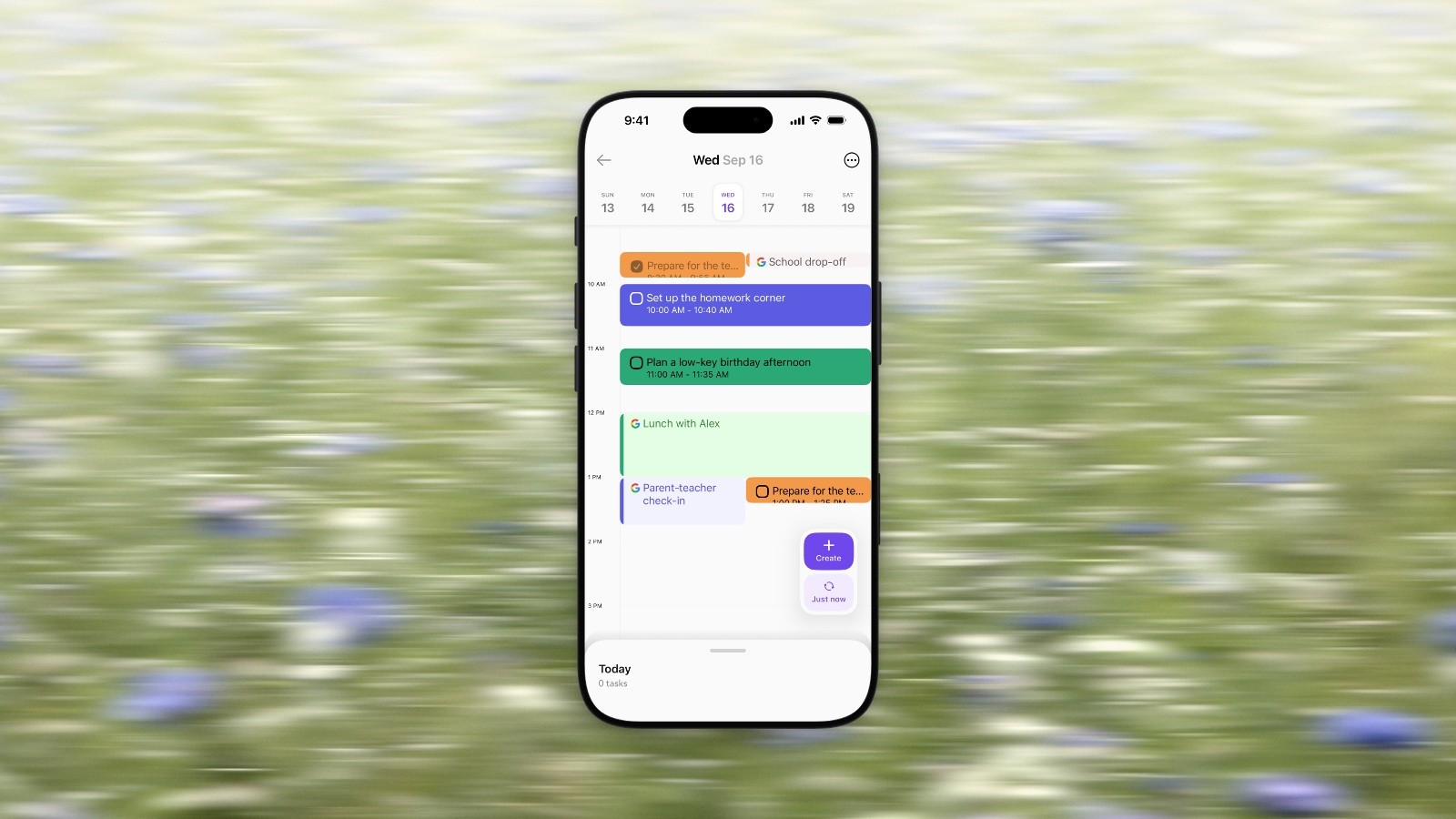
Before: the whole day. Which block is this image about? Photo: Bernd Dittrich on Unsplash.

After: the phone runs off the bottom, and the one block the sentence is about is lifted. Photo: Bernd Dittrich on Unsplash.
Write the caption first. If it describes two things (“drag a task onto the timeline, then change how long it runs”), that’s two images. If the point is the movement between them, it may be a short recording instead: how to make an app demo video covers when motion earns its place.
3. Make the UI big: crop instead of shrinking
Show part of the screen at a size people can read, rather than all of it at a size they can’t.
The instinct is to fit the whole phone in. The trouble is the size the image is seen at. Here is rough arithmetic for a 16:9 image of an iPhone 17 Pro, shown in an article column 720 pixels wide, using two layouts from Ellie’s help center:
Layout | Phone screen in the column | 17 pt body text shows at |
|---|---|---|
Whole phone, 78% of the image’s height | about 140 px wide | about 6 px |
Phone a third of the image’s width, bottom cut off | about 220 px wide | about 9 px |
Seventeen points is iOS’s default body text size and 11 points is its minimum, according to Apple’s Human Interface Guidelines. In the whole-phone layout, 11-point text ends up under 4 pixels. The article text around it is usually 16 pixels or more. The phone that runs off the edge is about 1.5 times larger.
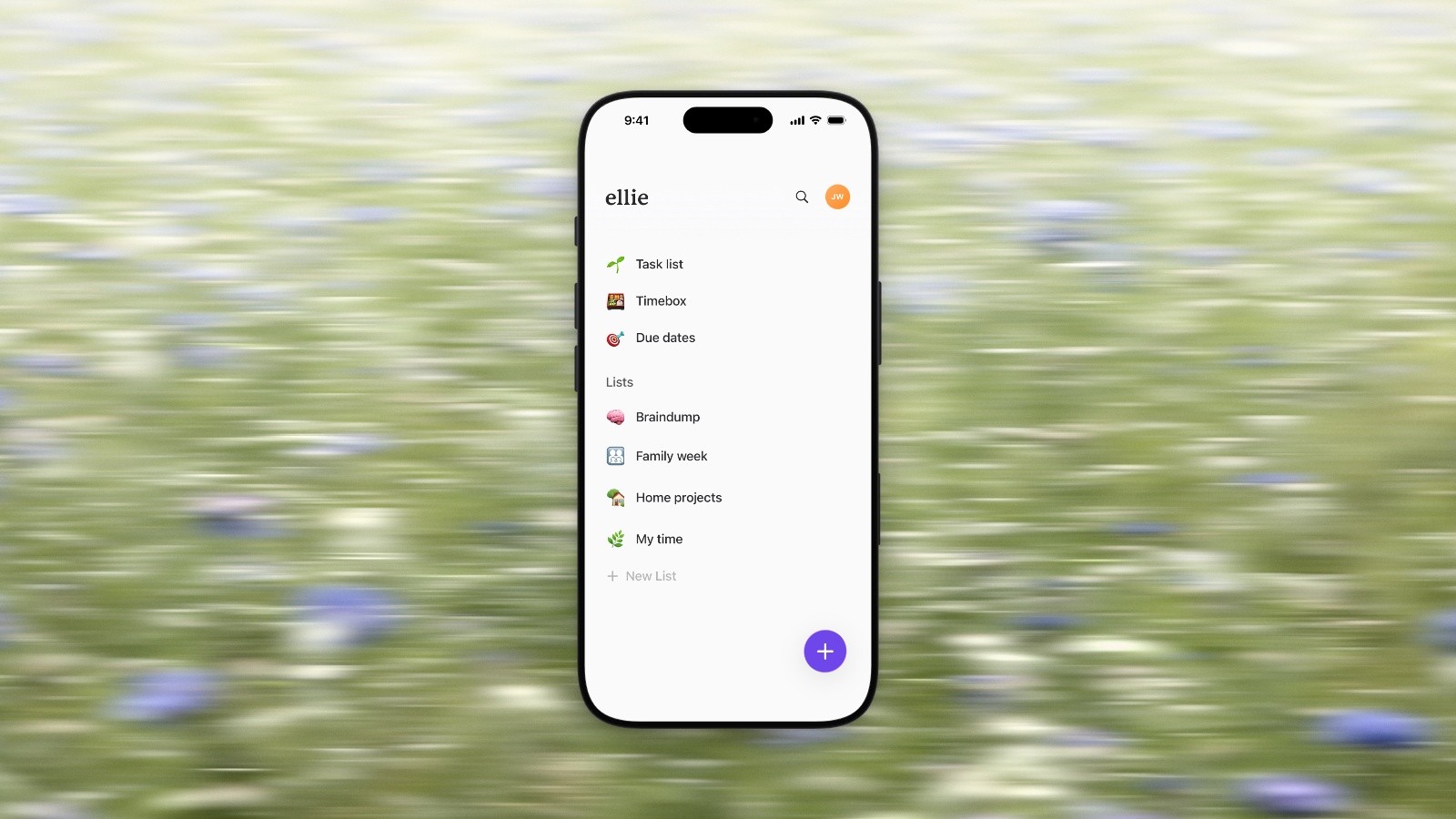
Before: the whole phone, 78% of the image’s height. Photo: Bernd Dittrich on Unsplash.

After: the phone a third of the image’s width, bottom cut off. Photo: Bernd Dittrich on Unsplash.
Check your own layout before you export. Work out how wide the screen or window will appear on the page, then scale the app’s text by the same amount:
Shown size of the text = its size in points, times the shown width of the screen in pixels, divided by the screen’s width in points.
An iPhone 17 Pro screen is 402 points wide. In the layout above it shows about 220 pixels wide, so 17-point text lands at 17 times 220, divided by 402: about 9 pixels.
On a Retina Mac, a window’s width in points is half its capture’s width in pixels, and macOS body text is 13 points. A 1200-point window shown across a 720-pixel column puts that text at about 8 pixels. Crop to the half of the window that matters and it’s about 16.
Let the phone run off the bottom edge when the part that matters is in the top half of the screen. When it sits low (a toggle near the bottom, a sheet’s confirm button), show the whole device, or crop the capture to that part, instead of shrinking the phone further.
4. Point at one thing: lift the row instead of drawing an arrow
When one row matters, lift it: dim the rest of the screen and bring that row forward.
An arrow has to be followed. A lifted row is simply seen. Dim the rest of the screen (a black wash of about 45% turns white UI mid gray), then draw the row at full strength on a white card, a few percent larger than it was, with a soft shadow under it.
Let the card run a little past the edge of the device, not just the edge of the screen. A band that stops inside the bezel reads as part of the app, and on sheets and full-width cards you can barely tell anything is highlighted. One that crosses the edge reads as lifted off it. About 3% of the device’s width on each side is enough.

Before: an arrow, which the eye has to follow. Photo: Bernd Dittrich on Unsplash.
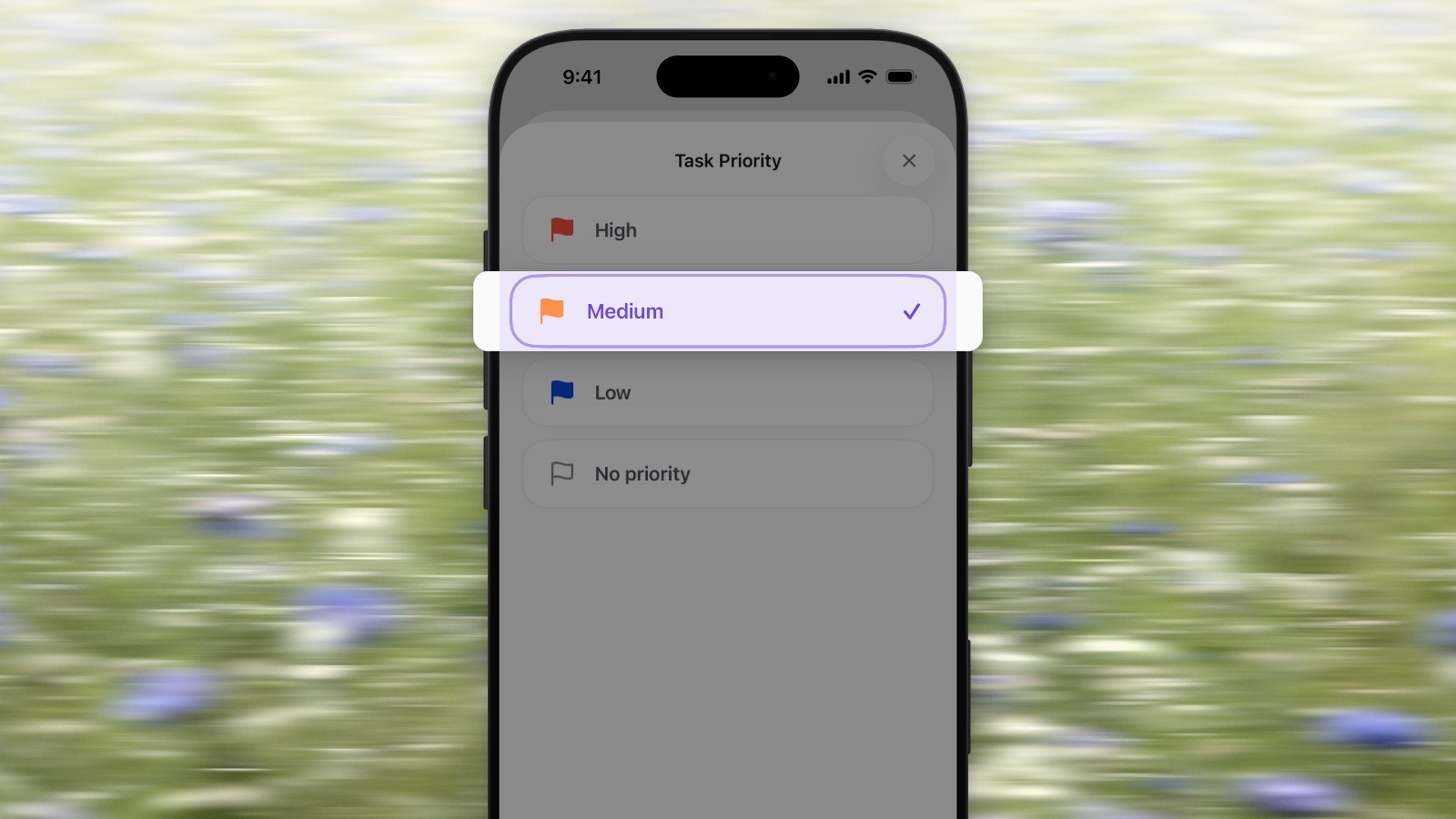
After: the row is lifted, and its card runs past the edge of the phone. Photo: Bernd Dittrich on Unsplash.
Choose the simplest mark that makes the target clear. A short arrow or a thin outline often works for a toolbar button or toggle. Use a magnifier only when readers need to see a detail that is too small at the page’s display size, and center the lens directly over that detail so its location stays obvious. Check the result at the size readers will see it: the mark should identify the control without covering its label or pointing at a neighboring button.
One highlight per image. Two highlights means two images (rule 2).
5. Draw annotations heavy enough to survive being scaled down
Size marks for the size the image is seen at, not the size you drew them at.
Help articles scale images down, and hairlines vanish. By the same arithmetic as rule 3, a 1-point line drawn on an iPhone capture ends up about half a pixel wide in that 720-pixel column, even with the phone at a third of the image’s width.
These starting weights hold up. They’re the defaults in Moonjar, given as fractions of the capture’s width:
Mark | Size | On an iPhone capture |
|---|---|---|
Line and arrow stroke | about 1.15% of the width | about 4.5 pt, which lands near 2.5 px in that 720 px column |
Label text | about 5.5% of the width | about 22 pt |
Numbered circle | about 6.5% of the width | about 26 pt across |
The two images below are the same screen with the same marks in the same places; only their weight and size change. Like every image in this guide, they fill the column: 720 pixels wide on a desktop, about half that on a phone. At 720, the thin arrow is at most about 1 pixel wide and the thin label is 8-pixel type; the default arrow is closer to 3 pixels. On a phone, all of them are about half that.

Before: thin marks, 1.5 pt lines and small type, with the image at the column’s full width. Photo: Bernd Dittrich on Unsplash.
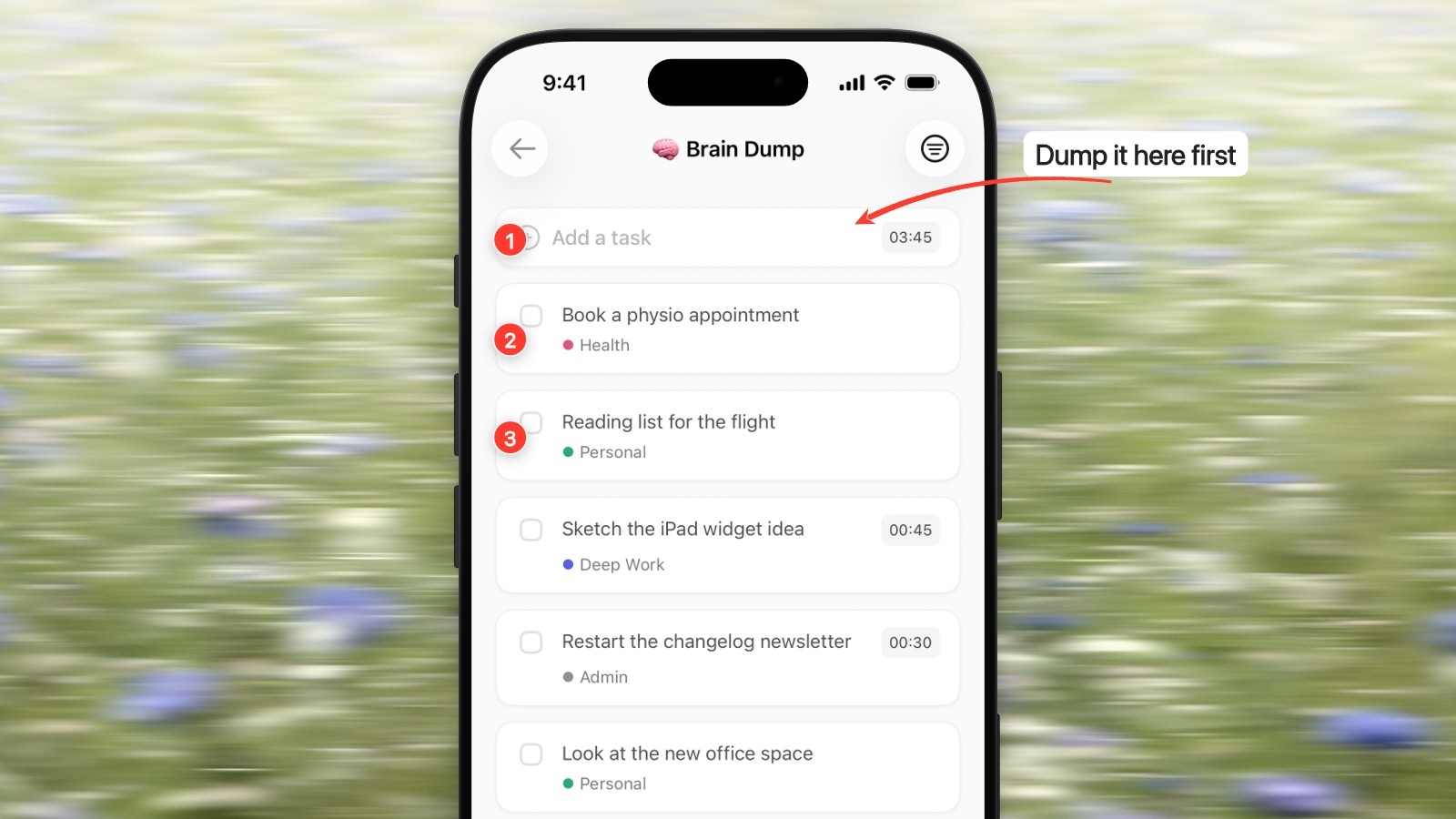
After: Moonjar’s default weights, at the same size. Photo: Bernd Dittrich on Unsplash.
A few more habits that help:
Number steps in the order they happen, and keep the instructions in the article, where they can be read, translated and searched.
Use one mark color that stands apart from the app’s own accent.
Keep arrows short: a pointer from close by, not a line across UI the image isn’t about.
If an image needs more than three or four marks, it’s probably two images.
6. Frame it for where it will be seen
Use the frame people expect for the platform, drawn accurately, or no frame at all.
The frame tells the reader what they’re looking at before they read a word.
The product | Frame | Why |
|---|---|---|
iPhone or iPad app | The current device, in one color | A bare phone capture is just a tall rectangle |
Mac app | The window alone, with its title bar and one soft shadow | The window says “Mac” on its own |
Web app | A light browser window that shows the address | The address says where this lives |
Dense docs (settings, tables, forms) | None: crop to the panel | A frame shrinks the part people need |
For an iPhone app, the frame is the phone:
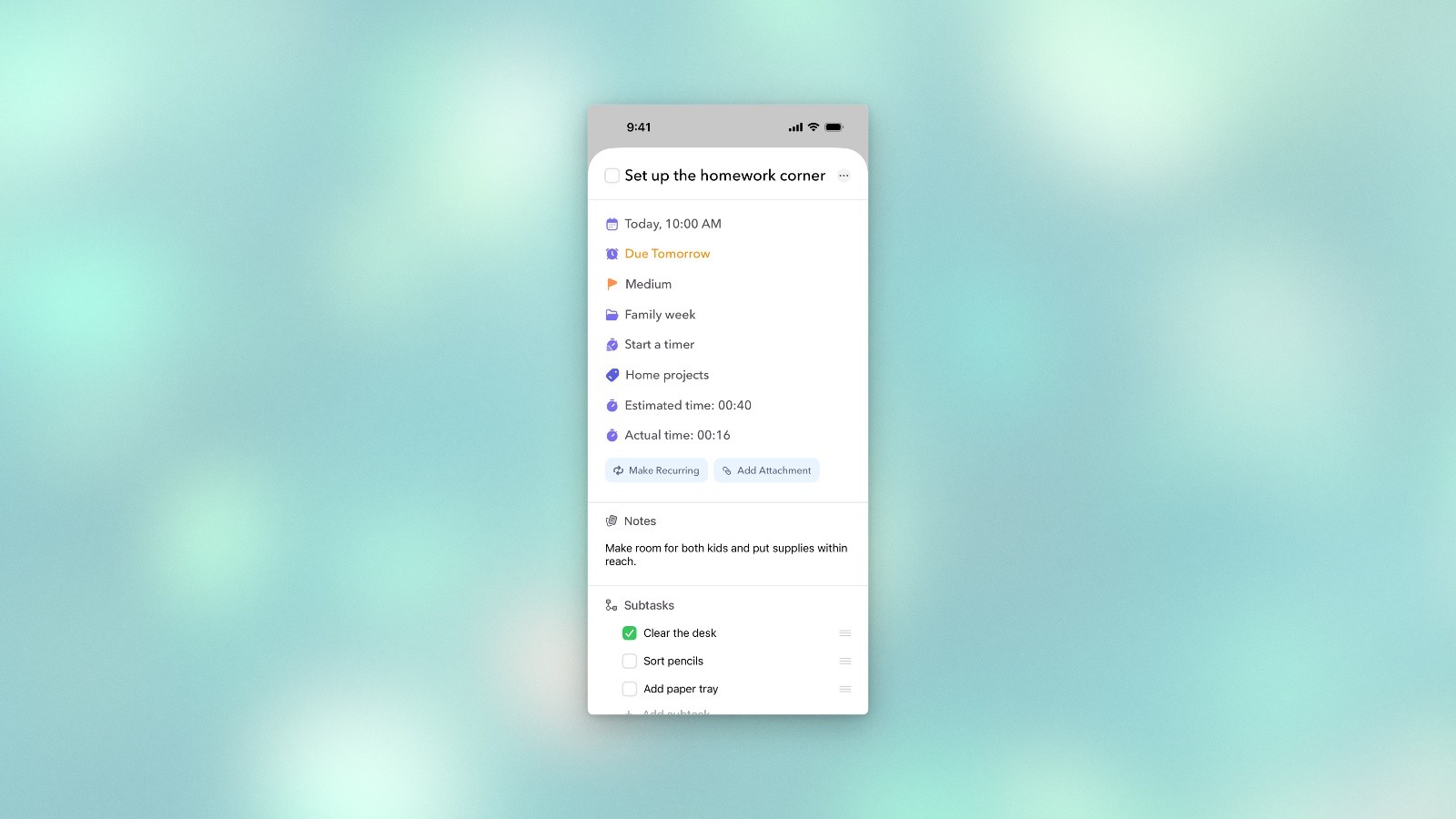
Before: a phone screen with no phone. Photo: Alexander Grey on Unsplash.
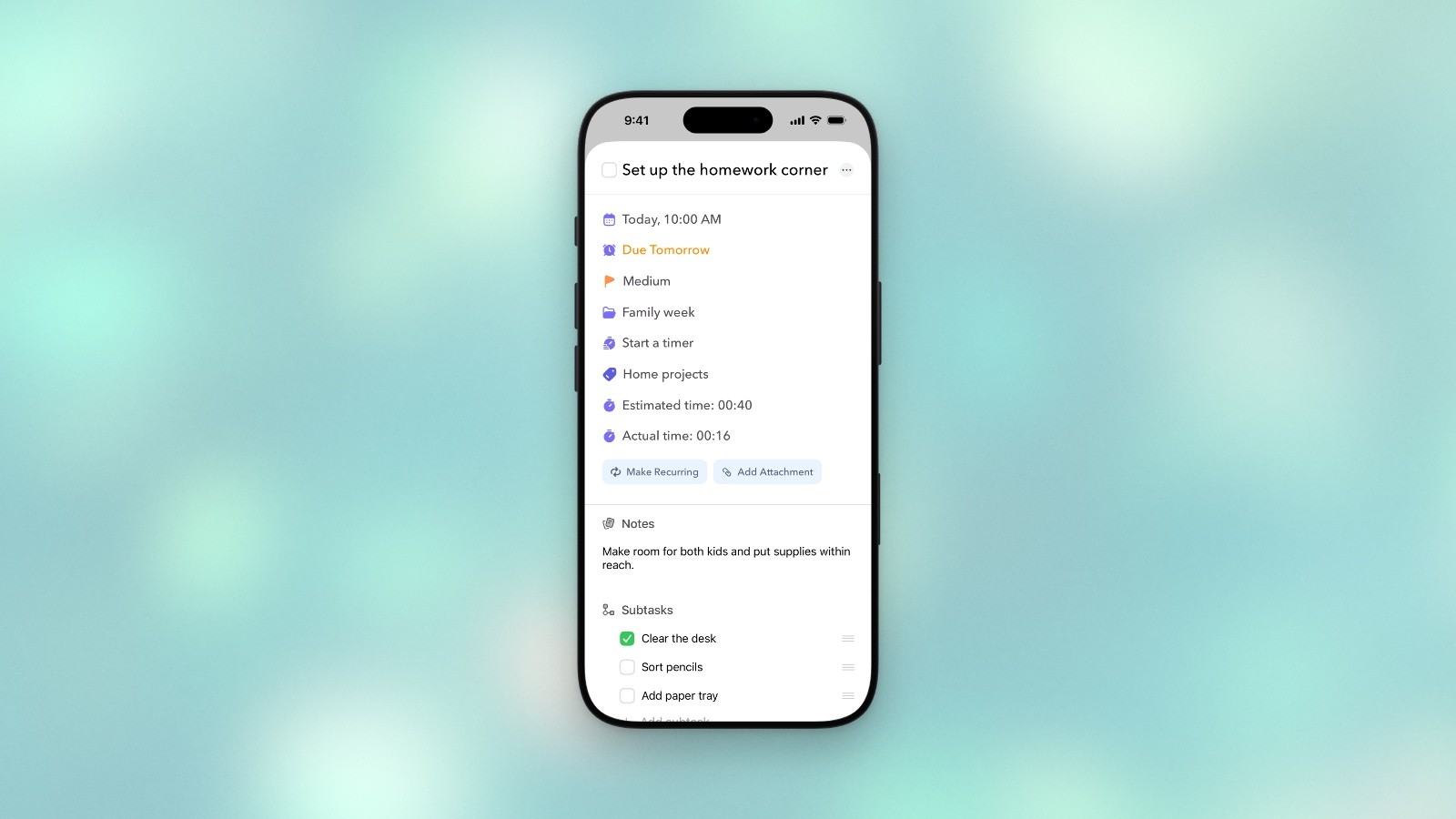
After: the current iPhone, in one color. Photo: Alexander Grey on Unsplash.
The ways to do this, from a free Shortcut on your phone to Apple’s own bezel files, and what to check once it’s framed, are in how to add an iPhone frame to a screenshot.
For a Mac app, the window is the frame:
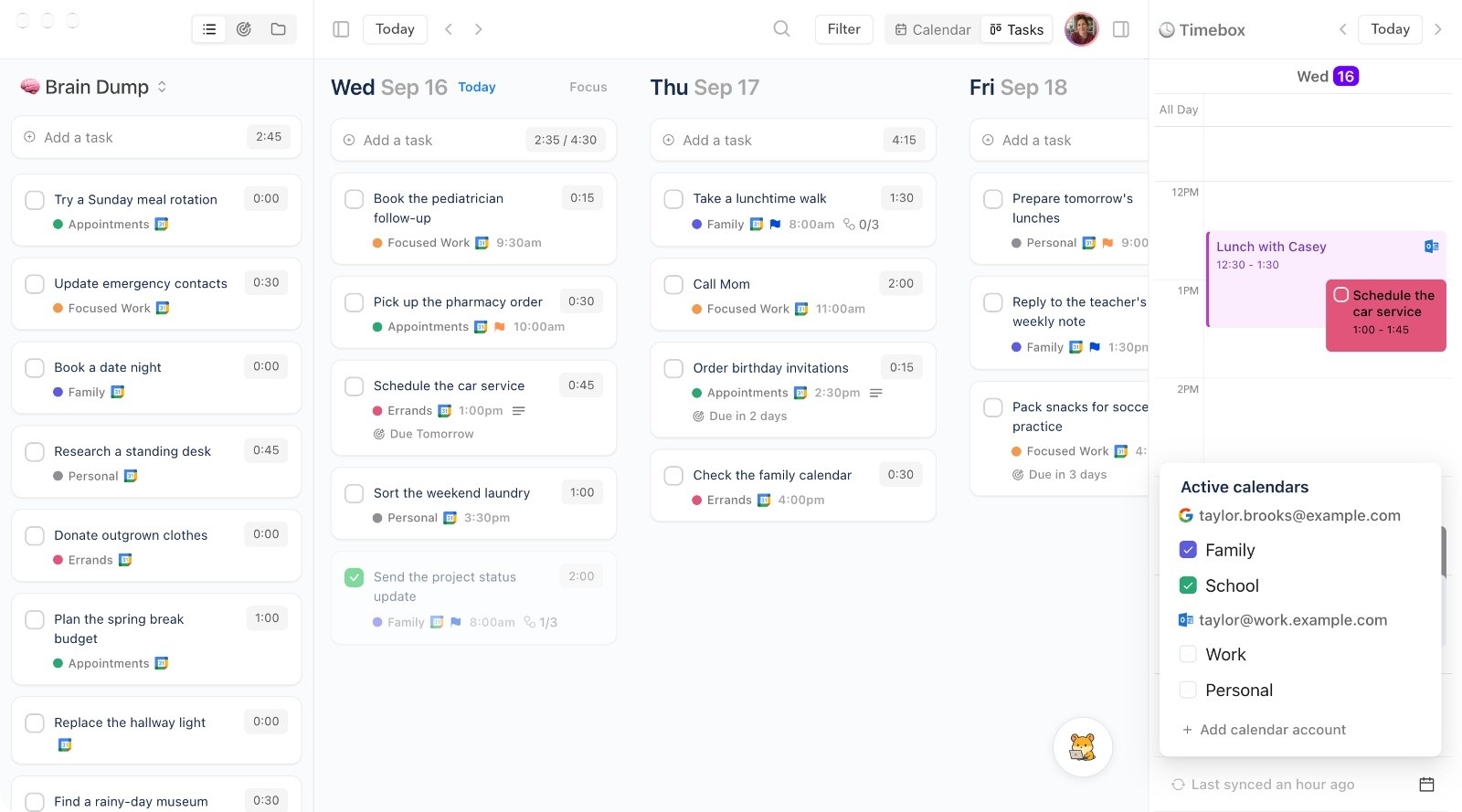
Before: the window as captured.
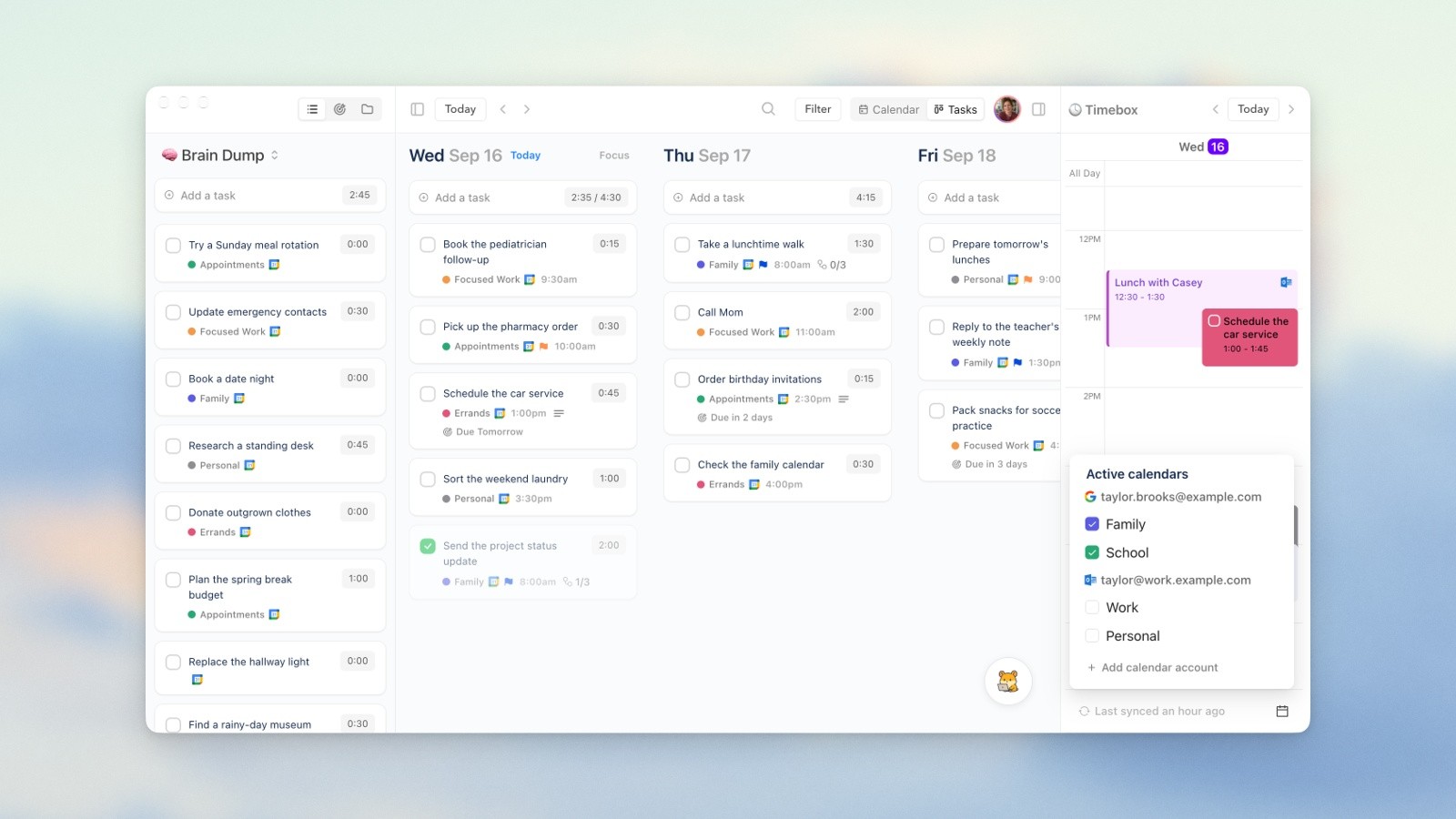
After: the window alone, centered, with one soft shadow. Photo: X F on Unsplash.
For a web page, a light browser window:
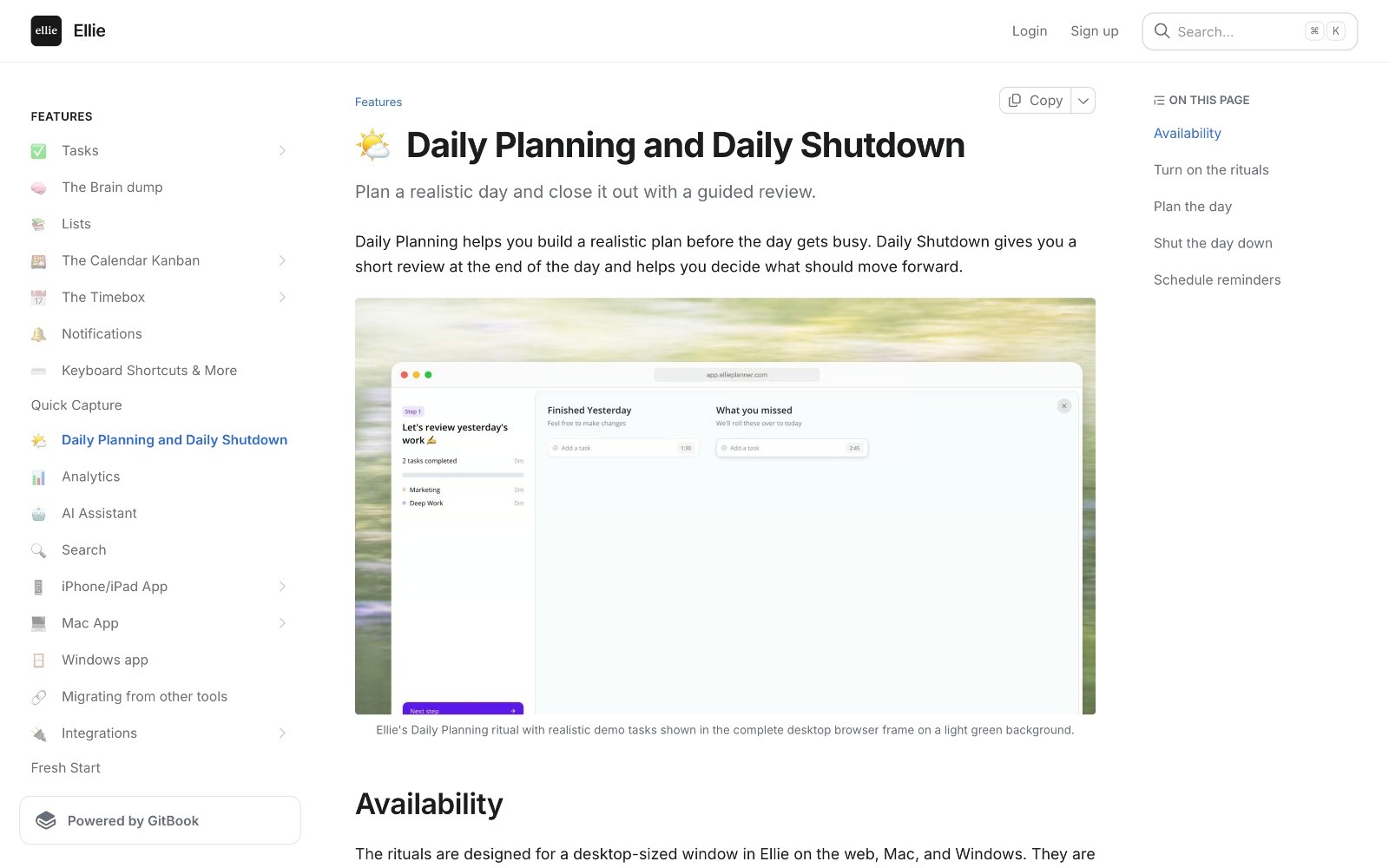
Before: the page as captured, September 18, 2026.
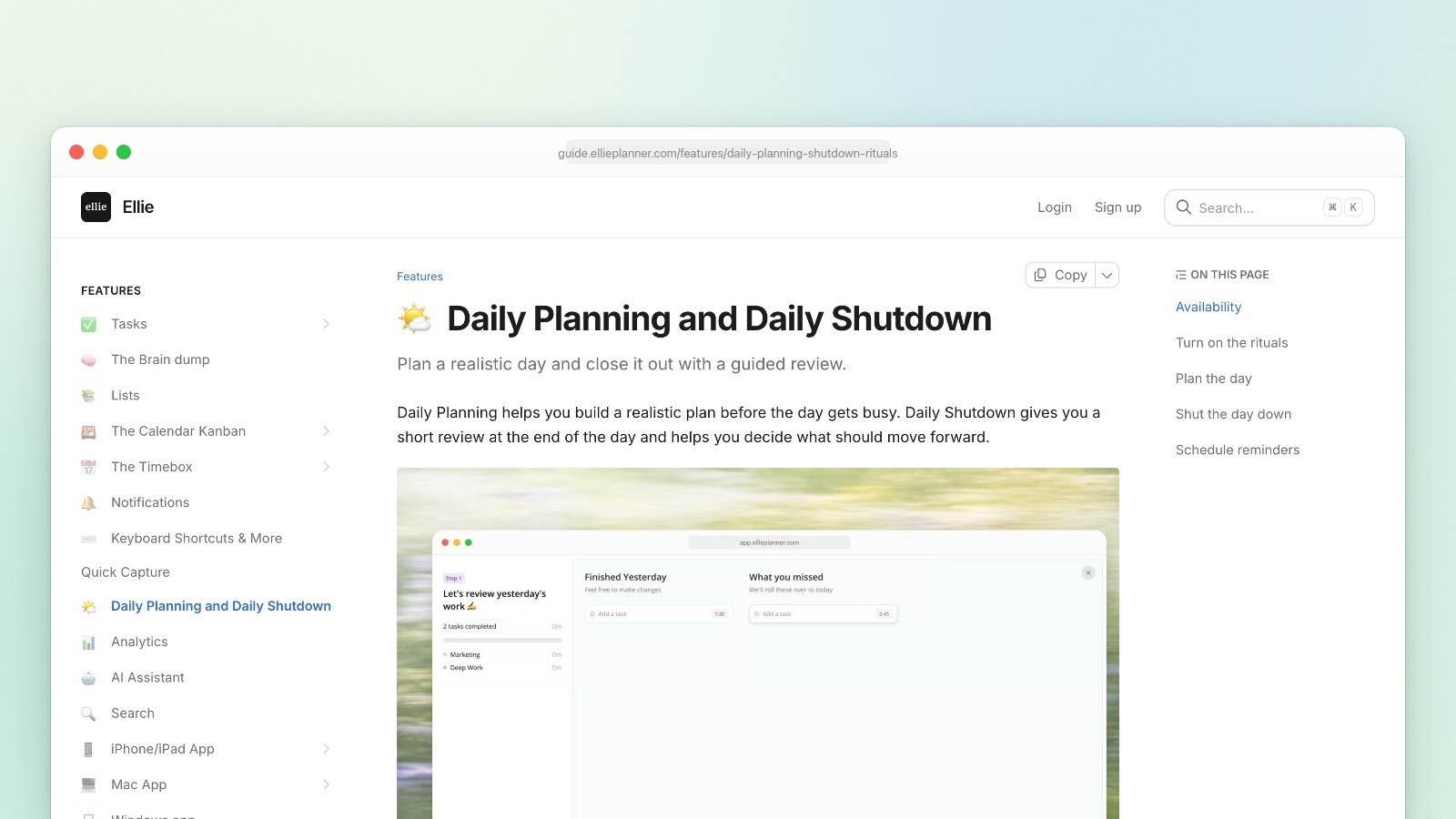
After: a light browser window that shows where the page lives.
How to make a browser window mockup goes through the web case from viewport to export.
Accuracy counts for more than realism. A current device in one plain color reads better than a glossy mockup of an old model, and a frame stretched to fit a capture of a different shape reads as a template.
If you show a phone capture with no frame, round its corners the way the real screen is rounded. A raw capture is a rectangle, but an iPhone 17 Pro’s screen corners have a radius of about 15% of its width (62 of 402 points, measured from the Simulator’s screen mask). The Simulator can do it for you: xcrun simctl io booted screenshot --mask=alpha shot.png saves the screen’s own corner mask as transparency. Don’t upload that file to the App Store, which rejects images with alpha channels or transparency.
7. Treat the background as texture, not subject
A background should set a mood and then get out of the way.
A sharp photo competes with the UI: the eye goes to the flowers before the button. Blur it until it reads as color and light. The look in these images streaks the photo sideways, brightens it a little and takes some saturation out. In Ellie’s help-center images the streaks run about 8 to 12% of the image’s width.
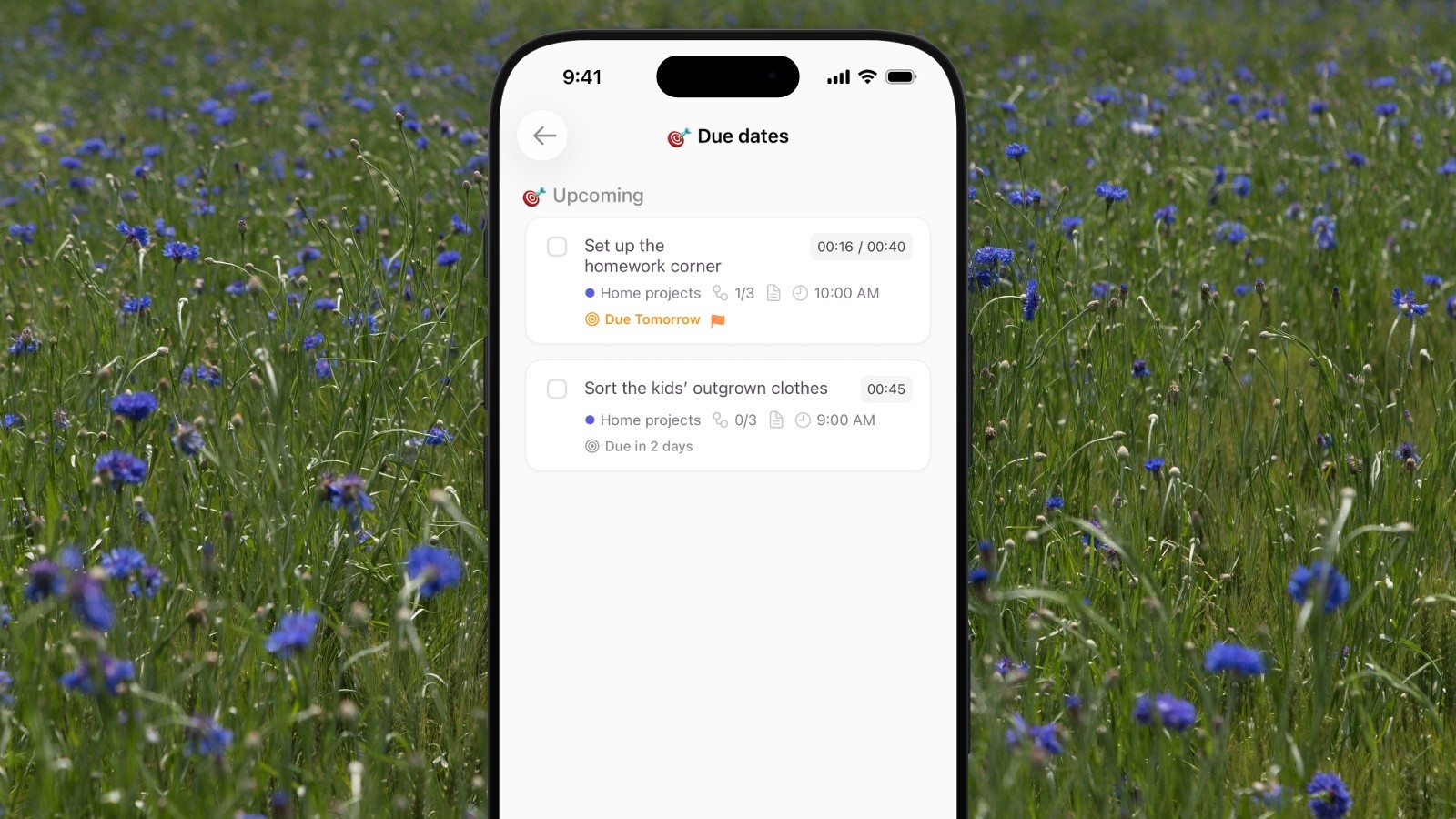
Before: the photo as shot. The flowers compete with the app. Photo: Bernd Dittrich on Unsplash.

After: the same photo, streaked sideways and softened. Photo: Bernd Dittrich on Unsplash.
Take the colors from the app. Keep the background less saturated than the app’s accent color, close to it in hue or a quiet complement, and light behind a light app. Photos from Unsplash are free to use, commercially too, under the Unsplash License, and credit is optional; credit the photographer anyway, in the caption. To see one screenshot on a gradient, a photo, a painting and a plain color, with settings for each, read how to add a background to a screenshot.
8. Use soft, wide shadows, or none
A shadow should say “this sits above the page”, not draw an outline around it.
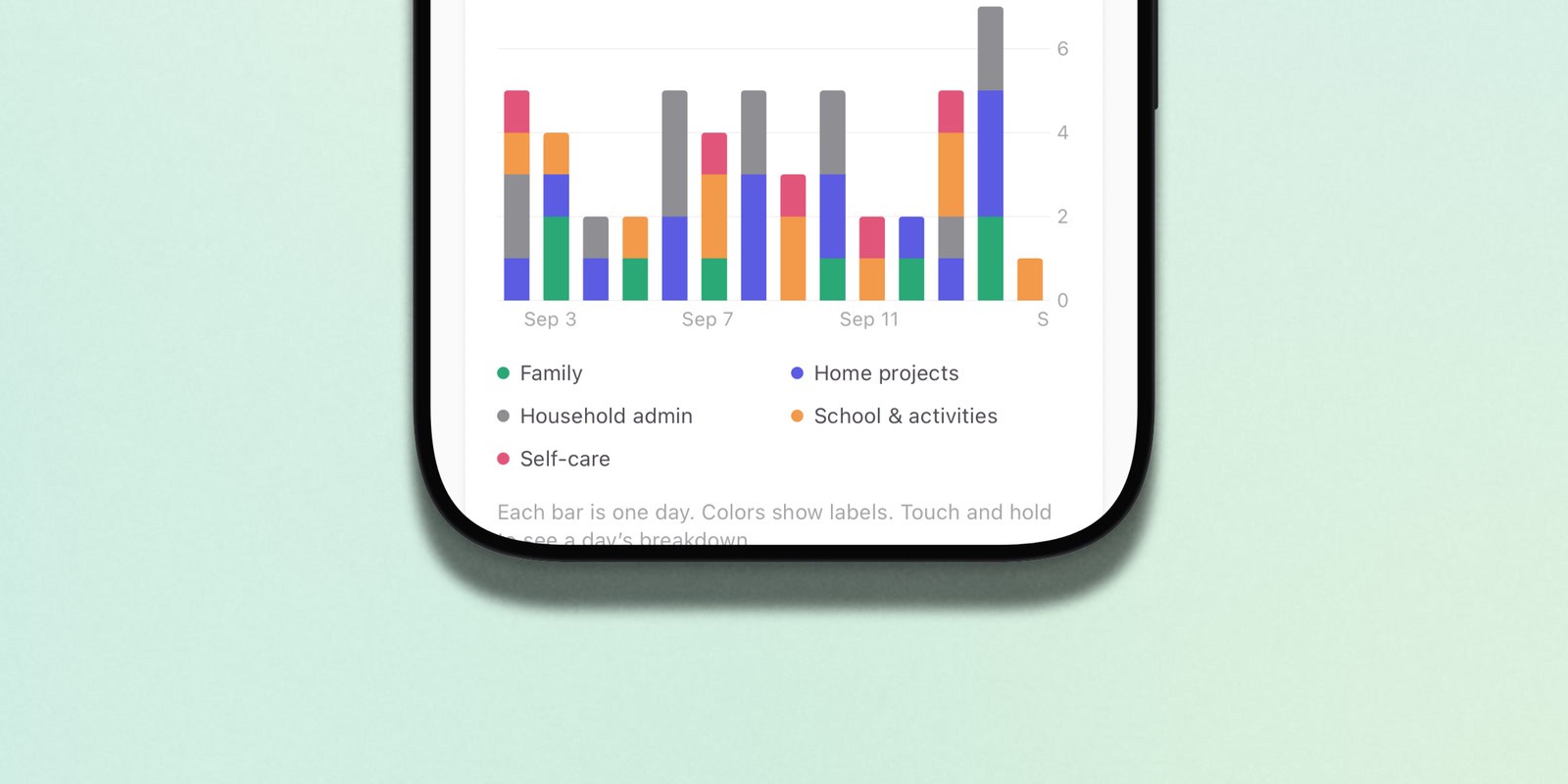
Before: a short, dark, hard shadow. Both images are cropped to the bottom of the phone.
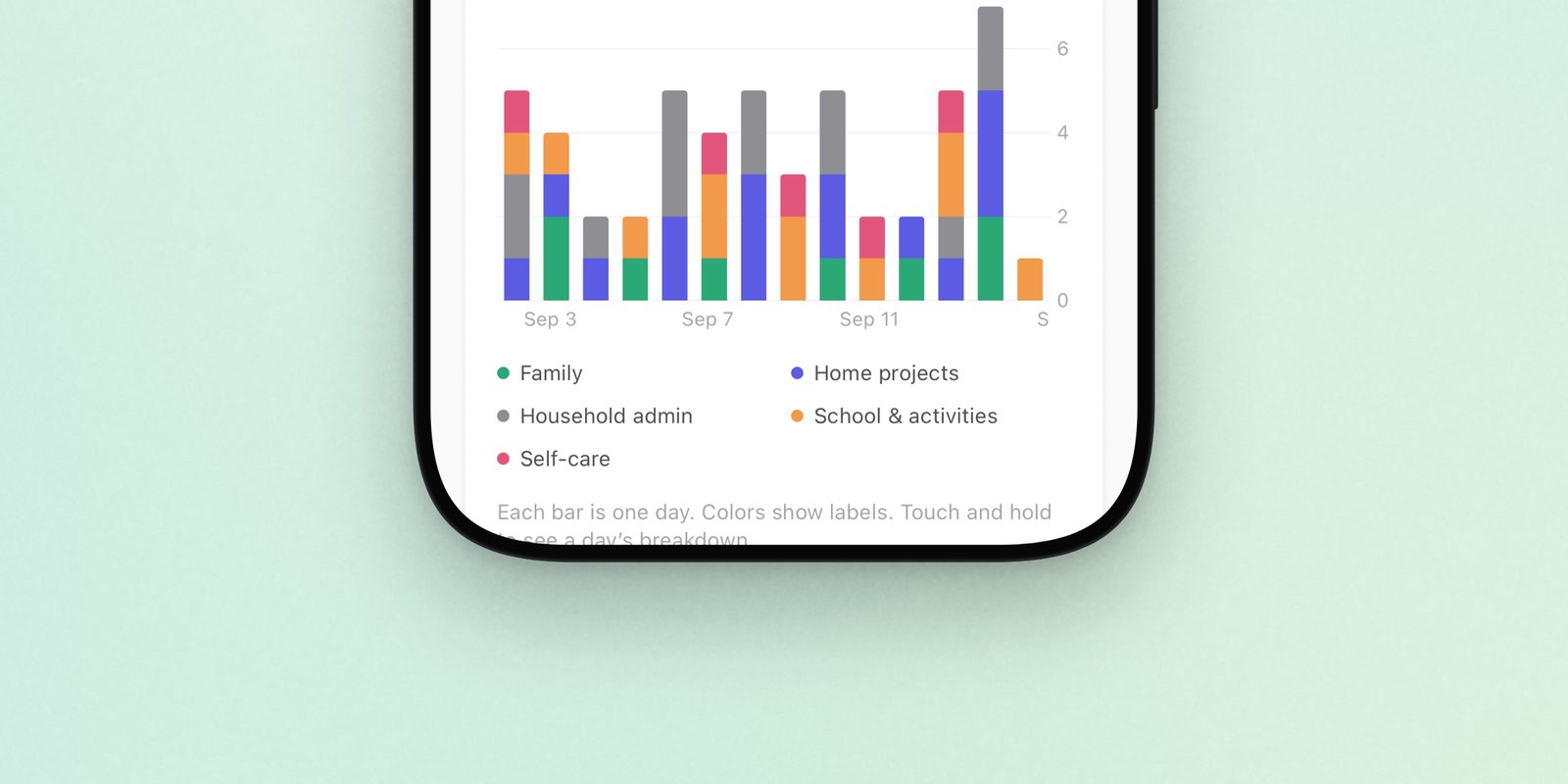
After: a soft, wide shadow.
Numbers that work: a blur of about 4 to 6% of the subject’s height, opacity between 0.15 and 0.3, and a small offset downward of about 1.5 to 3% of the height. A short, dark, hard shadow makes a device look pasted on.
Don’t stack two. A Mac window captured with macOS’s own shadow and then given another one gets a muddy double edge. Capture it without (hold Option, rule 1) and add one.
9. Use one texture idea at a time
Grain, a print look or heavy blur: pick the one doing the work, and keep it on the background.

Moonjar’s default grain, cropped at 100% from a 2560 px export: on the meadow only, not on the app. Photo: Bernd Dittrich on Unsplash.

The same crop with a film finish: for marketing images, not help articles. Photo: Bernd Dittrich on Unsplash.
A little grain stops a smooth background from looking flat and helps hide banding (see the export section). Keep it faint. The default grain in the first crop moves most pixels of the meadow by one or two brightness levels out of 256, so you can barely see it even at 100%, and none of it lands on the captured UI, where grain makes text look like a bad scan. Stylized finishes such as film grain, halftone dots or a risograph print belong on marketing images where the look is part of the point, not in help articles. Judge any texture at 100%, because a scaled-down preview hides it.
10. Center the subject unless the asymmetry is on purpose
Equal space left and right, and a group of devices centered as a group.
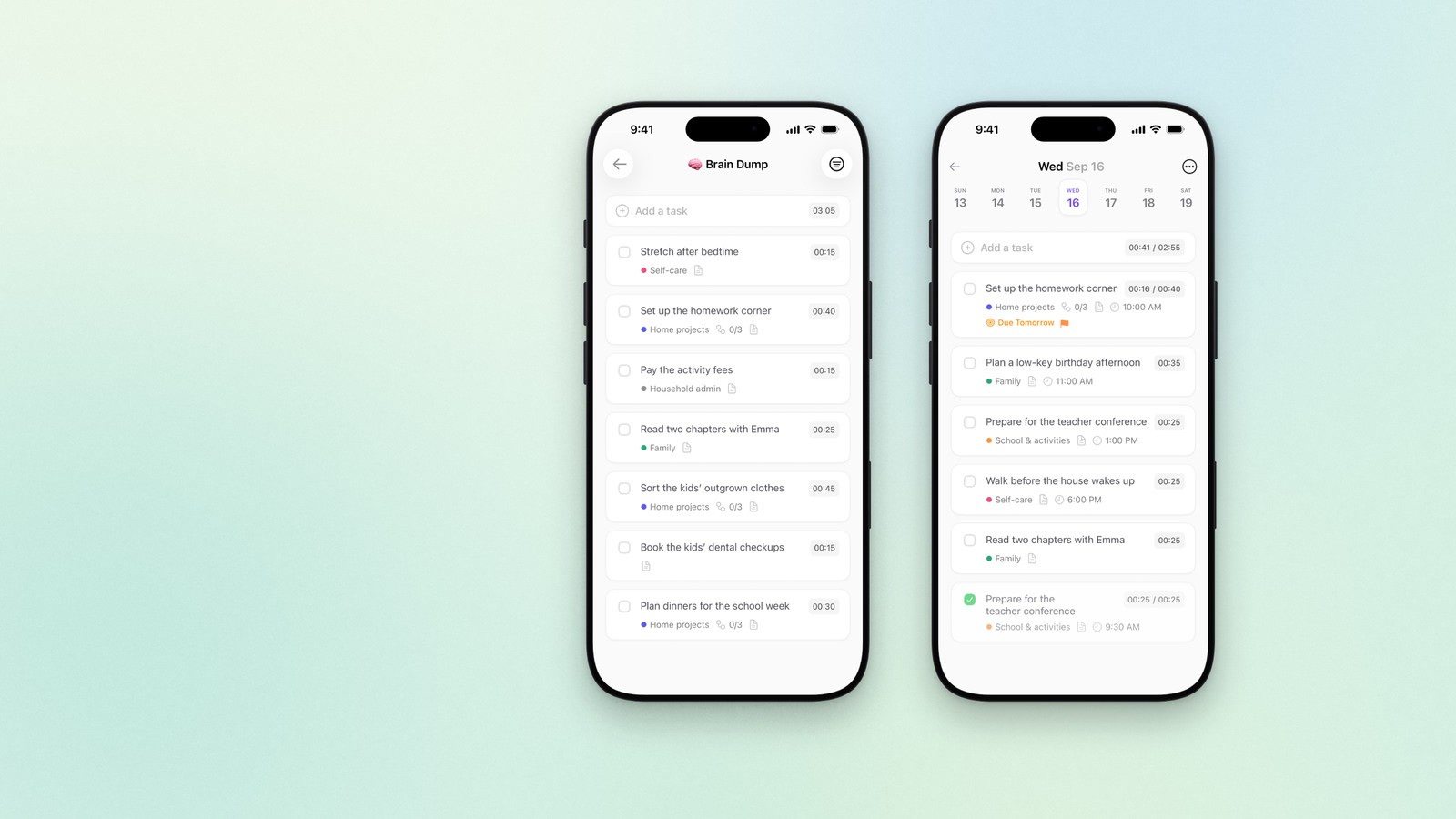
Before: the first phone where a single phone would go, the second added beside it.

After: centered as a group.
A subject a few percent off center reads as a mistake, not a choice. It usually happens with two devices: the first phone goes where a single phone would go, the second is added beside it, and the pair ends up lopsided. Center the group’s combined width instead. To check, measure the empty space to the left of the leftmost device and to the right of the rightmost one; the two numbers should match to within a few pixels.
Vertically, sitting high is normal: most of these layouts put the important part in the upper middle. When you do want asymmetry, such as a card running off the right edge, make it big enough to read as a decision.
11. Keep a set consistent
One layout, one background and one device color for each article or App Store listing. Vary the crop, not the look.

Mixed: a painting, fog and a lake, and two different layouts. Photos: Smithsonian, Inggrid Koe and Gabriel Mihalcea on Unsplash.

Matched: one layout and one background for all three. Photo: Bernd Dittrich on Unsplash.
Readers see a page’s images together. Three screenshots in three styles look like they came from three different places, even when each one is fine on its own. Write the choices down so the next image matches, whoever makes it. The same note is what lets you redo the whole set when the UI changes. Copy this and fill in the right-hand column for your own set:
Decision | The matched set above |
|---|---|
Canvas | 16:9 |
Layout | Phone runs off the bottom, a third of the image’s width |
Device | iPhone 17 Pro, black (a finish Apple does not sell for this model) |
Background | One meadow photo, streaked sideways and softened |
Emphasis | At most one lifted row per image |
Marks | None here; when needed, heavy weights (rule 5) in one color |
Status bar and data | 9:41, full signal and battery, demo account |
Appearance | Light |
Text in the image | None; the sentence beside it explains |
Export | JPEG at twice the column width |
12. Keep text out of the image unless it has to stand alone
In help articles and changelogs, the page is the caption. On the App Store and in social posts, use one short headline.
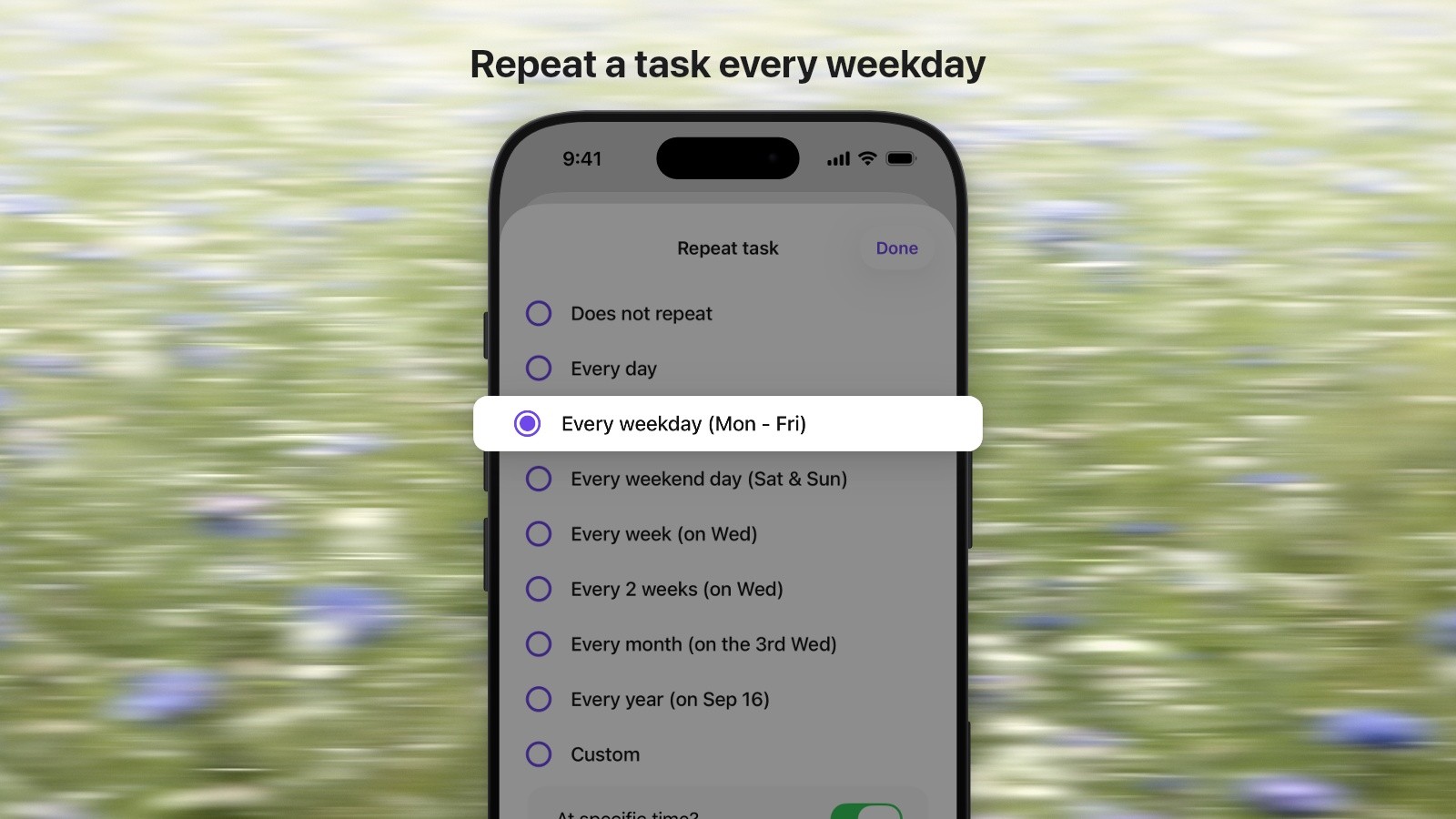
Before: a help image carrying its own headline. Photo: Bernd Dittrich on Unsplash.

After: no text. The sentence next to it does the explaining. Photo: Bernd Dittrich on Unsplash.
Text baked into an image can’t be searched, translated, resized or selected, and it goes out of date along with the UI around it. The web accessibility guidelines say the same: when real text can do the job, use it rather than an image of text. Put the explanation in the sentence next to the image and in its alt text.
Some images have to work alone: App Store screenshots, a social post, a slide. Apple’s App Store Review Guidelines (2.3.3) say screenshots should show the app in use, not merely the title art, login page or splash screen, and that they may include text and image overlays. Keep the headline to one idea in a few words, two lines at most, at the top, and big enough to read on a phone.
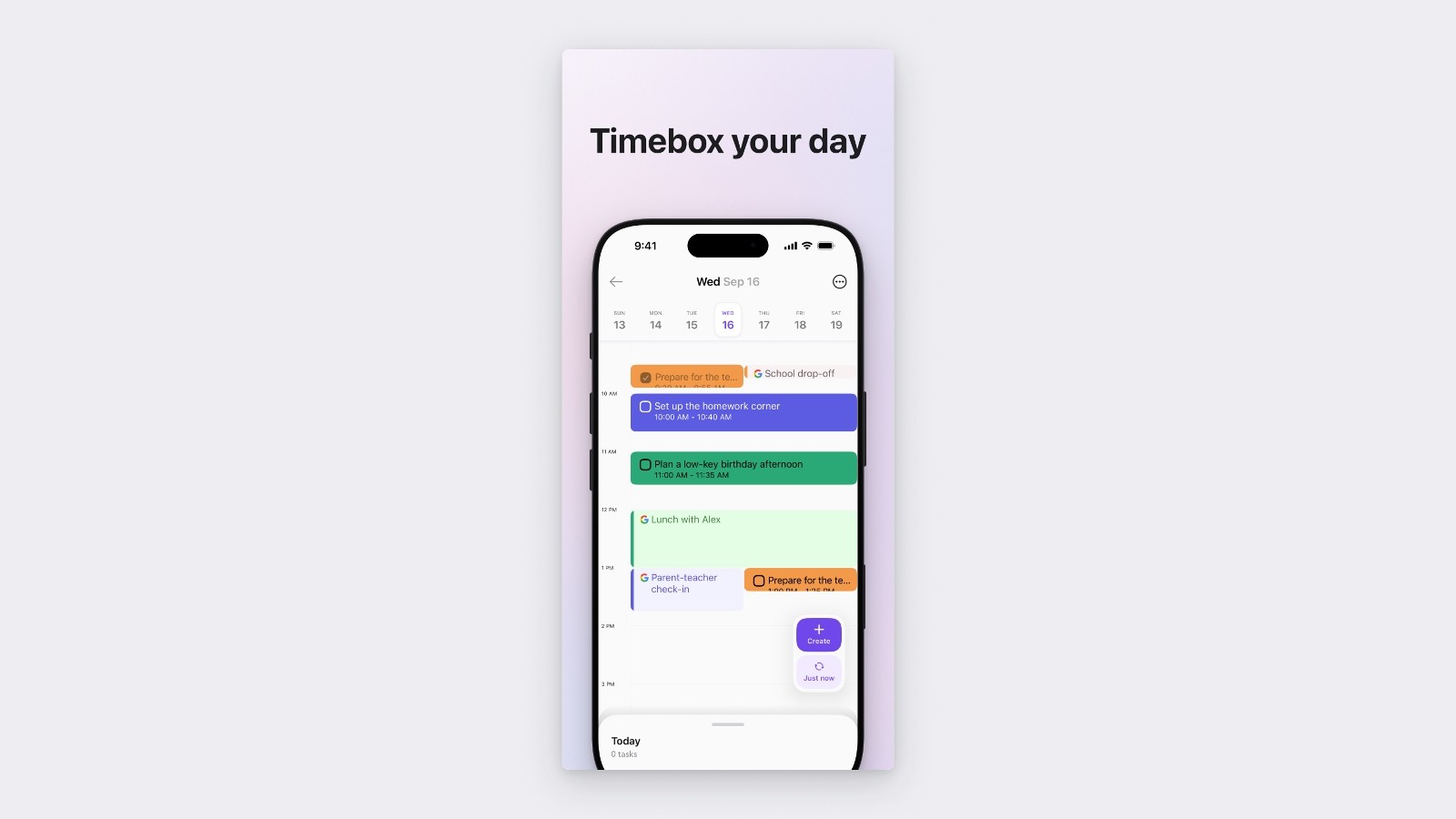
Where a headline belongs: an App Store style screenshot, 1320 x 2868, shown here on a plain page.
Export and redact properly
Size
Export at about twice the size the image will be displayed at, so it stays sharp on high-density screens, and always scale down from a bigger capture, never up. An iPhone 17 Pro Simulator capture is 1206 x 2622 pixels, which is plenty for any of these.
Help article or blog post, full width: twice the column width, at 16:9. This page’s column is 720 px wide on a desktop, so every example image in this guide is at least 1440 px wide. The Siri image in Ellie’s help center is a 1920 x 1080 JPEG of about 310 KB.
Two images side by side: about 1200 px wide each. Each shows at half the column on a desktop and full width on a phone.
App Store, iPhone: 1260 x 2736, 1290 x 2796 or 1320 x 2868 portrait, for the 6.9-inch display. 1 to 10 images, JPEG or PNG, no transparency (Apple’s screenshot specifications).
App Store, iPad: 2064 x 2752 or 2048 x 2732 portrait, for the 13-inch display. Required if the app runs on iPad.
Mac App Store: 1280 x 800, 1440 x 900, 2560 x 1600 or 2880 x 1800. Required for Mac apps.
Link previews (og:image): at least 1200 x 630, close to 1.91:1 so Facebook shows it without cropping, and no larger than 8 MB (Meta’s guidance for link-share images).
Apple adds devices to its list over time, so check the specifications page on the day you upload.
Format
PNG for UI on a flat or transparent background. It’s lossless, so edges and small text stay crisp.
JPEG at high quality (around 95) for images with a photo background or grain, which make PNG files large.
WebP works on your own site. Check that your help desk or CMS accepts it before you switch.
Not HEIF. A Mac set to capture in HDR saves HEIF files; switch to SDR (rule 1) or convert before you upload anywhere.
Banding. An 8-bit image has 256 levels per color channel. Stretch a soft gradient across a wide image and each level becomes a band several pixels wide, which shows as stripes in skies, dark backgrounds and big soft shadows. Fine grain or dithering breaks the steps up, and heavy JPEG compression can smooth that away and bring the stripes back. Export gradients as PNG or high-quality JPEG, and check the file at 100%.
Alt text. Say what the image shows or what changed, as you would to someone on the phone: “Ellie’s settings screen with the Siri / Shortcuts row lifted”, not “screenshot”. Place the image next to the text it illustrates.
Redaction
The best redaction is the one you don’t need, which is why rule 1 starts with demo data. When something private has to be hidden:
Cover text with a solid box. Pixelation and blur look safe but leak. Security researchers at Bishop Fox showed in 2022 that pixelated text can be recovered when the font and size are known, which in a screenshot of your own app they are, and recommended solid bars over the whole text. A public proof of concept called Depix recovers text from pixelized screenshots.
Export a new, flat image. A box drawn in an editable file (a design file, a PDF, a slide) can be moved off again. Export to PNG or JPEG.
Save it as a new file, not over the original. In 2023, two built-in screenshot editors could leave parts of the original image inside an edited file saved in place: the Markup tool on Google’s Pixel phones (the bug known as aCropalypse, CVE-2023-21036, fixed in the March 2023 Pixel update), and the Snipping Tool in Windows 11 and Snip & Sketch in Windows 10 (CVE-2023-28303). Both have been patched. Exporting edits as a new file is still a good habit.

Pixelated: hidden at a glance, but pixelated text can be recovered. Photo: X F on Unsplash.

A solid box over the photo, name and email: nothing left to recover. Photo: X F on Unsplash.
Making them with an agent: Moonjar (our product)
Moonjar is the Mac app we’re building for this job, and it made every image above except Ellie’s published Siri image in rule 1. Your coding agent, such as Claude Code or Codex, drives it over MCP. Much of this guide is its default behavior:
It captures the iOS Simulator, a Mac window, or a web page by its URL. When it captures the Simulator it sets the status bar to 9:41 by default; that override can fail, so check the status bar in the capture.
A Simulator capture keeps the screen’s UI tree, so you can name the row to lift (“the Siri / Shortcuts row”). When a row has no container of its own, you give a rectangle instead: the lifts on the cover and in rules 2 and 12 needed one.
Its default layouts follow rules 3 to 10: the phone running off the bottom, one lifted row that crosses the device edge, heavy annotations, iPhone, iPad, Mac and Apple Watch frames drawn from scratch, photo backgrounds softened into texture with grain only behind the device, and several devices centered as a group.
It can pixelate, blur or cover part of a screenshot with a filled box, and it exports flat PNG, JPEG or WebP files.
Every item keeps its change history, and each product can have written guidelines for its look, so after the app changes you can ask the agent to redo the set in the same look. It doesn’t notice UI changes by itself; you ask.
A request can be as plain as this:
Capture Ellie’s Siri settings in the Simulator, put it on the meadow photo with the phone running off the bottom, and lift the Siri / Shortcuts row.
Moonjar is Mac only and in early access. You can see what it makes on the features page or join the early access list. If you’d rather drive a capture and markup app yourself, CleanShot X alternatives sorts the Mac options by job.
How this guide was made. The images are Moonjar renders of Ellie’s demo data, captured September 16, 2026, and of Ellie’s public help center, captured September 18, 2026, except rule 1’s first image, which is Ellie’s own published help image. Photo credits are in the captions; the cover photo is by Bernd Dittrich on Unsplash. Apple’s, Chrome’s and Meta’s requirements were rechecked on September 19, 2026. The annotation advice in rule 4 was revised September 22; the images and source checks on this page are unchanged. The text was drafted with AI assistance.