
How to put a screenshot in an iPhone frame, and check that it fits
The free Apple Frames shortcut step by step, then the other ways to put an iPhone screenshot in a device frame, and how to check that the frame fits.
Chris Raroque
·

The quickest free way to add an iPhone frame to a screenshot is Apple Frames, a shortcut from MacStories that runs in Apple’s Shortcuts app on iPhone, iPad and Mac. It picks the frame from the screenshot’s resolution, adds it, and hands you the framed image to save or share. The steps are below, followed by the other routes: an app, Apple’s own bezel files for a design tool, a web tool, and Moonjar, our product, which made the images on this page.
Whichever you use, look at the result before you share it: the right model, the screenshot’s corners inside the frame’s opening, and the Dynamic Island in the right place. The checklist is at the end. Apple Frames and the other third-party tools here weren’t run for this page; the steps come from their own pages, checked on September 19, 2026.
Frame a screenshot with Apple Frames, step by step
According to MacStories’ Apple Frames 4 announcement (April 2026), where the download link is:
Add the shortcut. Open the announcement on your iPhone, iPad or Mac and use its download link to add Apple Frames to the Shortcuts app.
Run it once to set it up. The first run asks to download its frame images from MacStories’ servers into iCloud Drive, in Shortcuts > Frames. MacStories suggests keeping that folder available offline so the shortcut runs quickly.
Take the screenshot. On an iPhone with Face ID, press the side button and volume up together.
Run Apple Frames on it. From the screenshot’s share sheet, choose Apple Frames. You can also run it from the Shortcuts app, a Home Screen widget or, on a Mac, a Finder Quick Action.
Set the frame color, if you want one. Version 4 added frame colors for the iPhone 16 and 17 families and the iPhone Air; the default comes from the color order you set in the shortcut, which MacStories’ post explains.
Save or share the result from the menu it shows when it’s done, such as copying it or sending it somewhere else.
It supports the iPhone 17, 17 Pro and Air, the iPhone 16 and 15 families, the iPhone 12 and 13, and the iPhone 8 and SE, plus iPads, Macs and Apple Watches. If you frame screenshots from more than one device at once, it can merge them side by side, scaled to each other’s real size.
The one thing to watch is the model. Apple Frames picks the frame by matching the screenshot’s resolution to the frames it has, and several iPhones share one: Apple lists the same 2622 by 1206 pixel display for the iPhone 17 and the iPhone 17 Pro, and the iPhone 16 Pro and 18 Pro use it too. When devices share a resolution, it uses the newest one it has by default. Neither MacStories’ announcement nor the command line tool’s README lists an iPhone 18 frame (checked September 19, 2026), so expect an iPhone 18 Pro screenshot to get an iPhone 17-series frame. If the frame isn’t your phone, pick yours in the shortcut’s Device Variants list.
MacStories describes frames only, with no background options, so if you want the phone on a color or a photo, add that in an editor afterward. The screenshot backgrounds guide compares four kinds on the same image.
Many screenshots on a Mac: the frames command line tool
The same frames come in a free, open-source (MIT) command line tool, frames-cli, for batches. It needs Python 3.8 or newer and Pillow, and its README gives the install steps; its setup downloads about 40 MB of frame images from MacStories. Then:
frames screenshot.pngwritesscreenshot_framed.pngbeside the original.frames -c "Cosmic Orange" screenshot.pngpicks a frame color.frames -m first.png second.pngmerges several into one image.--deviceoverrides the model when it guesses wrong, since it also uses the newest frame when resolutions collide.
Other ways to frame it
An app: Shareshot
Shareshot runs on iPhone, iPad and Mac (the Mac version needs macOS 26 or later). Its US App Store listing says single framed screenshots are free with no watermark. Batch mode, custom backgrounds, custom frames and Shortcuts need Pro, listed as in-app purchases at $1.99 a month or $14.99 a year (version 2.0.2, checked September 19, 2026).
Apple’s product bezels, in a design tool
If you’re placing the screenshot in a page or a slide you’re designing, start from Apple’s own files. Apple Design Resources offers product bezels as Photoshop and PNG files, downloaded as disk images, for current phones including the iPhone 18, iPhone 17 and iPhone 16. If you searched for an iPhone frame PNG, these are the files to start from: you place your screenshot into the frame’s screen area in Figma, Sketch or Photoshop. If you need an iPhone 17 Pro frame in particular, iPhone 17 Pro mockups lists the free files for it and what each license asks of you.
It’s manual work. You size the screenshot to the opening, round its corners or mask it to the screen shape, and repeat for every screenshot.
If the image markets an app, read Apple’s App Store marketing guidelines before you pick any frame. Their section on Apple product images asks you to use Apple product images as is, without modification, lists “creating any simulation of an Apple product” among the uses that aren’t permitted, and allows illustrations of Apple products only in instructional material. For marketing materials, the same guidelines name cropping, tilting and added shadows or reflections as modifications, disallow 3D renderings and simulations, and ask for the latest-generation supported device. A frame drawn by Moonjar or a generator is a simulation; check those guidelines before using one to promote an app.
A web mockup tool
Web mockup generators let you upload a screenshot and download it in a frame, with nothing to install, but the two that come up for this search lag behind current phones:
MockUPhone calls itself a free device mockup generator. Its all devices page lists iPhones up to the iPhone 15 Pro Max (checked September 19, 2026).
WithFrame frames a screenshot you upload in the browser or send with
curl, and says it detects the device from the screenshot’s dimensions. Its list stops at the iPhone 16 Pro Max, and it maps 1206 x 2622 to the iPhone 16 Pro (checked September 19, 2026).
For a current phone, the newest frame either one offers is an older model’s. WithFrame’s curl route sends the file to WithFrame’s server, and MockUPhone’s homepage doesn’t say where the image is processed. For an app screen you haven’t shipped yet, check that before you upload. Device mockup generators compares tools with newer phones, Apple’s own bezels and frames drawn in code.
Have your agent do it on a Mac: Moonjar (our product)
Moonjar is a Mac app I make, currently in early access with no published price. It draws its devices in code rather than using bezel images, and you drive it from a coding agent such as Claude Code or Codex through Moonjar’s MCP server. AirDrop the screenshot to your Mac and give the agent the file, with the look you want in plain words.
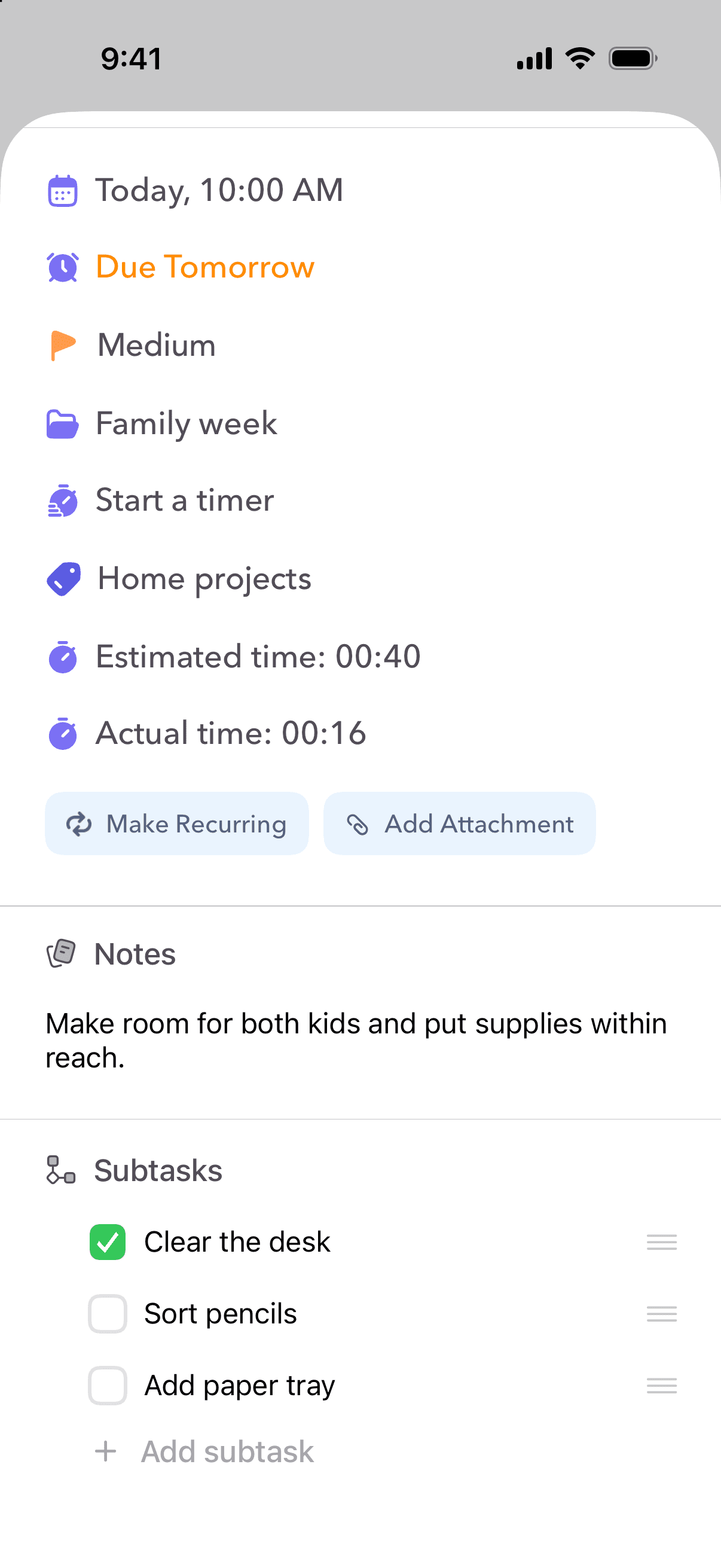
The images below are one Ellie screenshot (Ellie is a planner app I make) styled three ways. The input is a 1206 x 2622 capture from the iPhone 17 Pro simulator with demo data. Open the unframed input at full size to compare it with the frames below: it has square outer corners and no drawn Dynamic Island.

Moonjar’s drawn iPhone 17 Pro in black, a finish Apple does not sell for this model, with the whole phone in view. Made with Moonjar from Ellie’s demo data. Photo by Alexander Grey on Unsplash.

The same screenshot in the matte clay finish on a plain cream background. Made with Moonjar from Ellie’s demo data.

On a photo, with the phone running off the bottom edge so the top of the screen reads large. Made with Moonjar from Ellie’s demo data. Photo by Bernd Dittrich on Unsplash.
What it does and doesn’t do:
Models. It draws the iPhone 17 Pro, iPhone 17 Pro Max and iPhone Air. For the iPhone 17 Pro, its silver, blue and orange finishes correspond to Apple’s sold colors; black and white are invented finishes. It offers the Air in black, white, sky blue and gold, and any of them in matte clay.
Picking the model. It matches the screenshot’s pixel size to those three phones. A 1206 by 2622 screenshot gets the iPhone 17 Pro even if it came from an iPhone 17 or 18 Pro, and a phone size it doesn’t draw also gets the iPhone 17 Pro. You can name the model instead.
The screen. It clips the screenshot to the screen’s rounded shape and draws the Dynamic Island for screenshots at its three phones’ sizes.
Drawbacks. It runs only on a Mac, draws only those three iPhones (plus an iPad Pro, MacBook Pro and Apple Watch), and is in early access. See what Moonjar makes.
Check the frame before you share it
A frame that is slightly wrong looks worse than no frame. Look at the result at full size and check:
The model. A frame chosen by resolution can be the wrong phone when phones share a size, as the iPhone 16 Pro, 17, 17 Pro and 18 Pro do, or an older phone when the tool has no frame for yours.
The corners. Apple’s iPhone 17 tech specs note that the display has rounded corners within a standard rectangle. Your screenshot is that full rectangle, so the frame has to clip it to the rounded shape. Look for square corners poking past the bezel, or a gap of bezel color between the screen and the frame.
The Dynamic Island. On a phone that has one, it should sit centered at the top, with the time on its left and the battery on its right, and nothing in the status bar hidden under it.
The status bar. A screenshot from your own phone shows your own time, signal and battery. If the image is for a store page or a help article, take the screenshot when the battery is full and no notifications are showing.
Size. Keep the frame at the screenshot’s full resolution and export at least twice the width the image will be shown at, so the text stays sharp on high-resolution screens.

The top of the realistic frame, close up: the screenshot is clipped to the screen’s rounded corners, and the Dynamic Island sits between the time and the battery. Cropped from a double-resolution render of the first image, made with Moonjar.
If your screenshot comes from the iOS Simulator, two things differ: you can set a clean 9:41 status bar before you capture, and the capture sometimes includes a black Dynamic Island pill that a frame then has to line up with. The Simulator screenshot guide covers both, plus fastlane’s frame tool for whole folders. For what makes the screenshot itself worth framing (crop, legibility, what to point at), see how to make a good product screenshot.
How this page was made
The four images were made with Moonjar, our product, on September 18, 2026, from a capture of Ellie’s demo data on the iPhone 17 Pro simulator taken the day before. The background photos are by Alexander Grey on Unsplash and Bernd Dittrich on Unsplash. Apple Frames, frames-cli, Shareshot, Apple’s bezel files, MockUPhone and WithFrame were not run for this page; they are described from their own pages, checked on September 18 and 19, 2026. This page was drafted with AI assistance.