
Screenshot backgrounds: gradient, photo, fine art or plain color, with examples
The same app screenshot on a gradient, a photo, a painting and a plain color, with the exact settings for each and when to leave the background off.
Chris Raroque
·

To add a background to a screenshot, set it on a larger canvas with the same space on every side, fill that space with a plain color, a gradient or a softened photo, and give the screenshot a shadow or a device frame so its edge shows. A free web tool or any design app can do that part; a few are listed at the end. The judgment is in the background itself: it should give the screenshot an edge, a little depth and a mood, then stay out of the way of the UI.
Every example below is the same capture of the Task Priority sheet in Ellie, my planner app, with the same lifted row, so only the background changes. Under each one are the exact settings it was made with, in units you can use in any editor. They were made with Moonjar, which is our product.
How to add a background to a screenshot
Start with a clean capture. Crop to the part of the screen the image is about and clear out test data and notifications. A background cannot rescue a busy screenshot; how to make a good product screenshot covers the capture itself.
Choose the background by where it will live. A help article, a landing page, a social post and an App Store listing want different amounts of color. The four types below cover most cases.
Give it even room on every side. Padding that is heavier on one side makes the screenshot look like it is sliding off the canvas. If the device bleeds off the bottom on purpose, keep the left and right margins equal.
Make it quieter than the UI. Blur a photo, streak it, lower its contrast or pick a lighter tint. If your eye lands on the background before the app, turn it down.
Add a shadow or a device frame so the edge reads. Many app screens have a white outer edge. On a pale background that edge disappears unless something separates it. For the frame itself, see how to add an iPhone frame to a screenshot, or how to make a browser window mockup for a web page.
Export at twice the display size. A background with fine grain or a soft gradient bands and blocks when it is scaled up or compressed hard.
The layout all four share
Copy these and only the background changes:
Canvas: 2560 x 1440 pixels (16:9), exported as a JPEG, 2000 pixels wide.
Phone: a third of the canvas width (about 845 pixels), centered left to right, its top edge 144 pixels (10%) down from the top, and its bottom running off the canvas.
Shadow: one soft shadow at about 26% opacity, blurred about 90 pixels and dropped about 28 pixels. That’s roughly 5% and 1.6% of the phone’s height, so scale it with the phone.
Emphasis: the Medium row lifted onto a card, with the rest of the sheet dimmed by 25%.
One screenshot on four backgrounds
A procedural gradient
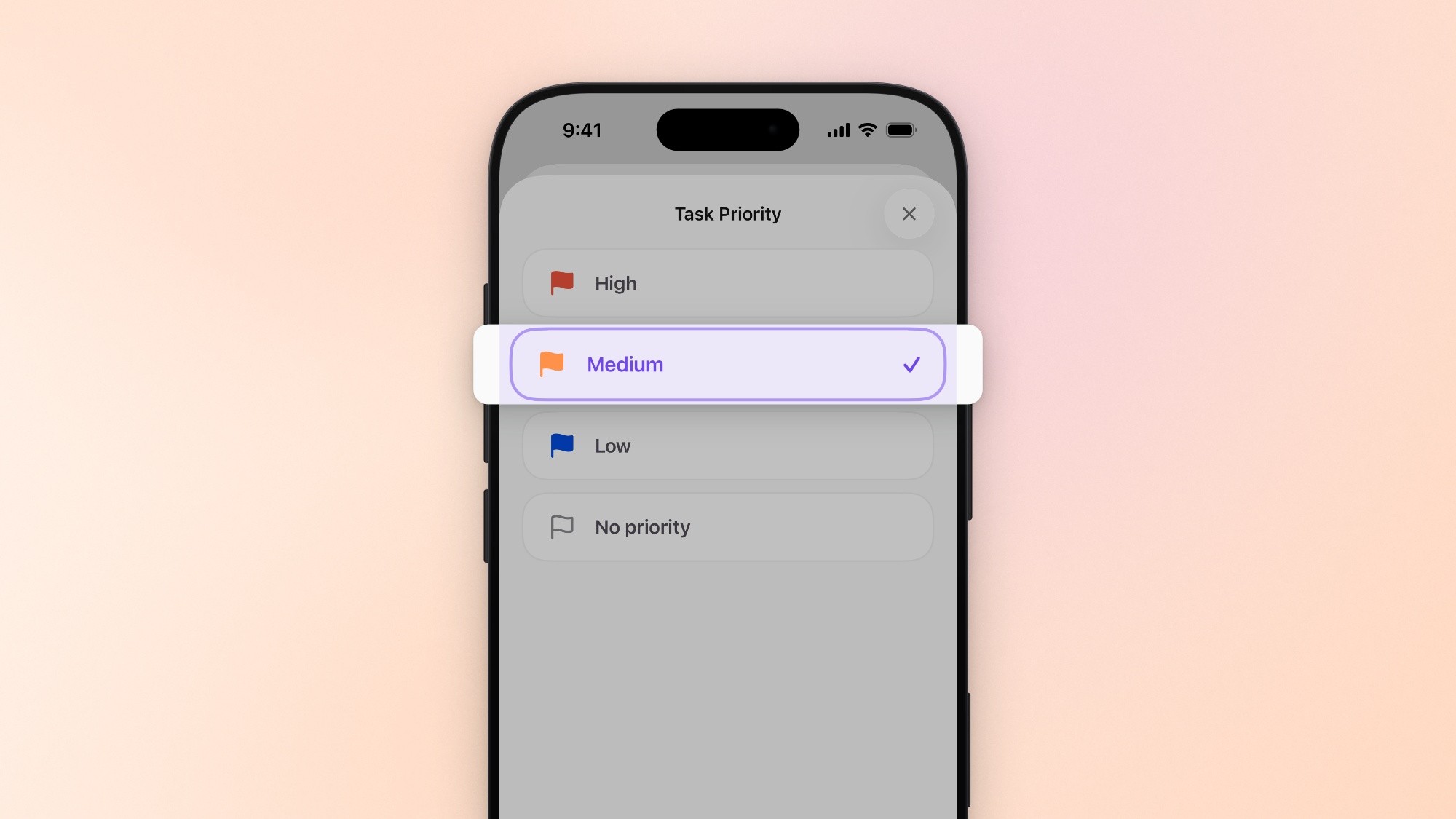
Procedural gradient (the Peach glow look). Made with Moonjar, our product, from Ellie’s Task Priority screen, September 18, 2026.
A gradient is the safe default for a landing page or a feature announcement. It carries color without carrying a subject, so nothing in it competes with the text on the screen. This one is drawn in code rather than taken from a photo.
Settings: a soft mesh of five warm tints, #FFF3EA (cream), #FFD9C2 (peach), #FFC9B5 (salmon), #FFE6C7 (apricot) and #F6D0DE (pale pink), with a very faint grain, too faint to see at normal size. Any mesh-gradient tool takes a list of hex colors like this.
Use it when: you need a brand color or a mood and the screenshot has to stay the only thing in focus. Keep the tints close in lightness, as these are. A gradient that runs from a dark color to a light one pulls the eye to the dark corner.
A photo, softened
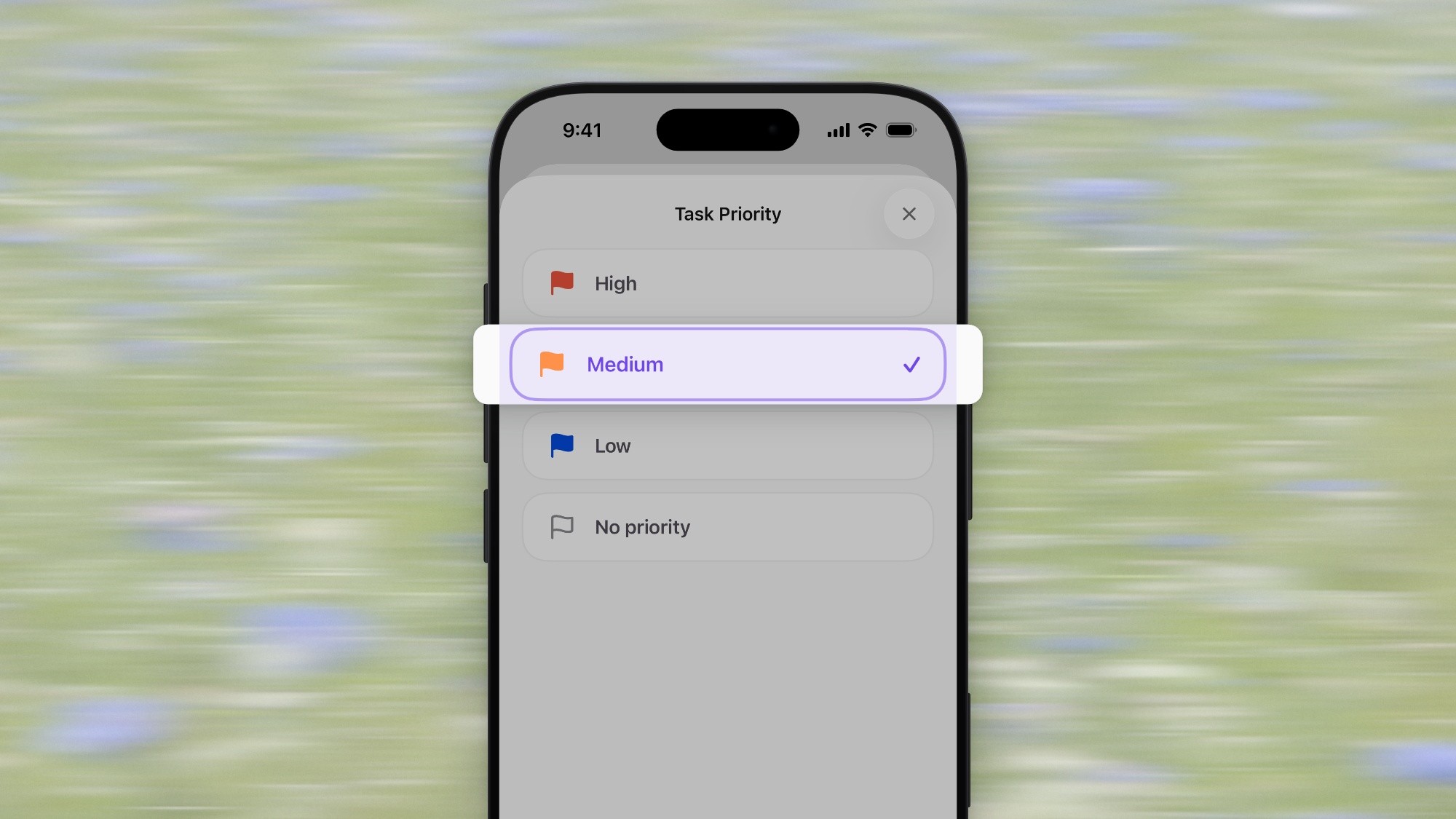
Photo background with motion streaks. Photo by Bernd Dittrich on Unsplash.
A photo gives the image a place and a season, which is why it suits changelogs, feature posts and help centers that want to feel warm rather than corporate. Used sharp, though, a photo is the busiest thing on the canvas. The meadow here is a real photo of a field of small blue flowers, streaked along one direction until each flower is a short blue line. That keeps its color and texture and removes the detail that would pull the eye.
Settings: a horizontal motion blur about a tenth of the canvas width long (roughly 250 pixels at 2560 wide). Then brighten the photo until its average brightness is about 66% (about 168 on a 0 to 255 scale), and finish with 5% more brightness, 5% more contrast, 10% less saturation, an 8% white wash and the same faint grain.
Use it when: the image is decorative as well as instructive, and you can soften the photo enough that the UI still wins. Pick photos without a subject (no faces, no buildings, no text) and with small repeating detail, like grass, water or sand, which blurs into texture instead of blobs.
Unsplash photos are free to use without asking, commercially too, and the Unsplash License says attribution is appreciated rather than required. Credit the photographer anyway, in the caption, as above.
A fine art background
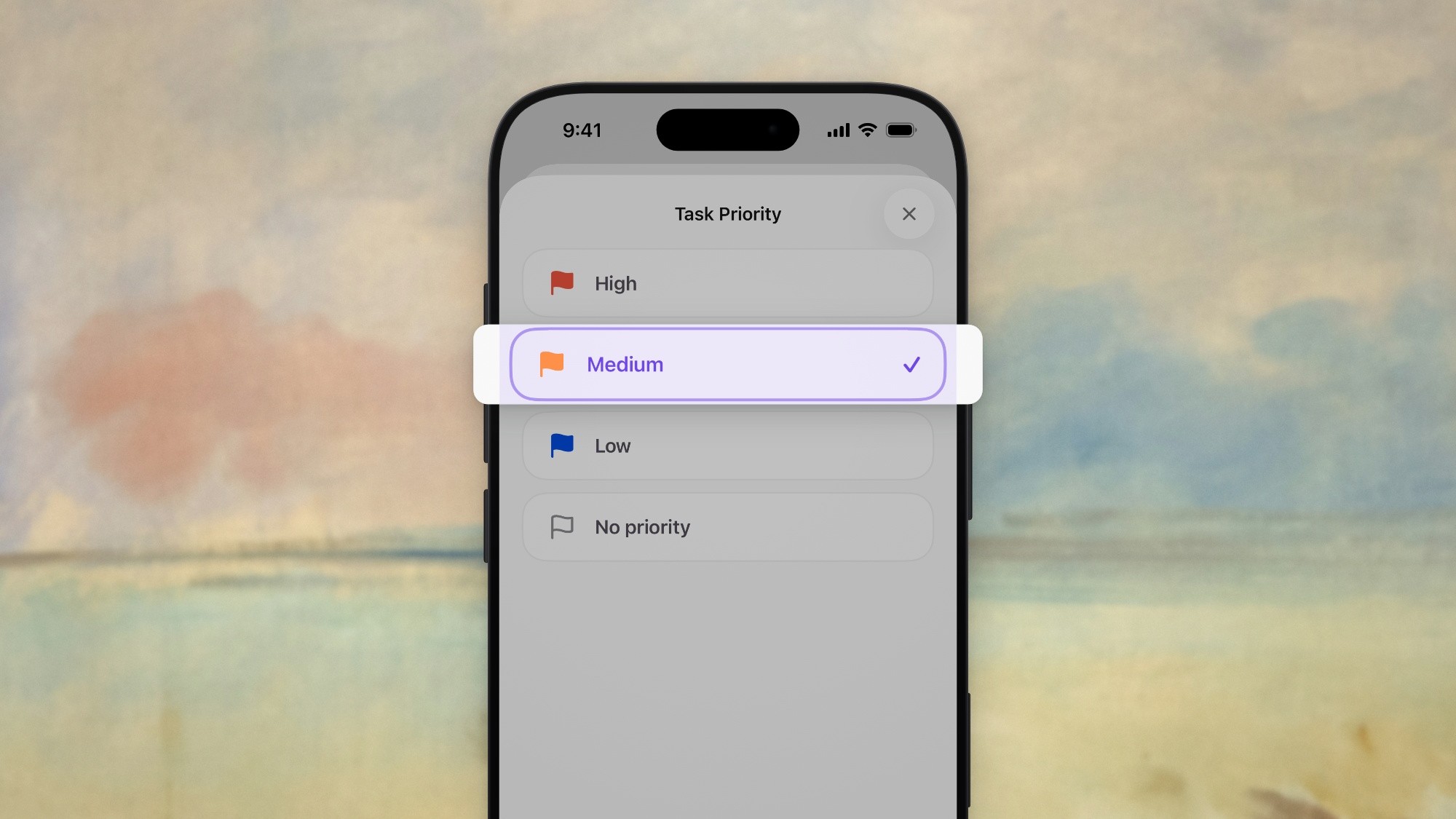
Fine art background: George Catlin, Landscape Background (1846 to 1848), oil on canvas, Smithsonian American Art Museum. Shared by the Smithsonian on Unsplash, public domain.
A painting does what a photo does with less noise. Brush strokes are already soft, and older works are often low in contrast, so they read as a calm field around the phone. This one is George Catlin’s Landscape Background, an oil on canvas from 1846 to 1848 in the Smithsonian American Art Museum. The Smithsonian shares it on the painting’s Unsplash page under a dual license, public domain and the Unsplash License, so you can download and use the same one.
Settings: a very light blur, about 0.4% of the canvas width, just enough to soften the canvas weave; a slight vignette (8%); and grain a touch stronger than the other examples.
Use it when: you want a set of images to feel editorial or a little handmade, such as a changelog series or a product story. Check the rights on each work: public domain or an explicit license, not “found online”.
A plain color
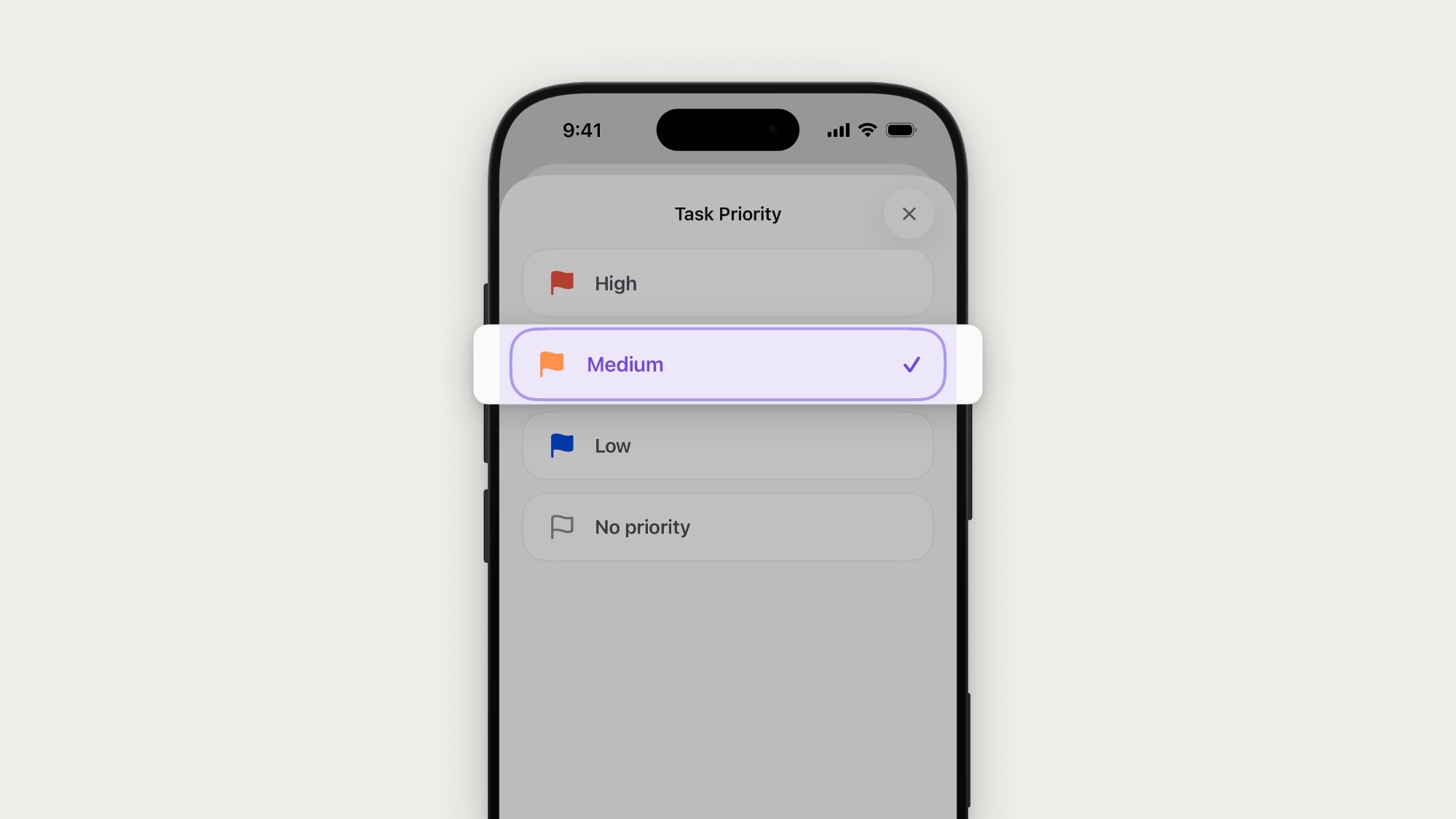
Plain color (#EEF0EC), no grain. Made with Moonjar, our product, from the same screen, September 18, 2026.
A plain color is the right answer more often than it gets credit for. It prints cleanly, compresses to a small file and never dates. It is the safest choice for documentation, where the page already has a style and the image should sit inside it. Sample the color from your site or pick a tint close to the page background.
Settings: #EEF0EC, no grain, nothing else.
Use it when: the image sits in docs, a slide or a set where many screenshots appear together. Here the black device frame and its shadow give the edge; a bare screenshot with a white border on a near-white color would need a shadow or a thin outline to hold its shape.
Which background to use where
Where it goes | Use | Why |
|---|---|---|
Docs | Plain color | Sits inside the page’s style |
Help center | Plain color or one soft photo | Calm, and the same on every page |
Landing page | Gradient | Brand color, no subject |
Social post | Photo or painting | Stands out in a feed |
Changelog series | One look, repeated | The set reads as a set |
Whatever you pick for a series, keep it the same across the set. Four different backgrounds on four consecutive screenshots make readers look for a meaning in the change. Write the settings down, as above, so the next image matches; for help articles, the documentation screenshot style guide has a full style sheet to copy.
How to keep a busy background calm
A few adjustments do most of the work, in roughly this order:
Blur takes out detail first. A little goes a long way on a photo; too much turns it into a flat smear that looks like a mistake.
Motion streaks keep a photo’s color and direction while removing its detail. They suit grass, water and foliage.
Grain at a low setting hides banding in gradients and blur, and makes flat color look printed rather than digital. Leave it off a plain color used in docs, which should look like part of the page.
Vignette darkens the corners slightly and pulls the eye toward the center, where the phone is.
Contrast between the UI and the background. A light app on a light background needs the frame or a shadow to separate them, and a dark app on a dark background has the same problem the other way round.
None of these should touch the screenshot itself. Blur, grain and texture belong to the background; the UI stays as sharp as it was captured.
When to leave the background off
Skip the background when the screenshot is inline in instructions and the reader needs to match it to their own screen. In a step like “tap Medium”, a frame and a painted sky are one more thing to look past. A cropped screenshot with a thin border or a soft shadow is enough.
Also skip it when someone else will place the image, such as a press kit or a partner’s site with its own style. Hand over a transparent PNG and let them put it on their background. App Store screenshots are the exception: Apple’s App Store Connect screenshot specifications say images can’t include alpha channels or transparencies, so they need a solid background.
Tools that add backgrounds
Most screenshot tools have a background panel. Three web tools, as their own pages describe them on September 19, 2026 (none was installed or signed up for):
Supademo. Its screenshot background tool is a free web page that says it needs no signup. It offers gradients, solid colors, patterns and your own background image, with padding, border radius, shadow and device frames, and exports a high-resolution image or copies it to the clipboard.
Pika. Pika’s background guide, last updated October 23, 2022, lists gradients, solid colors and images, including your own upload, on free and paid tiers; Pro adds custom gradient colors and a curated set of background images. Pro is Pika’s one paid plan, a subscription whose pricing page lists no Pika watermark, 4K exports and WebP and SVG export among its features; Xnapper alternatives has its current price.
Jumpshare. Jumpshare’s background guide, from March 18, 2024, describes ten pre-made gradients, a solid color, your own image or a stock image search, with sliders for padding, inset, rounded corners and shadow. Its plan comparison lists custom backgrounds on its paid Plus, Business and Enterprise plans, not on the free Basic plan; CleanShot X alternatives has Jumpshare’s current prices.
If you’d rather the background went on at the moment of capture, a Mac capture app can do that; Xnapper alternatives compares the ones built for it.
For a single screenshot, a free web tool is the quickest route. The harder part is a set: many screenshots that have to match, and that need redoing when the app changes. Write the look down, as in the settings above, or save it as a preset where the tool allows it.
Moonjar (our product, in early access). Moonjar is how the images in this article were made. It is a Mac app: you ask your coding agent, such as Claude Code or Codex, and it styles the screenshot through Moonjar’s tools. The background can be a built-in look, a hex color, a gradient, a transparent background or an Unsplash photo (searching Unsplash needs an Unsplash API key set in Moonjar), with blur, motion streaks, grain and vignette as separate settings. Each change can be saved as a new item, which is how one capture became the four images above. You can request early access or read Moonjar’s features page.
How these images were made. All four come from one capture of Ellie’s Task Priority sheet, taken in the iPhone 17 Pro Simulator with Ellie’s demo data on September 16, 2026, and styled with Moonjar on September 18, 2026. Only the background settings differ; the settings above are read from what Moonjar saved for each image. The text was drafted with AI assistance.