
How to make a browser window mockup from a screenshot
A free route from capture to export with nothing to install, a copyable HTML browser frame, and real pages in minimal, Safari and Chrome frames with the choices that keep text sharp.
Chris Raroque
·

To make a browser window mockup, capture the web page on its own at a desktop width and twice the pixel density, then set it inside a drawn browser frame instead of screenshotting your own browser. Keep the frame quieter than the page, show the page’s real address, and export at twice the size the image will be shown. The frame is a small decision; a sharp, clean capture is most of the result.
Below is a free route that needs nothing but Chrome (or Firefox) and a copyable HTML frame, then the choices that make the result look right, with real pages in minimal, Safari and Chrome frames. The examples are ellieplanner.com, the site for Ellie, the planner I build, and moonjar.ai/features, both captured on September 18, 2026 with Moonjar, which is our product and is in early access.
A free route, from capture to export
1. Capture the page at 1440 wide and 2x
Open the page in a guest or private window, so a logged-in state, a stray extension badge or a half-dismissed popup doesn’t end up in the shot. Wait for web fonts, lazy images and entrance animations, and close the cookie banner. Then, in Chrome:
Open DevTools (Command-Option-I on a Mac, Control-Shift-I on Windows) and turn on the device toolbar.
Choose Responsive, and type 1440 in the width box (900 in the height box for a standard desktop view).
Click More options, then Add device type, and choose Desktop. Confirm that the header and navigation look like the desktop site.
Click More options, then Add device pixel ratio, and pick 2 in the new DPR menu.
Click More options again, then Capture screenshot for the viewport, or Capture full size screenshot for the whole page.
That gives a PNG 2880 pixels wide, sharp enough to crop and still export large. For a page taller than about 8,000 CSS pixels at 2x, check the bottom for repeated or missing content; capture just the section you need with a node screenshot if the full-page capture breaks. In Firefox, the Web Console command :screenshot --fullpage --dpr 2 does the same for the whole page.
2. Put it in a frame
Save this as frame.html in the same folder as the capture, renamed page.png, and change the address to your page’s:
It draws the minimal frame: three traffic lights, an address pill centered in the bar, rounded corners and a soft shadow, on a pale gray field with 64 pixels around the top and sides and 104 below, leaving room for the shadow. The image is shown at 1440 CSS pixels, so a 2880-pixel capture stays at full sharpness when you export at 2x. For a dark page, swap the bar and pill colors for dark grays; for a section of a long page, crop the capture first (the section on long pages below explains how much to show).
3. Export the framed image
Open frame.html in Chrome, open DevTools, and in the Elements panel right-click the <div class="stage"> line and choose Capture node screenshot. Chrome saves a PNG of the whole frame at the page’s pixel density; on a Retina Mac that’s 2x. On a 1x display, turn on the device toolbar and set the DPR to 2 first. In Firefox, :screenshot --selector .stage --dpr 2 saves the same element at 2x.
Keep it as PNG on a flat background like this one; JPG leaves faint artifacts around text on flat color. On a Mac, sips -s format jpeg frame.png --out frame.jpg converts it if you put a photo behind the window instead.
If you’d rather click than edit HTML, the generators under “Tools that make browser mockups” do steps 2 and 3 in a browser; they all start from a screenshot, so step 1 still decides how sharp the result is.
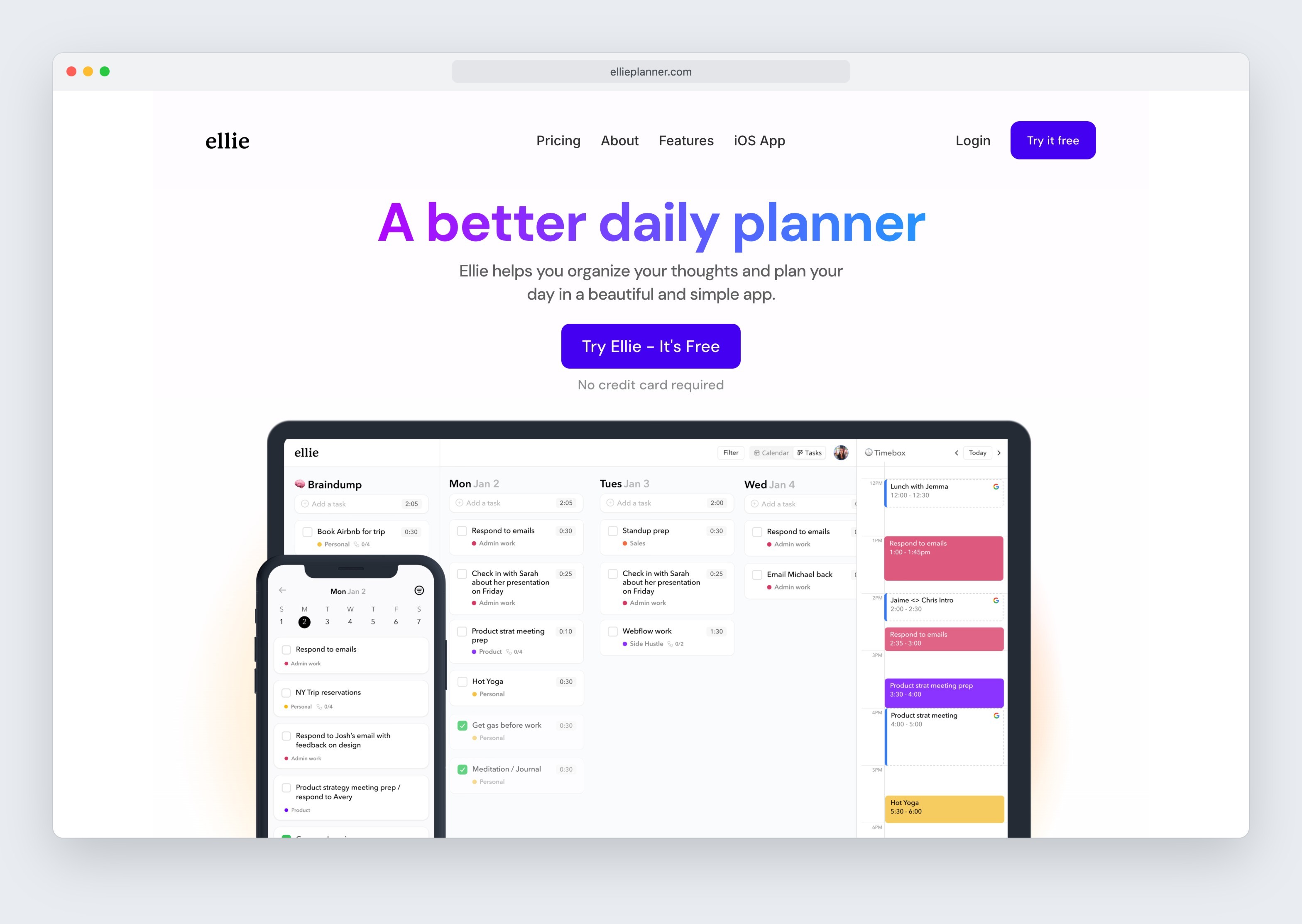
Output from the exact HTML recipe above, rendered September 19, 2026 with the 2880 × 1800 Ellie homepage capture. Capturing the .stage element at 2x produced a 3136 × 2226 PNG. Moonjar supplied the headless browser capture; the frame is the HTML and CSS shown above.

ellieplanner.com in a Safari frame, bleeding off the bottom. Captured and made with Moonjar on September 18, 2026. Photo by Bernd Dittrich on Unsplash.
Get the capture right
A browser mockup is only as sharp as the capture inside it. Two settings decide that: the viewport width, which decides the layout the page renders, and the pixel density, which decides how many pixels you get per CSS pixel. 1440 CSS pixels is a common desktop width, and at 2x it gives an image 2880 pixels wide.
Other ways to capture:
A region or one element in Chrome. The Command Menu (Command-Shift-P on a Mac, Control-Shift-P on Windows) lists the screenshot commands when you type “screenshot”, including Capture area screenshot for a region you drag. Right-clicking an element in the Elements panel and choosing Capture node screenshot takes just that element, even one taller than the screen.
One element in Firefox.
:screenshot --selectorwith a CSS selector, plus--dpr 2.The real window on a Mac. Shift-Command-4, then the Space bar, then click the window; hold Option while you click to leave out the shadow. This keeps your actual toolbar, tabs and extensions, so use it only when the browser itself is the subject, such as a feature that lives in the toolbar.
Minimal, Safari or Chrome: pick one frame

The same capture in three frames, top to bottom: minimal, Safari and Chrome. Made with Moonjar from ellieplanner.com captured on September 18, 2026; the three renders are cropped to the top of the window and stacked. Photo by Bernd Dittrich on Unsplash.
Minimal. Three traffic lights and a pale address pill, like the HTML recipe above. It says “this is a web page” and nothing else, so it suits docs, help articles and landing pages, and it doesn’t look dated when a browser redesigns its toolbar.
Safari. Sidebar, back and forward, a centered address field, and share, new tab and tab overview buttons on the right. It reads as a Mac, which fits a Mac app’s site or an audience that mostly uses Macs. In these examples it shows only the domain.
Chrome. A tab strip with the page title and a full-width address bar that shows the path. Pick it when the path matters, such as a docs page or a specific route in a web app.
A few rules hold for all three:
Match the theme to the page. A light page in a light frame, a dark page in a dark frame. A dark bar over a white page draws the eye to the bar.
Show the real address. The address bar is the one piece of information a frame adds, so it should be the page’s actual domain, not “yourwebsite.com”.
Use one frame across a set. Switching between Safari and Chrome from one image to the next makes readers look for a reason. This article switches only to compare them.
Show the frame, or leave it off
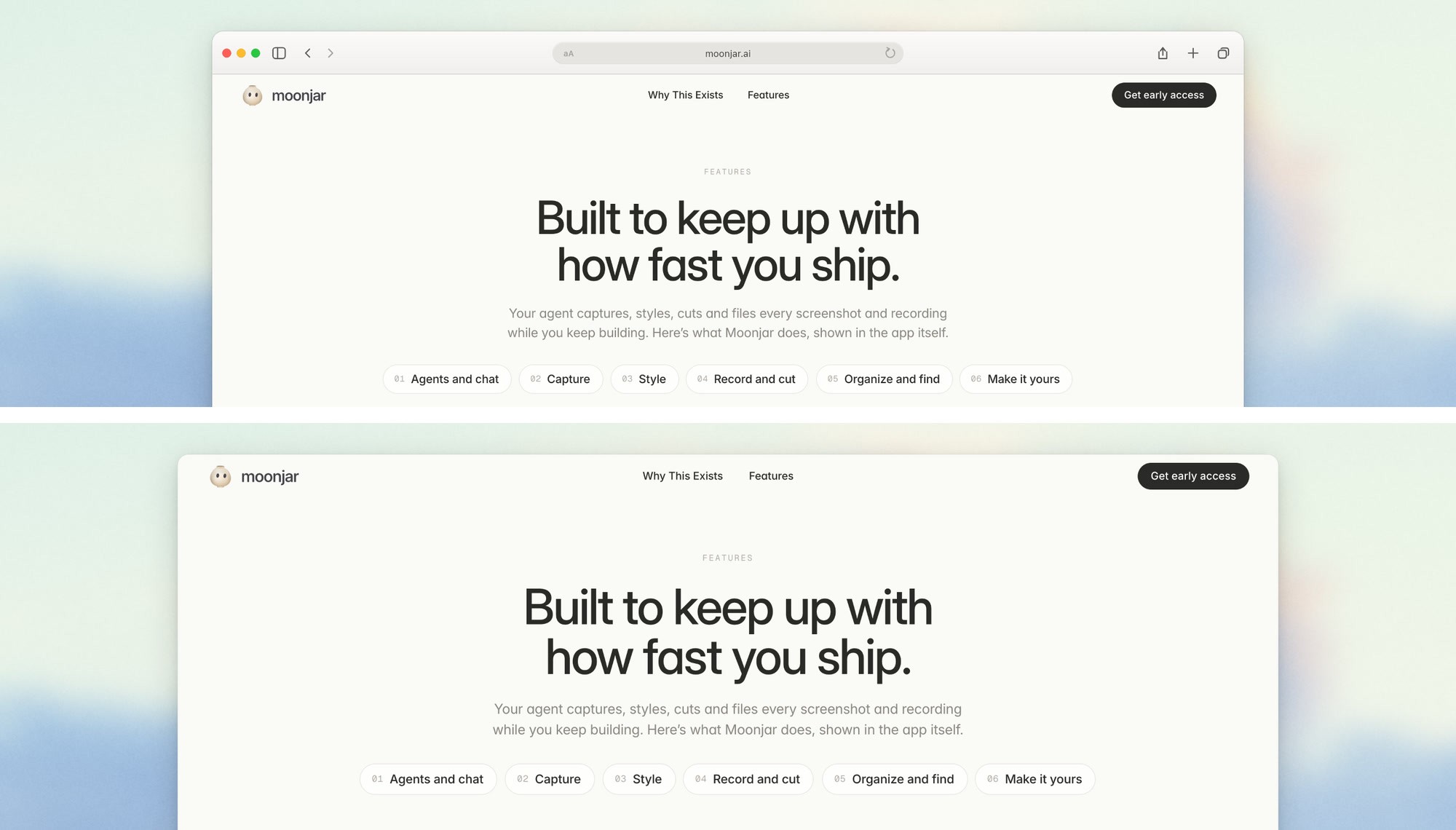
Top: moonjar.ai/features in a Safari frame. Bottom: the same capture with no frame. Made with Moonjar on September 18, 2026; both renders are cropped to the top of the window. Photo by X F on Unsplash.
The frame earns its space when the reader needs to know they are looking at a website: a landing page hero, a changelog entry about the web app, a social post. It takes a strip about as tall as the page’s own navigation bar, and that height comes out of the page.
Leave it off when the context already says “web”, such as a docs page about that same site, or when several screenshots sit together and a frame on each would repeat the same bar. A rounded card with a soft shadow is enough to give the page an edge on a light background; in the HTML recipe, delete the bar div to get one.
How much of the window to show is the other choice. The first image in this article runs the window off the bottom edge, which makes the page larger and suits a hero image where the top of the page is the point. A whole window, like the next image, suits a section from further down, because the reader sees exactly where it starts and ends.
Frame part of a long page
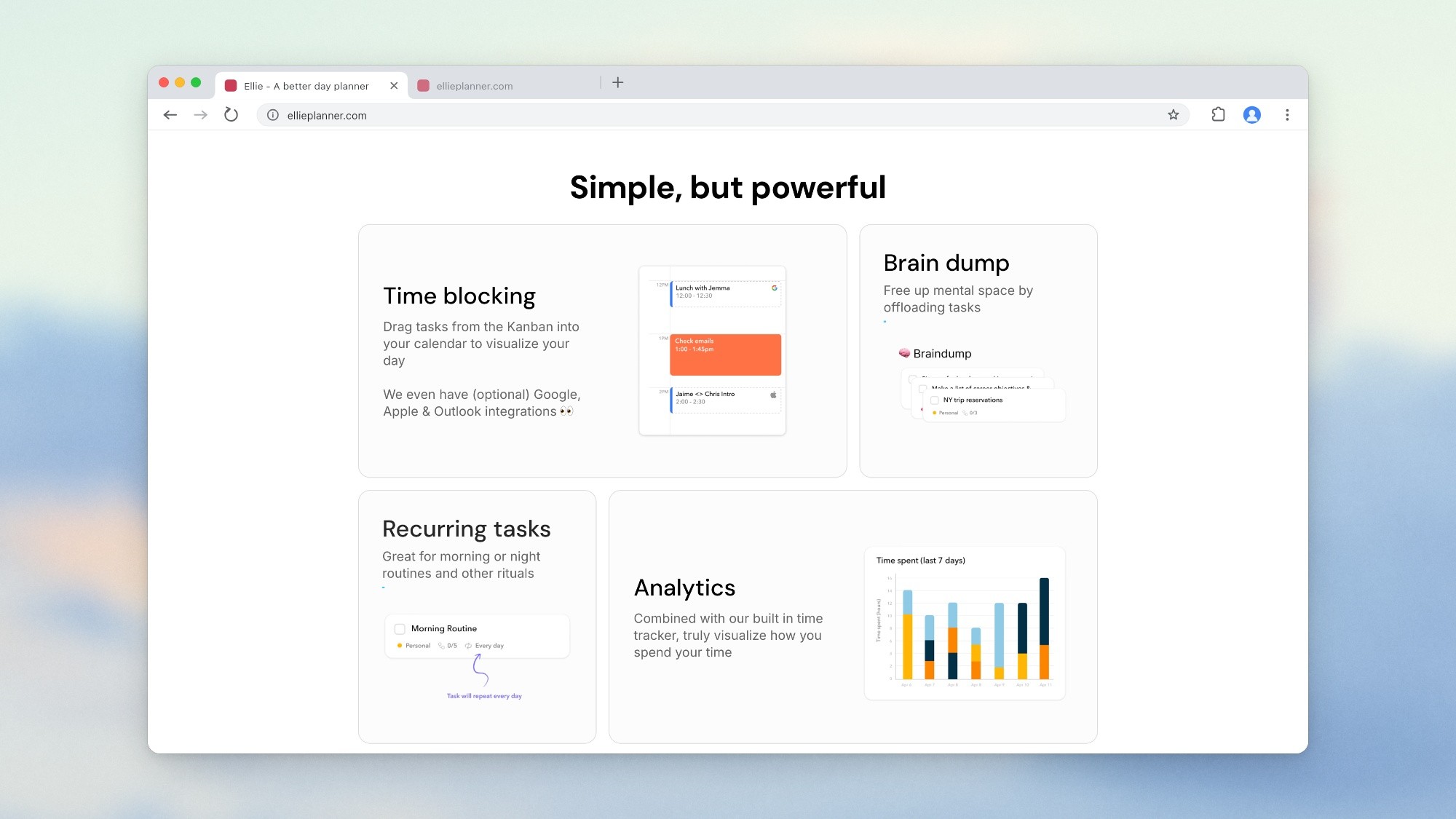
The top of a section from partway down ellieplanner.com, cut from a full-page capture and set in a whole Chrome window. Made with Moonjar from a capture taken on September 18, 2026. Photo by X F on Unsplash.
The part of a page you want to show is often below the fold: a feature grid, a pricing table, a FAQ. Scrolling to it and taking a viewport screenshot works, but a full-page capture is easier to reuse. Take the whole page once, then crop any section from it and set that crop in a frame, as if the browser were scrolled to it. The help center screenshot style guide goes further into how tightly to crop for instructions.
For the image above, the Ellie homepage was captured whole at 1440 CSS pixels and 2x, which gave an image 2880 by 11,422 pixels. The image is a slice 773 CSS pixels tall from about a third of the way down: the “Simple, but powerful” heading and the first two rows of cards under it.
Long pages run into a size limit. Moonjar caps a web capture at 16,384 device pixels tall, because its capture code notes that Chrome returns a repeat of the top of the page past that point. At 2x, that means a page more than 8,192 CSS pixels tall comes back whole but at 1x, and one more than 16,384 CSS pixels tall is also cut off at that height; the reply says which happened. When the full moonjar.ai/features page (21,567 CSS pixels tall) was captured on September 18, 2026, Moonjar dropped to 1x, saved the top 16,384 pixels and said so. For a page over 8,192 CSS pixels, capture just the element you need instead, since an element shorter than that stays at 2x: a node screenshot in Chrome, --selector in Firefox, or Moonjar’s selector option.
Export at twice the size it will be shown
On a Retina or other 2x screen, an image displayed 720 pixels wide needs 1440 pixels to stay sharp. The four styled examples in this article are exported 2000 pixels wide as JPG, between about 120 and 290 KB each. The HTML recipe output is a 3136 × 2226 PNG, about 636 KB.
JPG for anything with a photo or gradient behind the window.
PNG for a frame on a flat color, where JPG leaves faint artifacts around text.
Transparent PNG when someone else will place the image, such as a press kit or a partner’s site.
Where it goes | Frame | How much window |
|---|---|---|
Docs or help article | Minimal, or none | Whole window or card |
Landing page hero | Minimal or Safari | Off the bottom |
Changelog or social post | Safari or Chrome | Whole window |
GitHub README | Minimal, or none | Whole window, cropped tight |
For a README, GitHub scales the image to its column and can swap it for a dark version in dark mode; screenshots and GIFs in a GitHub README covers the markup. For backgrounds behind the window, screenshot backgrounds compares four on the same image.
Tools that make browser mockups
You can also use a browser mockup template: a PSD or vector file from a stock site or the Figma Community, where you paste your screenshot into a frame someone drew. Those suit you if you already work in Figma or Photoshop; check each file’s license and how old its toolbar looks.
Web generators are quicker for a single image. Four of them, described from their own pages (none was used or signed up for):
Tool and frames | Free use |
|---|---|
BrandBird: Chrome, Safari, Firefox, minimal | Free, no sign-up |
Screenhance: Chrome, Safari, Firefox, Arc, Edge, Brave | 3 watermarked exports a month |
UIgram: Chrome style | Free, no account |
Mediamodifier: 69 web and browser templates | Free Starter plan |
BrandBird. Upload a screenshot, choose a frame, toggle dark mode, set border radius, padding and background (or remove it for a transparent PNG), and download a PNG. The page says it’s free with unlimited exports and no watermark, with no sign-up (rechecked September 19, 2026).
Screenhance. The widest choice of browser frames, plus templates and motion formats; a favicon you upload shows in the active tab. Its free plan gives 3 exports a month, PNG only, at 1x and watermarked; a $6 one-time Launch Pass gives 10 clean image exports over 7 days at up to 3x; Pro is $12 a month or $99 a year for unlimited exports without watermarks (rechecked September 19, 2026). It works from a screenshot rather than loading the URL for you.
UIgram. A free, single-purpose page that wraps a screenshot in a Chrome-style window and exports PNG at 3x, SVG or HTML. The page warns that exporting can be unstable on some phones, especially iPhones, and recommends a desktop browser.
Mediamodifier. A mockup library rather than a frame tool: many of its 69 web and browser templates are scenes, such as angled screens and dark backgrounds. The free Starter plan comes with a set of free templates; unlimited downloads, the whole library and a commercial license come with Professional, listed on September 18, 2026 at $25 a month, or $12.50 a month billed yearly.
Moonjar (our product, in early access). The images in this article were made with it. Moonjar is a Mac app that your coding agent, such as Claude Code or Codex, drives through Moonjar’s MCP tools.
For a web page it loads the URL in a headless copy of Google Chrome, Chromium, Microsoft Edge or Brave, whichever is installed, and captures the viewport (1440 by 900 at 2x unless you change it), the whole scroll height, or one element by CSS selector, in the page’s light or dark color scheme. It waits for the page to settle first, and on a whole-page capture it scrolls through so lazy images load. It then draws the minimal, Safari or Chrome frame in a light or dark theme with the page’s address filled in, and shows the window whole, running off the bottom edge, or as a plain card, on a photo, gradient or plain color.
Limits worth knowing. Each capture starts from a fresh browser profile and clicks nothing, so a cookie banner can’t be dismissed (a crop or an element capture can often keep it out of frame), and a page behind your login needs a capture of your own window instead. The Chrome frame’s tab shows the domain unless you give it the page’s title, always draws a second dimmed tab, and uses a plain colored square rather than the site’s favicon. There is no Firefox, Arc or Edge frame. Long pages drop to 1x or are cut off, as described above. There is no published price. Read Moonjar’s features page.
Looking for a Screely alternative?
Screely turned a screenshot into a mockup on a background color you chose, and its browser extension captured the current page and opened it in Screely, as its Product Hunt listing describes. When checked on September 18 and again on September 19, 2026, screely.com served an unrelated Thai-language betting page, so links to it no longer lead to the tool. The route at the top of this page, or any generator above, does the same job: capture, frame, pick a background, download.
How these images were made
The four styled images were made with Moonjar, our product, on September 18, 2026, from captures of ellieplanner.com and moonjar.ai/features taken the same day at a 1440 by 900 viewport at 2x (the full-page capture of ellieplanner.com is 2880 by 11,422 pixels). The frame comparison and the with and without pair are Moonjar renders, cropped to the top of the window and stacked with ffmpeg. The separate recipe output was rendered from the exact HTML above on September 19, using the original 2880 × 1800 capture and a headless browser at 2x. The Chrome and Firefox manual export controls were checked against their documentation, rather than exercised for this output. The generators were not used; they are described from their own pages, read September 18 and rechecked on September 19. The background photos are by Bernd Dittrich and X F on Unsplash. The text was drafted with AI assistance.
If the web page is your product’s, the product screenshot guide covers what to show in it: how to make a good product screenshot.