
Product Hunt launch video and gallery images: sizes and what to show
The sizes Product Hunt asks for, what its launch pages actually do with your images and video, a real launch set made to fit, and a checklist to run before you submit.
Chris Raroque
·

A Product Hunt launch video is optional and goes in as a YouTube link, never as a file. Product Hunt’s guides give no length, size or format for it, so you export it for YouTube. Alongside it, Product Hunt recommends gallery images of 1270 x 760 pixels and needs at least two, plus a square thumbnail, 240 x 240 recommended, with every image under 3 MB.
Those rules were rechecked on Product Hunt’s own pages on September 19, 2026. On September 18, 51 recent launch pages were measured in a browser to see what they actually do with those files, and the 32 launch videos among them were timed. The video sat first in every gallery that had one, so treat its thumbnail as your first gallery image. For the images: export at 2540 x 1520, write for a tile about 368 pixels wide, and keep the first image’s headline out of the top and bottom 8%. The videos ran from 21 seconds to over 7 minutes, with half at 74 seconds or shorter; that describes what those makers chose, not a length that works best. A checklist for all of it is at the end.
The worked example is Ellie, the planner I build. Its images and video were made with Moonjar, our product, a Mac app in early access.
What Product Hunt asks for
Asset | What Product Hunt says |
|---|---|
Gallery images | 1270 x 760 recommended. Two required. Animated GIFs allowed. Drag to reorder. |
Thumbnail | Square, 240 x 240 recommended, under 3 MB. A GIF animates only on hover, so its first frame is the thumbnail. |
Video | Optional. YouTube links only. Not set to private. The full URL: shortened links won’t load. |
Interactive demo | A link made with Arcade, Storylane, Hexus, Supademo, Layerpath or ScreenSpace, shown in the gallery. |
From Product Hunt’s Launch Guide page Preparing for launch and its help article How to post a product (dated May 28, 2025). A few things around the table:
No video spec. Neither page gives a length, size or format for the video. It plays in YouTube’s player, so export it for YouTube (covered below).
The 3 MB line. It sits in the Launch Guide’s thumbnail entry and reads “All images, GIF or not, need to be under 3MB.” The gallery entry gives no separate limit, so keep every file under 3 MB. For an animated gallery image, the GIF guide shows how width and frame rate move the size.
Other guides disagree. Some pages that rank for this topic list 5 MB or 10 MB limits, a maximum number of images, or MP4 settings for the video. Product Hunt’s own pages say none of that.
How common video is. The Launch Guide says about 53% of products that reached Product of the Day since 2021 included a video, and suggests a quick demo made with a tool such as Loom if you don’t have a budget for a produced one. For that choice between a quick message and a finished demo, see Screen Studio vs Loom.
Interactive demos. Both pages list the same six tools, and the Launch Guide says they’re free for Product Hunt launches.
How launch pages show your media
These are measurements, not documentation. They were taken on September 18, 2026, logged out, at browser windows of 1440 x 900 and 1920 x 1080 and on an emulated 390-pixel phone. The sample is the product pages of 17 launches from each of Product Hunt’s daily leaderboards for September 15, 16 and 17: 51 galleries. This is how the pages were built that day, and Product Hunt can change it.
The gallery strip shows every image whole, and small
The gallery is one horizontally scrolling row. Every tile was 220 pixels tall on desktop (210 on the phone) and as wide as its image’s own shape: a 1270 x 760 image showed at 368 x 220, a 16:9 image at 391 x 220. Nothing was cropped.
So the recommended shape isn’t enforced. Of the 302 gallery images, 65 were exactly 1270 x 760 and 41 were exactly 2540 x 1520, but 24 of the 51 galleries used no image of that shape at all. Their 16:9, 16:10 and portrait phone images showed whole, only wider or narrower in the row.
A click opens a viewer 1100 pixels wide
Clicking a tile opened a viewer that fits the image into a box 1100 pixels wide (1100 x 720 in the 1440 x 900 window), so a 1270 x 760 image shows at 1100 x 658. The box was 1100 pixels wide in the 1920 x 1080 window too.
On a 2x (Retina) screen, the page asks Product Hunt’s image server for 2200 pixels across. The server doesn’t enlarge an image with the setting the page uses. A 1270 x 760 upload came back at 1270 x 760, and the browser stretched it about 1.7 times to fill the viewer. A 2540 x 1520 upload came back at 2199 x 1316, sharp. Both uploads were PNGs, and both came back as JPEG, because the viewer asks for JPEG.
The video is the first tile, and its picture is your YouTube thumbnail
32 of the 51 galleries had a tile with a play button, and in all 32 it was the first tile. 30 of them held a YouTube video. The other 2 held Loom recordings with GIF pictures, although both of Product Hunt’s pages say only YouTube links are supported; clicking one opened a Loom player in the same viewer. For three of the YouTube videos, the tile’s picture was compared with the video’s thumbnail on YouTube: it was the same image, 1280 x 720, served from Product Hunt’s own image server.
Clicking a YouTube tile opened the video in the same viewer as the images, as a YouTube embed 1100 x 619 pixels, with autoplay=1 and mute=0 in its address. Product Hunt’s pages don’t say whether the video can be moved elsewhere in the gallery; the reorder line is about images.
The videos ran from 21 seconds to over 7 minutes
One video per gallery was timed on the same day, from its YouTube page or, for the two Loom recordings, from Loom’s embed data. The shortest ran 21 seconds and the longest 7 minutes 24 seconds, and the median was 74 seconds:
A minute or less: 15 videos.
One to two minutes: 6.
Two to three minutes: 7.
Over three minutes: 4.
Read this as a description of 32 makers’ choices over three days, not as a target. Nothing in the sample ties a video’s length to how its launch did, and the sample is too small to say so if it did. Pick the length your moments need (the next section has a way to decide).
Link previews crop the first image to 2:1
The image a product page gives to link previews (its og:image) was the first gallery image, skipping the video tile, requested at 1024 x 512 with a crop. Comparing one 1270 x 760 original with its preview showed that the crop keeps the middle. That takes about 62 pixels off the top and 62 off the bottom, 8% at each edge. Three of the four product pages checked had this preview image; the fourth had none in its page source.
Make gallery images that survive the strip and the crop
The four images below are a gallery for Ellie, made for this page from existing Ellie screenshots on demo data. Each file is 2540 x 1520.
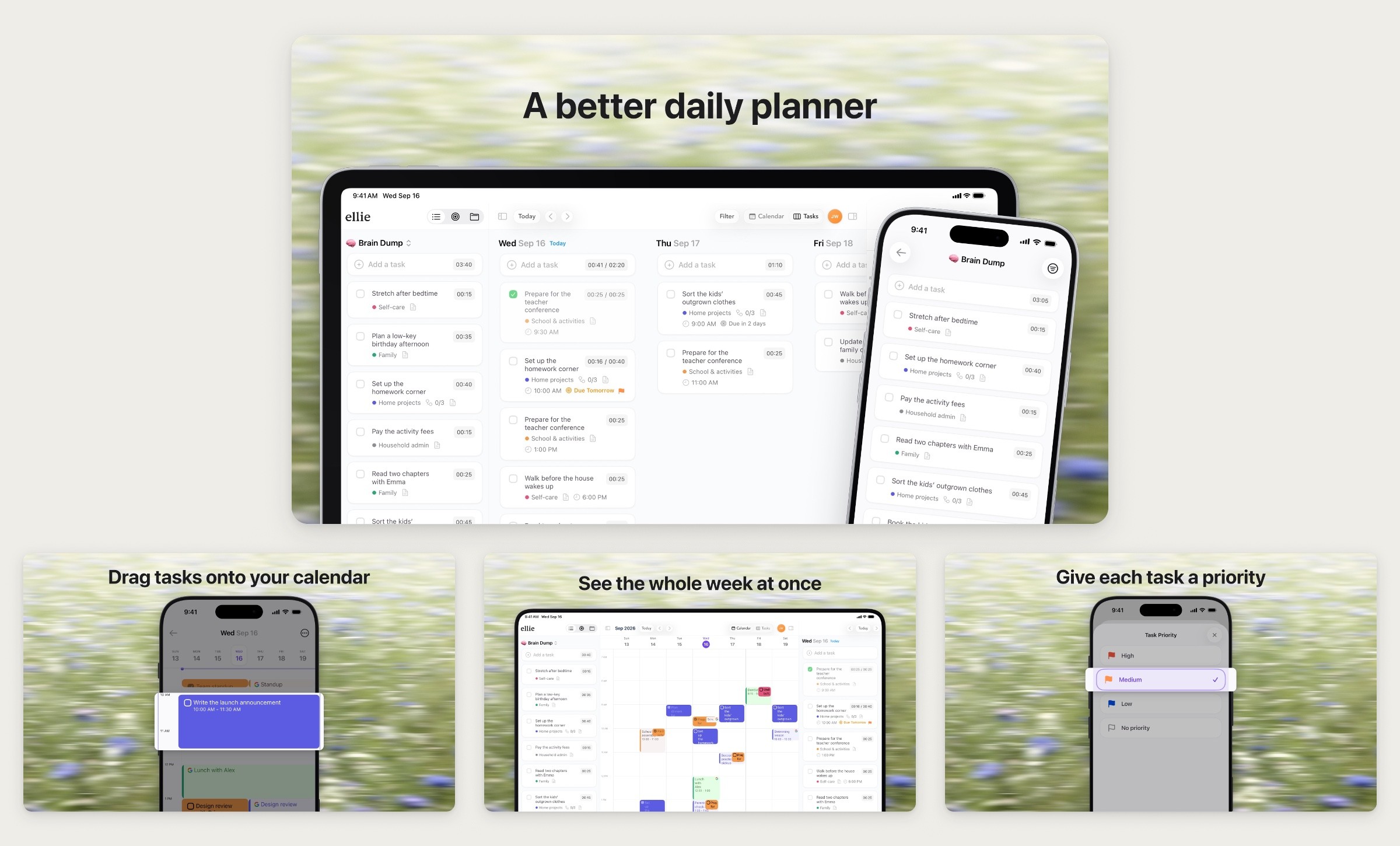
A four-image gallery for Ellie, each file 2540 x 1520, laid out for this page with the first image on top. Made with Moonjar from Ellie’s demo data. Photo by Bernd Dittrich on Unsplash.
Export at 2540 x 1520. It’s the recommended shape at twice the pixels, so the viewer has enough to stay sharp on a Retina screen, and the strip scales it down like any other. Saved as JPEG at quality 90, the four Ellie files came to 553 to 582 KB each. The same images as PNG were 2.0 to 3.6 MB, and two of them were over the 3 MB line.
Write for a tile 368 pixels wide. That’s the size of each image before anyone clicks. To see how big your text will look there, multiply its size on a 2540 x 1520 canvas by 0.145 (220 divided by 1520): 80 px becomes about 12 px, and the Ellie headlines, 114 px on the canvas, show at about 16 px. Use one headline and one large piece of UI per image, and leave the detail for the viewer.
Keep the first image’s headline in the middle band. The link preview keeps only the middle 2:1 of the first image. A headline in the top 8% gets sliced, as in the “before” below.
Order the set like a demo. The first image says what the product is. Each one after it shows one feature, with the same background and the same headline size and position, so the row reads as a set. How to make a good product screenshot covers the crop, emphasis and consistency choices behind each image.
Treat the YouTube thumbnail as the first image. If you add a video, its YouTube thumbnail is the first tile in the strip, before your first gallery image. YouTube lets you upload a custom one if your account is verified: 16:9, JPG or PNG, at least 640 pixels wide, with 3840 x 2160 recommended (YouTube’s help on custom thumbnails). Give it the same headline treatment as the rest of the gallery, and set it before you add the video to Product Hunt, since the tile showed a copy kept on Product Hunt’s own image server.

Before and after, cropped the way the link preview is: the middle 2:1 of each 2540 x 1520 file. Top (before): the headline sits near the top edge and loses its upper half, and the subtitle under it would be set at about 5 pixels in the gallery strip. Bottom (after): the headline starts about 11% down and is larger, and survives the crop. Made with Moonjar from Ellie’s demo data. Photo by Bernd Dittrich on Unsplash.
The thumbnail is a separate, square image. The Launch Guide recommends 240 x 240 and notes that a GIF thumbnail only animates on hover, so its first frame is what most people see.
What to show in the launch video
Product Hunt sets no length, and the launches measured above ran anywhere from 21 seconds to over 7 minutes. Whoever opens the first tile gets your video in the gallery viewer, so show the product working:
Open on the main job, not a logo or a title card.
One moment per feature, three to five in total, each shown once.
A short caption on each moment. The embed’s address sets
mute=0, so Product Hunt doesn’t mute the video and a voiceover or music can play, but words on screen still carry it for anyone watching with the sound off.Cut the waiting, slow the gesture. Remove the pauses between actions, and slow a quick drag down enough to follow.
End on the result, the finished screen, not a fade to black.
Planning those moments, recording clean takes and cutting them is the whole of how to make an app demo video; this page covers what’s specific to Product Hunt.
The Ellie example, which plays on this page, is a 30.3-second cut of Ellie for Mac in three moments: planning the week on the Calendar Kanban, dragging tasks onto the calendar, and filtering the board by label. It was cut from three existing recordings of Ellie for Mac on demo data, 69.9 seconds of footage in all, into 19 clips. The drags play at 0.3 to 0.4 times speed, five zooms move toward the part being used, and each moment has one caption.

A frame at 15 seconds of the 30-second launch cut, during the second of its three moments. Cut with Moonjar from recordings of Ellie for Mac on demo data. Photo by Bernd Dittrich on Unsplash (the meadow at the right edge).
Export the video for YouTube
YouTube’s recommended upload encoding settings open with a line saying the page’s features are only available to partners who use YouTube Studio Content Manager. The settings themselves are choices made in your own export before uploading, so you can use them as the target for your file either way. The page lists:
MP4 with the index (the
moovatom) at the front of the file, and no edit lists.H.264, High Profile, progressive, 4:2:0, with a closed GOP of half the frame rate and 2 consecutive B-frames.
The frame rate it was recorded at, and BT.709 color for standard dynamic range.
Bit rate as a reference only: 8 Mbps for 1080p and 16 Mbps for 1440p at 24 to 30 fps, and 12 and 24 Mbps at 48 to 60 fps. The page says “No bitrate limit is required”.
The Ellie cut as rendered, read with ffprobe: H.264 High, 2560 x 1440, a constant 30 fps, 30.3 seconds, 8.1 Mbps, BT.709, the index at the front and no audio track. Its 30 fps is Moonjar’s default when a cut is made (it takes up to 60). The Mac recordings under it have no single rate to match: they were captured at a variable rate that averaged 50 to 57 fps, and YouTube’s page lists 24, 25, 30, 48, 50 and 60 as common rates. Against the rest of YouTube’s list, four things were off: the file carried an edit list, it had only four keyframes in 909 frames, up to 250 apart, rather than one every 15, it used runs of three B-frames rather than two, and 8.1 Mbps is half YouTube’s reference for 1440p. For a 16:9 cut like this one, this command fixes all four and makes a 1080p file:
What the parts do:
scaleandformatmake a 1920 x 1080 frame in 4:2:0. The scale sets both dimensions, so use this command only on a 16:9 cut; any other shape would come out stretched.-b:v 8Maims at YouTube’s 1080p reference rate;-maxrateand-bufsizelet busy moments go higher.-g 15 -bf 2gives a keyframe every 15 frames (half of 30 fps) with up to two B-frames in a row. x264 closes its GOPs by default; the finished file’s encoder settings readopen_gop=0.The three color flags tag the file as BT.709.
+faststartmoves the index to the front, and-use_editlist 0leaves the edit list out.
For a 60 fps cut, YouTube’s list points to a keyframe every 30 frames (-g 30) and a 12 Mbps reference at 1080p, so change those two and raise -maxrate and -bufsize in proportion; that variant wasn’t run for this page. The 30 fps command was run with ffmpeg 6.0 on the Ellie cut on September 18, 2026, and read back: H.264 High, 1920 x 1080, 30 fps, 909 frames, 30.3 seconds, 7.8 Mbps, a keyframe every 15 frames, BT.709 tags, the index at the front, no edit list. The file wasn’t uploaded to YouTube for this page, so YouTube’s own processing hasn’t run on it.
The command has no audio settings because the Ellie cut is silent. If your cut has sound, YouTube’s list asks for AAC-LC or Opus audio at 48 kHz; in ffmpeg that means adding -c:a aac -ar 48000 before the output name. That audio variant wasn’t run for this page, so check the result with ffprobe before you upload.
Then upload it to YouTube, not set to private, and paste the full YouTube address into Product Hunt’s video field. Product Hunt’s help recommends uploading ahead of launch and checking that the video isn’t private, and says shortened links won’t load. It doesn’t say whether YouTube’s own youtu.be share links count as shortened: 16 of the 31 YouTube links on the launches measured were youtu.be links, and the two of those that were opened played. The full youtube.com/watch address is still the safe choice.
Before you submit: a checklist
Copy this into your launch notes:
At least two gallery images, 2540 x 1520, saved as JPEG, each under 3 MB.
The first image says what the product is, with its headline out of the top and bottom 8%.
Headlines at least 80 px on the 2540 x 1520 canvas (about 12 px in the gallery strip).
The same background and headline position on every image.
A square thumbnail (240 x 240 recommended) under 3 MB; if it’s a GIF, the first frame works as a still.
The video on YouTube, not private, with a custom thumbnail made like the first gallery image.
The full youtube.com/watch address, not a shortened link.
The video opens on the main job, has a caption per moment and works with the sound off.
Where Moonjar fits
Moonjar is a Mac app in early access that AI agents such as Claude Code or Codex drive over MCP: it captures an app from the iOS Simulator, a Mac window or a web page, turns captures into finished screenshots, and cuts screen recordings with zooms, captions and a drawn cursor. For this page it restyled existing Ellie screenshots into the gallery images and cut three existing recordings into the launch video. Nothing new was captured.
What it doesn’t do for a Product Hunt launch: none of its canvas presets is the gallery shape (its 16:9 canvas is 2560 x 1440), so the canvas was set to 2540 x 1520 directly. Its video renders are silent, it doesn’t upload to YouTube or Product Hunt, and the 1080p file above came from ffmpeg. See what Moonjar makes, or ask for early access.
The gallery images, the cover and the launch cut on this page were made with Moonjar, our product, on September 18, 2026, from screenshots and recordings of Ellie’s demo data made on September 16, 2026. The link preview comparison crops the two files the same way Product Hunt’s preview was measured to, and nothing was uploaded to Product Hunt or YouTube. Product Hunt’s pages were measured in a browser on September 18, 2026, and its guides and YouTube’s help were reread on September 19. The background photo in every image, the cover included, is by Bernd Dittrich on Unsplash. This page was drafted with AI assistance.