
Screen Studio vs Loom: a polished demo or a quick message
Price, editing, sharing and output compared, from both companies’ own pages, and which one to use for a product demo. Checked September 24, 2026.
Chris Raroque
·

Screen Studio vs Loom comes down to the job: use Screen Studio for a product demo that people watch as a finished video, and Loom when the video is a message. On a Mac, Screen Studio zooms in on your clicks by itself, smooths the cursor, and exports an MP4 up to 4K at 60 fps, or a GIF, that you can put anywhere. With Loom you stop recording, a link is ready, and the person you send it to can comment on it. Loom doesn’t list automatic zoom (its editing page puts auto-zoom under “coming soon”), and on its free Starter plan a video can’t be downloaded at all.
Disclosure: I build Moonjar, a Mac app where your coding agent records and cuts demos of your own app. It’s our product and it’s in early access, so it isn’t one of the two options compared here; it sits in a separate box near the end. The images on this page are captures of both companies’ pages, made with Moonjar.
Every Screen Studio and Loom fact below comes from their own pages, checked September 24, 2026: pricing, help guides, download page and changelog, each linked where it’s used. Prices are in US dollars. Neither app was installed, so this says what the makers document, not how well either one performs.
Screen Studio vs Loom at a glance
Screen Studio | Loom | |
|---|---|---|
Built for | Recordings that look edited, kept as files | Video messages you share by link |
Price, one person | $9 a month billed yearly ($108), or $29 a month | Free Starter; Business $18 a month, or $180 a year |
Free | Everything except exporting a video file | 25 videos, 5-minute screen recordings, 720p |
Runs on | macOS only | Mac, Windows, Chrome, iPhone and Android |
Automatic zoom | Automatic, on your clicks | Listed as “coming soon” |
Cursor | Smoothed, resized or hidden afterward | Click highlights and mouse emphasis on Business and up |
Editing | Zooms, cuts, speed-ups, captions, backdrops | Trim, stitch and stylized captions on Business, overlays on Business + AI |
Output | MP4 up to 4K at 60 fps, or GIF | A link on Loom’s player; MP4 download on Business and up |
Sharing | One-click link after you stop, up to 30 minutes, with comments | Link ready when you stop, with comments and viewer insights |
Two questions settle most cases: do you need a file or a link, and is the video for everyone or for one person? Each row is sourced in the sections below.
What each one costs, checked September 24, 2026
One person | Screen Studio | Loom |
|---|---|---|
Without paying | Everything except exporting a video file | Starter: 25 videos, 5-minute screen recordings, 720p |
Billed monthly | $29 a month | Business $18, Business + AI $24 |
Billed yearly | $9 a month, $108 a year | Business $180 a year, Business + AI $240 |
Two years, yearly billing | $216 | Business $360 |
Education | 40% off | Discounted Education plan |
Screen Studio is a subscription, with one product and two ways to pay: $29 a month billed monthly, or $9 a month billed yearly. Both list every feature and shareable links. Screen Studio’s FAQ says one-time licenses were sold in the past but are no longer available for new purchases, and that an old license still works. Its terms of service say fees are non-refundable. Without a plan you can still use every feature except exporting a video file (Screen Studio’s download page).
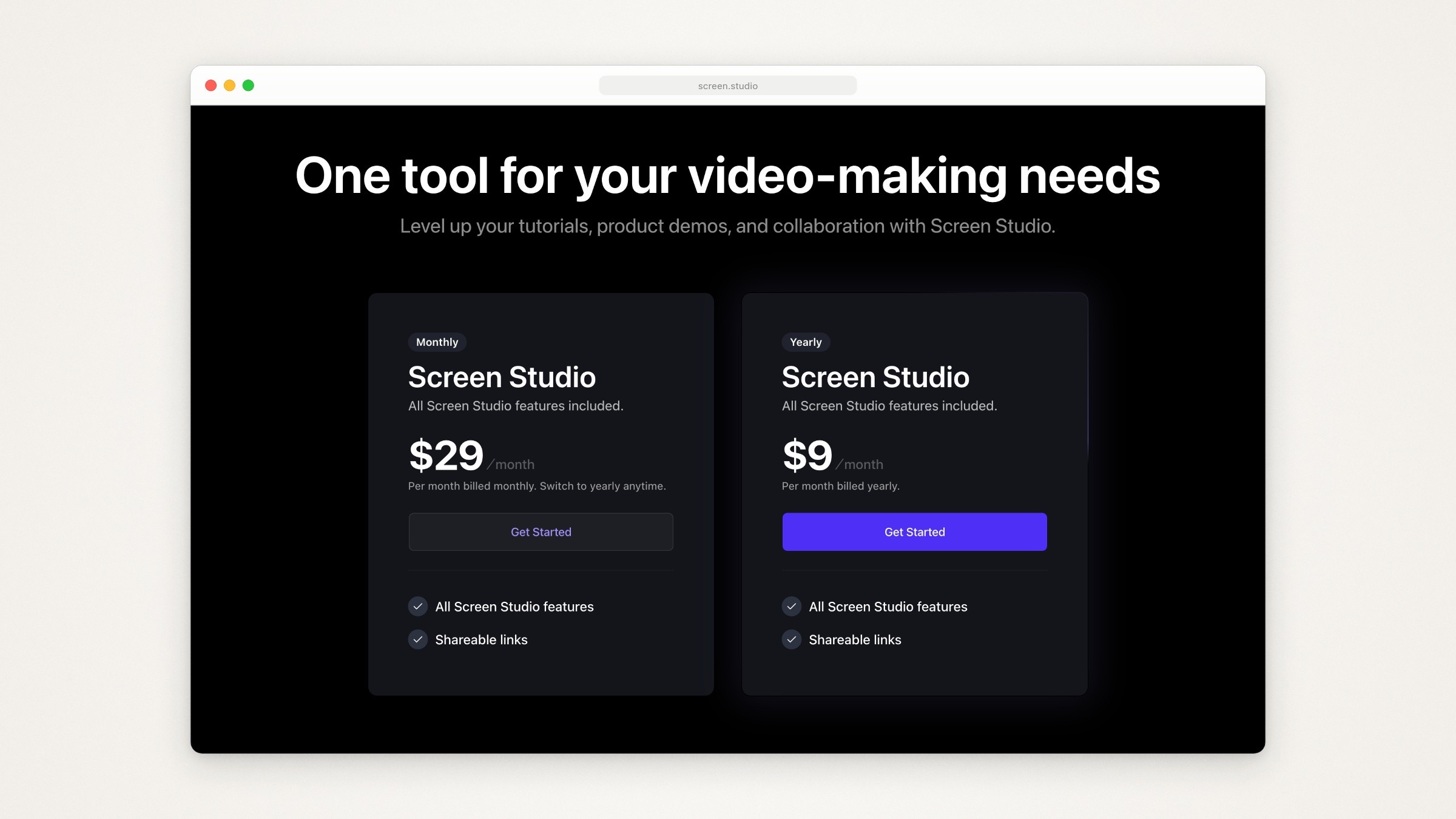
Screen Studio’s pricing section on its homepage, captured September 24, 2026.
Loom is priced per user, and it has a free Starter plan: 25 videos per person, 5-minute screen recordings and video up to 720p, with comments, reactions and transcripts in 50+ languages. Business is $18 a user a month, or $180 a user a year: unlimited videos and recording time, video up to 4K, trim and stitch, and video uploads and downloads. Business + AI is $24 a user a month, or $240 a user a year, and adds AI summaries and chapters, editing by transcript and filler word and silence removal, with a 14-day free trial (Loom pricing). Its page says annual billing saves 17%, and with Annually selected and a team size of 1 it shows $180 and $240 a year.

Loom’s pricing page with monthly billing, its default view, captured September 24, 2026.
For one person paying yearly, Screen Studio is $108 and Loom Business is $180, which is $216 against $360 over two years. The two prices buy different things: Screen Studio’s price pays for the recorder and editor, while Loom Business lifts Starter’s limits and adds the paid editing and sharing features. For a team, Loom charges per user, and Screen Studio’s terms limit each subscription to a set number of devices. If the video is a short message, Starter costs nothing.
Editing: what each does to a raw recording
Screen Studio does much of the editing for you. Each zoom is either Auto or Manual: an Auto zoom aims at the spot you clicked, so a zoom added where nothing was clicked has no spot to aim at, and you set that one by hand (Screen Studio’s Auto Zoom guide). Automatic zooms can be switched off in settings (disable automatic zooms). It records the screen without the pointer and adds the cursor back from the logged mouse movement, so you can smooth it, make it bigger, hide it when it’s still, or send it back to where it started so the video loops (cursor guide, Screen Studio’s homepage and FAQ). You can also change the background, padding, rounded corners and shadow (background guide), cut and speed up parts of the take, and generate captions from your voiceover on your Mac (captions guide). A vertical export adjusts every zoom to the new shape.

Screen Studio’s Auto Zoom guide, captured September 24, 2026.
Loom leaves the picture closer to how you recorded it. Its help page says editing features, trimming and stitching included, are exclusive to paid plans (Edit your Loom video). By its pricing table, Business adds trim and stitch, backgrounds and stylized captions, plus a drawing tool and mouse emphasis you use while recording. Business + AI adds editing by transcript, filler word and silence removal, and text, box and arrow overlays. On Starter the table lists GIF thumbnails and nothing else under editing. The desktop app can also highlight your clicks as you record, on Education, Business, Business + AI and Enterprise plans (Highlight your mouse clicks).
Does Loom have auto zoom?
Not yet, according to Loom’s own pages. Atlassian’s page on Loom’s editing features lists Auto-zoom under “New features coming soon”, described as smart, dynamic zooms that focus your viewer’s attention, next to AI voices, AI avatars and caption translation (Loom’s editing features). Loom’s pricing table lists no zoom effect on any plan and no cursor smoothing. To draw the eye to one spot today, Loom has click highlights and a drawing tool you use while recording (Business and up) and text, box and arrow overlays (Business + AI). Auto zoom in screen recorders explains how automatic zooms work and how to check one on your own take.
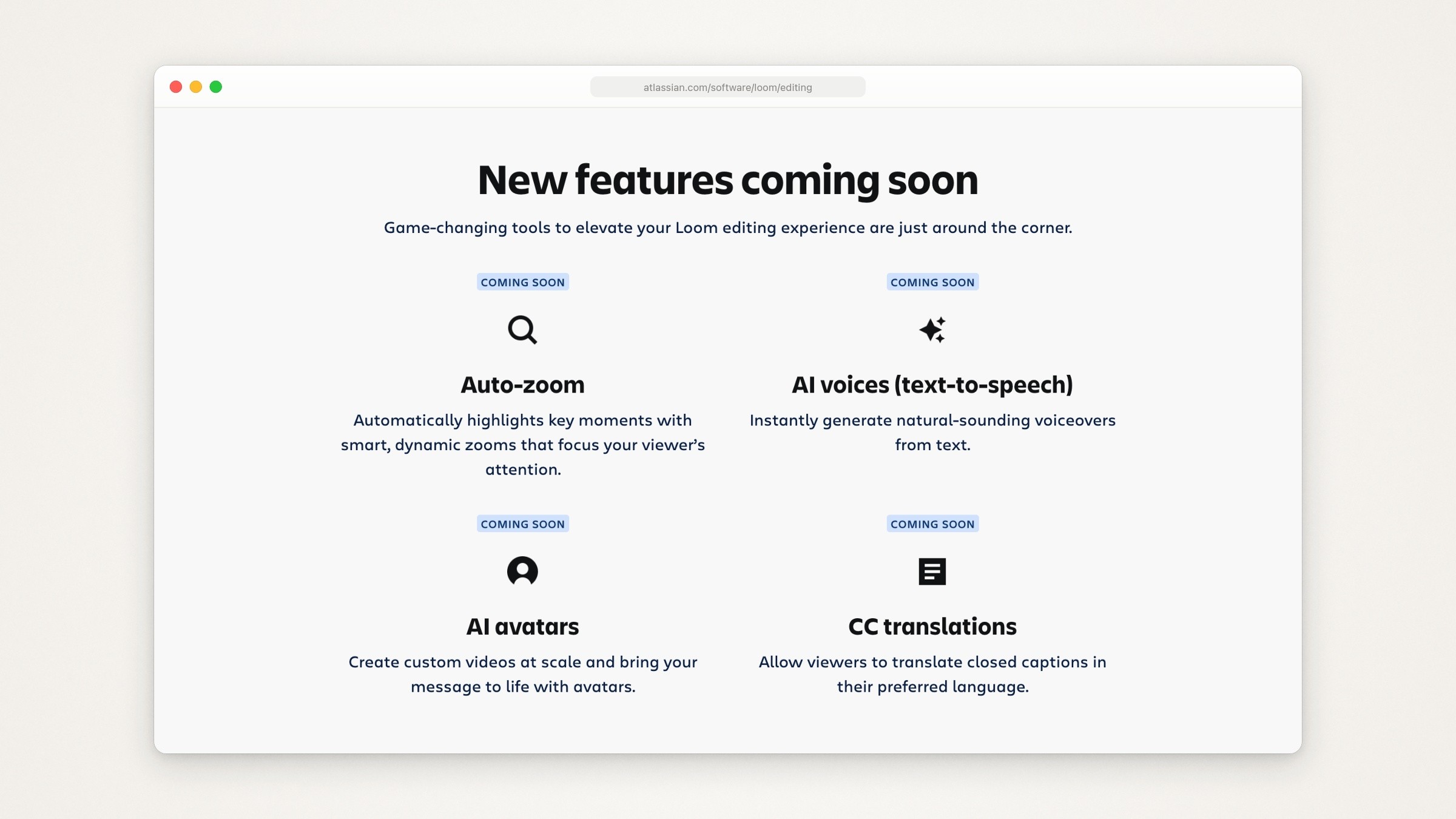
Atlassian’s page on Loom’s editing features, captured September 24, 2026. Auto-zoom is listed under New features coming soon.
Sharing: a link on Loom’s player, or a file you host
Loom is built around the link. When you stop recording, the file uploads to your Loom account and the app creates a link to send (Loom’s screen recorder page). Every plan has comments, emoji reactions, transcripts, closed captions, viewer insights, a shared library and integrations with Slack, Jira and Confluence (Loom’s pricing table). Business adds password-protected videos (Loom’s password guide), engagement insights, an option to ask for a viewer’s email before they watch, and branding controls: your logo, your player colors, and no Loom branding on the video page or the embedded player. To put a video on your own page, you paste Loom’s embed code (embed guide).
Screen Studio makes links too. When you stop recording, a widget offers Share, which generates a link that streams in a browser, or Edit, to polish first (quick share widget). A shareable recording can run up to 30 minutes, and longer ones have to be exported as a file (Screen Studio’s shareable links guide). Viewers can leave comments tied to a moment in the video (shareable links: comments), and the changelog lists private shareable links (July 14, 2025) and a view counter (November 19, 2025) (Screen Studio’s changelog). The pricing section of Screen Studio’s homepage lists two plans, both with shareable links, and no team plan.

Two excerpts of Screen Studio’s Shareable links guide, captured September 24, 2026: the Share and Edit options after recording, and the 30 minute limit.
Where the video lives differs too. Screen Studio’s FAQ says your recordings are stored and processed on your computer, and that its AI features, transcription included, run there. A recording you share by link is a different case: the shareable links guide shows an example link at a screen.studio/share address that viewers stream in a browser. Loom keeps recordings in your Loom account (Loom’s screen recorder page), and its pricing FAQ says OpenAI receives transcript text to write titles and summaries, but not full videos or audio. Which of these matters depends on what is on your screen.
Output: the file you can publish
Screen Studio exports an MP4 up to 4K at 60 fps, or a GIF, with presets for the web, social media or further editing in another editor, and it can copy the video to your clipboard to paste into a message or a post (Screen Studio’s homepage, export guide). What you publish is a file you can host wherever you like.
Loom’s main output is the video page, and the picture quality depends on the plan: up to 720p on Starter, and up to 4K on Business and above. The file is a separate step. Loom’s help page says downloading needs a paid plan, that admins and creators can download on Business and Business + AI, and that a download is an MP4 in the original aspect ratio (Download your Loom video). Trims are kept in the MP4, but CTAs, filler word and silence removal, chapters and closed captions are not, and videos that use Variables can’t be downloaded. Neither can ones over 20 GB, though the page says Loom’s support team will do its best to help with a larger file. Edits like those live on Loom’s player, not in the downloaded file.
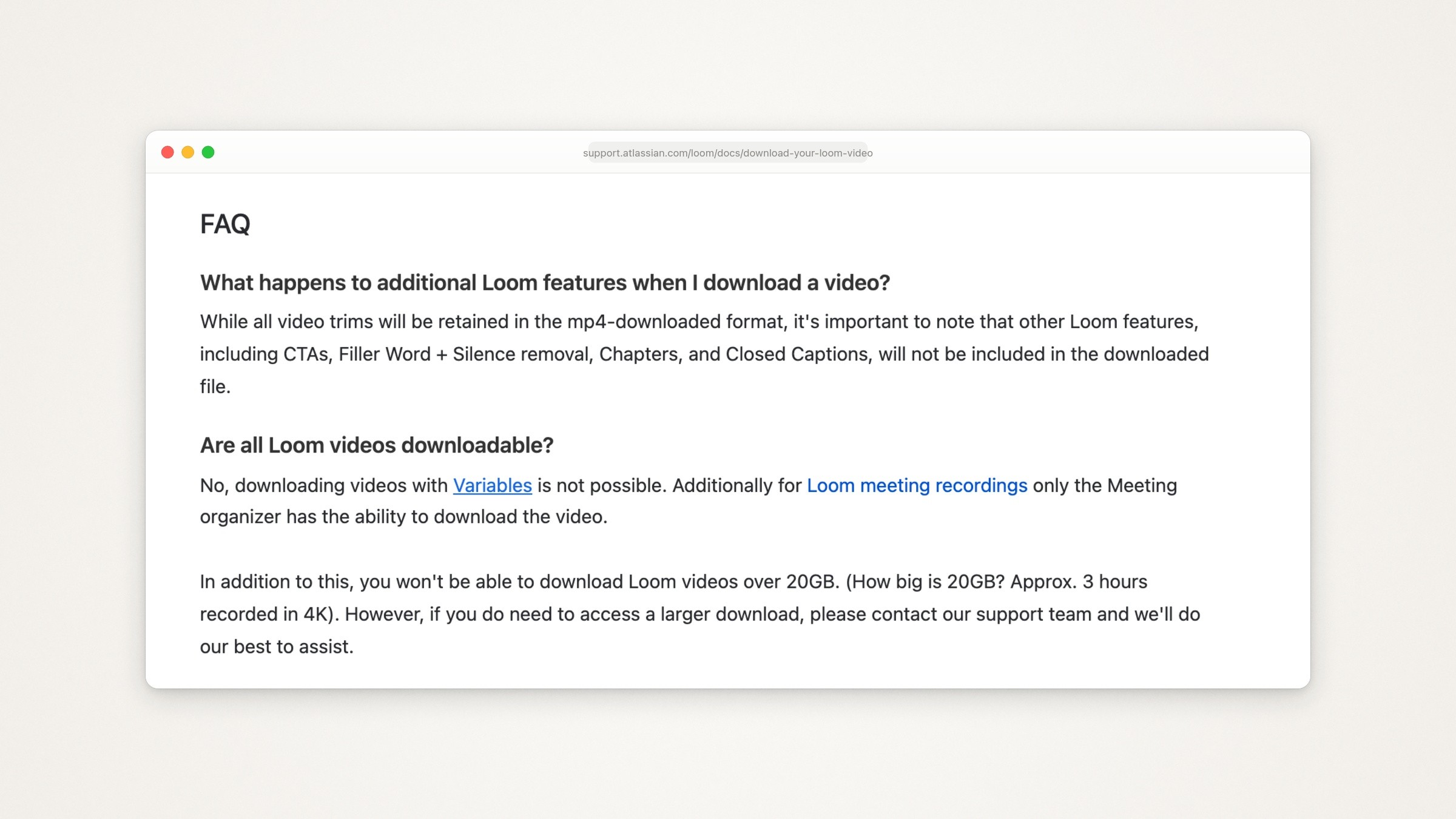
Loom’s help page on downloading videos, captured September 24, 2026: what a downloaded file keeps and leaves out.
Can you download a Loom video on the free plan?
No. Loom’s help page on downloading says people on the free Starter plan can’t download videos, and that viewers who aren’t signed in to Loom, or who are on Starter, can’t download yours either, whatever you set. Screen Studio has a similar limit: without a plan it won’t export a video file. Each holds the file back until you pay.
What you can record, and on what
Screen Studio records a display, a window or an area, with your webcam, microphone and system audio if you want them (Screen Studio’s homepage, single window guide, webcam and microphone guide). It records an iPhone or iPad over a USB cable too, in a device frame, but it can’t see finger taps, so automatic zooms aren’t supported there and no cursor shows (iPhone and iPad guide). Its system requirements list macOS Ventura 13.1 or later, with an Apple M1 or later recommended (system requirements). Screen Studio’s FAQ says there are no near-future plans for Windows.
Loom records your screen, your camera or both, and its pricing table lists screen and camera bubble recording and system audio on every plan. On a Mac the desktop app can capture the whole screen, one window or a custom area (Loom’s screen recorder page), and it needs macOS 12.3 or later, an Apple silicon Mac or an Intel Mac from 2018 on, and 8 GB of memory (Loom device compatibility). The same recorder page lists apps for Windows, iPhone and Android, and a Chrome extension with basic features. On Starter, a screen recording ends at 5 minutes (how long can I record).
Which to pick for product demos
Pick Screen Studio when:
the demo is a file you’ll publish: a landing page, a launch post, a help article, a course or a social clip
you want the zooms and the cursor cleanup done for you
everyone who records is on a Mac
Pick Loom when:
the demo is a walkthrough for one customer or teammate, and the link, comments and viewer insights are the point (Loom’s screen recorder page lists product demos among its uses)
people on your team record on Windows or a phone
the video is a reply, and 5 minutes at 720p on the free plan is enough
Use both if you make both kinds: Loom’s free plan for replies, Screen Studio for the demos you publish.
If neither fits, Screen Studio alternatives covers other apps built like Screen Studio, Screen Studio vs Cap compares it with the open source recorder, and Screen Studio vs CleanShot X covers the screenshot app whose Studio Mode adds zooms and a smoothed cursor. Choosing a recorder settles only part of the job: how to make an app demo video covers which moments to show and how to cut the waiting. More guides like this are in Screen recordings and demos.
Where Moonjar fits (our product, early access)
Moonjar, the Mac app I’m building, is our product and is in early access with no published price. It isn’t a third option next to these two, because it covers less of what they do: it has no webcam recording, no audio in its renders, no recording of a real iPhone and no share links. What it does is let a coding agent record and cut demos of your own app.
Record. You ask your coding agent (Claude Code, Codex, Cursor or any MCP client) and it works through Moonjar’s MCP server. The agent rehearses the flow off camera first, and Moonjar records only after a rehearsal passes. It records the iOS Simulator or a Mac window. Moonjar has no input tools of its own, so the agent uses its own computer use to tap or click through the app.
Cut. The agent makes cuts and speed changes, adds captions and places the zooms. On a Mac window recording the pointer is kept apart from the clean recording, so the agent can smooth it, move it or hide it after the take. The cut renders to MP4.
Redo. Every item keeps its history. When your app changes, the agent can record the flow again and cut it in the same look. Moonjar doesn’t notice changes by itself.
Screen Studio or Loom is the better fit if you want your face and voice in the video or a link the moment you stop, and Loom is the one to pick if you need Windows. Moonjar is for the narrower case where the demo is of your own iOS or Mac app and you want your agent to record it again when the app changes: see what Moonjar does or get early access (Mac only).
How this page was made
Everything about Screen Studio and Loom was read on the companies’ own pages on September 24, 2026: for Screen Studio, its homepage and FAQ, download page, guides, terms and changelog (version 3.7.5, August 5, 2026), and for Loom, its homepage, pricing page and comparison table, screen recorder page, and Atlassian’s Loom editing page and help pages. No app was installed and no account was created. The images of those pages are captures made that day with Moonjar, our product, set in a plain browser frame with nothing on the pages changed. The cover sets the two homepages side by side on one of Moonjar’s procedural gradient backgrounds. The text was drafted with AI assistance.