
Camtasia alternatives for Mac, sorted by how much you edit
Mac apps that replace Camtasia for software tutorials and app demos, grouped by how much editing you actually do. Prices checked September 24, 2026.
Chris Raroque
·

The right pick among Camtasia alternatives for Mac depends on how much you edit. If you edit every tutorial on a timeline, with callouts, several tracks and captions, ScreenFlow records and edits in one Mac app for $199 once, where Camtasia’s cheapest plan without a watermark is $179.88 every year. If you mostly record and want the result to look edited, Screen Studio, Cap and CleanShot X add the zooms and tidy the pointer for you. If you only trim the ends, the Mac’s own recorder and QuickTime Player already do that for free, and if you want a full editor for free, record with OBS Studio and edit in DaVinci Resolve, or use OpenShot, which is open source and records and edits in one app.
A note on disclosure: I build Moonjar, a Mac app where your coding agent records your app and makes the edit for you. It’s our product, it’s in early access, and it does a narrower job than Camtasia (its videos have no sound at all), so it isn’t one of the picks. It has its own section near the end. The cover and the page captures below were made with Moonjar; none of the other apps on this page made them.
Checked September 24, 2026: every price and feature below comes from the vendor’s own pricing page, docs, release notes or App Store listing, linked where it’s used. Nothing was installed, trialed or signed up for, so each section says what the vendor documents, not how well the app works. Prices are in US dollars.
Quick answer: pick by how much you edit
Open your last few Camtasia projects and look at what you actually used. If you layered tracks, placed callouts and cut a voiceover, you need a timeline editor. If you mostly added zoom-ins and cleaned up the pointer, a lighter recorder built around those costs less. If you only trimmed the start and the end, you may not need to buy anything.
How much you edit | Pick | Price, Sept 24, 2026 |
|---|---|---|
Everything, on a timeline | ScreenFlow | $199 once |
Everything, in a pro editor | Final Cut Pro, plus the Mac’s recorder | $299.99 once, or $129 a year in Apple Creator Studio |
Everything, for free | OBS Studio, then DaVinci Resolve | Free |
Everything, free and open source | OpenShot, which also records, or Kdenlive or Shotcut | Free |
Mostly your narration | Descript | Free plan; paid from $16 a month, billed yearly |
A little: zooms and pointer done for you | Screen Studio | $29 a month, or $108 a year |
A little, and pay once | Cap or CleanShot X | Cap $58 once for work use; CleanShot X $35 once |
Only trims | Shift-Command-5 and QuickTime Player | Free with macOS |
For reference, Camtasia’s cheapest plan without a watermark is Essentials, at $179.88 a year. Each section below gives the prices and links the vendor page they come from. For more Mac recorders and how-tos, see our screen recording and demo video guides.
What Camtasia costs on a Mac now
TechSmith sells the current Camtasia as a yearly subscription. TechSmith’s Camtasia store listed four plans for individuals on September 24, 2026, each billed yearly:
Starter, $39 a year: Camtasia Snagit for screenshots and recordings, and the Camtasia Editor, whose exports all carry a watermark.
Essentials, $179.88 a year: the first plan whose exports carry no watermark. It adds Camtasia Audiate, for editing the video through its transcript and removing filler words. Its card also lists cursor effects, animations and quizzes with SCORM export, which TechSmith’s full plan table gives Starter’s editor too, watermarked.
Create, $249 a year: adds AI script writing and AI voiceovers with more than 200 voices.
Pro, $599 a year: adds AI avatars, translation and dubbing, premium stock assets and unlimited videos on Screencast, TechSmith’s video hosting.

The four Camtasia plans on TechSmith’s store, captured September 23, 2026. The box, added by us, marks the watermarked editor in Starter.
Every plan works on macOS 14 or newer and Windows 10 and 11, and comes with a 14-day money-back guarantee. Individual plans are tied to the email that bought them and can’t be transferred; Teams and Business licenses, which can, are $198 per user a year.
On a Mac, TechSmith lists macOS 14.0 and 8 GB of memory as the minimum, and recommends macOS 26, an Apple M1 Pro or M1 Max or newer, and 16 GB (Camtasia system requirements). The current Mac version, 2026.2.3, came out on September 22, 2026, after 2026.2.2 added support for macOS 27 (Camtasia Mac 2026 version history).
If you’ve seen a one-time price for Camtasia, it’s for an older version. Since Camtasia 2025, TechSmith has sold new versions only as a yearly subscription, and a perpetual license you already own keeps working for as long as your version of macOS still runs it. TechSmith supports Camtasia 2024 through December 31, 2026, or through October 2, 2027, if you kept its maintenance agreement, which it now calls a Legacy License (TechSmith’s note on the move to subscriptions).
That older version is still for sale. The Mac App Store lists TechSmith Camtasia 2024 at $199.99 once, for macOS 13 or newer. Its listing says App Store licenses come without TechSmith’s maintenance agreement and that TechSmith supports and updates this version only through December 31, 2026.
The usual reasons to look elsewhere follow from those plans:
It’s a subscription. Exports without a watermark start at $179.88 a year, every year.
The higher plans are mostly AI. Create and Pro add scripts, voices, avatars and dubbing. If you narrate yourself, Essentials is the plan to compare against.
You may not need a full editor. If most of your editing is zooms and a tidy pointer, the lighter recorders in the second group below are built for that, and they cost less.
When to keep Camtasia
Keep it if one of these is central to your work:
You publish to a learning management system. Camtasia makes interactive quizzes and exports SCORM packages, without a watermark from Essentials up (TechSmith’s plan comparison). None of the vendor pages read for the apps below lists quizzes or SCORM. If you need that outside Camtasia, ActivePresenter is an e-learning editor that records the screen and exports SCORM and xAPI packages in its Pro edition, $499 once, though not in its $249 Standard edition (ActivePresenter pricing). Its current version lists macOS 13 to 26 (ActivePresenter downloads).
You work on Mac and Windows. TechSmith lists Mac and Windows compatibility with every Camtasia plan. ScreenFlow, Screen Studio, CleanShot X and Final Cut Pro run only on a Mac; Descript, OBS Studio, DaVinci Resolve and the open source editors below also run on Windows, and Cap is in beta there.
You want automatic zooms inside a full editor. SmartFocus adds zooms and pans to recordings made with Camtasia Recorder, from the cursor moves, clicks and scrolling it tracked, and you can adjust each one on the timeline (TechSmith’s AI auto zoom and pan page). ScreenFlow, the closest full editor below, describes a zoom as a scale change you add yourself.
You build videos from slides. Camtasia imports PowerPoint slides and records narration over them; on a Mac, TechSmith’s requirements list PowerPoint 2016 or later for the import. ActivePresenter’s pricing page lists PowerPoint import too.
You edit narration as text, or want AI voices. Essentials edits the video through its transcript, and Create generates voiceovers. Descript, below, is the closest alternative here.
Your team hands licenses from person to person. Teams and Business licenses transfer.
If you edit every video on a timeline
These keep Camtasia’s way of working: you record, then place every cut, callout and zoom yourself.
ScreenFlow
Best for: Camtasia’s workflow in one Mac app: screen, camera and microphone recorded together, then edited on a multi-track timeline.
What it costs (checked September 24, 2026): $199 once from Telestream’s ScreenFlow store, or $199.99 as ScreenFlow 10 on the Mac App Store; bundles with its stock media library ($99 a year on its own; the Mac App Store sells it as a $79.99 yearly in-app purchase) start at $275. Major versions are paid upgrades: owners of ScreenFlow 8 or 9 pay $79 to move to version 10 (ScreenFlow upgrade page). The free trial is fully functional with no time limit, but exported movies are watermarked (ScreenFlow overview).
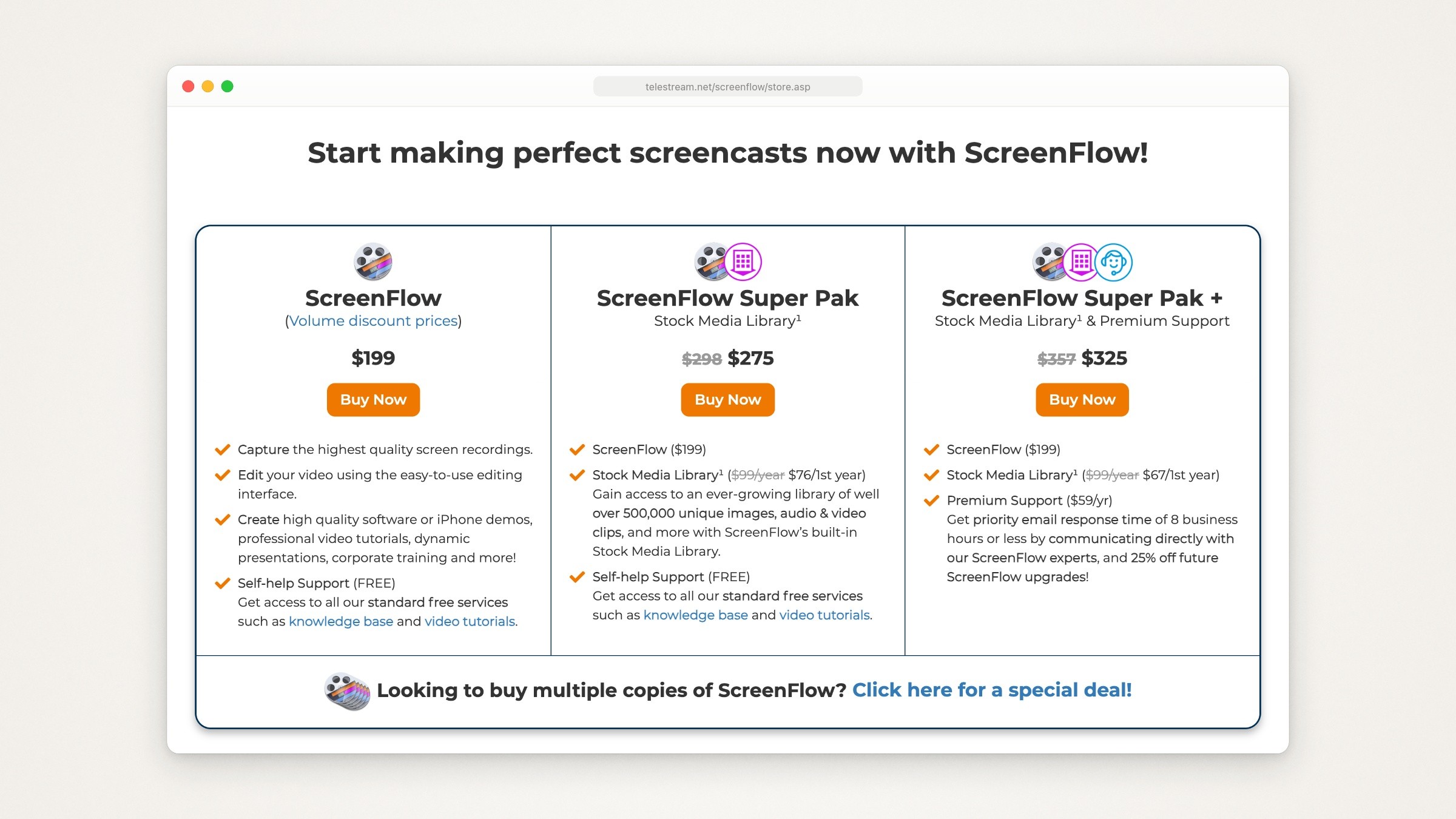
Telestream’s ScreenFlow store, captured September 23, 2026. The two bundles add its stock media library, and the second adds Premium Support.
Runs on: Macs only, Apple silicon or Intel. ScreenFlow’s version history names macOS Tahoe and macOS Sequoia (its store page still says Sequoia and Sonoma), while the Mac App Store listing gives macOS 10.15 as the minimum. The current version, 10.5.2, came out on February 12, 2026.
What it has for tutorials and demos: multi-track editing with nested clips and markers; transitions, text and video animations and freehand annotations; styles and templates for a series of software tutorials; closed captions you can burn in or export as SRT subtitles; and animated GIF export. ScreenFlow’s user guide documents pointer controls for its own screen recordings: hide or enlarge the pointer, add a click effect, smooth its motion and show keystrokes. Callouts can highlight the pointer or the front window, blur the rest of the screen or magnify what’s inside them. It also records an iPhone or iPad connected by cable.
The catch:
Its user guide describes no automatic zooms: a zoom is a scale change in a video action that you add and time yourself.
On an iPhone recording it doesn’t capture touches; its guide suggests adding callouts to simulate them.
Its last feature release was 10.5, on August 4, 2025. The two releases since then are fixes.
Final Cut Pro, with the Mac’s own recorder
Best for: a professional editor on a Mac, if you’re fine recording in another app.
What it costs (checked September 24, 2026): $299.99 once (Final Cut Pro on the Mac App Store), or inside Apple Creator Studio at $12.99 a month or $129 a year after a 30-day free trial. Creator Studio also includes Logic Pro, Pixelmator Pro, Motion, Compressor and MainStage, and Apple’s Final Cut Pro page says some premium content is only for subscribers.
Runs on: macOS 15.6 or later; some features need a Mac with Apple silicon.
What it has for tutorials and demos: the Magnetic Timeline, Generate Captions for closed captions or animated subtitles made from spoken audio (Apple silicon Macs and U.S. English only), 2D and 3D titles, background noise reduction for voice, and Smart Conform for square or vertical versions.
The catch: it doesn’t record the screen, so you record with Shift-Command-5 (below) or OBS Studio. Its listing names no cursor or click effects, so the pointer stays as it was recorded.
If you want free and simpler, iMovie on the Mac App Store is free, needs macOS 15.6 or later and edits at up to 4K, and Apple’s guide to recording the screen lists iMovie among the apps you can open a screen recording with.
OBS Studio and DaVinci Resolve, for free
Best for: a full record-and-edit setup that costs nothing.
What it costs (checked September 24, 2026): OBS Studio is free and open source (OBS Studio’s site). DaVinci Resolve is free, and DaVinci Resolve Studio is $295 (DaVinci Resolve page).
Runs on: OBS Studio 32.2.2, released August 14, 2026, supports macOS 13.0 and newer (OBS download page). Both apps also run on Windows and Linux.
What they do: OBS records scenes built from window captures, webcams, images and text, with an audio mixer that includes noise suppression. DaVinci Resolve edits, grades color and mixes audio in one app, and its free version works with 8-bit video at up to 60 frames per second in resolutions up to Ultra HD, 3840 by 2160.
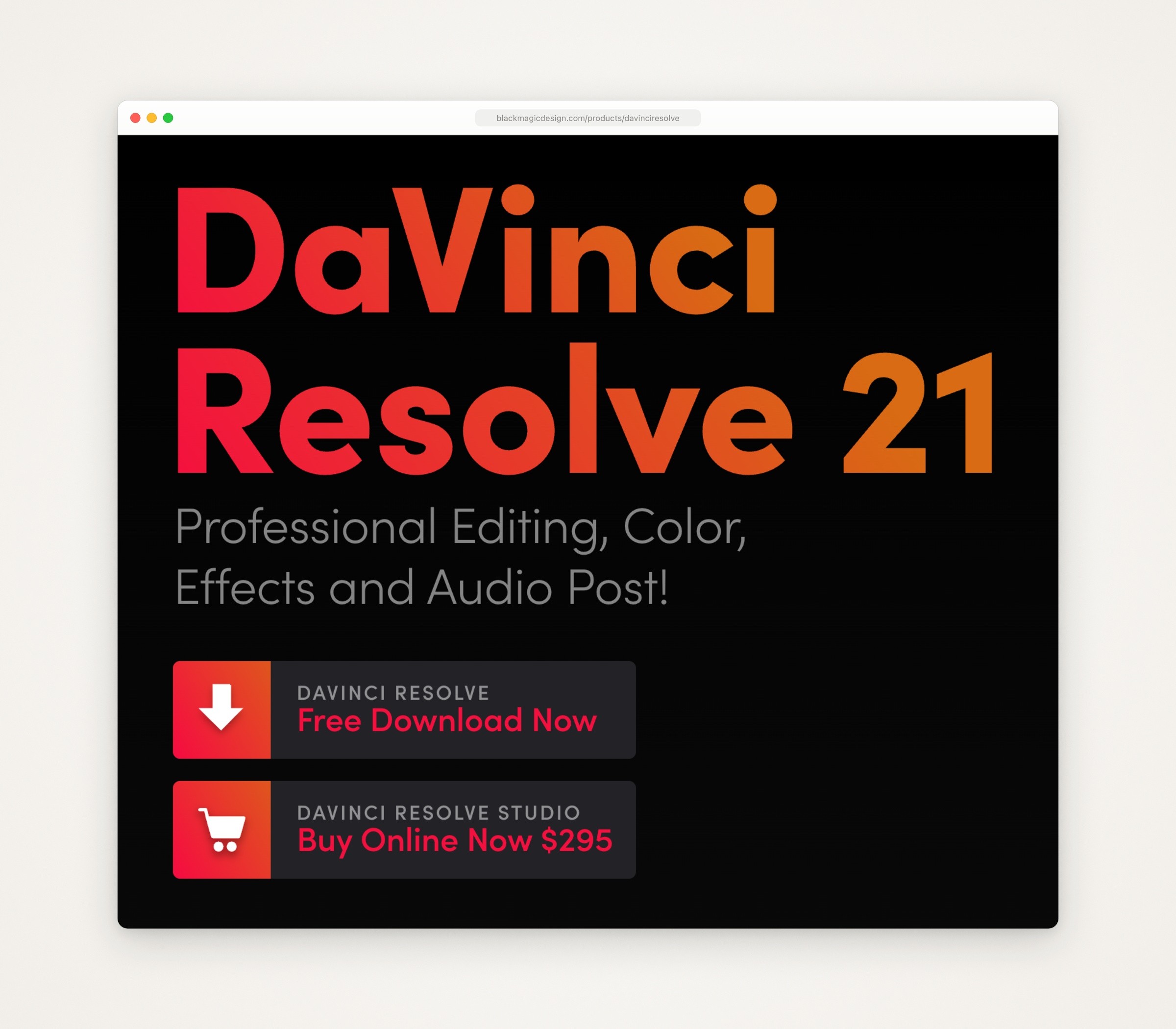
Blackmagic Design’s DaVinci Resolve page, captured September 23, 2026: the free download above Resolve Studio at $295.
The catch: it’s two apps to learn, and neither vendor’s page lists zooms that follow the pointer or cursor smoothing, so plan to animate zooms yourself. How to hide, smooth or fix the cursor covers what OBS can do about it before you record.
OpenShot, Kdenlive and Shotcut, for open source
Best for: editing on a timeline in software whose source code is public, at no cost.
What it costs (checked September 24, 2026): nothing. OpenShot, Kdenlive and Shotcut are each free and open source, and OpenShot says it has no subscriptions, watermarks or project limits.
Runs on: all three run on Mac, Windows and Linux. OpenShot’s download page offers one download for Intel and Apple silicon Macs and names no minimum macOS. Kdenlive’s download page says macOS 13 (Ventura) or newer, with Apple silicon and Intel builds, and Shotcut’s download page lists macOS 12 to 26, 64-bit, for version 26.8.1.
What they have for tutorials and demos: OpenShot 4.0, announced August 30, 2026, added a Recording View that records the screen, webcam, microphone and system audio into a project, each as its own clip, and it has camera presets that zoom or pan a clip. Kdenlive lists nested sequences, markers, keyframes and built-in voiceover recording. Shotcut edits files without importing them first and lists screen capture from X11 screens and Windows DirectShow devices.
The catch: of the three, only OpenShot’s pages describe recording the screen on a Mac, so with Kdenlive or Shotcut you record first with Shift-Command-5 or OBS Studio. None of the pages describes cursor effects or zooms that follow the pointer, and OpenShot notes that its capture options vary by platform and permissions.
Descript, if your narration drives the edit
Best for: tutorials you talk through and would rather edit as text.
What it costs (checked September 24, 2026): a free plan that exports 720p video with a watermark. Hobbyist is $16 a person a month billed yearly, or $24 monthly, and exports 1080p without a watermark; Creator is $24 billed yearly, or $35 monthly, and exports 4K (Descript pricing). Paid plans come with a monthly allowance of media hours and AI credits: 10 hours and 400 credits on Hobbyist.
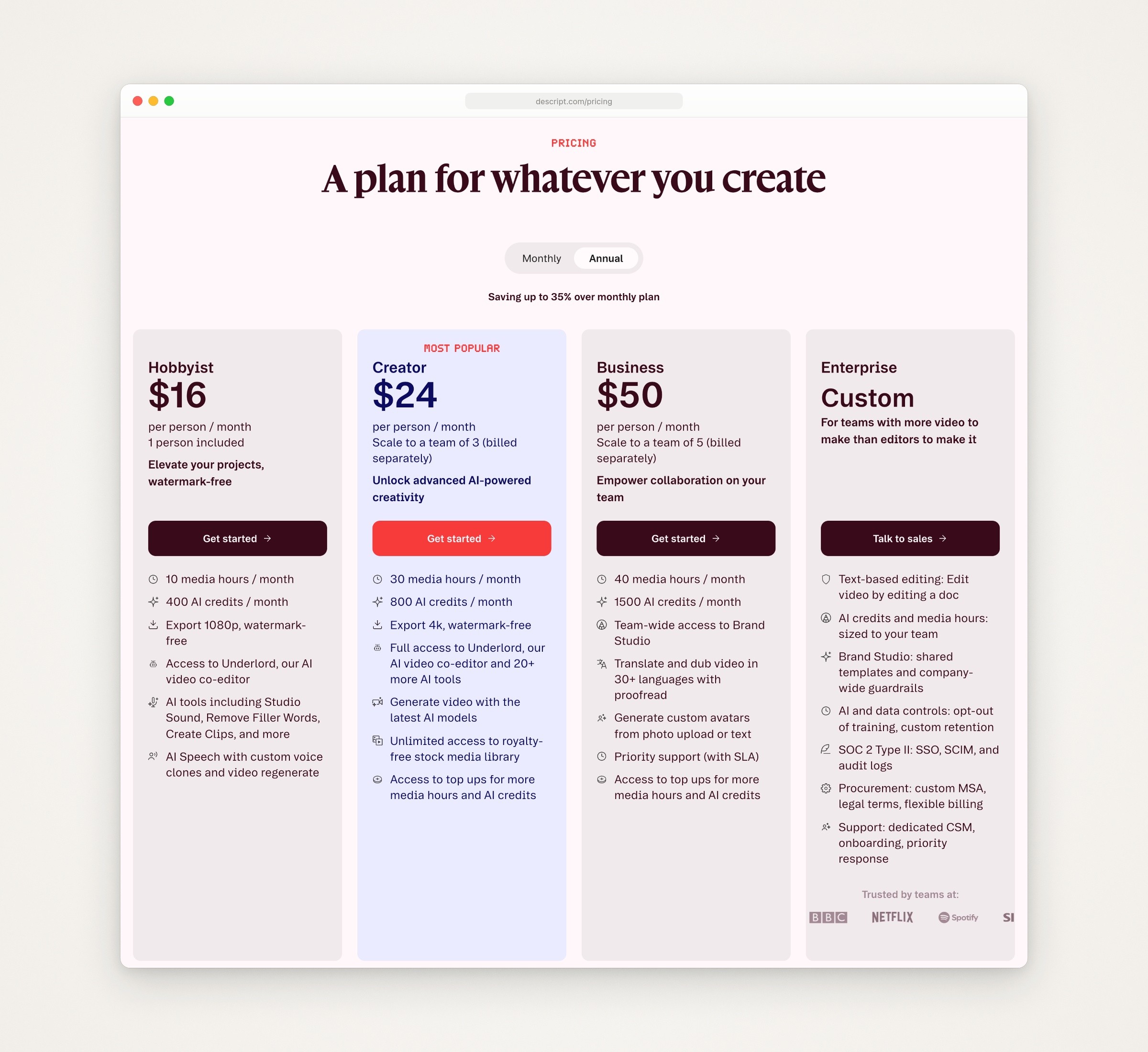
Descript’s pricing page with annual billing selected, captured September 23, 2026.
Runs on: macOS 14 Sonoma or newer, and Windows 11 (Descript download page).
What it has for tutorials and demos: it records your screen, camera and microphone, and you cut a mistake by deleting its words from the transcript (Descript’s screen recorder page). On a paid plan, its MCP server lets Claude or another AI assistant start imports and edits for you (Descript API and MCP).
The catch: the editing is built around the transcript, so a silent app demo gets much less out of it.
If you want it to look edited without editing
These record your screen and are built around the polish: zooms toward what you did and a smoothed pointer you can resize, which you adjust instead of building. Camtasia can do some of this too. If you turn on Camtasia Rev, it opens when you stop recording so you can pick a layout, a background and cursor effects in a few clicks (TechSmith’s Camtasia Rev tutorial), and since Camtasia 2026.0 for Mac, SmartFocus zooms are a switch in Rev as well (Camtasia Mac 2026 version history). TechSmith says SmartFocus is optimized for recordings longer than 30 seconds and suggests adding zooms to shorter clips by hand (TechSmith’s zoom tutorial). Paid yearly or once, each app below costs less than Essentials. Before you trust any automatic zoom, see how to check and fix auto zoom in screen recordings.
Screen Studio
Best for: demos and tutorials that look finished almost as soon as you stop recording.
What it costs (checked September 24, 2026): $29 a month, or $9 a month billed yearly, which is $108 a year (Screen Studio’s homepage). Without a plan you can use every feature except exporting video files (Screen Studio download page), so you can judge it on your own recording first.
Runs on: Mac only; macOS Ventura 13.1 or newer is recommended. Version 3.7.5 came out on August 5, 2026 (Screen Studio changelog).
What it has for tutorials and demos: automatic zooms on what you do, which you can drag on the timeline; a smoothed cursor that you can resize after recording and that hides when it stops moving; trims, cuts and speed-ups; webcam, microphone and system audio, with voice leveling, noise removal and subtitles transcribed on your Mac; iPhone and iPad recording over USB, in a device frame; and export up to 4K at 60 fps, or as a GIF.
The catch:
It’s a subscription too, though $108 a year is less than Essentials.
On an iPhone recording it can’t see your taps, so there are no automatic zooms and no cursor (Screen Studio’s iPhone guide).
For more recorders of this kind, with their costs over three years, see Screen Studio alternatives.
Cap
Best for: the same kind of automatic polish, free for personal use or $58 once for work.
What it costs (checked September 24, 2026): free for personal use. A Desktop License for commercial use is $29 per license a year or $58 once, for one user; Cap Pro adds cloud sharing for $12 per user a month, or $8.16 a month billed yearly (Cap pricing). Cap’s commercial license page counts demos of your employer’s product as commercial use, so most work demos need the paid license.
Runs on: macOS 13.1 or newer is recommended, plus Windows (in beta) and Linux (Cap downloads). Version 0.6.0 came out on September 15, 2026 (Cap releases).
What it has for tutorials and demos: Studio Mode records screen, camera and microphone on separate tracks at up to 4K, and the editor adds backgrounds, automatic zoom, cursor effects and captions, blurs what’s private and switches scenes between screen and camera (Cap’s homepage). A command line tool and a local MCP server let Claude Code, Codex, Cursor or OpenCode record the screen and manage the library for you (Cap for Agents). Most of its source is public under the AGPLv3 license.
The catch: the free plan is for personal use only, and share links on the Desktop License are capped at 20 a month, up to 5 minutes each.
CleanShot X
Best for: people who take screenshots all day and want their recordings to look edited, in one Mac app paid for once.
What it costs (checked September 24, 2026): CleanShot Basic is $35 once, with a year of updates and an optional $19 a year after that. CleanShot Pro is $10 per user a month, billed yearly. There’s no trial, but there is a 30-day money-back guarantee, and CleanShot also comes with Setapp, which has a 7-day free trial (CleanShot pricing).
Runs on: macOS 13.0 or newer; there’s no Windows version.
What it has for tutorials and demos: it records a window, an area or the full screen as MP4 or GIF, with microphone and computer audio, clicks, keystrokes and a camera (CleanShot features). Version 5.0, on September 1, 2026, added Studio Mode: smart zooms that follow your cursor, trimming, smoother cursor movement, backgrounds and motion blur, and cursor size, keystrokes and camera you can change after recording (CleanShot changelog). CleanShot’s homepage calls the zooms automatically generated.
The catch: Studio Mode is new: it shipped in version 5.0 on September 1, 2026, and the one 5.x update since, 5.0.1 on September 18, fixed bugs. If your Basic license’s year of updates ended before 5.0, getting Studio Mode takes the $19 renewal.
If you only trim and share
The Mac’s own recorder and QuickTime Player
Best for: recordings you trim and send as they are.
What it costs: nothing; both come with macOS.
Runs on: macOS. Recording a single window needs macOS Tahoe 26 or later, and recording the Mac’s own sound needs macOS 27.
What it has for tutorials and demos: Shift-Command-5 opens the Screenshot toolbar with Record Entire Screen, Record Selected Window and Record Selected Portion. Its Options add a microphone, the Mac’s own sound, a black circle around the pointer on each click, a timer and a save location. When you stop, clicking the thumbnail in the corner opens the recording for editing (Apple’s guide to recording the screen on Mac). QuickTime Player then trims, splits, rearranges and rotates clips and can remove the audio (QuickTime Player User Guide).
The catch: Apple’s guides list no zooms, captions or cursor tools, and no setting that keeps the pointer out of the video. How to record one window on a Mac walks through the built-in route step by step.
If the video is a quick walkthrough that people watch from a link, Loom is made for that. Its free Starter plan allows 25 videos per person, recordings up to 5 minutes and video up to 720p, and it can’t download your videos as files (Loom’s help on downloading a video). Business, at $18 per user a month billed monthly, removes those limits and adds trimming and stitching (Loom pricing).
What each costs over three years
At September 24, 2026 prices, for one person, assuming renewals cost what they cost today:
App and plan | First year | Three years |
|---|---|---|
Camtasia Essentials | $179.88 | $539.64 |
Camtasia Create | $249 | $747 |
ScreenFlow | $199 | $199, until a paid upgrade |
Final Cut Pro, bought once | $299.99 | $299.99 |
Apple Creator Studio, yearly | $129 | $387 |
Descript Hobbyist, yearly | $192 | $576 |
Screen Studio, yearly | $108 | $324 |
Cap Desktop License, once | $58 | $58 |
CleanShot X Basic, renewed yearly | $35 | $73 |
OBS Studio and DaVinci Resolve | $0 | $0 |
OpenShot, Kdenlive or Shotcut | $0 | $0 |
What the totals leave out: Apple Creator Studio starts with a 30-day free trial and includes Apple’s other creative apps. The one-time purchases keep working when you stop paying, and CleanShot X Basic keeps the last version your year of updates covered. Camtasia 2024 at $199.99 on the Mac App Store isn’t in the table, because TechSmith stops supporting it on December 31, 2026.
Check what your Mac runs
The oldest macOS stated for each app that has its own section above, from the pages linked there:
macOS 12: Shotcut, whose download page lists macOS 12 to 26.
macOS 13.0 or newer: CleanShot X, OBS Studio and Kdenlive.
macOS 13.1 or newer, recommended: Screen Studio and Cap.
macOS 14 or newer: Camtasia and Descript.
macOS Sequoia 15 or Tahoe 26: ScreenFlow 10.5.2, per Telestream’s version history; its Mac App Store listing says macOS 10.15 or later.
macOS 15.6 or later: Final Cut Pro and iMovie.
macOS Tahoe 26 or later: recording a single window with Shift-Command-5.
Not stated: the pages read for DaVinci Resolve and OpenShot name no minimum, so check before you download.
When your agent does the editing: Moonjar (our product, early access)
Moonjar is the Mac app I’m building, and it’s our product. It’s in early access, with no published price, and it doesn’t replace Camtasia: its videos have no audio, so there’s no voiceover or music, it records no webcam, and there are no quizzes or slide imports. You also don’t drag clips on a timeline yourself.
It does a narrower job: product screenshots and demo videos your agent makes from your real app, and redoes when the app changes. You ask your coding agent (Claude Code, Codex, Cursor or any MCP client), and it works through Moonjar’s MCP server while you watch in the Moonjar app:
Record. The agent records the iOS Simulator or a Mac window. It rehearses the steps first without recording, and Moonjar records only a rehearsal that passed.
Edit. The agent makes the cut: it removes the waiting, changes speed, and adds zooms, captions and named beats. The pointer in a Mac recording is drawn as its own layer, so the agent can smooth it, move it or hide it. You review the cut in Moonjar and tell your agent what to change.
Keep. Every version is saved, and you can go back to any of them. When the app changes, the agent can redo the video in the same look; Moonjar doesn’t watch for changes on its own.
Export. MP4, MOV, WebM or GIF.
Here is how much editing that means on one real take. On September 16, 2026, Claude Code recorded 21.9 seconds of Ellie for Mac, the planner I build, on its demo data, as three tasks were moved around its week board. It then cut the take in Moonjar in two rounds of edits: it took out 12.6 seconds in four cuts, played each of the three drags at 0.4x speed so they can be followed, added one zoom and named three beats (“Drag a task into Today”, “Add one to Thursday” and “Push a task to Thursday”). The finished cut is 11.7 seconds long. Claude Code video editing walks through another cut made this way, call by call, and how to make an app demo video covers the whole job, from planning the moments to exporting for each place it will play.
Descript and Cap, above, also let an agent do part of the work. If you narrate, record a webcam or publish to a learning platform, one of the apps above fits better. If your demos are short, silent walkthroughs of your own Mac app, or of your iOS app in the Simulator, and you’d rather describe the edit than make it, see what Moonjar does, how it connects to your agent, or ask for early access (Mac only).
Other questions
Is Camtasia free on a Mac?
The Camtasia Editor downloads free for Mac, with no time limit, once you create a TechSmith account. Every video it exports carries a TechSmith watermark until you’re on Essentials ($179.88 a year) or higher; the $39 Starter plan doesn’t remove it (TechSmith’s free trial article). The download terms forbid removing or covering the watermark (Camtasia download page). For videos without a watermark at no cost, use OpenShot, OBS Studio with DaVinci Resolve, or the Mac’s own recorder.
Which of these record an iPhone app?
Camtasia (in its Mac version only), ScreenFlow and Screen Studio record an iPhone or iPad connected by cable, and Camtasia also takes recordings from its TechSmith Capture mobile app over your wireless network. The taps are where they fall short. TechSmith’s tutorial has you add gesture effects for taps, pinches and swipes in the editor (TechSmith’s iOS recording tutorial), ScreenFlow’s guide says it doesn’t record touches or swipes and suggests callouts to simulate them, and Screen Studio can’t see your taps, so it makes no automatic zooms and shows no cursor on those recordings. If your app runs in the iOS Simulator, you can record that instead: how to record the iOS Simulator with taps showing covers four ways to show the taps, one of them Moonjar, our product, which draws them in afterward from a log of the agent’s touches.
How this page was made
Prices and features were read from each vendor’s own pages on September 23, 2026, read again on September 24, 2026, and saved as a record. The page screenshots are captures of those pages made on September 23, 2026 with Moonjar, our product, and set in a plain browser frame. Nothing on the pages was changed; the one mark, the box on TechSmith’s store, was added by us and says so in its caption. The cover sets the product pages of Camtasia, ScreenFlow and Screen Studio, captured the same day, side by side on one of Moonjar’s gradient backgrounds. None of the other apps on this page was installed or tried. The text was drafted with AI assistance.