
OBS alternative for Mac: what to use when you only need to record
How to record a Mac window, the screen or a demo when OBS is more than the job needs, and when to keep OBS.
Chris Raroque
·

If you only need to record, the simplest OBS alternative for Mac is already on it. Press Shift-Command-5 to record the whole screen or part of it; on macOS Tahoe 26 or later it also records a single window, and Apple’s guide lists recording the Mac’s own sound on macOS 27. For demos that look edited, Screen Studio ($29 a month, or $9 a month billed yearly) and Cap (free for personal use; $29 a year or $58 once for commercial use) zoom in where you click and smooth the cursor. CleanShot X ($35 once) records alongside its screenshot tools, and ScreenFlow ($199) records and edits on a multitrack timeline. Keep OBS if you stream, switch between scenes as you record, want its virtual camera in video calls, or rely on its plugins and scripts on Mac, Windows and Linux.
Disclosure: Moonjar, the Mac app I’m building, is our product. Your coding agent uses it to record a Mac window or the iOS Simulator and cut the take, so it overlaps with part of this job, but it isn’t a general screen recorder. It is in early access, so it isn’t one of the picks; it has a separate box near the end. The screenshots of vendor pages here, the cover included, were made with Moonjar; none of the apps below made them.
Checked September 24, 2026, on each maker’s own site, pricing page, docs, release notes or code repository, linked where used. None of these apps was installed or tried for this page, and no account was made, so each section reports what its maker documents rather than how well it works. Prices are in US dollars.
Quick answer by what you record
If you want | Pick and price, Sept 24, 2026 |
|---|---|
The screen or one window, free, nothing to install | The Mac’s own recorder: free |
Demos with automatic zoom and a smooth cursor | Screen Studio: $29 a month, or $9 a month billed yearly |
That kind of polish, free for personal use | Cap: free; $29 a year or $58 once for commercial use |
Screenshots and recordings in one app, paid once | CleanShot X: $35 once, 1 year of updates |
A quick message your team watches from a link | Loom: free for 25 videos of up to 5 minutes |
A full editor with a multitrack timeline | ScreenFlow: $199, with a watermarked free trial |
Free and open source, with zooms, on Mac, Windows or Linux | OpenScreen: free |
To stream, or to switch scenes live | OBS Studio: free, so keep it |
Some pages that rank for this search give prices the vendors’ pages don’t show, and others predate Apple’s macOS 27 guide. ScreenSnap Pro’s OBS alternatives post, published May 29, 2026 by the app’s maker, lists Screen Studio at $229 one-time and ScreenFlow at $169; Screen Studio’s FAQ says one-time licenses can no longer be bought, and ScreenFlow’s store lists $199. Posts from Rekort (July 23, 2026) and Screenify Studio (updated August 21, 2026) say the Mac’s own recorder needs extra software to record the computer’s sound; they were written before Apple’s guide, published September 14, 2026, listed that option for macOS 27. Every price on this page was read from the vendor’s own page.
When OBS is still the right tool
OBS Studio calls itself free and open source software “for video recording and live streaming” (OBS’s homepage). Its download page lists version 32.2.2 and says the Mac version needs macOS 13.0 or newer (OBS’s download page); that release is dated August 14, 2026 on GitHub (OBS on GitHub). Stay with it if any of these is why you opened it:
You stream. OBS supports “all your favorite streaming platforms”, and its recording guide says it can record while streaming or on its own (OBS’s recording guide).
You switch scenes while you record. It keeps as many scenes as you like, with transitions between them, a Studio Mode for previewing a scene before it goes out, a Multiview of eight scenes, and hotkeys for nearly every action.
You mix several audio sources. Each source gets filters such as noise gate, noise suppression and gain, with VST plugin support on top. On macOS 13 or later, OBS 30 and newer can capture all of the Mac’s audio or one app’s (OBS’s macOS audio guide).
You want your scene in a video call. Its virtual camera sends the output to apps that use a webcam, such as Zoom or Discord. OBS 30 and newer on macOS 13 or later include a virtual camera that works with all Mac apps (OBS’s virtual camera troubleshooting page).
You rely on plugins, scripts or the same app on every computer. OBS runs on Mac, Windows and Linux under the GPL 2.0 license (OBS on GitHub), and takes native plugins or scripts written in Lua or Python.
Apart from the three streaming apps near the end, none of the recorders on this page lists live streaming on the pages read for this guide. If you stream but find OBS too much, start with that section.
If you keep OBS just to record
OBS doesn’t need a streaming setup to make a recording. Its own guides give the short version:
Grant permissions: in the OBS Studio menu, choose Review App Permissions and turn on Screen Recording, plus Microphone and Camera if you use them (OBS’s macOS permissions guide).
Let the Auto-Configuration Wizard set OBS up for what you want to do and for your hardware. It opens the first time you run OBS, and again from the Tools menu (OBS’s quick start guide).
OBS starts with a blank scene. In the Sources dock, click + and add a macOS Screen Capture source, then set its Method to Display Capture, Window Capture or Application Capture. On macOS 13 or later it can capture that source’s sound too (OBS’s macOS Screen Capture page).
In the same source, Show cursor is on by default. Turn it off if the pointer shouldn’t be in the video, knowing it can’t be put back later; the guide to hiding the cursor in a Mac recording covers that trade.
In Settings > Output, choose where recordings go and their format. Since OBS 32.0, new profiles record in Hybrid MP4 or Hybrid MOV by default (OBS 32.0 release notes), a format that OBS says stays recoverable if a crash cuts the recording off and opens in editing apps like a normal file (OBS’s Hybrid MP4 and MOV page). If you pick MKV, which OBS’s 2023 recording guide recommends, File > Remux Recordings turns it into an MP4 (OBS’s recording guide).
Make a short test recording first, as the quick start guide suggests, then click Start Recording.
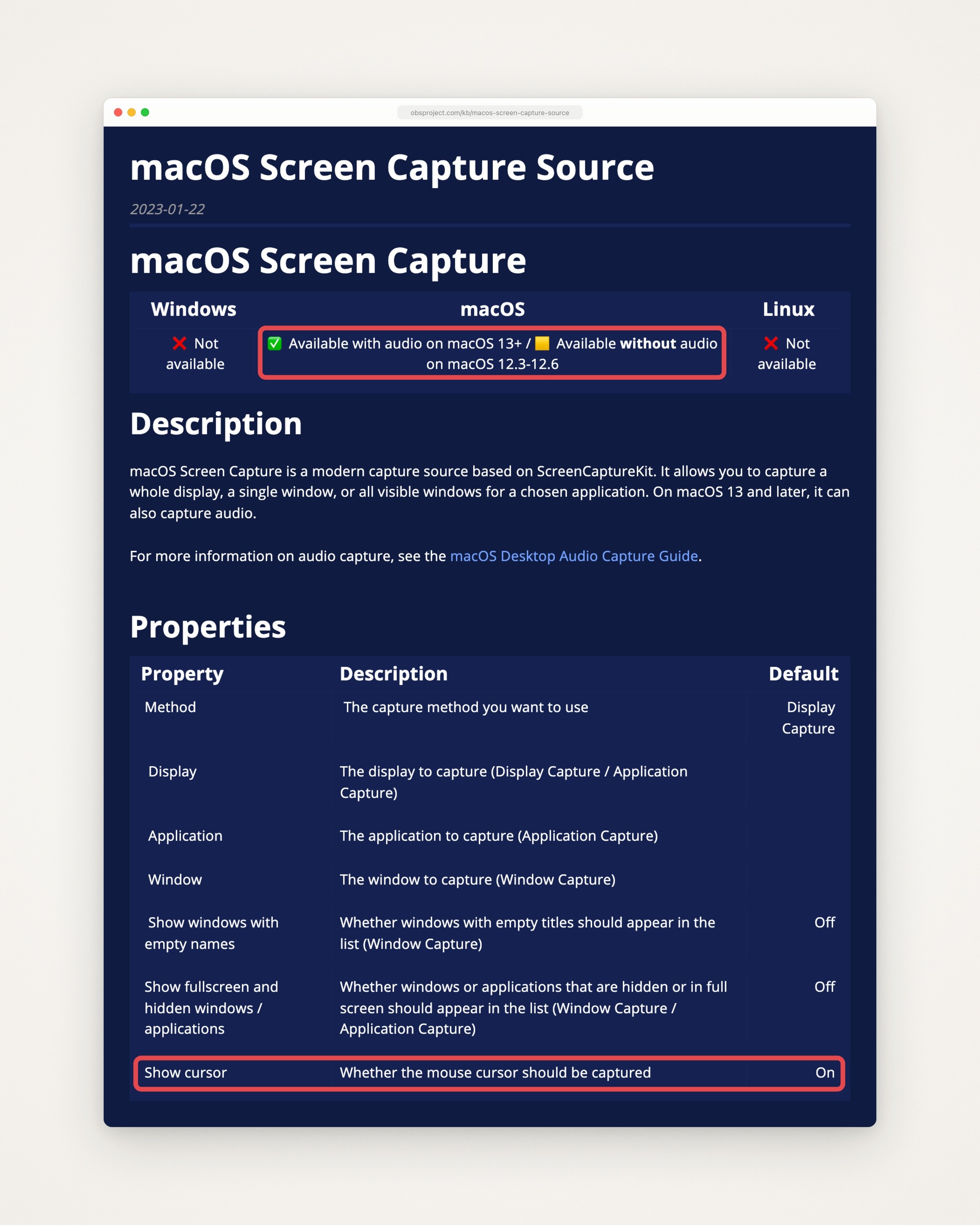
OBS’s page on its macOS Screen Capture source, captured September 23, 2026. The red boxes, added by us, mark sound capture on macOS 13 and later and the Show cursor setting, which is on by default.
What OBS won’t do after you stop: its feature list names no editor, so trims, zooms and cursor smoothing happen in another app.
Free, and already on your Mac
The recorder built into macOS is the closest thing to “just record” (Apple’s guide to recording the screen on Mac, published September 14, 2026):
Three ways to record. Shift-Command-5 opens the Screenshot toolbar with Record Entire Screen, Record Selected Window (macOS Tahoe 26 or later) and Record Selected Portion.
Sound. Choose a microphone in Options. To record the Mac’s own sound, choose Include System Audio, which needs macOS 27 Golden Gate or later.
Other options. Show Mouse Clicks draws a black circle around the pointer each time you click. There’s a timer and a save location, and on supported Macs with macOS Tahoe 26 or later, a choice of SDR (H.264, marked Most Compatible) or HDR (HEVC).
Stopping and editing. Click the Stop button in the menu bar or press Command-Control-Esc, then click the thumbnail to edit the recording. By default, recordings save to the desktop as .mov files.
QuickTime Player. File > New Screen Recording, or Control-Command-N, opens the same toolbar on Macs where the Screenshot app does the recording; on a Mac where QuickTime does it, you get QuickTime’s own Screen Recording window instead. QuickTime’s user guide covers trimming a recording, splitting it into clips and rearranging them.

Apple Support’s How to record the screen on Mac, captured September 23, 2026. The red box, added by us, marks the option for recording the Mac’s own sound.
The catch:
Apple’s guides list no automatic zoom, cursor smoothing or camera overlay, so the video shows the screen as it was.
One window needs macOS Tahoe 26, and the Mac’s own sound needs macOS 27. On an older Mac, how to screen record one window on a Mac shows how to record a portion around the window instead.
Apple’s recording guide lists no setting that keeps the pointer out of a recording. The cursor guide has the workarounds.
For demos that look edited
These three record the screen, a window or part of it, then polish the take: zooms that follow the action, a smoother cursor and a background around the recording. For more apps of this kind, with each one’s prices side by side, see Screen Studio alternatives; Screen Studio vs Cap compares the first two for a product demo.
Screen Studio
Best for: Mac demos and tutorials with automatic zoom, a smooth cursor, and your camera and voice, with little editing.
What it costs (checked September 24, 2026): $29 a month billed monthly, or $9 a month billed yearly, which is $108 a year. Its FAQ says one-time licenses were sold in the past but can no longer be bought, and an old license stays valid. Without a plan you can use every feature except exporting video files (Screen Studio’s homepage, Screen Studio’s download page).
Runs on: macOS only, with macOS Ventura 13.1 or later recommended. Its FAQ says there are no near-future plans for Windows.
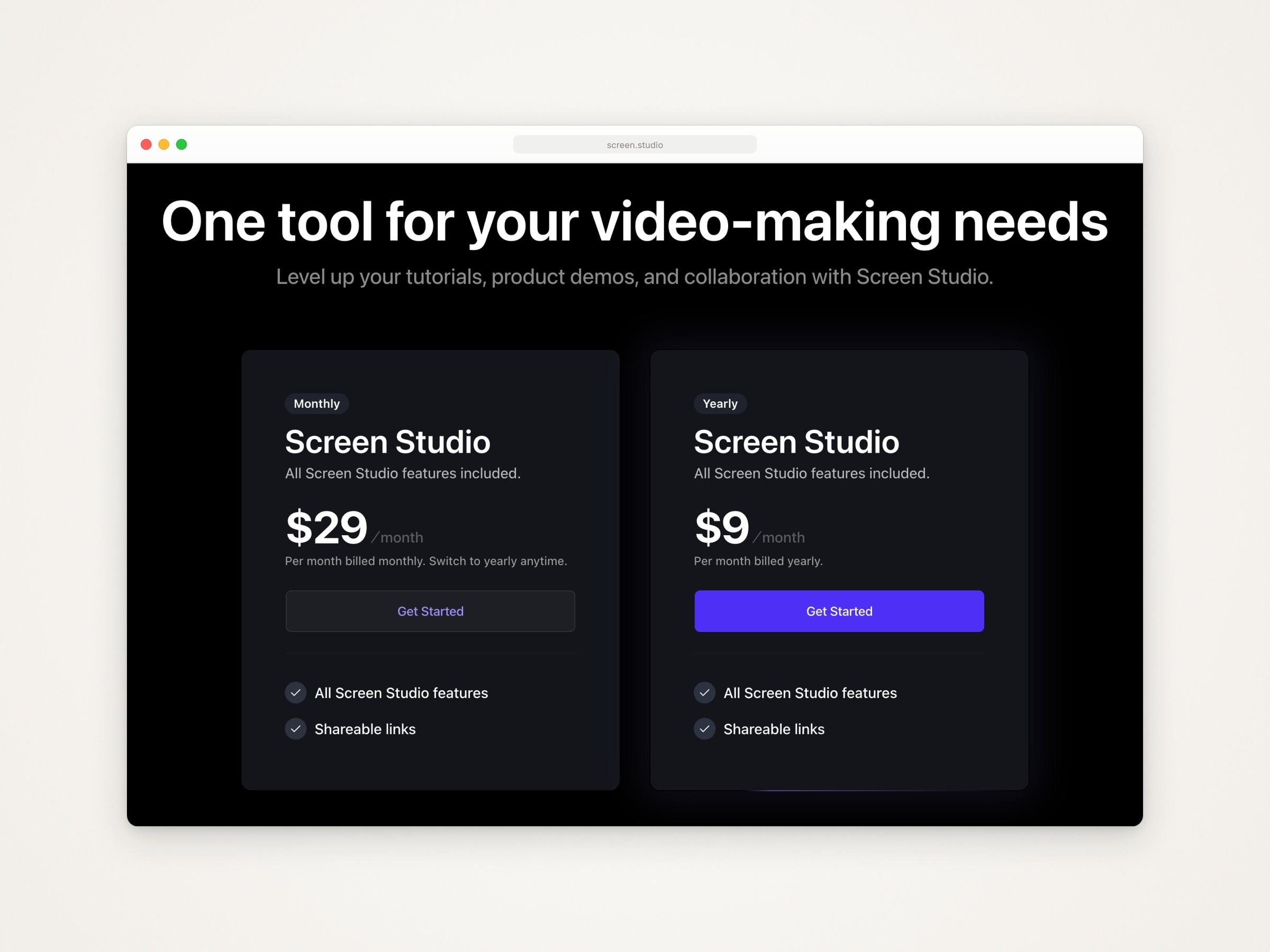
Screen Studio’s pricing section on its homepage, captured September 23, 2026.
What it does that OBS doesn’t: it zooms in automatically on what you do, smooths the cursor and changes its size after recording, hides a cursor that isn’t moving, lets you cut and speed up parts of the take, and records an iPhone or iPad over USB. It exports video up to 4K at 60 fps, a GIF or a shareable link. Like OBS, it records a display, a single window or an area (Screen Studio’s guide), with your webcam, microphone and the sound of all apps or selected ones.
The catch:
It is a subscription, and exporting needs an active plan.
It is Mac only.
Cap
Best for: automatic zoom and cursor polish at no cost for personal use, with public source code, on Mac, Windows or Linux.
What it costs (checked September 24, 2026): free for personal use. A Desktop License, which adds commercial use, is $29 a year or $58 once. Cap Pro, which adds unlimited cloud sharing and AI titles, summaries and transcriptions, is $12 per user a month, or $8.16 a month billed yearly (Cap pricing). Cap counts demos of your employer’s product and videos for your coworkers as commercial use (Cap’s commercial license page).
Runs on: macOS (13.1 or later recommended), Windows (labeled beta), Linux, and Chrome as an extension (Cap downloads). Most of its code is under the AGPLv3 license, with some parts under MIT (Cap’s license file).
What it does that OBS doesn’t: after a Studio Mode recording, which keeps the screen, camera and microphone on separate tracks in 4K at 60 fps, it opens an editor with automatic zooms from your recorded clicks, cursor smoothing, click effects, backgrounds and captions transcribed on your computer. Instant Mode uploads while you record and puts a share link on your clipboard when you stop (Cap’s homepage). Like OBS, it records a display, a window or an area, with the Mac’s own sound if you want it.
The catch:
Commercial work needs a paid license.
Its pricing page contradicts itself about the free plan: the text says there is no time limit on local recordings, while its comparison table marks “Unlimited local recordings & editing” as not included on Free.
Share links on the free plan and the Desktop License are capped at 5 minutes each.
CleanShot X
Best for: screenshots and recordings in one Mac app you pay for once.
What it costs (checked September 24, 2026): $35 once for CleanShot Basic, which includes a year of updates; after that, more updates are $19 a year if you want them. The Pro subscription, $10 per user a month billed yearly, adds unlimited cloud storage and team features. CleanShot offers a 30-day money-back guarantee (CleanShot pricing).
Runs on: macOS 13.0 or newer.
What it does that OBS doesn’t: it records as an MP4 or a GIF, shows your clicks and keystrokes in the video, and hides the clutter on your desktop while it records (CleanShot’s features page). Version 5.0, released September 1, 2026, added Studio Mode: smart zooms that follow the cursor, smoother cursor movement, motion blur and backgrounds (CleanShot’s changelog). Like OBS, it records a specific window, part of the screen or the full screen, with the microphone, the Mac’s own sound and your camera, and it can leave the cursor out.
The catch:
Studio Mode arrived on September 1, 2026, so its editor has a short track record.
It is Mac only.
For quick messages shared by link
If what you record is a quick message for your team rather than a demo, Loom is built for that: its screen recorder page says it creates a link for sharing as soon as you stop recording (Loom’s screen recorder page). Its free Starter plan allows 25 videos per person, recordings up to 5 minutes and video up to 720p, and its pricing page lists no automatic zoom or cursor smoothing (Loom pricing). Cap’s Instant Mode, above, also uploads as you record and hands you a link.
To record and edit on a timeline
ScreenFlow
Best for: long tutorials you record and edit in one Mac app, on a multitrack timeline.
What it costs (checked September 24, 2026): $199 in Telestream’s store (ScreenFlow store). Its overview offers a Stock Media Library as an extra for $99 a year, and its tech specs page says new major versions are paid upgrades, usually offered at a discount. The free trial is fully functional with no time limit, but its exports are watermarked (ScreenFlow’s overview).
Runs on: Apple silicon and Intel Macs. Its tech specs list macOS Tahoe 26 and macOS Sequoia 15 (ScreenFlow tech specs), though its store page, and the banner the tech specs page shows on small screens, still name Sequoia and Sonoma.

ScreenFlow’s technical specifications page, captured September 23, 2026. The red box, added by us, marks the macOS versions it lists.
What it does that OBS doesn’t: it edits on a multitrack timeline with transitions, text and video animations, freehand annotations and closed captions, records an iPhone or iPad screen, and exports animated GIF and APNG as well as video. Like OBS, it records the screen, a camera and a microphone together.
The catch:
Its overview doesn’t mention automatic zoom or cursor smoothing.
Its tech specs don’t list macOS 27 yet, or any version older than Sequoia 15.
Camtasia
TechSmith’s Camtasia records and edits on Mac and Windows, as a subscription. Essentials, at $179.88 a year, adds editable multitrack recording and cursor effects to the $39-a-year Starter plan, whose editor is watermarked. It needs macOS 14 or later (Camtasia store).
Other free and open source recorders
Besides OBS itself, the Mac’s own recorder and Cap’s free plan, three more cost nothing.
OpenScreen
Free for personal and commercial use under the MIT license, on macOS 13 or later, Windows and Linux. Its README lists auto and manual zooms, cursor smoothing, a webcam overlay and captions transcribed on your computer, and says it is under active development, with rough edges and occasional breaking changes. Version 1.12.2 came out on September 18, 2026 (OpenScreen on GitHub).
Recordly
Free and open source under the AGPLv3 license, on macOS 14 or later, Windows and Linux (Recordly’s site, Recordly on GitHub). Its license file says it started as a fork of OpenScreen. Its README lists zoom suggestions based on cursor activity, cursor smoothing, a webcam bubble, recording your microphone and the Mac’s own sound, a timeline for zooms, trims and speed, and export to MP4 or GIF. Version 1.4.0 came out in early September 2026.
Kap
Free and open source under the MIT license, for macOS 12 or later. It exports GIF, MP4, WebM or APNG, with optional audio, click highlighting and trimming, and has plugins for Giphy, Vercel and Streamable (Kap’s site). Its latest release, 3.6.0, came out on October 27, 2022 (Kap’s releases), so check that it runs on your version of macOS before you rely on it.
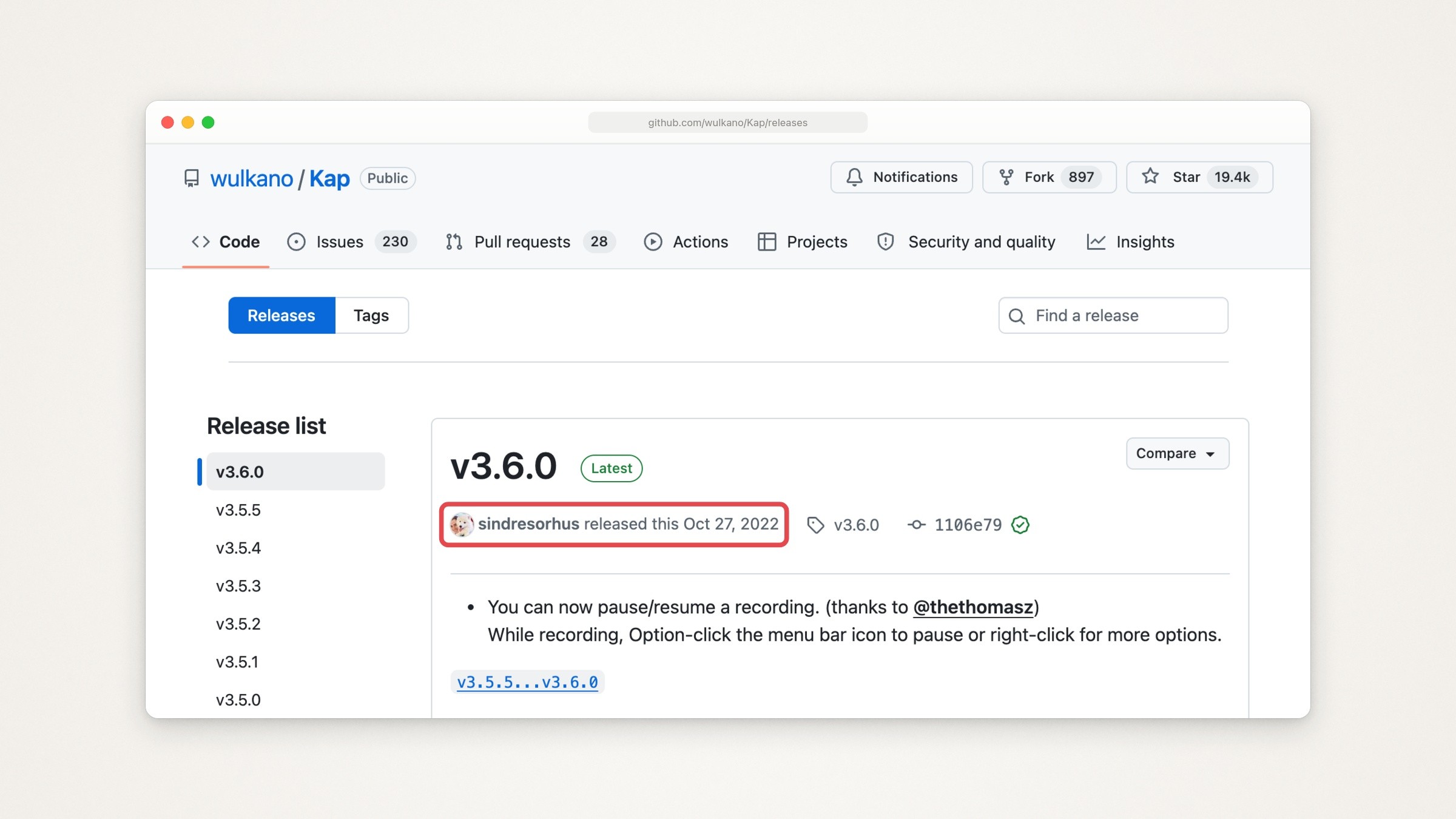
Kap’s releases page on GitHub, captured September 23, 2026. The red box, added by us, marks the date of its latest release.
For a small GIF made from any recording, see how to turn a Mac screen recording into a GIF.
If you stream but OBS feels like too much
None of the recorders above lists streaming on the pages read for this guide. If that is your job, these three stream and record:
Streamlabs Desktop: free, for Windows 10 or later and macOS 12 or later, with a paid tier called Ultra (Streamlabs Desktop).
Ecamm: a live streaming and recording studio built for Mac, for macOS 11.2 or newer. Standard is $20 a month, or $16 a month billed yearly ($192), and Pro is $40 a month, or $32 a month billed yearly ($384), after a 14-day free trial that needs no card (Ecamm’s homepage, Ecamm pricing).
Meld Studio: a streaming and recording app its site calls free on Windows and macOS (Meld Studio’s homepage).
On an older Mac
The oldest macOS each app names, from the pages linked in this guide:
macOS 11.2: Ecamm.
macOS 12: Kap, Streamlabs Desktop and Meld Studio. OBS’s homepage also says 12.0, but its download page says the current version needs 13.0, and the OBS 32.2.2 release notes say to use OBS 32.1.2 on macOS 12.
macOS 12.3: Loom’s desktop app (Loom’s device compatibility page).
macOS 13.0: OBS 32.2.2, CleanShot X and OpenScreen.
macOS 13.1, recommended: Screen Studio and Cap.
macOS 14: Camtasia and Recordly.
macOS 15: ScreenFlow, by its tech specs; its store page also names Sonoma 14.
No minimum named: the built-in recorder. Apple’s guide names no minimum macOS version; where QuickTime opens its own Screen Recording window instead of the toolbar, it records the entire screen or an area you drag (Apple’s guide).
Where Moonjar fits (our product, early access)
Moonjar is our product, and it doesn’t replace OBS. It is in early access, with no published price, and runs only on a Mac. It doesn’t stream, it doesn’t record a camera or a microphone, its exports have no sound, it doesn’t record the whole screen, and a recording stops by itself after 10 minutes.
What it does instead is narrower: product screenshots and demo videos your agent makes from your real app, and redoes when the app changes. Any MCP client can drive it through Moonjar’s MCP server, such as Claude Code, Codex or Cursor.
What it records. One Mac window, or the iOS Simulator. It captures the window itself with Apple’s ScreenCaptureKit, so the window doesn’t have to be in front while it records, as long as the app keeps drawing, though the agent’s own computer use may bring the app forward while it clicks. Some apps, such as web views and Electron ones, stop drawing once a window is fully covered; the one-window guide covers what happens then.
Rehearsed first. For a demo, the agent rehearses every step without recording and shows you the plan, with the shots, steps, timings and look. Moonjar records only a rehearsal that passed.
The pointer is separate. It isn’t recorded into the frames. Its path is logged, so the cut can draw it, smooth it, move it or hide it.
The agent cuts the take. It trims the waiting, changes speed, adds zooms and captions, and renders an MP4.
Redo later. Every item keeps its history, so after the app changes you can ask the agent to record and cut it again the same way. Moonjar doesn’t watch for changes on its own.
For a general screen recorder, pick one of the apps above. If what you keep re-recording is a demo of your own app, see what Moonjar does, how it works with your coding agent or ask for early access (Mac only).
How this page was made
Every price, feature and requirement of the other apps comes from their makers’ own pages, last read on September 24, 2026. The five page images are captures of those pages that Moonjar, our product, made on September 23, 2026; each is cropped and placed in a plain browser frame, and we added the red boxes and changed nothing else. The cover puts three of the apps’ homepages on one of Moonjar’s gradient backgrounds. The text was drafted with AI assistance.