
ScreenFlow vs Camtasia on a Mac: which should you pick?
Two Mac screen recorders with built-in editors, compared for software tutorials and app demos on price, license, editing, captions, Apple silicon and exports.
Chris Raroque
·

ScreenFlow vs Camtasia comes down to three things: which computers each one runs on, how you pay, and how much the app does for you. ScreenFlow is Mac only and costs $199 once. Camtasia runs on Mac and Windows, and its current version is sold only as a yearly subscription, from $179.88 a year without a watermark. It also makes captions from your voice, can place zooms for you and builds quizzes, where ScreenFlow leaves captions and zooms to you and lists no quizzes.
Disclosure: I build Moonjar, a Mac app your coding agent uses to record your app and cut the video. It’s our product, it’s in early access, and its job is much narrower than either app here, so it isn’t a pick; it has a separate box near the end. The cover and the page screenshots on this page were made with Moonjar, not with either app.
Checked September 24, 2026, on Telestream’s and TechSmith’s own stores, docs, release notes and support articles, and on their Mac App Store listings, each linked where a fact rests on it. Nothing was installed, trialed or signed up for, so this page reports what each vendor documents and can’t say how either app feels in use. Prices are in US dollars.
The short answer
Pick ScreenFlow if you only work on a Mac and would rather pay once than every year. It records your screen, camera and microphone, edits on a multi-track timeline, and costs $199 with no yearly charge. Version 10 has been current since June 2021, and new major versions have been paid upgrades. You place the zooms and type the captions yourself.
Pick Camtasia if you want the app to do more of the editing, or you need something ScreenFlow doesn’t list. Camtasia runs on Mac and Windows, makes captions from your audio, places zooms and pans for you with SmartFocus, and builds quizzes that export as SCORM packages for a learning system. TechSmith’s plan table lists the Editor’s captions, zoom and pan, and quizzes on every plan, but exports from the Starter plan carry a watermark. The price is a subscription: Essentials, the first plan without a watermark, is $179.88 a year.
Try both first if it’s close. Each has a free version with no time limit whose exports carry a watermark, so you can edit one of your own recordings before you pay.
Pick neither if what you want is a demo that looks edited without any timeline work. Screen Studio alternatives compares the Mac recorders built for that.
ScreenFlow vs Camtasia at a glance
ScreenFlow | Camtasia | |
|---|---|---|
Maker | Telestream | TechSmith |
Price, Sept 24, 2026 | $199 once | $179.88 a year without a watermark |
Free version | No time limit; exports have a watermark | No time limit; exports have a watermark |
Money back | 30 days if bought direct | 14 days |
Runs on | Mac only | Mac and Windows |
macOS | Tahoe 26 and Sequoia 15 | 14 or newer; 27 added Sept 10 |
Automatic zoom | None listed; you zoom by hand | Yes, from your cursor, clicks and scrolling |
Captions | You type them; SRT in and out | Made from your audio |
Quizzes and SCORM | Not listed | Yes |
Exports | MP4, HEVC, ProRes, GIF, APNG | MP4, GIF, M4A, WebM |
Latest release | 10.5.2, Feb 12, 2026 (fixes) | 2026.2.3, Sept 22, 2026 |
Each row is sourced in the section that covers it.
What they cost, and how you pay
ScreenFlow: pay once, pay again for a new major version
Telestream sells ScreenFlow for $199 in its online store, and ScreenFlow 10 for $199.99 on the Mac App Store (ScreenFlow’s Mac App Store listing). Two bundles add the Stock Media Library, a subscription listed at $99 a year, with a first-year price of $76 in the Super Pak and $67 in the Super Pak plus. The Super Pak is $275 for the first year, and the Super Pak plus, which also includes Premium Support ($59 a year on its own), is $325 (Telestream’s ScreenFlow store). New major versions are paid upgrades: moving up to ScreenFlow 10 costs $79 from version 8 or 9, or $119 from versions 4 to 7 (ScreenFlow upgrade page). Version 10 came out on June 22, 2021, and ScreenFlow’s version history lists every release since then as 10.x, up to 10.5.2, with no newer major version.
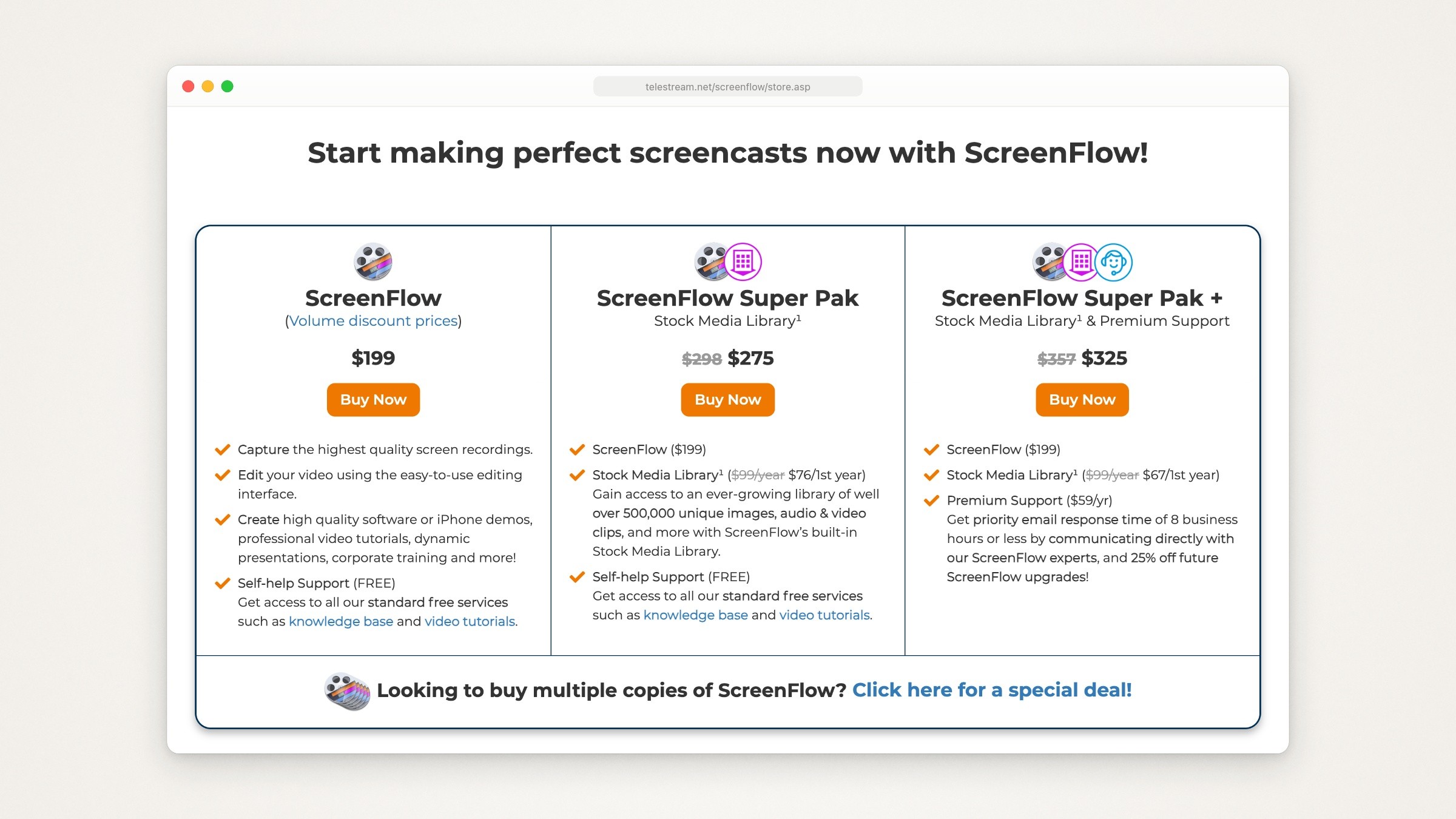
Telestream’s ScreenFlow store, captured September 24, 2026. The two bundles add its stock media library, and the second adds Premium Support.
Some pages that rank for this search quote ScreenFlow at $169 or $99. The store listed $199 on September 24, 2026, and the only $169 that turned up on Telestream’s site is a leftover page for its 2025 Black Friday sale (Telestream’s 2025 Black Friday page).
Where you buy changes the terms. Telestream’s tech specs page says a copy bought from Telestream allows one activation and typically gets a discount on paid upgrades. A Mac App Store copy installs on up to 5 Macs with the same Apple ID, gets no paid-upgrade discount (a new major version is full price), and can miss some USB cameras that use virtual camera drivers. Telestream’s upgrade page adds a way around the full price: a Mac App Store owner can use Telestream’s ScreenFlow Upgrade Tool to move to a Telestream license at the upgrade prices, and then ScreenFlow runs on one device at a time. Telestream refunds 100% within 30 days of a purchase from its online store, except the Stock Media Library (Telestream’s refund page).
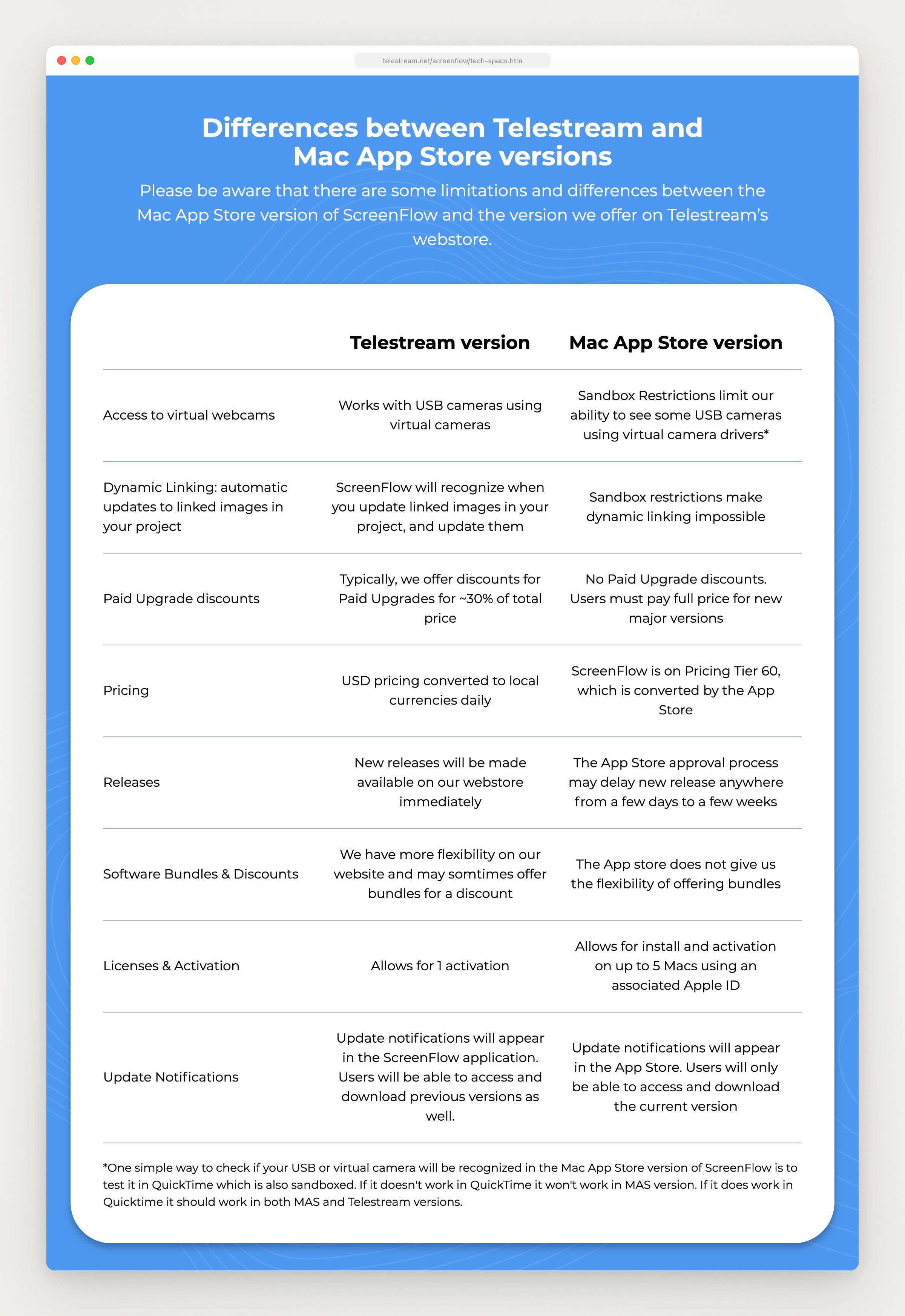
Telestream’s ScreenFlow technical specifications page, captured September 24, 2026: how its own version differs from the Mac App Store version.
The free version is fully functional and has no time limit, but what you export is watermarked, and you get the download by filling in a short form on the same page (ScreenFlow overview).
Camtasia: a yearly subscription
TechSmith sells the current Camtasia only as a yearly subscription. It says there has been no one-time license since Camtasia 2025, and that a perpetual license you already own keeps working (TechSmith’s note on the move to subscriptions). One older version still has a one-time price: the Mac App Store lists TechSmith Camtasia 2024 at $199.99, for macOS 13 or newer, and its listing says TechSmith supports and updates that version through December 31, 2026. Individuals pay yearly for the current version, on TechSmith’s Camtasia store:
Starter, $39: Camtasia Snagit for screenshots and recordings, and the Camtasia Editor, whose exports all carry a watermark. TechSmith’s plan table lists the Editor’s captions, PowerPoint import, quizzes and zoom and pan on Starter too, each marked watermarked.
Essentials, $179.88: the first plan without a watermark. It adds Camtasia Audiate: transcription, captions, text-based editing and filler-word removal. The plan card lists quizzes and SCORM export here.
Create, $249: adds AI script writing and more than 200 voiceover voices.
Pro, $599: adds AI avatars, translation and dubbing, premium stock assets and unlimited Screencast videos.
Against ScreenFlow, Essentials is the plan to weigh. The store lists a 14-day money-back guarantee with every plan. TechSmith’s Camtasia page says a license covers two devices for one user, while TechSmith’s note on subscriptions says a subscription installs on any number of computers but signs in on one at a time. Individual plans can’t be transferred; Teams and Business licenses, $198 per user a year, can be (Camtasia Teams pricing). If you cancel, the same note says you lose the subscription versions when the plan runs out, but you keep the videos you exported, and your projects still open and edit, with a watermark on new exports.
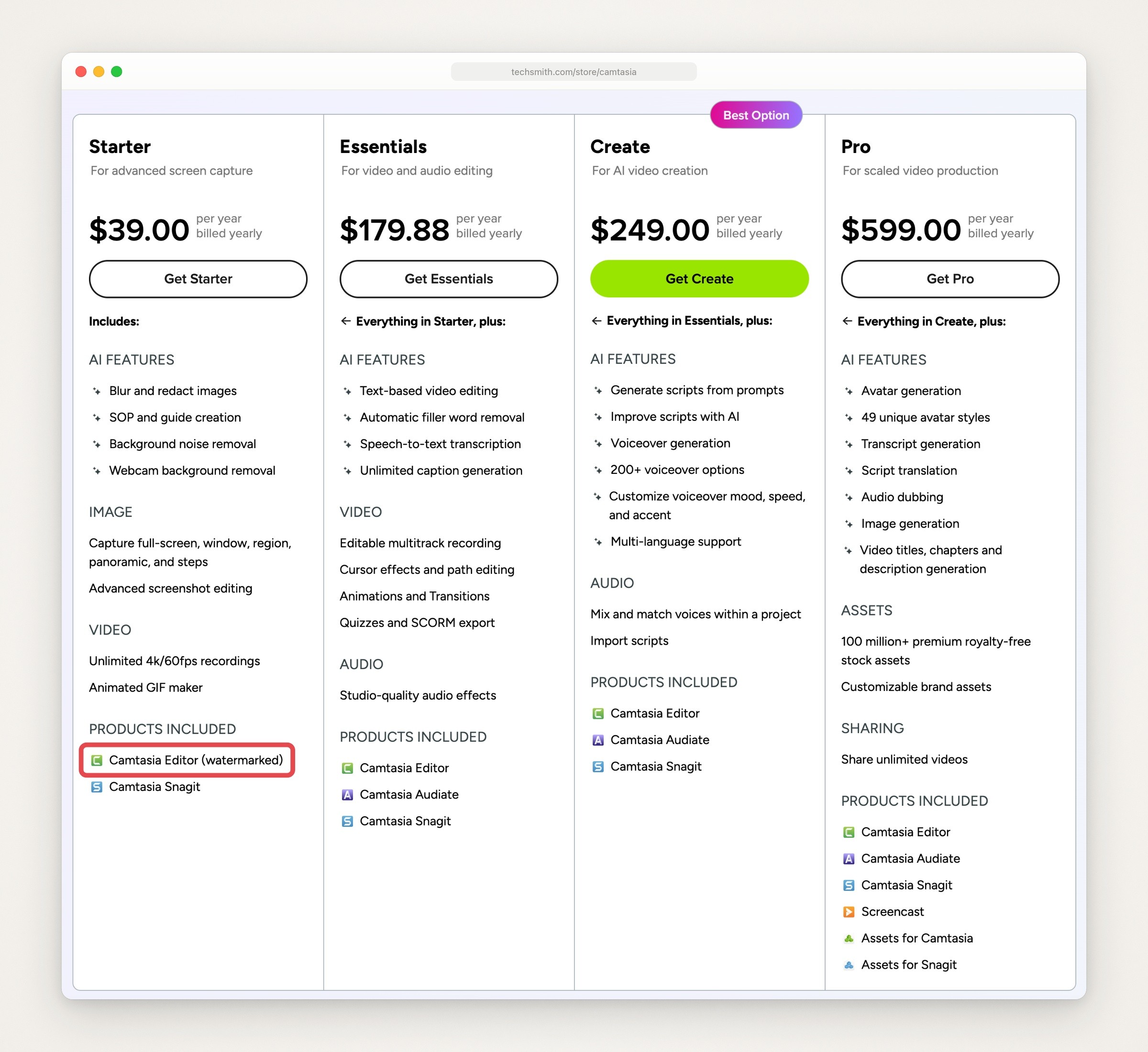
The four Camtasia plans on TechSmith’s store, captured September 24, 2026. The box, added by us, marks the watermarked editor in Starter.
The Camtasia Editor also downloads free, with no time limit, once you create a TechSmith account, and every video it exports carries a watermark until you are on Essentials or higher (Camtasia’s download page, TechSmith’s free trial article).
What the two cost over five years
What one person has paid in total, assuming no paid ScreenFlow upgrade and Camtasia’s Essentials plan renewing at today’s price:
After | ScreenFlow | Camtasia |
|---|---|---|
1 year | $199 | $179.88 |
2 years | $199 | $359.76 |
3 years | $199 | $539.64 |
5 years | $199 | $899.40 |
Camtasia is $19.12 cheaper in the first year, and ScreenFlow is cheaper from the second. The table leaves out ScreenFlow’s optional Stock Media Library and Premium Support. It also leaves out Camtasia’s Starter plan, which costs less but watermarks every export, and Camtasia 2024 from the Mac App Store, which TechSmith stops supporting after December 31, 2026.
What happens to your projects
Projects don’t move between the two. ScreenFlow saves documents that, its guide says, only ScreenFlow can open (ScreenFlow user guide). Camtasia saves projects as .cmproj files, and TechSmith says its .trec recordings can only be opened in Camtasia Editor (TechSmith’s files tutorial); its list of formats Camtasia imports on a Mac includes MP4, MOV, SRT and PowerPoint files but no ScreenFlow documents (Camtasia’s supported formats). What carries over is the exported video, and captions as an SRT file.
What each records
Both record the screen, camera, microphone and the Mac’s own sound in one take.
ScreenFlow added recording options in 10.5, on August 4, 2025: a screen region, leaving ScreenFlow or chosen apps out of the recording (or including only chosen apps), looped and timed recordings, and system audio with no driver to install, with each app’s audio recorded separately (ScreenFlow 10.5.2 release notes). Its guide says it captures at up to 60 fps, into .scc files that also keep mouse tracking and key presses for the pointer and keystroke effects. Version 10.0 added a warning for when the pointer will be burned into the recording, where it can’t be adjusted while editing (ScreenFlow’s version history).
Camtasia records up to 4K at 60 fps (Camtasia features). It puts screen, microphone, system audio and webcam on separate tracks and captures cursor data, so the pointer can be changed after recording (TechSmith’s Camtasia page). Recordings are .trec files that keep the cursor data (TechSmith’s files tutorial).
An iPhone or iPad app
Both record an iPhone or iPad connected by cable. ScreenFlow’s guide says it doesn’t record touches or swipes and suggests adding callouts to simulate them (ScreenFlow user guide). Camtasia records an iPhone directly only in its Mac version, and you add gesture effects that simulate taps, swipes and pinches, plus a device frame; TechSmith’s Capture app can also send a recording from the phone over your wireless network (TechSmith’s iOS recording tutorial). If your app runs in the iOS Simulator, how to record the iOS Simulator with taps showing covers four ways to show the taps.
Editing: what you place yourself and what the app places
The timeline and effects
Both are timeline editors with layers of media, and the difference is in what ships around them.
ScreenFlow has a multi-track timeline with nested clips, markers and color labels; transitions, text and video animations and freehand annotations; a library of animated titles; filters, including chroma key; a background-removal filter for camera video; document templates and style presets for editing a series of tutorials; and text-to-speech clips in one of six voices (ScreenFlow overview, ScreenFlow user guide).
Camtasia has multitrack editing, more than 150 transitions and more than 30 filters, animations, callouts, arrows, shapes, themes and templates, and AI background removal for camera video (Camtasia features). If you turn on Rev, its quick-layout workflow, it opens when you stop recording so you can pick a layout, a background and cursor effects in a few clicks (TechSmith’s Rev tutorial). Every plan includes a starter library of stock media, and Pro adds premium assets (TechSmith’s Camtasia store).
Zooms and the pointer
Camtasia can place zooms for you. In ScreenFlow you place them.
ScreenFlow describes no automatic zoom in its user guide. A zoom is a Scale change in a video action, or a callout that magnifies the area around the pointer or the front window by up to 500%. The pointer can be hidden, enlarged, restyled or smoothed, and given a click effect and keystrokes on screen (ScreenFlow user guide).
Camtasia has SmartFocus, which adds zooms and pans to recordings made with Camtasia Recorder from the cursor movement, scrolling and clicks it tracked, and lets you adjust each one (TechSmith’s auto zoom page). TechSmith says it is optimized for recordings longer than 30 seconds and suggests adding zooms by hand to shorter clips (Camtasia’s zoom tutorial). Since Camtasia 2026.0.0 for Mac (November 19, 2025), it is also a switch in Rev (Camtasia’s Mac version history). The pointer can be smoothed, enlarged or replaced, and its path edited (TechSmith’s plan table).
Before you trust any automatic zoom, check where each one lands. For fixing a pointer that wandered, how to hide, smooth or fix the cursor covers what a recorder can do before and after the take.
Slides and quizzes
Camtasia imports PowerPoint slides and records narration over them, and makes interactive quizzes that export as SCORM packages or MP4 for a learning system (Camtasia plan comparison). TechSmith’s plan table lists both in the Editor on every plan, watermarked on Starter, so Essentials is the first plan that exports them without a watermark. ScreenFlow’s overview and user guide mention no slide import, quizzes or SCORM.
Captions and narration
Camtasia makes captions from your audio. TechSmith’s plan table lists auto-generated closed captions, subtitles and caption export in the Editor on every plan, watermarked on Starter. Essentials, the first plan without a watermark, adds transcription, unlimited caption generation, editing the video as text and filler-word removal (TechSmith’s Camtasia store). Captions can be closed captions or animated social-style ones, and export as SRT, JSON or text files; Camtasia 2026.1.0 for Mac (April 14, 2026) added basic VTT import and export (Camtasia’s Mac version history).
ScreenFlow has a caption editor for adding, editing and publishing subtitles. You fill in caption boxes by hand or import an SRT file, then attach the captions to an MP4 or YouTube upload, burn them in, or export SRT. Its user guide describes no captions generated from speech. It can also turn typed text into speech with a Speech Clip, in one of six voices (ScreenFlow user guide); Camtasia’s Create plan adds more than 200 AI voices.
If you talk over your recordings, start with this difference. If your videos are silent, it doesn’t apply.
Performance on Apple silicon: what each vendor documents
None of the vendor pages read for this page gives a timing for its own app or a comparison with the other. What each one does document:
ScreenFlow has been a universal app since 9.0.6 (December 18, 2020). Its 9.0.7 release (January 19, 2021) turned on the hardware H.264 encoder for Apple silicon, and 10.0 (June 22, 2021) lists faster playback and export of screen recordings on Apple silicon, plus a camera recording system with smaller files and less CPU use while recording and editing. It asks for an Apple silicon or Intel Mac with 4 GB of RAM at least, and recommends a Core i3 or better.
Camtasia has been a universal app since 2021.0.1 (May 13, 2021), and the earlier 2020.0.19 update was one too. Its 2023.0.0 release (April 25, 2023) describes a new rendering engine that speeds up previews and exports. It lists 8 GB of RAM and an Intel 7th generation processor or newer as the minimum, and recommends an Apple silicon M1 Pro or M1 Max or newer with 16 GB.
The ScreenFlow notes above are in ScreenFlow’s version history and its requirements on the ScreenFlow tech specs page; Telestream’s ScreenFlow support page names 9.0.7 and 10.0.3 and later as the versions that officially support Apple silicon. ScreenFlow’s export settings also offer a Hardware Accelerated codec option (ScreenFlow user guide). For Camtasia, TechSmith’s Apple silicon compatibility article says 2020.0.19 and 2021.0.1 and later are universal apps, and the rendering engine line is from its Camtasia 2023 release notes. Each has also fixed bugs in exporting on M1 Macs: ScreenFlow a memory leak in hardware-accelerated exports (10.0.9, March 28, 2023), and Camtasia wrong colors and a 4K export problem (2021.0.9 and 2021.0.12, March and May 2022, in its Camtasia 2021 release notes).
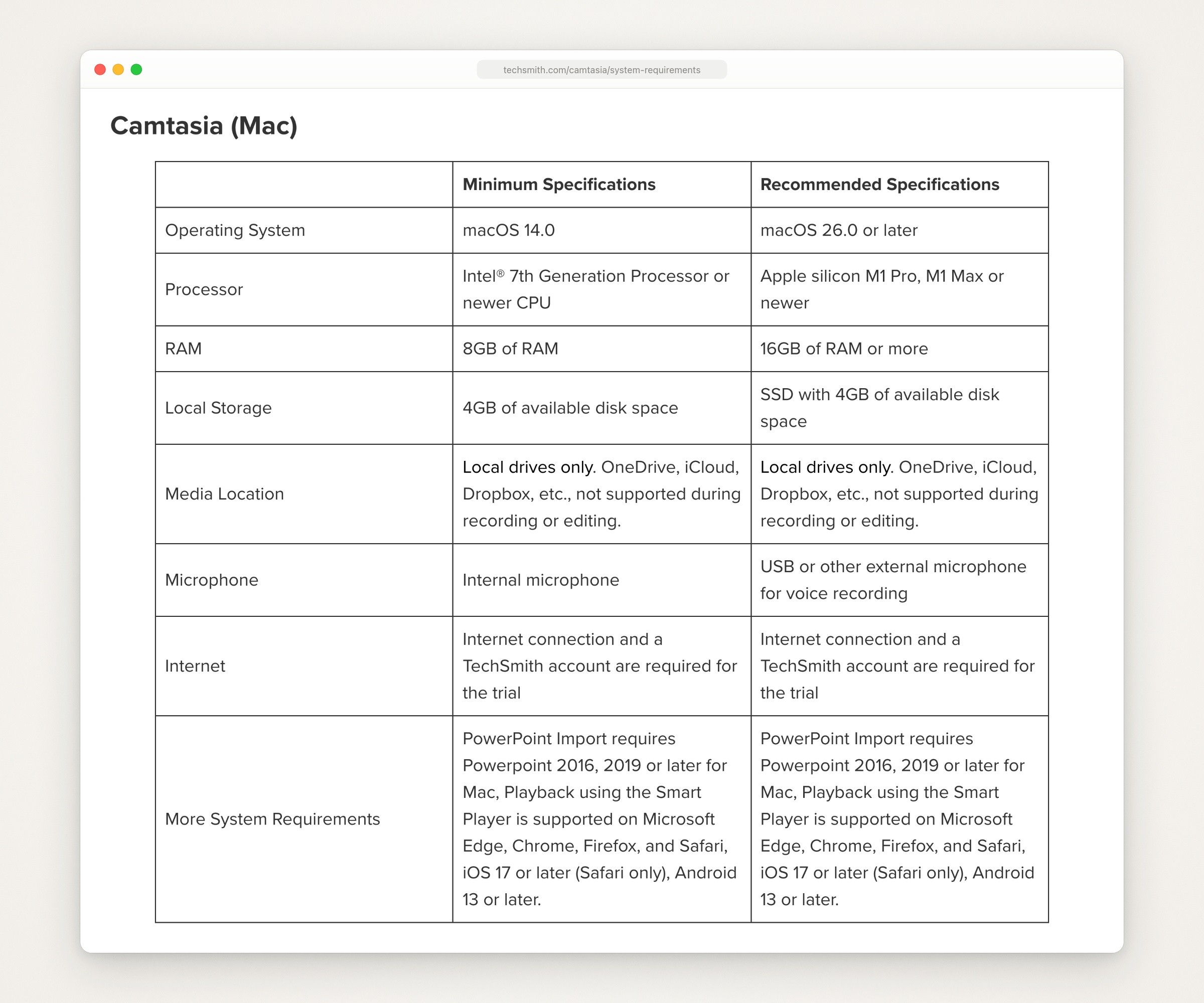
The Camtasia (Mac) requirements on TechSmith’s system requirements page, captured September 24, 2026.
So both run natively, and each vendor’s release notes mention faster exports. The one difference on paper is the hardware each asks for: Camtasia recommends an M1 Pro or newer with 16 GB and needs 8 GB at least, while ScreenFlow recommends a Core i3 or better and needs 4 GB at least. That is a spec, not a speed result. Comparison pages that call ScreenFlow lighter or faster on a Mac give no measurement, and nobody timed either app for this page. To find out on your Mac, export the same two-minute recording of your own app from both free versions at the same size and time it. Both watermark the export, which doesn’t stop the comparison.
Is ScreenFlow still being updated?
ScreenFlow’s last release with new features was 10.5 on August 4, 2025. Two fix releases followed: 10.5.1 on November 18, 2025 and 10.5.2 on February 12, 2026, which fixed a crash on macOS 26.2 or later. Nothing newer is listed in ScreenFlow’s version history as of September 24, 2026. Telestream still sells it, and the pages read show no end-of-sale notice.
Camtasia moves faster. Since ScreenFlow’s last release on February 12, Camtasia’s Mac version history lists ten Camtasia releases, the latest 2026.2.3 on September 22. Among them, 2026.2.0 on August 11 added a WebM export option and a way to build a training video from Snagit screenshots, and 2026.2.2 on September 10 added support for macOS 27.
That last point matters if you run macOS 27 or plan to. Telestream’s tech specs and version history, checked September 24, list macOS Tahoe 26 and Sequoia 15 (its store page still names Sequoia and Sonoma) and don’t mention macOS 27. That doesn’t mean ScreenFlow won’t run there, but check Telestream’s version history before you upgrade.
Exports and sharing
ScreenFlow exports MP4 (H.264, the default), HEVC, ProRes 422 and ProRes 4444 with an alpha channel, audio only (AIFF or AAC), animated GIF or APNG, an iOS App Preview preset, and 1080 vertical, 1080 square and 720 square presets. It exports batches, and publishes to hosts such as YouTube and Vimeo (ScreenFlow user guide).
Camtasia exports MP4, GIF, M4A or WebM to a file, in batches, or straight to YouTube or to Screencast, TechSmith’s hosting, which holds 25 videos free with your TechSmith account. An MP4 can carry captions, a quiz, SCORM reporting and a table of contents (TechSmith’s export tutorial).
If you need ProRes or HEVC out of your editor, ScreenFlow lists both and Camtasia’s export tutorial lists neither. If you need SCORM or WebM, it’s the other way round.
When neither is the answer
If you mostly record a Mac app and want the result to look edited without building it on a timeline, a recorder made around automatic zooms and a smoothed pointer takes less work; Screen Studio alternatives compares the Mac ones. If you only trim the ends of a recording, Apple’s Screenshot app (Shift-Command-5) and QuickTime Player may be enough (Apple’s guide to recording the screen, QuickTime Player’s trim guide), and how to record one window on a Mac walks through it.
When your agent makes the demo: Moonjar (our product, early access)
Moonjar is the Mac app I’m building, and it’s our product. It’s in early access and has no published price. It isn’t a replacement for ScreenFlow or Camtasia: the videos it makes have no sound, it doesn’t record a webcam, and it has no quizzes or slide import. You also don’t drag clips around a timeline yourself; your agent does the editing.
What it does instead: your coding agent (Claude Code, Codex, Cursor or any MCP client) makes product screenshots and demo videos from your real app through Moonjar’s MCP server, and redoes them when the app changes, while you watch in the Moonjar app.
Record. The agent rehearses every step off camera first, and you can watch the rehearsal in Moonjar. Moonjar records the iOS Simulator or a Mac window only once that rehearsal has passed.
Edit. The agent cuts the take, changes speed, adds zooms and captions, and names beats. On a Simulator recording it can show a mark where each tap landed, and on a Mac recording the pointer is its own layer, so it can be smoothed, moved or hidden. You review the cut in Moonjar and ask your agent for changes.
Keep. Every change is saved, and you can go back to any version. Moonjar doesn’t notice when your app changes; you ask your agent to redo the video in the same look.
Export. MP4, MOV, WebM or GIF.
Here is how much editing that means on one real take. On September 24, 2026, Claude Code rehearsed two taps in Ellie, the planner I build, on the iOS Simulator with its demo data, then recorded a 17-second take with Moonjar. It cut the take to 9.2 seconds in two clips, taking out 7.8 seconds, added a zoom at each tap and named two beats.
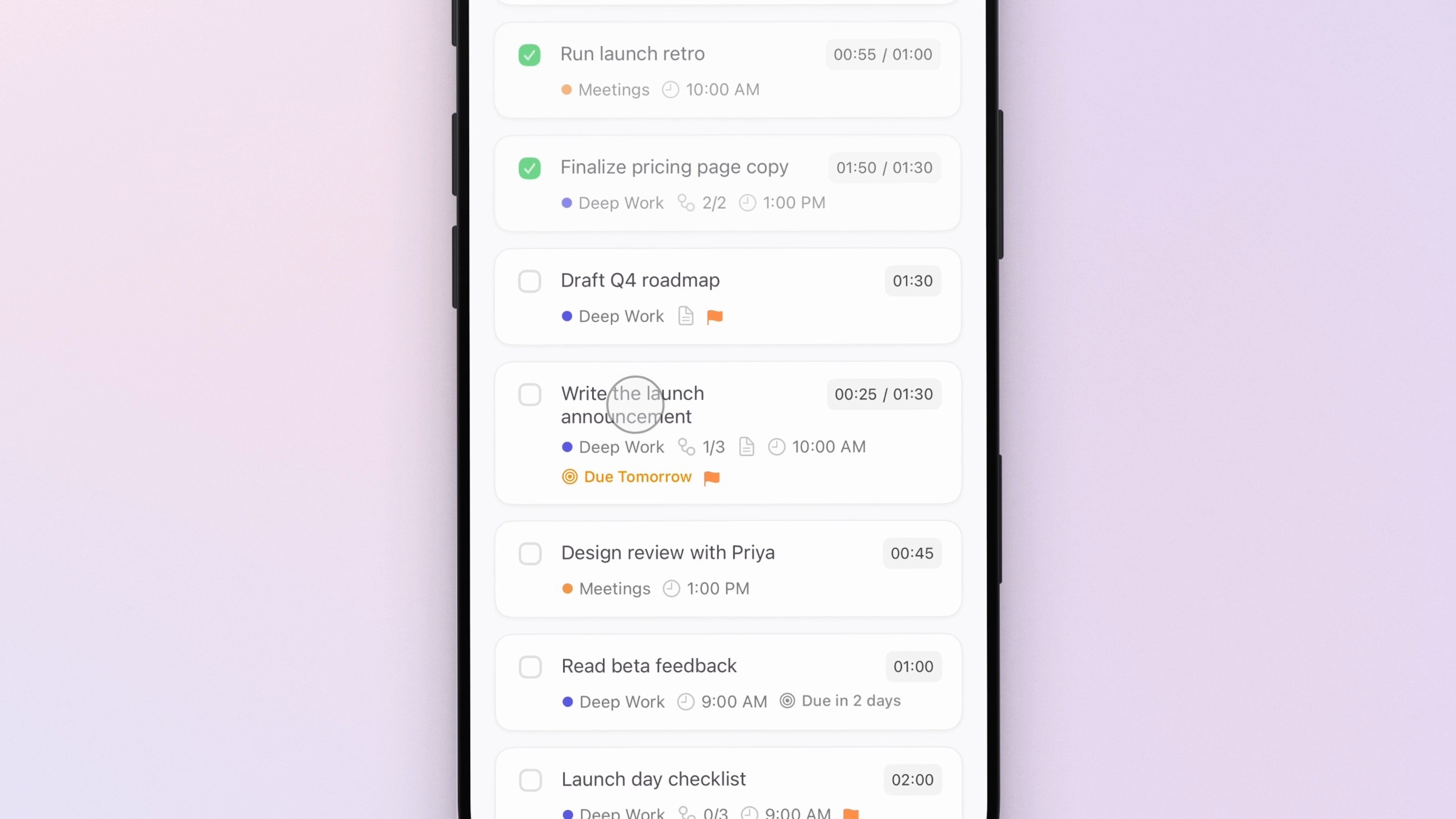
Made with Moonjar, our product: a frame from the 9.2-second cut Claude Code made on September 24, 2026 from a 17-second take of Ellie’s demo data on the iOS Simulator, inside the zoom on the second tap.
So if your videos carry a voice, a face on camera or a quiz, ScreenFlow or Camtasia is the tool. If they are short, silent walkthroughs of your own Mac app, or of your iOS app in the Simulator, and you’d rather ask for an edit than make it, see what Moonjar does, how it connects to your agent, or ask for early access (Mac only). How to make an app demo video covers the whole job, from planning the moments to exporting for each place it will play.
How this page was made
The prices, plans and features on this page were read from Telestream’s and TechSmith’s own pages and their Mac App Store listings on September 24, 2026, and those pages were saved. Moonjar, our product, took the four page screenshots the same day, each set in a plain browser frame. Nothing in them was edited except one box on TechSmith’s store, added by us and named in its caption. The cover shows the Camtasia and ScreenFlow product pages side by side on one of Moonjar’s gradient backgrounds. The Moonjar frame is from a take of Ellie’s demo data on the iOS Simulator that Claude Code rehearsed, recorded and cut in Moonjar on September 24, 2026. Neither ScreenFlow nor Camtasia was installed or tried, and the text was drafted with AI assistance.