
Snagit alternative for Mac: the right app for each job
Mac apps sorted by the Snagit job they take over, from marked-up screenshots and long pages to step guides and quick videos. Prices checked September 24, 2026.
Chris Raroque
·

No single Snagit alternative for Mac does everything Snagit does, but most of what people use Snagit for has a Mac app that costs less or nothing. The exceptions are step guides, templates and the library: the apps that turn your clicks on a Mac into a guide cost more than Snagit, and none of the apps here lists captioned layouts like Snagit’s templates or keeps every capture in a library you can search and tag. For screenshots with arrows, numbered steps and blur, CleanShot X comes closest: $35 once, with scrolling capture, text recognition, screen recording and share links in the same app. Shottr covers capture, markup and scrolling screenshots for $12 once, or free with reminders for personal use, and the Screenshot app built into macOS records your screen at no cost.
Disclosure: I build Moonjar, a Mac app your coding agent uses to capture and mark up screenshots of your own app, so it overlaps with one Snagit job: documentation screenshots. It’s our product and it’s in early access. Its arrows, numbered steps and blur are placed by the agent, not by hand, so it isn’t one of the picks; it has a separate box near the end. The cover and the page screenshots below were made with Moonjar, not with any of the apps compared here.
Snagit’s Step Capture, which turns your clicks into a numbered guide, is the hardest part to replace: Scribe and Tango build guides the same way, but both need a paid plan to capture a Mac app, from $22 a month billed yearly ($264 a year) against Snagit’s $39 a year. Of the Mac screenshot apps here, only Xnapper finds private details for you the way Smart Redact does, and it names fewer kinds. If it’s only the subscription you mind, the Mac App Store still sells Snagit 2024 for $49.99 once, but TechSmith’s updates for it end December 31, 2026, about three months after this check, and it lacks Step Capture and Smart Redact. Keep the current Snagit if you rely on Step Capture, Smart Redact, its templates or its library, or if you also work on Windows.
Checked September 24, 2026 against each vendor’s own pricing page, help center, release notes or App Store listing, and the sections below link the page each fact came from. No app was installed, bought or trialed for this page, so you’re reading what each vendor documents, not a verdict on how well it works. Prices are in US dollars.
Quick answer by what you use Snagit for
What you use Snagit for | Mac pick and price, Sept 24, 2026 |
|---|---|
Screenshots with arrows, numbered steps and blur | CleanShot X: $35 once, 1 year of updates |
The same, for less | Shottr: $12 once, or free with reminders for personal use |
Long pages and chats | CleanShot X or Shottr, as above; Firefox for web pages, free |
Step-by-step guides from your clicks | Scribe or Tango: free in a browser; Mac capture from $22 a month |
Captioned layouts from several screenshots (Snagit templates) | None of these lists them: keep Snagit; its extra layouts are $49.99 a year |
Private details found for you | Xnapper: $29.99 once; or keep Snagit, $39 a year |
A searchable, taggable library of every capture | None matches it: keep Snagit, or export first; CleanShot X keeps a month of history |
Quick screen recordings | macOS Screenshot, free; CleanShot X to polish them, $35 once |
Recordings edited on a timeline | Capto: 15-day trial, then a $49.99 lifetime pack |
Videos shared as a link | Loom: free for 25 videos of up to 5 minutes |
Mac and Windows, paid once | ScreenSnap Pro: $39 once for 2 computers |
Snagit without the subscription | Snagit 2024 on the Mac App Store: $49.99 once; updates end Dec 31, 2026 |
Free and open source | BetterShot: free, macOS 26 or newer |
Tango’s $22 is per user a month, billed yearly, for one or two users; Tango and Scribe both charge less per seat for a team. Each section below lists every plan and its source.
What Snagit costs on a Mac now
Snagit is a subscription now. TechSmith sells new versions only as yearly subscriptions, starting with Snagit 2025, which came out on February 12, 2025 (TechSmith’s note on the move to subscriptions). Snagit Individual is $39 per user a year, billed yearly. It’s tied to the account you sign in with, not a license key, and a personal subscription can’t be transferred (TechSmith’s Snagit store). There’s a 14-day money-back guarantee, and Snagit’s FAQ offers a 15-day free trial but no free version.
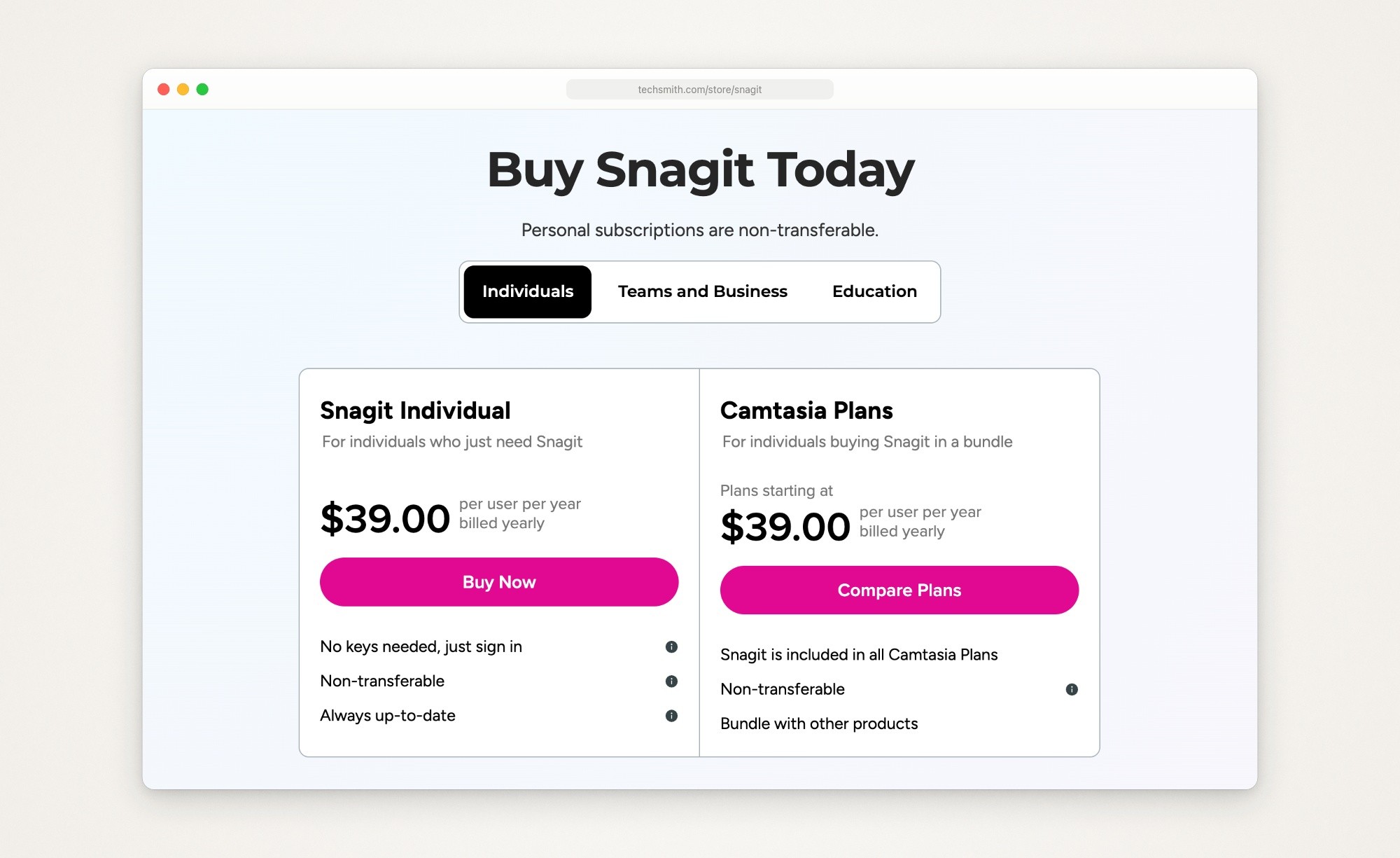
TechSmith’s Snagit store page, captured September 23, 2026.
Snagit is now part of TechSmith’s Camtasia suite, and its pages call it Camtasia Snagit. Every Camtasia plan includes it. The cheapest, Starter, is also $39 a year and adds the Camtasia Editor with a watermark on its videos; Essentials, at $179.88 a year, removes the watermark (Camtasia pricing).
Three more things matter on a Mac:
It needs a recent macOS. Snagit’s system requirements list macOS Sequoia 15, Tahoe 26 and Golden Gate 27, and the Snagit 2026 release notes say it no longer supports macOS 14 Sonoma; the store page still says macOS 14 or newer. The latest Mac version is 2026.3.3, from September 14, 2026 (Snagit Mac 2026 version history).
It checks in online. TechSmith’s subscription FAQ says Snagit needs the internet to activate and then once every 90 days.
Canceling keeps what you already paid for. If you cancel, the subscription version keeps working until the paid period ends. Any version you bought outright before the switch stays yours to use, and the same FAQ says TechSmith supports Snagit 2024 through December 31, 2026, or through October 2, 2027 if you had a maintenance agreement.
That older version is still for sale. The Mac App Store lists TechSmith Snagit 2024 at $49.99 once, for macOS 13 or newer, and its description says TechSmith will support and update it through December 31, 2026 (TechSmith Snagit 2024 on the Mac App Store). TechSmith’s FAQ says App Store copies won’t be updated beyond version 2024, and that version predates Step Capture and Smart Redact, which both arrived in Snagit 2025 (Snagit Mac 2025 version history).

The Mac App Store listing for TechSmith Snagit 2024, captured September 23, 2026. Its description says TechSmith supports and updates this version through December 31, 2026.
Here is what one person on one Mac pays over three years to keep getting updates, from each vendor’s own terms:
App | Paid over three years |
|---|---|
Snagit Individual | $117 ($39 a year) |
Snagit 2024, Mac App Store | $49.99 once, but updates end Dec 31, 2026 |
CleanShot X Basic | $73 ($35, then $19 a year to renew updates) |
Xnapper Basic | about $66 ($29.99, then renewals at 40% off) |
Shottr Basic | $12 (once; no renewal listed) |
ScreenSnap Pro | $39 (once; updates included) |
macOS Screenshot, BetterShot | $0 |
With CleanShot X and Xnapper you can stop renewing and keep the version you have, so the year-one price is the floor.
Some pages that rank for this search still price Snagit as a one-time purchase. ScreenSnap Pro’s Snagit alternatives post, updated May 20, 2026, gives $63 for a license plus $25 a year for maintenance, and DrawShot’s Snagit alternative post, from June 8, 2026, gives about $60 to $65 once. TechSmith’s own store sells Snagit only as a subscription, $39 a year for one person.
Screenshots with arrows, callouts and step numbers
This is the everyday Snagit job: grab part of the screen, point at something with an arrow or a callout, number the steps, blur a name, and paste the result into a doc or a chat.
CleanShot X
Best for: most of Snagit’s everyday markup in one Mac app you pay for once.
What it costs (checked September 24, 2026): $35 once for CleanShot Basic, which includes a year of updates and 1 GB of CleanShot Cloud; when the year ends the app keeps working, and another year of updates is $19. CleanShot Pro, $10 per user a month on yearly billing, adds unlimited Cloud storage, and its plan table puts password-protected links on Pro only. There’s no trial, only a 30-day money-back guarantee, but Setapp, which includes CleanShot X, has a 7-day trial (CleanShot pricing).
Runs on: macOS 13.0 or newer. The pricing FAQ says there’s no Windows version and no plan for one.
What it has for this job, from CleanShot’s features page: arrows in four styles, a Counter tool for numbered steps, text in seven styles, a highlighter, a spotlight, blur, pixelate and a filled rectangle, plus pencil, line, rectangle and ellipse. You can drop several screenshots into one image and save an editable project file. Around the markup: scrolling capture that works in any app, text recognition on your Mac in more than 30 languages, screenshots that float above other windows, up to a month of capture history, screen recording, and CleanShot Cloud links with comments. Version 5.0, on September 1, 2026, brought a new video editor with smart zooms (CleanShot changelog).
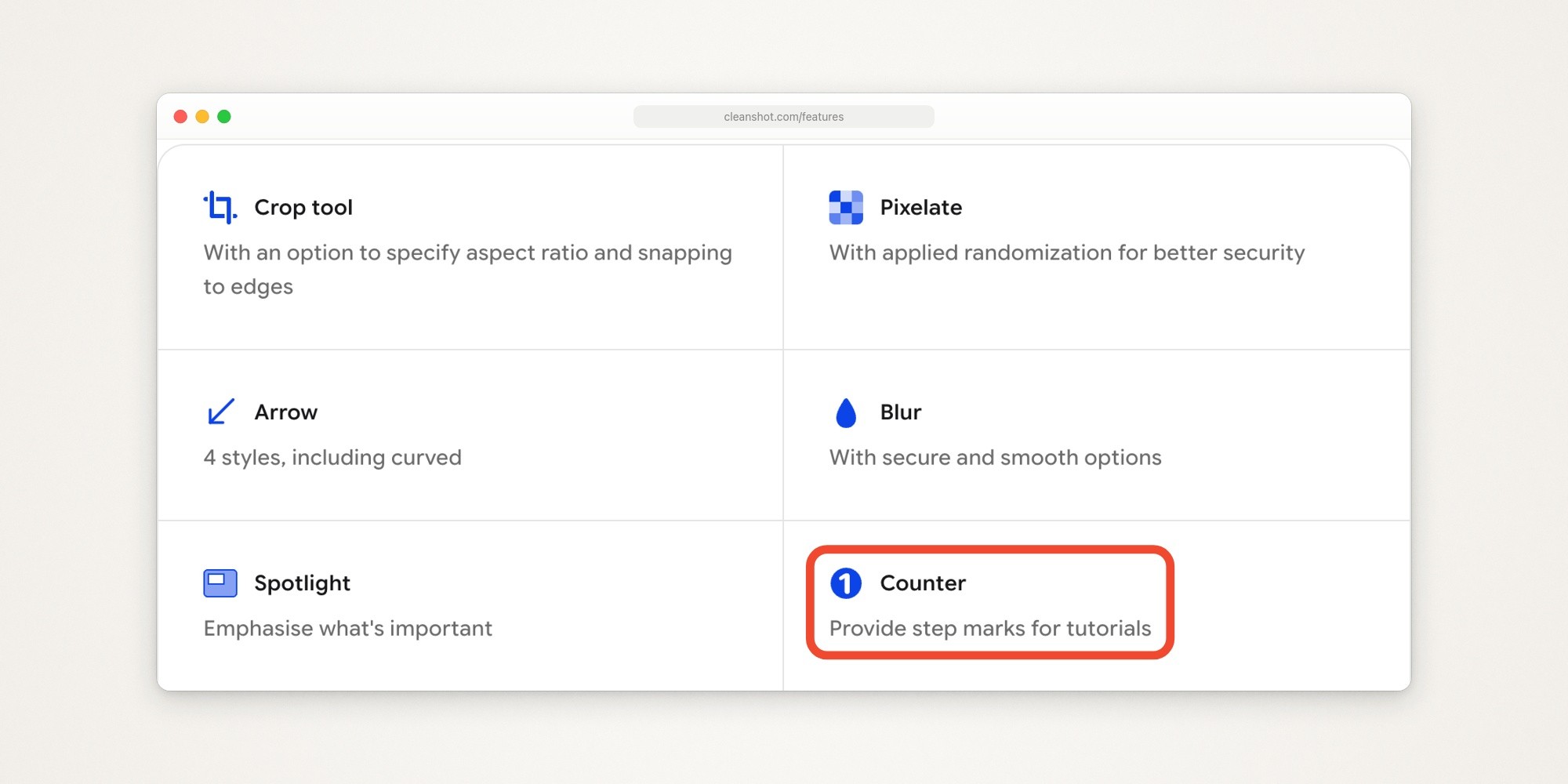
The first annotation tools on CleanShot X’s features page, captured September 23, 2026. The outline around Counter, its tool for numbered steps, was added with Moonjar, our product.
The catch:
Nothing finds private details for you. You place each blur, pixelate or filled rectangle yourself, and the filled rectangle is the one to use for anything that must stay private.
No step guides or templates: numbered steps are counters you add one screenshot at a time.
No permanent library. Capture history keeps up to a month, and the searchable archive is CleanShot Cloud, which holds only what you upload.
For the other apps in CleanShot X’s lane, including Xnapper, Zight and Jumpshare, see CleanShot X alternatives.
Shottr
Best for: capture and markup at the lowest one-time price, with a ruler and color picker for UI work.
What it costs (checked September 24, 2026): free for as long as you want, but after 30 days it asks you now and then to buy it. Commercial use needs a license: Basic is $12 once, for one person on up to five computers, and Friends Club, $30 once, adds experimental features and better support (Shottr’s purchase page).
Runs on: macOS 10.15 Catalina or later. The current version, 1.9.2, came out on September 17, 2026 and improved compatibility with macOS 27 (Shottr’s homepage).
What it has for this job: a step counter tool (added in version 1.5.4, July 2022), text labels that come with a pointer, arrows you can bend, highlights and spotlights, and pixelate or remove, with a text mode that hides only the text. Around the markup: scrolling screenshots in any app or window, text recognition that also reads QR codes, several screenshots combined into one, pinned screenshots, a screen ruler and a color picker.
The catch:
No screen recording is listed.
Sharing is basic. Shottr’s upload help says a link goes to your own S3 bucket or to Shottr Cloud, which needs a free token: licensed users get one right away, others ask by email and may wait weeks. Every Shottr Cloud upload is public to anyone who has or guesses the link, so don’t upload anything private there.
Activating a license needs an internet connection, and the app sends telemetry, with nothing personal or identifying in it, which you can turn off in its preferences, per Shottr’s homepage.
macOS Screenshot and Markup
Best for: an occasional arrow or box, with nothing to install.
What it costs: nothing; it comes with macOS.
What it has for this job: Shift-Command-3 captures the whole screen, Shift-Command-4 an area, and Shift-Command-4 then the Space bar a window; hold Option to leave out the window’s shadow. Shift-Command-5 opens the Screenshot app, with a timer and a save location (Apple’s screenshot guide). Click the thumbnail that appears to mark up the screenshot (Apple’s Mac User Guide on screenshots). Markup’s tools include shapes with a fill color, text, a highlight, a loupe that magnifies part of the image, and crop.
The catch: Apple’s guides list no blur or pixelate tool, no numbered steps and no scrolling capture. To hide something private, cover it with a shape filled in a solid color.
Also for this job: ScreenSnap Pro, if you use Windows too
ScreenSnap Pro’s pricing page sells it for $39 once: one license with two seats, Mac or Windows in any mix, with every future update and a 30-day money-back guarantee. Its 15 annotation tools include a callout, a counter and a filled rectangle, and it records the screen or a GIF with webcam, microphone and system audio. ScreenSnap Pro’s FAQ lists macOS 15.0 or newer and Windows 10 and 11, and no time-limited trial. For long pages it has website capture, which renders a page from its URL on ScreenSnap’s side; its own Snagit post lists no scrolling capture yet. That post is one of the lists that rank for this search, and it puts ScreenSnap Pro first.
Long pages and scrolling capture
Snagit’s scrolling capture grabs a long web page or a wide spreadsheet in one image, vertically or horizontally (Snagit’s scrolling capture page). On a Mac:
CleanShot X has scrolling capture that works in any app, vertical or horizontal (CleanShot’s features page).
Shottr takes scrolling screenshots of long pages or chats, in any app or window (Shottr’s homepage).
Firefox captures a whole web page for free: press Command-Shift-S, or right-click the page and choose Take Screenshot, then Save full page (Firefox’s screenshot help).
Chrome’s DevTools can also capture a full-page screenshot (Chrome’s DevTools screenshot tips).
macOS Screenshot has no scrolling capture.
Firefox and Chrome capture only web pages. For a long chat or a document in a Mac app, you need CleanShot X or Shottr. To set a captured page in a clean browser frame afterward, see how to make a browser window mockup.
Step-by-step guides and templates
Snagit’s Step Capture records a numbered screenshot for each click as you work through a task, and turns them into a guide (Snagit’s Step Capture page). On a Mac it sends the guide to Word, Pages, PowerPoint or Keynote, or exports it as HTML or Markdown (Snagit Mac 2026 version history, Snagit Mac 2025 version history). Its templates combine several screenshots with captions and optional step numbers, for a side-by-side comparison, a process or a timeline (Snagit’s templates tutorial). More layouts come with TechSmith Assets for Snagit, $49.99 a year per user on its own (TechSmith Assets for Snagit) or included in the $599 a year Camtasia Pro plan.
No Mac screenshot app above builds guides from your clicks. Two web services do:
Scribe
Best for: turning a process you click through into a written guide you share as a link.
What it costs (checked September 24, 2026): Basic is free and works in your browser with any web app. Pro Personal is $25 a seat a month billed yearly, or $35 billed monthly, and adds capture of desktop and mobile apps, editing and redacting screenshots, and export to PDF, HTML and Markdown. Pro Team is $13 a seat a month billed yearly, or $17 monthly, from five seats (Scribe pricing).
Runs on: the web, plus a desktop app for Mac that lives in the menu bar; Scribe’s Mac desktop app help puts Target capture on Pro and Enterprise plans only, and Autocapture on Enterprise only.
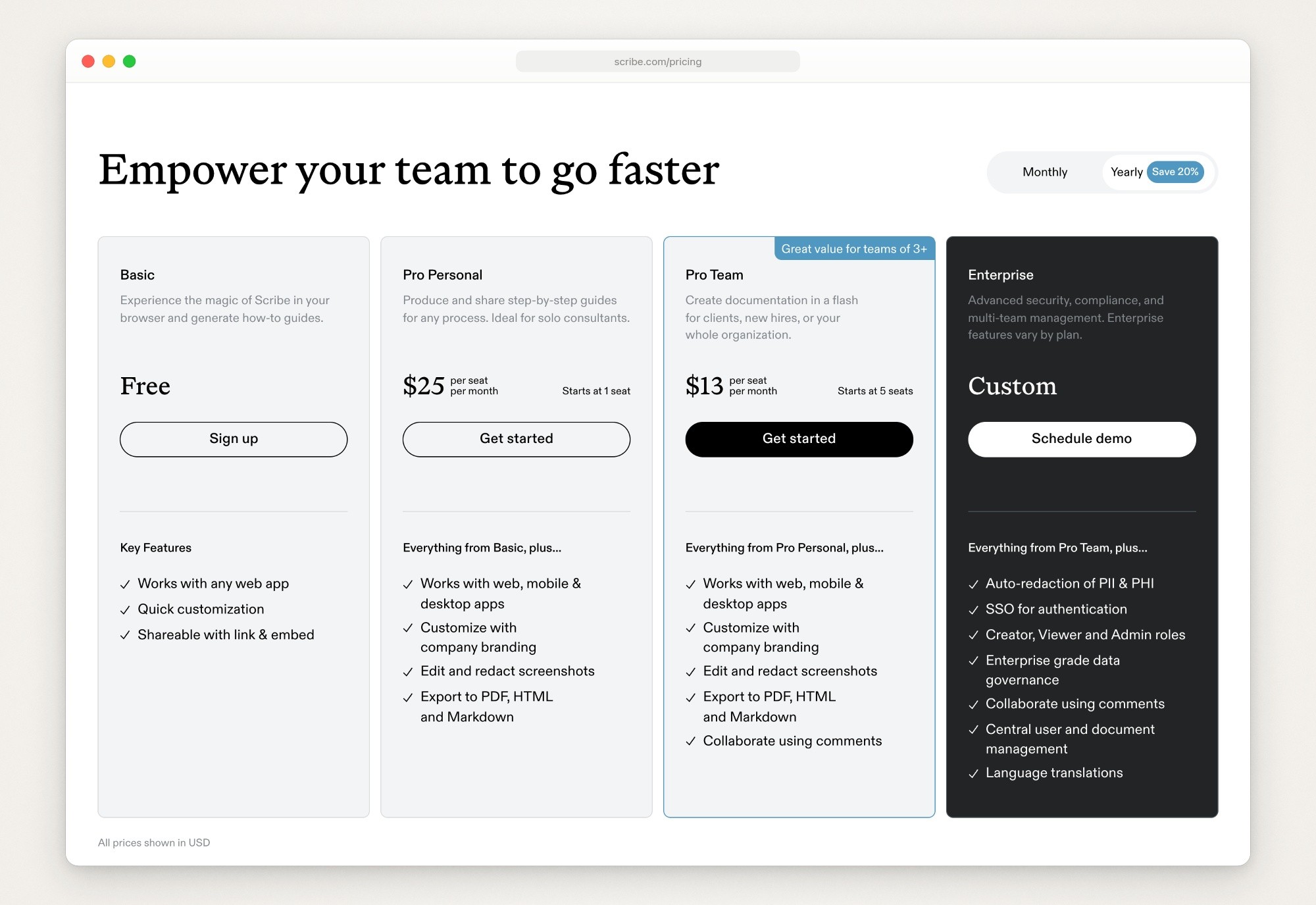
Scribe’s pricing page as it loads, with yearly billing selected, captured September 23, 2026.
The catch: it’s a web service you sign up for, guides are shared as links or embeds, and capturing a Mac app takes a paid seat.
Tango
Best for: the same click-to-guide job, with a cheaper paid plan for one person.
What it costs (checked September 24, 2026): the free plan allows 5 shared workflows with browser capture. Pro is $22 per user a month billed yearly for one or two users ($26 monthly), or $15 for three or more ($20 monthly), and adds desktop capture, export to PDF, Markdown and HTML, and screenshot annotation and blurring (Tango pricing).
Runs on: the web, and a desktop app for Macs with Apple silicon or Intel chips and for Windows 10 and 11, on Pro and Enterprise (Tango’s desktop capture help).
The catch: like Scribe, it’s a cloud service with an account, and workflows are stored in its web app.
If what you use is templates rather than Step Capture, several screenshots in one captioned image, CleanShot X and Shottr can both combine several screenshots into one, but neither lists captioned layouts like Snagit’s. For what to capture and how to mark it up in a help article, see screenshots in documentation.
Private details found and covered for you
Snagit’s Smart Redact finds addresses, credit card numbers, dates, emails, faces, IP addresses, phone numbers, social security numbers and URLs in a screenshot, lets you switch each type on or off, and covers them with a blur, pixelation or black bars (Snagit’s Smart Redact page). It arrived in Snagit 2025, so the $49.99 Snagit 2024 doesn’t have it. Elsewhere:
Xnapper finds emails, credit card numbers, IP addresses and API keys and hides them “with a single click”, per Xnapper’s homepage, and its changelog names credit cards, IP addresses and API keys as automatic. That’s four kinds it names against Smart Redact’s nine, and API keys aren’t on Snagit’s list. Its changelog mentions both colored and pixelated redactions, so check which one your file got before you share it. It’s free with a watermark, or $29.99 once for one Mac with a year of updates, for macOS 10.15 or newer (Xnapper pricing). The rest of its lane is in Xnapper alternatives.
Scribe and Tango put automatic detection on their Enterprise plans, at custom prices: Scribe lists auto-redaction of personal and health information, and Tango automatic detection and redaction of personal information.
Every other app here leaves it to you: you find the detail and place the cover.
However the detail is found, cover it with something solid if it must stay private. CleanShot X’s features page describes its pixelate as randomized “for better security” and its blur as having a secure option, so check what your app’s blur or pixelate does before you rely on it. A solid cover replaces what was there: Snagit’s black bars, a filled rectangle in CleanShot X or ScreenSnap Pro, a shape filled with color in Markup, or Shottr’s remove tool.
Quick videos and GIFs
Snagit records the screen with your voice, system audio and a webcam picture-in-picture, trims and joins clips, turns a video into a GIF, and copies a share link in one click (Snagit’s FAQ, Snagit’s screen recorder page). On a Mac:
macOS Screenshot records the entire screen, a selected portion or, on macOS Tahoe 26 or later, one window, with a microphone, a timer and a black circle around each click; macOS 27 Golden Gate adds system audio (Apple’s screen recording guide). Click the thumbnail to trim the recording. It saves a .mov, and Apple’s guide lists no GIF export; for that, see how to turn a Mac screen recording into a GIF.
CleanShot X records MP4 video or a GIF, with your camera, microphone, computer audio, clicks and keystrokes, and its 5.0 editor adds smart zooms, a smoothed cursor, backgrounds and motion blur (CleanShot’s features page).
Capto keeps Snagit’s mix of capture, markup and video editing in one Mac app. It records the screen with your camera and with system and microphone audio, cuts, crops, joins and trims clips on a timeline, and puts arrows, callouts, text and blur on video (Capto’s feature comparison). The Capto listing on the Mac App Store is a free download with a 15-day trial of every feature and in-app lifetime packs up to $49.99; exports carry a watermark during the trial. It needs macOS 10.14 or later, and its latest version, 2.1.4, came out on January 6, 2026.
Loom is for videos you send as a link. The free Starter plan allows 25 videos per person, 5-minute recordings and 720p video; Business is $18 per user a month, billed monthly (Loom pricing).
For polished demos, Screen Studio is $29 a month, or $9 a month billed yearly (Screen Studio’s homepage), and ScreenFlow, a full editor, starts at $199, with a free trial whose exports carry a watermark (ScreenFlow overview). Screen Studio alternatives compares the demo recorders.
A library of every capture
Snagit keeps every capture in a library you can search and tag, and it can find text inside your screenshots (Snagit’s FAQ). By their own pages, the apps here keep less:
CleanShot X keeps up to a month of capture history, and CleanShot Cloud finds what you upload by its content, transcripts and tags.
Monosnap has a Latest Uploads gallery where you can filter and search the files you’ve uploaded to it, per Monosnap’s release notes on the Mac App Store.
Capto puts captures and recordings in folders by default, and you can add rules for which folder each one goes to (Capto’s homepage).
BetterShot lists a searchable Media Gallery of your screenshots, recordings and saved share links in its README, with no mention of tags (BetterShot on GitHub).
Shottr lists no capture history; Command-S saves a screenshot to a folder you choose.
macOS Screenshot saves to the Desktop, or to a folder you pick in the Screenshot app’s Options.
If the library is what you’d miss, export it before you cancel (see below) and keep the files in a folder you back up.
Snagit vs CleanShot X
If it’s down to these two, here is how they compare on each vendor’s pages, September 24, 2026:
Platforms: Snagit’s license covers Mac and Windows; CleanShot X is Mac only.
Price: Snagit is $39 a year. CleanShot Basic is $35 once with a year of updates, then $19 a year if you want more.
macOS: Snagit 2026 needs macOS 15 or newer; CleanShot X needs macOS 13.
Markup: both have arrows, text, step numbers, highlights, a spotlight, blur and pixelate. Snagit adds callouts, text boxes joined to an arrow.
Private details: Snagit’s Smart Redact finds nine kinds and covers them for you. In CleanShot X you place each cover yourself.
Guides: Snagit has Step Capture and templates; CleanShot X has neither.
Long pages and text: both have scrolling capture and text recognition.
Finding old captures: Snagit keeps every capture in a library you can search and tag. CleanShot X keeps up to a month of history, plus whatever you upload to its Cloud.
Video: both record the screen with a camera and audio, trim recordings and make GIFs. CleanShot X’s 5.0 editor adds smart zooms (CleanShot changelog); Snagit can combine clips and open a recording in the Camtasia Editor (What’s new in Snagit).
Trying it: Snagit has a 15-day trial and a 14-day money-back guarantee; CleanShot X has no trial, a 30-day money-back guarantee, and a 7-day trial through Setapp.
Pick Snagit if you write step-by-step guides, need redaction done for you, or share captures with Windows colleagues. Pick CleanShot X if you work on a Mac and mostly capture, mark up, record and send.
Free Snagit alternatives for Mac
Free on September 24, 2026:
macOS Screenshot and Markup. Screen, area and window captures, a timer, shapes, text and a loupe, and screen recording (see above).
Shottr, unpaid. Most features keep working, with a reminder to buy now and then; commercial use needs the $12 license.
Xnapper, unpaid. Free to use, with a watermark on your screenshots until you buy a license.
Monosnap, unpaid. For non-commercial use only: area, window and full-screen captures, arrows, text, shapes and blur, screen recording, and 2 GB of Monosnap storage once you sign in. Commercial use is $14.49 a month or $85.99 a year, and the current version needs macOS 14.6 or newer (Monosnap on the Mac App Store).
Firefox. Full web pages with Save full page.
BetterShot. Open source, for macOS 26 or newer (BetterShot on GitHub). Its README lists arrows, shapes, text, numbered markers, highlights, blur and pixelate, text recognition, screen recording with an editor, and share links to your own Cloudflare R2 storage. Its own code is BSD 3-Clause, but the rendering it adapted from Cap is AGPLv3 and its notch feature includes GPLv3 code, which matters if you plan to modify and redistribute it. Version 0.5.6 came out on September 21, 2026.
Scribe Basic and Tango Free. Step guides, captured in the browser only.
Loom Starter. Up to 25 videos of up to 5 minutes each.
Skitch and Lightshot, which some lists still recommend, are free on the Mac App Store, but neither Mac app has been updated in years: Skitch’s listing shows version 2.9, from July 7, 2020, as the latest (Skitch on the Mac App Store), and Lightshot’s shows version 2.22, from July 26, 2019 (Lightshot on the Mac App Store).
Before you cancel Snagit
Export your library first. TechSmith’s help center says to use Batch Convert Images while your subscription or trial is still active, which saves your .snagx captures as standard images such as PNG or JPG. Videos and GIFs are already stored as .mp4 and .gif files in the Snagit Library folder, so you can copy them in Finder (how to export your Snagit library).
Keep the .snagx originals if you might come back. Snagit saves a capture as .snagx so you can edit it later (Snagit’s templates tutorial); the exported copies are ordinary images.
Try your top two on one real task. Most of these cost nothing to try: Shottr and BetterShot are free, Xnapper works with a watermark, Capto has a 15-day trial, CleanShot X comes with a 30-day money-back guarantee or Setapp’s 7-day trial, and Scribe and Tango have free plans. Redo one screenshot you made in Snagit recently, with the same arrows, numbers and blur, and keep the app that got you there with the least hunting.
Where Moonjar fits (our product, in early access)
Moonjar is our product, and it isn’t a Snagit replacement. It’s a Mac app in early access, with no published price, and it doesn’t run on Windows. There’s no toolbar for marking up a screenshot yourself, no text recognition and no share links, and it doesn’t search a screenshot for private details.
What it covers is one Snagit job, done another way: screenshots of your own app for help articles and docs, which your coding agent makes from the real app and can make again after a release changes it. The agent can be Claude Code, Codex, Cursor or any MCP client, connected through Moonjar’s MCP server.
Capture. The agent captures the iOS Simulator with a clean 9:41 status bar, a Mac window, or a web page, including its whole scroll height. To get your app to the right screen, it uses its own computer use; Moonjar itself doesn’t click or type.
Marks. It places arrows, lines, boxes, circles, freehand drawing, highlighter strokes, text, numbered steps, and pixelate or blur. On a Simulator capture the agent can name the button it means instead of measuring it. In the exported image a pixelate or blur mark replaces the pixels under it; for anything truly private, a filled box is the safer mark.
Redo. Every item keeps its history, and each product can have written guidelines the agent reads first. When a release changes the screen, you ask the agent to capture it again with the same marks and look. It doesn’t watch for changes on its own.

Made with Moonjar, our product: Ellie’s Repeat task screen with demo data, captured from the iOS Simulator on September 16, 2026 and set in an iPhone frame on September 23, 2026, with numbered steps and an arrow that Claude Code placed. The numbers are the steps: 1 choose Every weekday, 2 turn on At specific time?, 3 pick the time, then tap Done.
If you want to mark up screenshots by hand, pick one of the apps above. If you keep a help center full of screenshots of your own app and redo them every release, see what Moonjar does or ask for early access (Mac only). Either way, how to keep help center screenshots up to date covers the routine.
How this page was made
Everything here about other apps comes from their own pages, TechSmith’s help center and the Mac App Store, read on September 23 and 24, 2026, with every price checked again on September 24. Moonjar, our product, captured those pages for the screenshots above, which sit in a plain browser frame, cropped to the part that matters and otherwise unchanged, apart from the outline we added around CleanShot X’s Counter tool. The cover sets the Snagit, CleanShot and Tango homepages together on one of Moonjar’s gradient backgrounds. The Moonjar example uses demo data from Ellie, the planner I build. The text was drafted with AI assistance.